Blog
-
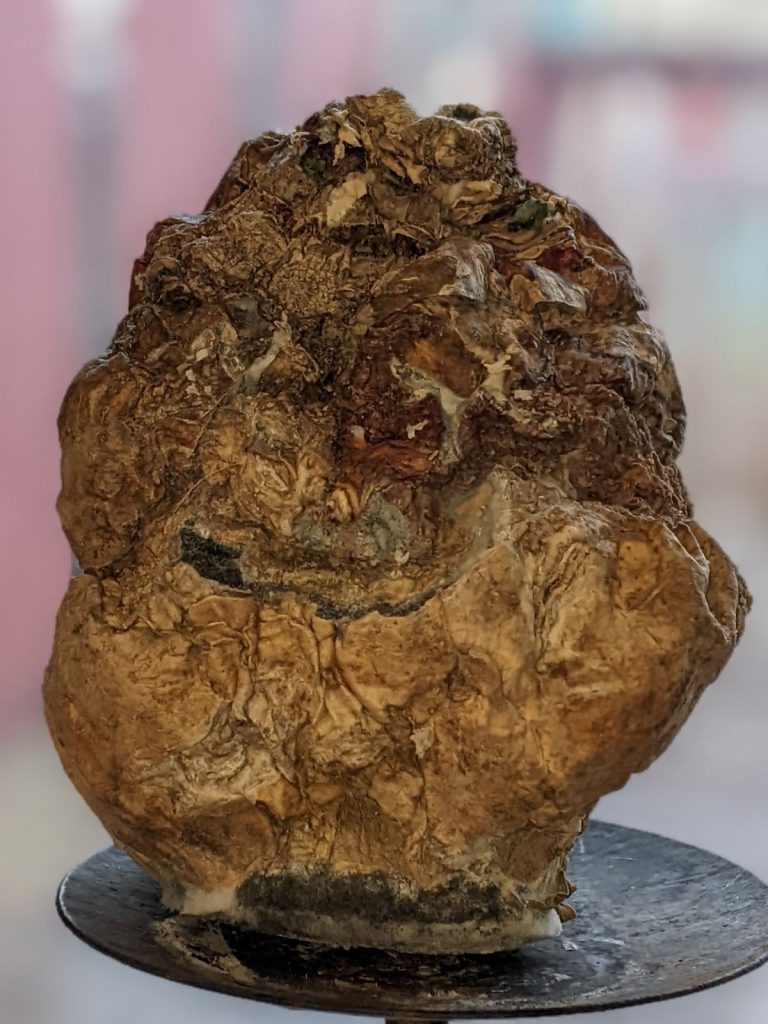
looks like your dodgy uncle

time hasn’t been kind to the neep lantern‘s fizzog -
I (U+1F494, BROKEN HEART) UTF-8
Something has gone very wrong with the database encoding on this blog after a recent update, so all my lovely UTF-8 characters have gone mojibake.
Trying to find ways to fix it. It may have to be manual. Remember, kids: have backups before letting WordPress upgrade!
Here’s the Python equivalent of what I think the database has done:
bytes("I ???? UTF-8", encoding='utf-8').decode(encoding='cp1252') 'I 💔 UTF-8'Quite why my hosting thought a character encoding from last century was appropriate, I’ll never know.
Update, November 2023: kinda-sort fixed the backend, but the encoding is still weird — can we…?
-
I spent all of yesterday calculating circular key grids …

a green thing … only to realize I don’t really like circular key grids.
-
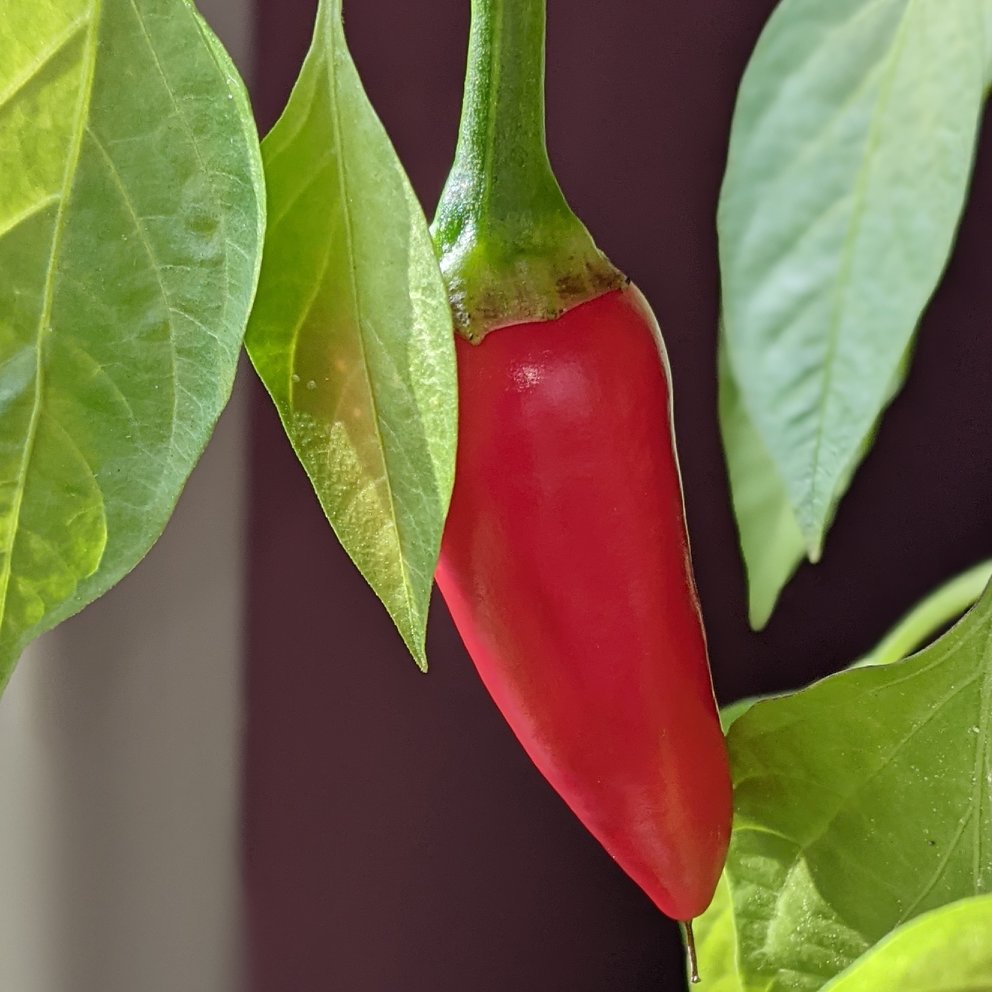
one perfect cayenne

the new hotness -

Autumn in Canada: PicoMite version
So I ported autumn in canada from OpenProcessing to PicoMite BASIC on the Raspberry Pi Pico:

no leaves 
a couple of leaves 
more leaves 
plenty of leaves 
far too many leaves The biggest thing that tripped me up was that PicoMite BASIC starts arrays at 0. OPTION BASE 1 fixes that oversight. It would have been nice to have OpenProcessing’s HSV colour space, and an editor that could handle lines longer than 80 characters that didn’t threaten to bomb out if you hit the End key, but it’ll serve.
Source below:
' autumn in canada ' scruss, 2021-11 ' a take on my https://openprocessing.org/sketch/995420 for picomite OPTION base 1 RANDOMIZE TIMER ' *** initialize polar coords of leaf polygon and colour array DIM leaf_rad(24), leaf_ang(24), px%(24), py%(24) FOR i=1 TO 24 READ leaf_rad(i) NEXT i FOR i=1 TO 24 READ x leaf_ang(i)=RAD(x) NEXT i DIM integer c%(8) FOR i=1 TO 8 READ r%, g%, b% c%(i)=RGB(r%,g%,b%) NEXT i ' *** set up some limits min_scale%=INT(MIN(MM.HRES, MM.VRES)/8) max_scale%=INT(MIN(MM.HRES, MM.VRES)/6) min_angle=-30 max_angle=30 min_x%=min_scale% min_y%=min_x% max_x%=MM.HRES - min_x% max_y%=MM.VRES - min_y% CLS TEXT MM.HRES/2, INT(MM.VRES/3), "autumn in canada", "CM" TEXT MM.HRES/2, INT(MM.VRES/2), "scruss, 2021-11", "CM" TEXT MM.HRES/2, INT(2*MM.VRES/3), "just watch ...", "CM" kt%=0 DO cx% = min_x% + INT(RND * (max_x% - min_x%)) cy% = min_y% + INT(RND * (max_y% - min_y%)) angle = min_angle + RND * (max_angle - min_angle) sc% = min_scale% + INT(RND * (max_scale% - min_scale%)) col% = 1 + INT(RND * 7) leaf cx%, cy%, sc%, angle, c%(7), c%(col%) kt% = kt% + 1 LOOP UNTIL kt% >= 1024 END SUB leaf x%, y%, scale%, angle, outline%, fill% FOR i=1 TO 24 px%(i) = INT(x% + scale% * leaf_rad(i) * COS(RAD(angle)+leaf_ang(i))) py%(i) = INT(y% - scale% * leaf_rad(i) * SIN(RAD(angle)+leaf_ang(i))) NEXT i POLYGON 24, px%(), py%(), outline%, fill% END SUB ' radii DATA 0.536, 0.744, 0.608, 0.850, 0.719 DATA 0.836, 0.565, 0.589, 0.211, 0.660, 0.515 DATA 0.801, 0.515, 0.660, 0.211, 0.589, 0.565 DATA 0.836, 0.719, 0.850, 0.608, 0.744, 0.536, 1.000 ' angles DATA 270.000, 307.249, 312.110, 353.267, 356.540 DATA 16.530, 18.774, 33.215, 3.497, 60.659, 72.514 DATA 90.000, 107.486, 119.341, 176.503, 146.785, 161.226 DATA 163.470, 183.460, 186.733, 227.890, 232.751, 270.000, 270.000 ' leaf colours DATA 255,0,0, 255,36,0, 255,72,0, 255,109,0 DATA 255,145,0, 255,182,0, 255,218,0, 255,255,0You could probably use AUTOSAVE and paste the text into the PicoMite REPL. I used an ILI9341 SPI TFT LCD Touch Panel with my Raspberry Pi Pico along with some rather messy breadboard wiring.
Fun fact: the maple leaf polygon points are derived from the official definition of the flag of Canada.
-
p-touch Pico pin labels

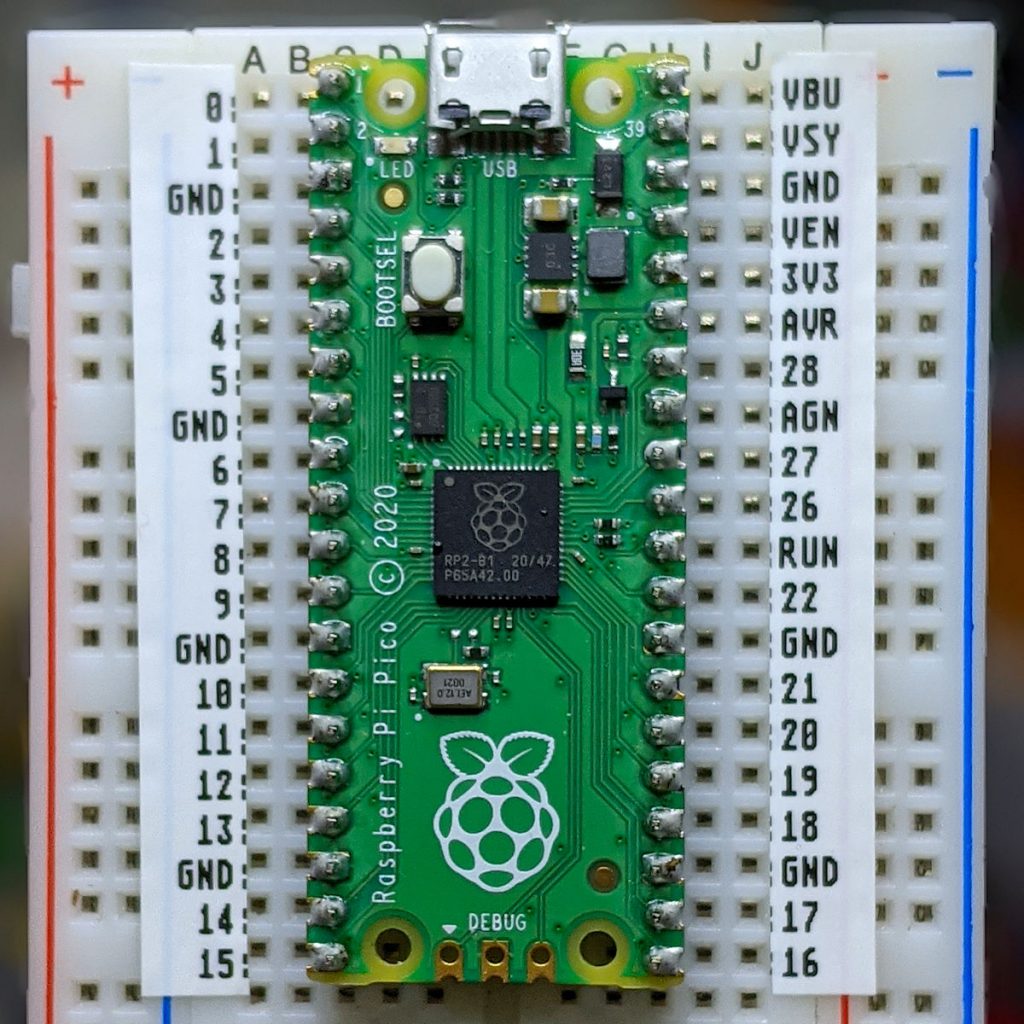
Pico pin labels: not bad for a first try This worked better than I expected. The tricky parts are trimming the edges and getting it them straight.
Here’s the image to print on your label maker:

print on 12.7 mm tape -

Raspberry Pi Zero 2 W: slides and thermals
Slides from last night’s talk:
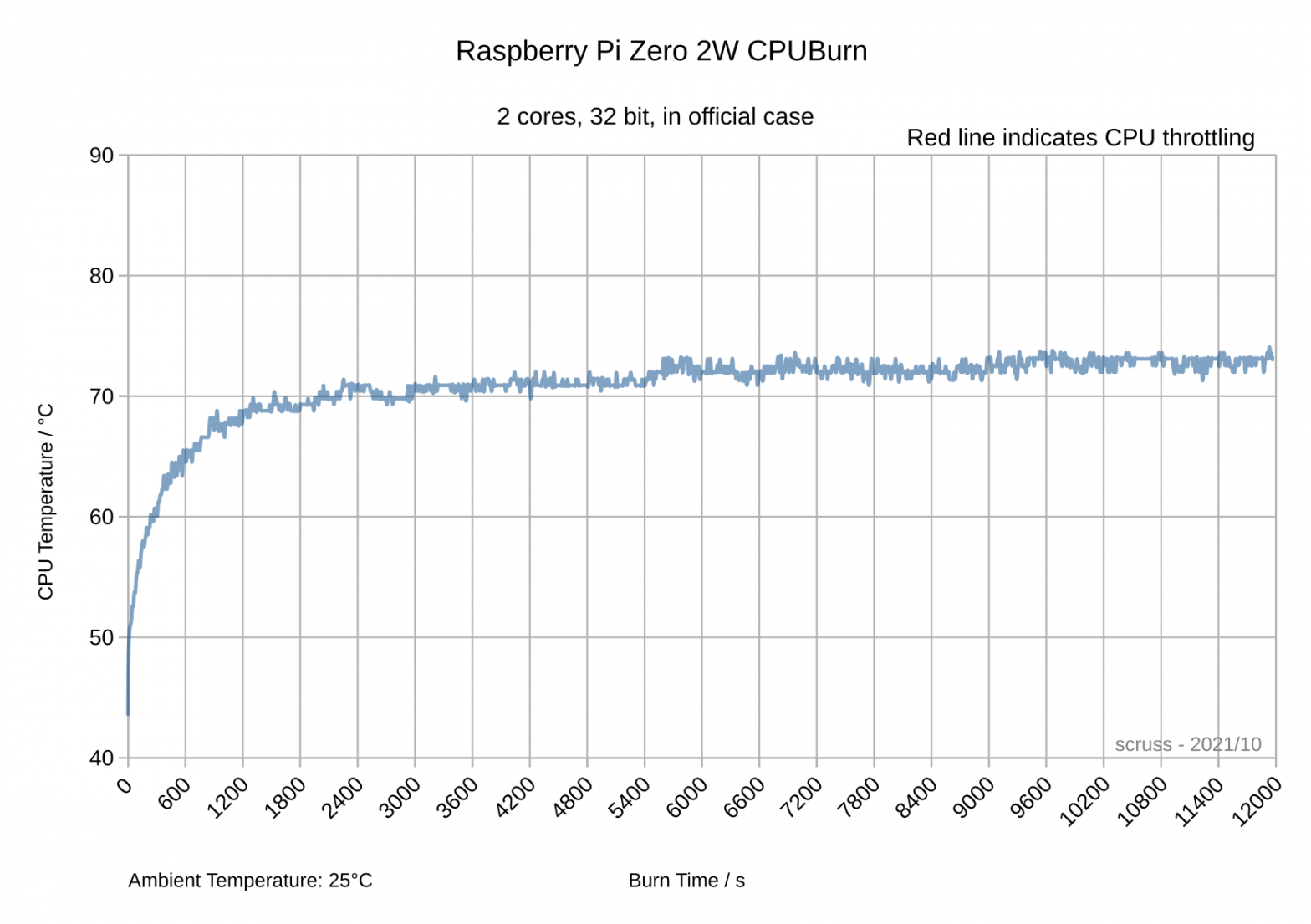
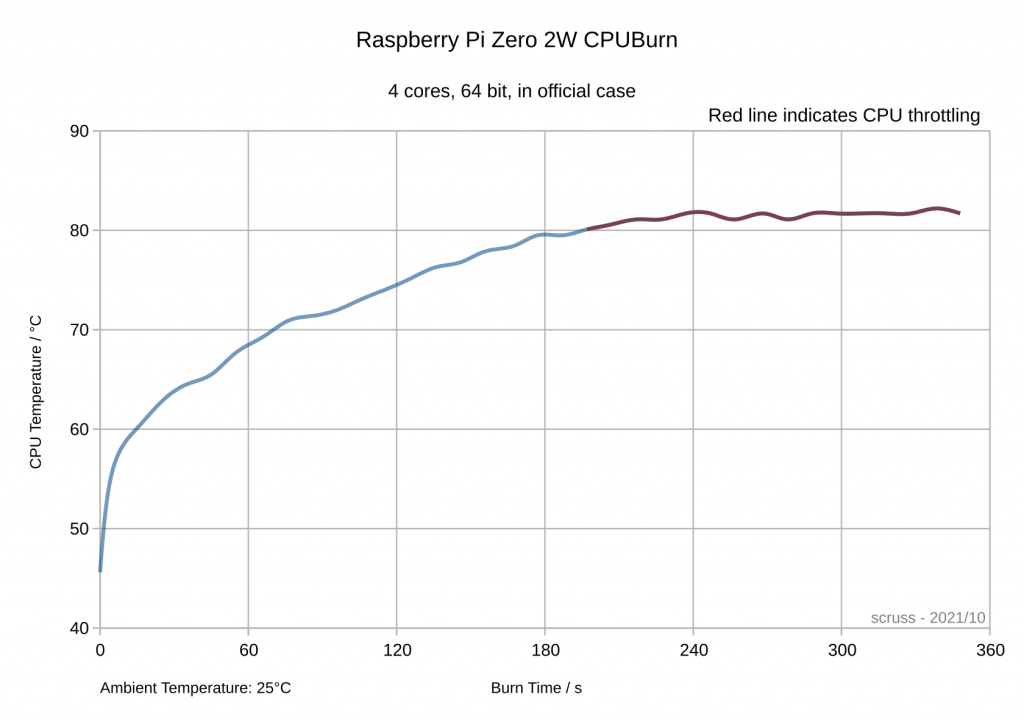
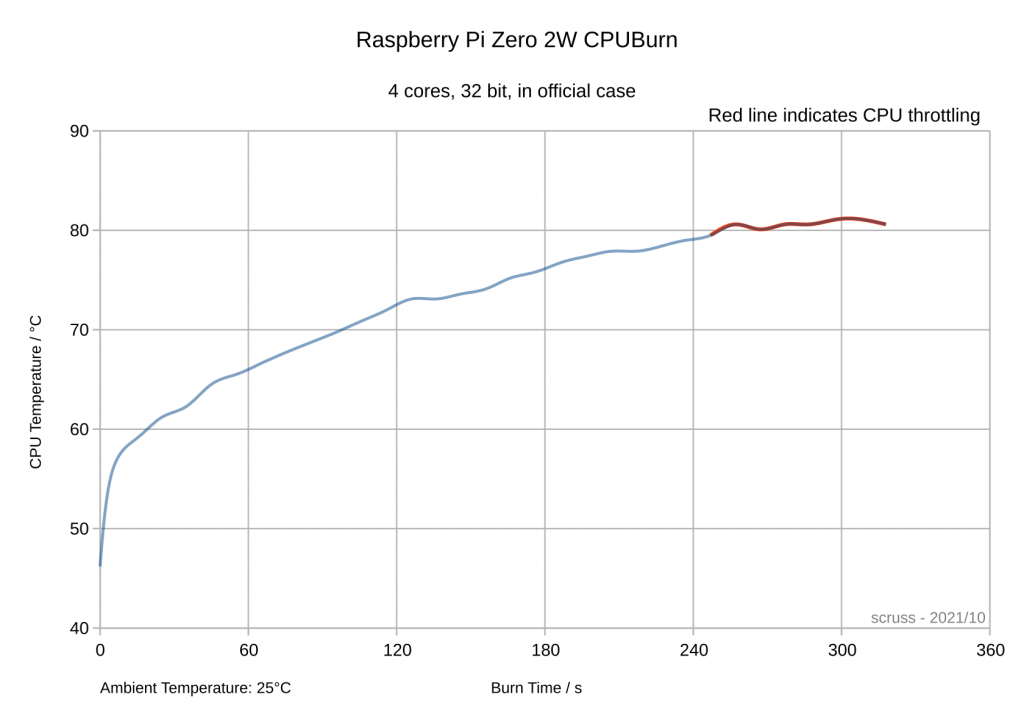
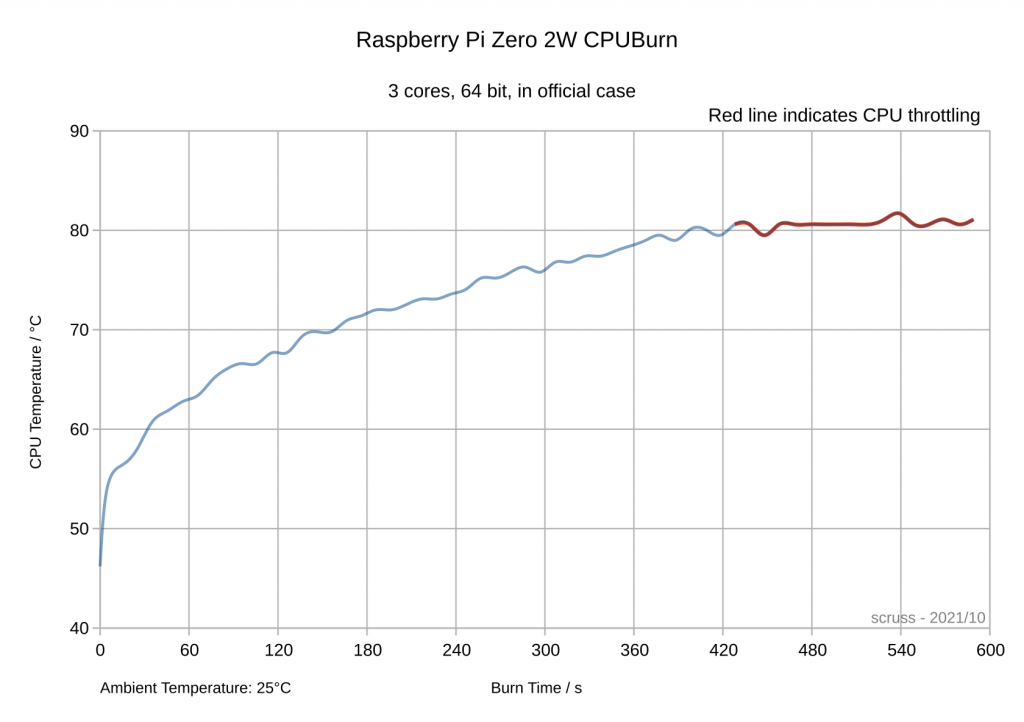
It’s impossible to have a Raspberry Pi Zero overheat unless you overclock it. That’s why you don’t get any cases for it with fans or heat sinks. The quad-core Raspberry Pi Zero 2 W, though, has the potential to do so. Here are some numbers:
- Used official case with lid fitted: increases SoC temperature +3 °C over free air
- Test – CPUBurn: https://github.com/pmylund/cpuburn
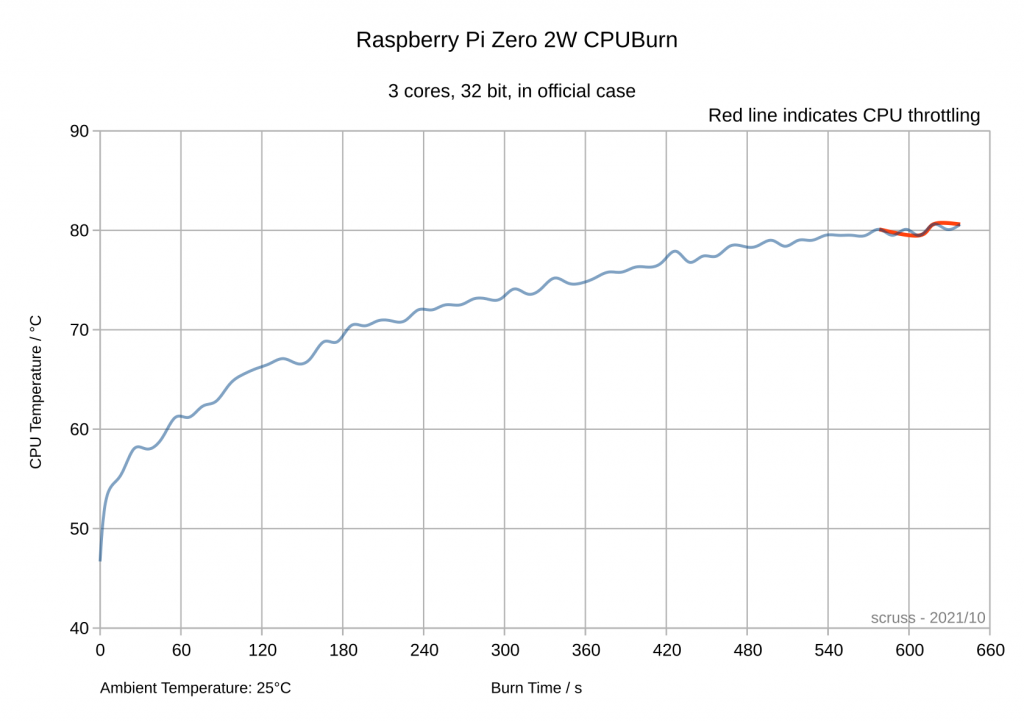
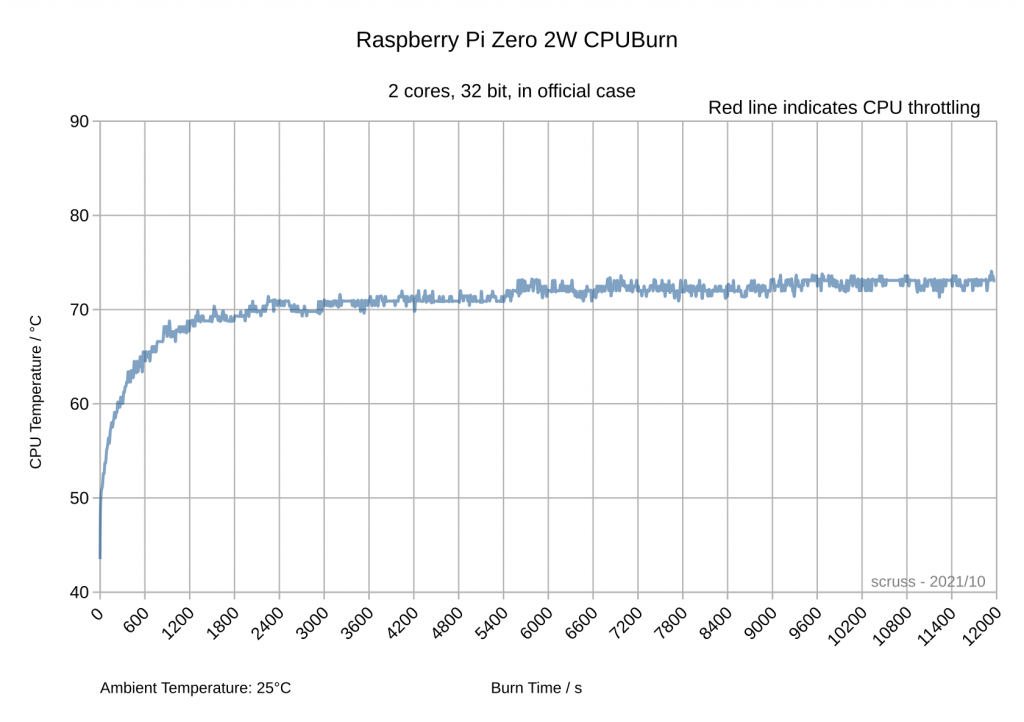
- Tested 4, 3 and 2 cores burning in 32-bit and 64-bit modes: time from idle to throttling (80 °C) measured
- GPU overheat not tested.

All 4 cores burning, 64-bit mode: time to overheat = under 3½ minutes 
All 4 cores burning, 32-bit mode: time to overheat = just over 4 minutes 
3 out of 4 cores burning, 64-bit mode: time to overheat = just over 7 minutes 
3 out of 4 cores burning, 32-bit mode: time to overheat = 9½ minutes 
2 out of 4 cores burning, 32-bit mode: time to overheat = basically never Unless you’re doing things that might indicate you should be using a bigger computer, a Raspberry Pi Zero 2 W won’t overheat and doesn’t need any form of cooling. If you’re overclocking, well … it’s your choice to have cooling equipment worth more than the computer it’s trying to cool.
-
Neep Lantern 2021

My neep lantern for Halloween 2021 What you can’t see is the smell of Halloween: the hum of charred turnip from the candle inside.
-
Raspberry Pi Zero 2 W: initial performance
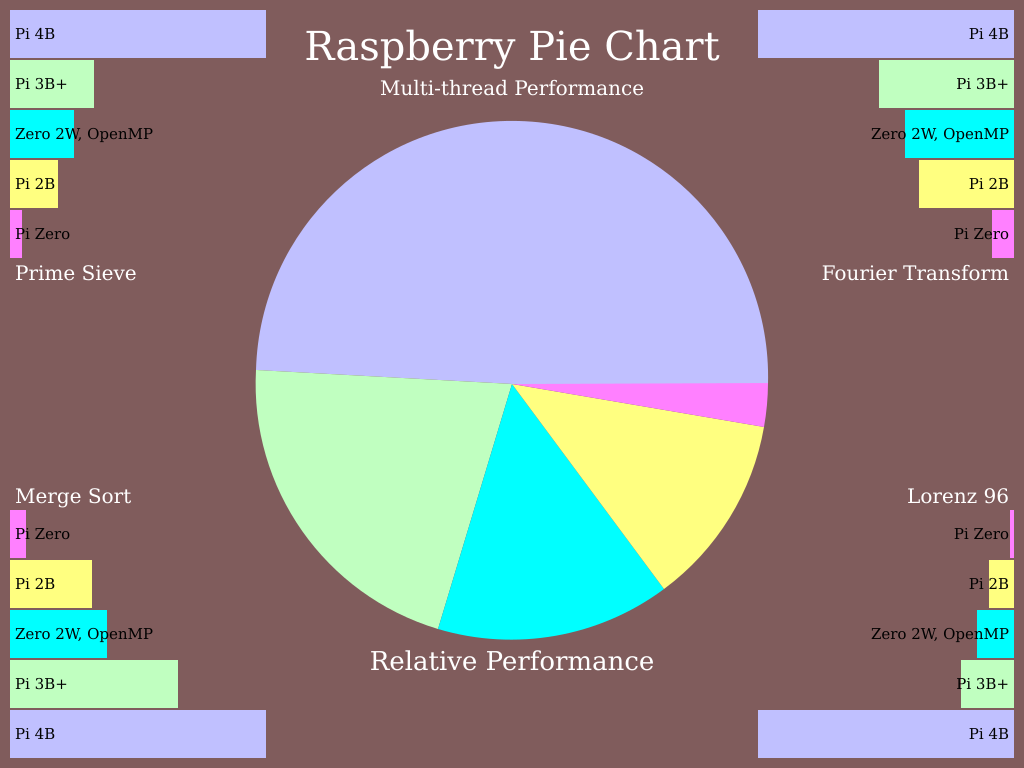
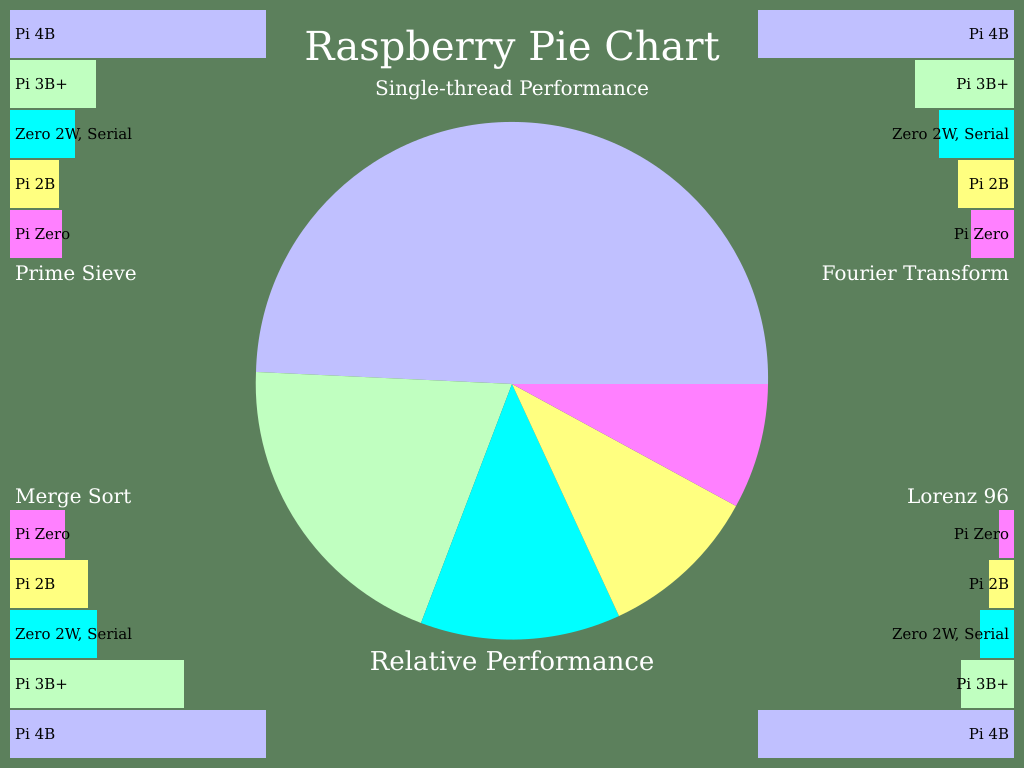
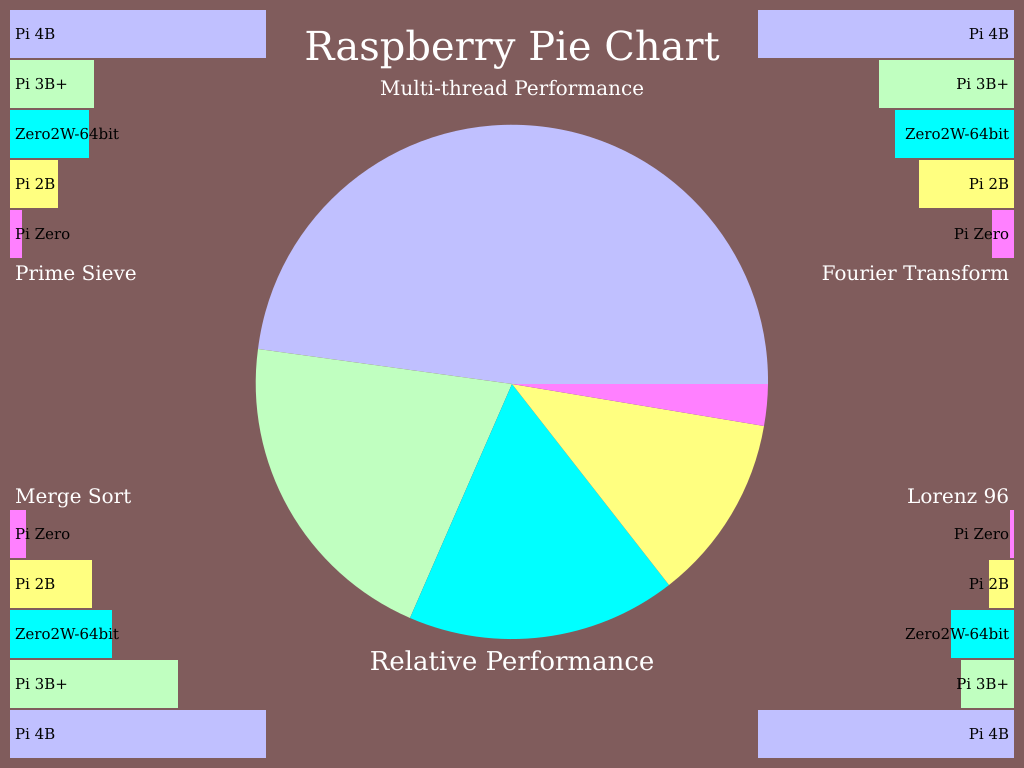
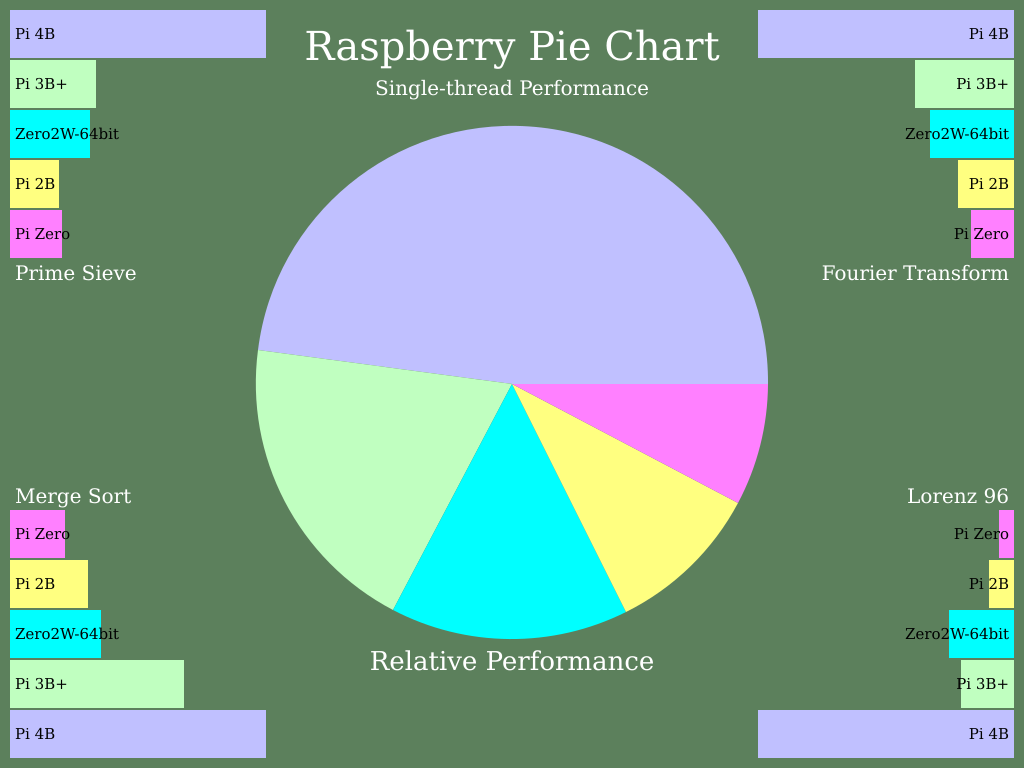
Running A Pi Pie Chart turned out some useful performance numbers. It’s almost, but not quite, a Raspberry Pi 3B in a Raspberry Pi Zero form factor.
32-bit mode
Running stock Raspberry Pi OS with desktop, compiled with stock options:

multi-thread results 
single-thread results time ./pichart-openmp -t "Zero 2W, OpenMP" pichart -- Raspberry Pi Performance OPENMP version 36 Prime Sieve P=14630843 Workers=4 Sec=2.18676 Mops=427.266 Merge Sort N=16777216 Workers=8 Sec=1.9341 Mops=208.186 Fourier Transform N=4194304 Workers=8 Sec=3.10982 Mflops=148.36 Lorenz 96 N=32768 K=16384 Workers=4 Sec=4.56845 Mflops=705.102 The Zero 2W, OpenMP has Raspberry Pi ratio=8.72113 Making pie charts...done. real 8m20.245s user 15m27.197s sys 0m3.752s ----------------------------- time ./pichart-serial -t "Zero 2W, Serial" pichart -- Raspberry Pi Performance Serial version 36 Prime Sieve P=14630843 Workers=1 Sec=8.77047 Mops=106.531 Merge Sort N=16777216 Workers=2 Sec=7.02049 Mops=57.354 Fourier Transform N=4194304 Workers=2 Sec=8.58785 Mflops=53.724 Lorenz 96 N=32768 K=16384 Workers=1 Sec=17.1408 Mflops=187.927 The Zero 2W, Serial has Raspberry Pi ratio=2.48852 Making pie charts...done. real 7m50.524s user 7m48.854s sys 0m1.370s
64-bit
Running stock/beta 64-bit Raspberry Pi OS with desktop. Curiously, these ran out of memory (at least, in oom-kill‘s opinion) with the desktop running, so I had to run from console. This also meant it was harder to capture the program run times.
The firmware required to run in this mode should be in the official distribution by now.

multi-thread, 64 bit: no, I can’t explain why Lorenz is better than a 3B+ 
single thread, again with the bump in Lorenz performance pichart -- Raspberry Pi Performance OPENMP version 36 Prime Sieve P=14630843 Workers=4 Sec=1.78173 Mops=524.395 Merge Sort N=16777216 Workers=8 Sec=1.83854 Mops=219.007 Fourier Transform N=4194304 Workers=4 Sec=2.83797 Mflops=162.572 Lorenz 96 N=32768 K=16384 Workers=4 Sec=2.66808 Mflops=1207.32 The Zero2W-64bit has Raspberry Pi ratio=10.8802 Making pie charts...done. ------------------------- pichart -- Raspberry Pi Performance Serial version 36 Prime Sieve P=14630843 Workers=1 Sec=7.06226 Mops=132.299 Merge Sort N=16777216 Workers=2 Sec=6.75762 Mops=59.5851 Fourier Transform N=4194304 Workers=2 Sec=7.73993 Mflops=59.6095 Lorenz 96 N=32768 K=16384 Workers=1 Sec=9.00538 Mflops=357.7 The Zero2W-64bit has Raspberry Pi ratio=3.19724 Making pie charts...done.
The main reason for the Raspberry Pi Zero 2 W appearing slower than the 3B and 3B+ is likely that it uses LPDDR2 memory instead of LPDDR3. 64-bit mode provides is a useful performance increase, offset by increased memory use. I found desktop apps to be almost unusably swappy in 64-bit mode, but there might be some tweaking I can do to avoid this.
Unlike the single core Raspberry Pi Zero, the Raspberry Pi Zero 2 W can be made to go into thermal throttling if you’re really, really determined. Like “3 or more cores running flat-out“-determined. In my testing, two cores at 100% (as you might get in emulation) won’t put it into thermal throttling, even in the snug official case closed up tight. More on this later.
(And a great big raspberry blown at Make, who leaked the Raspberry Pi Zero 2 W release a couple of days ago. Not classy.)
-
Modding an Adafruit PIR for 3.3 volts

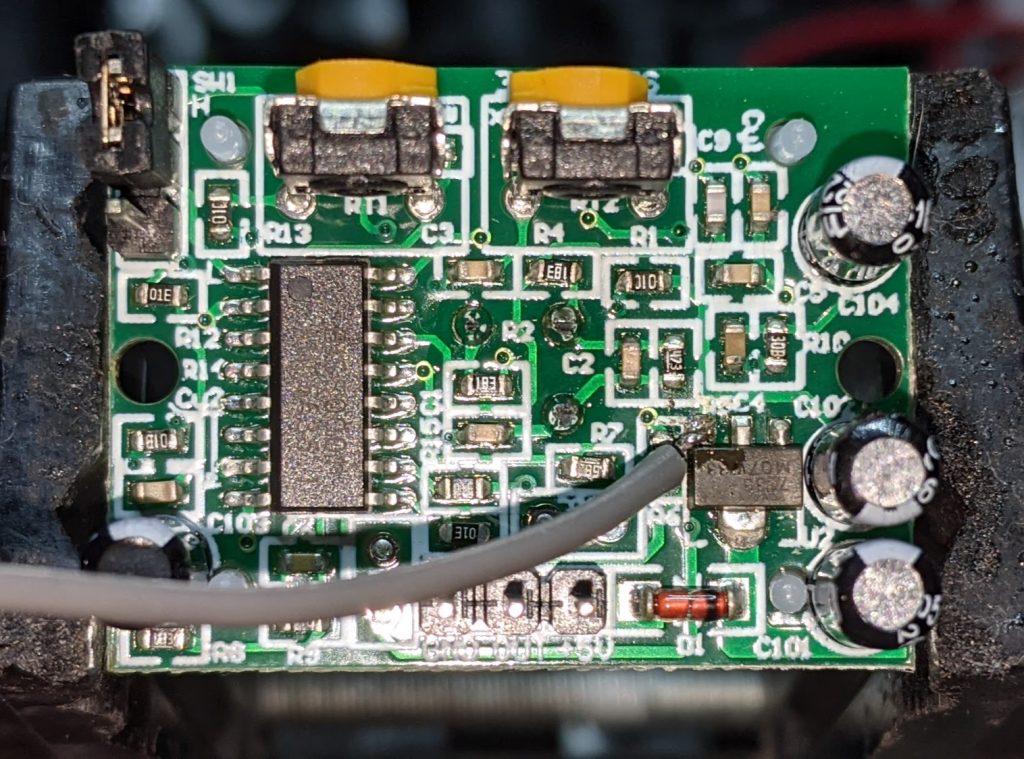
slightly dodgy soldering of a grey jumper wire to the Vout pin of the PIR’s voltage regulator Consider the Adafruit PIR (motion) sensor (aka PIR Motion Sensor, if you’re in Canada). Simple, reliable device, but only runs from a 5 V supply. Yes, there are smaller PIRs that run off 3.3 V, but if this is what you have, you need to do some soldering. Annoyingly, the sensor on the board is a 3.3 V part, but the carrier was designed in Olden Tymes when King 5 V ruled.
You can try powering it from 3.3 V, but it’ll go all off on its own randomly as its own power supply won’t be supplying enough voltage. There are a couple of sites on how to modify these PIRs that either describe old kit you can’t get any more, or do it completely wrongly. Just one post on the Adafruit support forum gets it right.
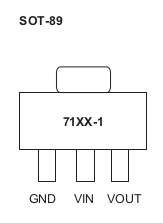
One way of doing this is to provide 3.3 V directly to the output pin of the voltage regulator, and ignore the 5 V power line entirely. The regulator’s a SOT89-3 part that looks a bit like this:

wee leggy thing In the photo above, it’s flipped over. Whichever way it’s oriented, we want to put power directly into the Vout pin. There may be easier points to solder this to than a tiny surface mount pin (almost definitely one of the capacitors) but this has held for me.
How to use it in MicroPython? Like the TTP223 capacitive touch sensors I looked at before, a PIR gives a simple off/on output, so you can use something like this:
from machine import Pin from time import sleep_ms pir = Pin(21, Pin.IN) while True: print("[", pir.value(), "]") sleep_ms(1000)value() will return 1 if there’s movement, 0 if not. There are trigger time and sensitivity potentiometers to fiddle with on the board if you need to tweak the output.

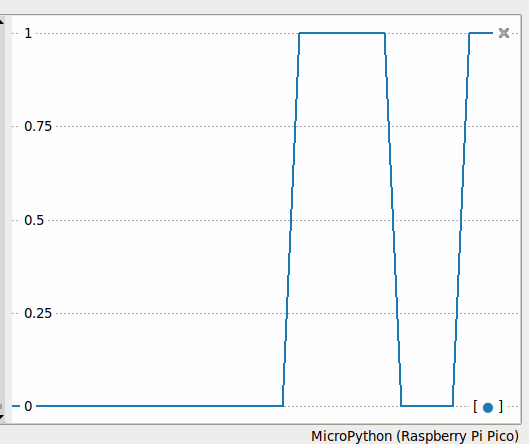
Thonny plotter output showing a couple of movement detections. High output (on my device) stays up for about 4 seconds, so you can be pretty leisurely about polling PIRs Just remember: don’t connect the 5 V power line if you make this mod. I’m not responsible for any smoke emitted if you do — but I can always sell you a replacement …
-
Lentil Soup
Ingredients
- 6 cups vegetable stock (or 3 veggie stock cubes + 6 cups water)
- 3-4 medium onions, chopped roughly
- 4-6 medium carrots; half chopped roughly, half grated
- 2 cups red split lentils
- 4-6 tbsp olive oil
- 2 tbsp baking soda (for soaking lentils)
Optional ingredients
- 1 tbsp prepared Dijon mustard
- 1 tbsp sweet paprika
Lentil Preparation
- Rinse and drain lentils at least three times: they should no longer clump, and rinse water should not be very cloudy
- Soak lentils in water with baking soda for at least an hour, occasionally stirring gently
- Rinse lentils and soak for at least an hour in clean water; drain.
Method
- Bring stock to a boil in a large pot. Add grated/chopped carrots and half the olive oil
- Fry onions in the rest of the olive oil until translucent, optionally with paprika
- Add fried onions to soup pot. Stir in Dijon mustard, if desired
- Cover and allow to low boil for 5-10 minutes
- Stir in drained lentils, and bring to a robust simmer
- Cover and simmer for 15 minutes.
- Serve and season to taste.
Notes
- This is based on my parents’ various lentil soup recipes from Scotland. They might use a ham or lamb-bone based stock
- Until recently, I’d been overcooking the lentils. Red split lentils are quite delicate, and soaking and lightly simmering gives a pleasing result
- The soaking in baking soda stage helps to de-gas the lentils
-
Another Raspberry Pi Pico language: MMBasic
It’s very much a work in progress, but Geoff Graham and Peter Mather’s MMBasic runs nicely on the Raspberry Pi Pico. Development is mostly coordinated on TheBackShed.com forum.
- Download and manual: Geoff’s Projects – BASIC Interpreter for the Raspberry Pi Pico
- Source: MMBasic running on the Raspberry Pi Pico
It supports an impressive range of displays and peripherals. The project gives me a very distinct “This is how we do things” vibe, and it’s quite unlike any other Raspberry Pi Pico project.
To show you what MMBasic code looks like, here’s a little demo that uses one of those “Open Smart” LED traffic lights on physical pins 14-16 which cycles through the phases every few seconds:
' traffic light on gp10-12 (green, yellow, red), pins 14-16 ' set up ports for output FOR i=14 TO 16 SETPIN i, DOUT PIN(i)=0 NEXT i red=16 amber=15 green=14 DO ' green on for 5 seconds PIN(red)=0 PIN(green)=1 PAUSE 5000 ' amber on for 3 seconds PIN(green)=0 PIN(amber)=1 PAUSE 3000 ' red on for 5 seconds PIN(amber)=0 PIN(red)=1 PAUSE 5000 LOOP
-
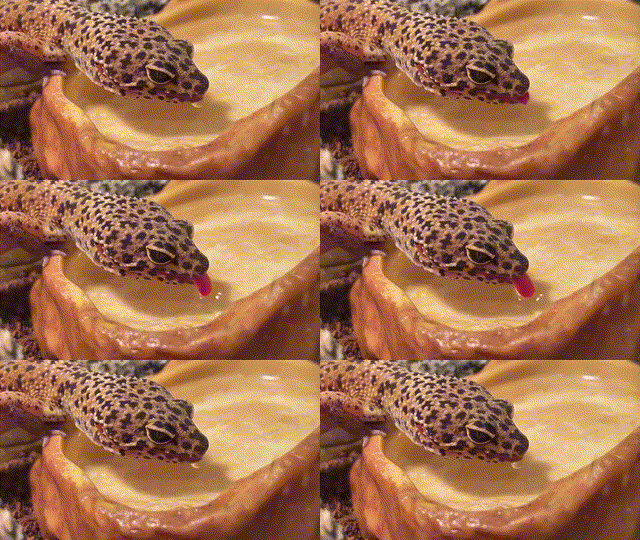
gecko at the watering hole, forever
- Video downloaded using youtube-dl
- Resized to 360p and 30 fps using ffmpeg
- Loop found and resized using MoviePy, with ffmpeg used to create the gif
- gif optimized using gifsicle -O3
Result: 320×180, 22 frames, 128 colours, ~ 600 KB.
-
Some okay CMYK results from DrawingBot, finally …

drawn using a Roland DXY-1300 plotter on Strathmore Multimedia using DeSerres medium tip pens, ~60 minutes plotting time, 180 × 180 mm After a tonne of faffing about, I finally got something out of my plotter using Drawing Bot. I’d heard about it during the Bold Machines’ Intro to Pen Plotters course I’m taking, and the results that other people were getting looked encouraging. But for me, they weren’t great.
Maybe I was choosing too large images, but my main problem was ending up with plots with far too many lines: these would take days to plot. The controls on Drawing Bot also seemed limited: density and resolution seemed to be the only controls that do much. Drawing Bot itself wasn’t very reliable: it would sometimes go into “use all the cores!” mode when it was supposed to be idling. It would also sometimes zoom in on part of the image and fail to unzoom without quitting. Is a 32 GB i7 8-core (oldish, but still game) too little for this software? Forget any of the Voronoi plots if you want to see results today.
The source image was a geometric tile that I’d frisketed out years ago, forgotten about, and then found when I unstuck it from under a stack of papers. It’s somewhat artisanally coloured by me in watercolour, and the mistakes and huge water drop are all part of its charm:

source image for plotter output If WordPress will allow an SVG, here’s what Drawing Bot made of it:
Drawing Bot SVG output: yes, it’s that faint I do like the way that Drawing Bot seems to have ignored some colours, like the rose pink around the outside. The green border really is mostly cyan with a touch of black.
I haven’t magically found perfect CMYK pens in HP/Roland pen format. I couldn’t even find the Schwan-Stabilo Point 88 pens that Lauren Gardner at Bold Machines recommends. But the local DeSerres did deliver a selection of their own-brand 1.0mm Mateo Markers that are physically close to the Point 88s in size, but use a wider 1 mm fibre tip. They are also cheap; did I mention that?
The colours I chose were:
- for cyan: Mint Green; RGB colour: #52C3A5; SKU: DFM-53
- for magenta: Neon Pink; RGB colour: #FF26AB; SKU: DFM-F23
- for yellow: Neon Yellow; RGB colour: #F3DE00; SKU: DFM-F01
- for black: Green Grey 5; RGB colour: #849294; SKU: DFM-80
The RGB colours are from DeSerres’ website, and show that I’m not wildly off. Target process colours are the top row versus nominal pen colours on the bottom:

yes, there are fluo colours in there I knew to avoid pure black, as it would overpower everything in the plot.
To make the pens work with the DXY-1300, I modified juliendorra/3D-printable-plotter-adapters-for-pens-and-refills: Use your favorite pens with vintage HP plotters: parametric code to create custom adapters to work the the DeSerres pens. Here are my changed files, just in case my PR isn’t accepted:
Overall, it plotted quite well. I plotted directly from Inkscape, one layer/pen at a time, from light (yellow) to dark (grey). Using the pen 1 slot had its disadvantages: the DXY has little pen boots to stop the pens drying, but these unfortunately get filled with old ink. The scribbly dark markings in the NNE and SSW orange kites in the plot are from the yellow pen picking up old black ink from the pen boot. Next time I’ll clean the plotter better.
-
Snowy, after Paul Carter

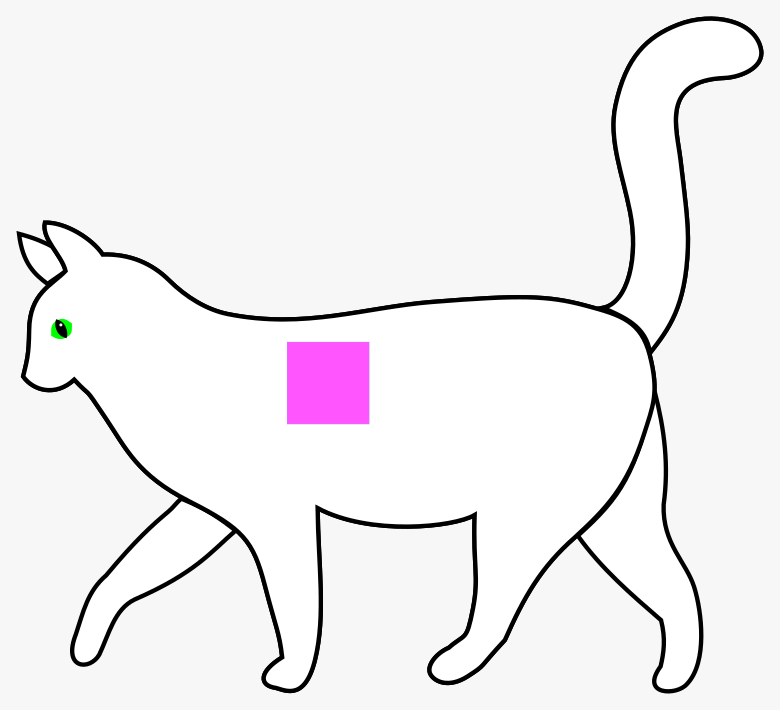
non-artist’s impression of Snowy
(source SVG: white cat walking by papapishu on OpenClipArt)I’m remembering the time that Paul coloured a perfect square with a highlighter on their white family cat, Snowy. She had a pink side for weeks.
-
for Paul Carter, after 15 years
All the Colours We Have (for Paul Carter) — 2021 re-encoding It’s hard to believe that Paul Carter has been gone fifteen years. Like all things digital, my ten year memorial for him was a bit dusty, so I did a re-encoding that will look better on today’s devices. The info page is unchanged.
Still miss you, buddy. It gets further but no easier.
-
detail from a million step random walk

each line can be drawn at 0°, 60°, 120°, …, 300° and can be coloured red, orange, yellow, green, cyan or purple depending on direction. White areas are unfilled sections of the background This is a tiny detail from an unfeasibly large random walk made in Berkeley Logo. The code looks something like this:
; random dice walk, with colours for each of six directions ; scruss, 2021-07 make "ch {14 6 2 3 13 4} make "dirs {0 60 120 180 240 300} make "sides {1 2 3 4 5 6} to walk make "throw pick sides setheading item :throw dirs setpencolor item :throw ch forward 20 end hideturtle repeat 1000 [walk] -
Tetris for Applesoft BASIC

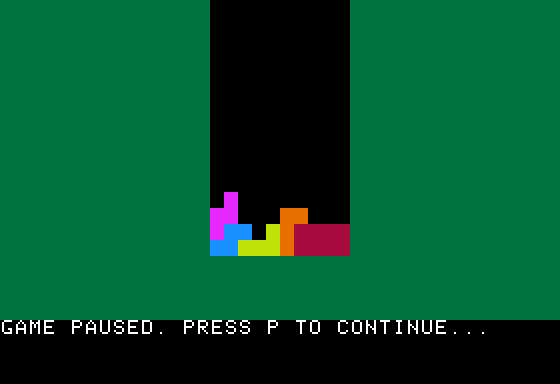
a very paused game Paleotronic’s Tetris for Applesoft BASIC is a surprisingly decent version for something that’s written in an interpreted language. It’s not what anyone would call zippy, but it’s not so slow that you want to give up.
Paleotronic want you to type it in, but life’s too short for that. You can play it in your browser on the Internet Archive: Tetris for Applesoft BASIC by Mark Stock
Or download an auto-booting Apple II disk image:
Keys:
- , — move left
- . — move right
- A — rotate left
- R — rotate right
- Z — drop
- P — pause
- Q — quit
Life’s also too short for correcting OCR errors in BASIC code. Tesseract is hilariously bad at recognizing source code, so I had to go through this several times. AppleCommander’s BASIC Tools was very handy for catching the last of the errors with its variable dump: caught the cases of the TO keyword converted to the variable T0 … and frankly, I am no fan of SmartQuotes when applied to source code, either.
Here’s the source, straight from the interpreter with all its weird spacing:
10 GOSUB 1000 100 W = W +1: IF W >LV THEN W = 0: GOSUB 350 110 K = PEEK(KB): IF K > = H THEN POKE KC,H:K = K -H: GOSUB 300 190 GOTO 100 200 PY = PY *A2: VLIN PY,PY +A1 AT PX: RETURN 225 PY = PY *A2: HLIN X1,X2 AT PY: HLIN X1,X2 AT PY +A1: RETURN 300 ON E(K) GOTO 30000,330,340,350,360,30100 310 RETURN 330 X = X -1: GOTO 400 340 X = X +1: GOTO 400 350 DN = 1:Y = Y +1: GOSUB 400:DN = 0: RETURN 360 S = S +1: IF S/4 = INT(S/4) THEN S = S -4 400 GOSUB 500 410 GOSUB 800: IF F = 0 THEN X = XX:Y = YY:S = SS: GOSUB 420: IF DN THEN GOSUB 900 420 COLOR= CF: FOR PP = 1 TO 4:PX = X +X(S,PP):PY = Y +Y(S,PP): GOSUB 200: NEXT PP:XX = X:YY = Y:SS = S:D = 0: RETURN 500 IF DD THEN RETURN 510 COLOR= CB: FOR PP = 1 TO 4:PX = XX +X(SS,PP):PY = YY +Y(SS,PP): GOSUB 200: NEXT PP:DD = 0: RETURN 800 F = 1: FOR PP = 1 TO 4:PY = Y +Y(SS,PP): ON ( FN PC(X +X(S,PP)) >0) GOTO 805: NEXT PP: RETURN 805 F = 0: RETURN 850 F = 1: RETURN 900 P = 10: GOSUB 30300 905 RN = 0:Y = YM 910 X = XL 920 PY = Y: IF FN PC(X) = CB THEN 950 930 X = X +1: IF X < = XR THEN 920 940 R(RN) = Y:RN = RN +1 950 Y = Y -1: IF Y > = 0 THEN 910 960 IF RN THEN GOSUB 30400 970 Y = 0 980 X = INT((XR -XL)/2) +XL 985 S = INT( RND(1) *NS):CF = C(S):S = S *4 990 GOSUB 800: IF F THEN RETURN 995 GOTO 31000 1000 DIM E(127),X(27,4),Y(27,4),R(40) 1010 TEXT : HOME : GR 1011 PRINT "WELCOME..." 1014 LM = 10 1015 XM = 10:YM = 15 1016 XL = INT((40 -XM)/2) 1017 XR = XL +XM -1 1021 A1 = 1 1022 A2 = 2 1030 DEF FN PC(X) = SCRN( X,PY *A2) 1040 CB = 0 1050 XX = 20:YY = 0:SS = 0 1100 KB = -16384 1110 KC = -16368 1120 H = 128 1129 REM KEYBOARD ACTIONS 1130 REM QUIT 1131 E( ASC("Q")) = 1 1132 E( ASC("Q") -64) = 1 1140 REM MOVE LEFT 1141 E(8) = 2 1142 E( ASC(",")) = 2 1150 REM MOVE RIGHT 1151 E(21) = 3 1152 E( ASC(".")) = 3 1160 REM MOVE DOWN 1161 E(32) = 4 1162 E( ASC("Z")) = 4 1170 REM ROTATE 1171 E( ASC("R")) = 5 1172 E(13) = 5 1173 E( ASC("A")) = 5 1179 REM PAUSE GAME 1180 E( ASC("P")) = 6 1181 E( ASC("P") -64) = 6 1185 GOSUB 2000 1186 GOSUB 1300 1190 PRINT "PRESS ANY KEY TO START..." 1191 PRINT 1192 PRINT "PRESS Q TO QUIT." 1193 GOTO 31020 1299 REM DRAW THE GAME 1300 COLOR= 4: FOR I = 0 TO 19:X1 = 0:X2 = 39:PY = I: GOSUB 225: NEXT 1320 COLOR= CB: FOR I = 0 TO YM:X1 = XL:X2 = XR:PY = I: GOSUB 225: NEXT 1350 RETURN 1400 DATA 1 1401 DATA 0,0,1,0,0,1,1,1 1402 DATA 0,0,1,0,0,1,1,1 1403 DATA 0,0,1,0,0,1,1,1 1404 DATA 0,0,1,0,0,1,1,1 1410 DATA 2 1411 DATA 0,1,1,1,2,1,3,1 1412 DATA 1,0,1,1,1,2,1,3 1413 DATA 0,1,1,1,2,1,3,1 1414 DATA 1,0,1,1,1,2,1,3 1420 DATA 12 1421 DATA 1,1,0,1,1,0,2,1 1422 DATA 1,1,0,1,1,0,1,2 1423 DATA 1,1,0,1,2,1,1,2 1424 DATA 1,1,1,0,2,1,1,2 1430 DATA 13 1431 DATA 1,1,0,1,2,1,0,2 1432 DATA 1,1,1,0,1,2,2,2 1433 DATA 1,1,0,1,2,1,2,0 1434 DATA 1,1,1,0,1,2,0,0 1440 DATA 9 1441 DATA 1,1,0,1,2,1,2,2 1442 DATA 1,1,1,0,1,2,2,0 1443 DATA 1,1,0,1,2,1,0,0 1444 DATA 1,1,1,0,1,2,0,2 1450 DATA 3 1451 DATA 1,1,1,0,0,0,2,1 1452 DATA 1,1,1,0,0,1,0,2 1453 DATA 1,1,1,0,0,0,2,1 1454 DATA 1,1,1,0,0,1,0,2 1460 DATA 6 1461 DATA 1,1,0,1,1,0,2,0 1462 DATA 1,1,0,1,0,0,1,2 1463 DATA 1,1,0,1,1,0,2,0 1464 DATA 1,1,0,1,0,0,1,2 1990 DATA -1 2000 X = 0:Y = 0 2010 NS = 0 2020 READ C: IF C < > -1 THEN C(NS) = C: FOR J = 0 TO 3: FOR I = 1 TO 4: READ X(NS *4 +J,I): READ Y(NS *4 +J,I): NEXT I: NEXT J:NS = NS +1: GOTO 2020 2030 RETURN 21210 P = 1: RETURN 30000 TEXT : HOME : END 30100 HOME 30110 PRINT "GAME PAUSED. PRESS P TO CONTINUE..." 30120 P = 1 30130 K = PEEK(KB): IF K > = H THEN POKE KC,H:K = K -H: GOSUB 30200 30140 IF P THEN 30130 30150 HOME 30160 PRINT "SCORE ";SC; TAB( 21);"LEVEL ";LM -LV +1 30170 RETURN 30200 ON E(K) GOTO 30000,30210,30210,30210,30210,30220 30210 RETURN 30220 P = 0 30230 RETURN 30300 SC = SC +P 30310 VTAB 21: HTAB 7 30320 PRINT SC; 30330 RETURN 30400 RN = RN -1 30410 FOR C = 0 TO 32 30415 COLOR= C 30420 FOR I = 0 TO RN:X1 = XL:X2 = XR:PY = R(I): GOSUB 225: NEXT I 30430 FOR I = 0 TO 2: NEXT I 30440 NEXT C 30450 FOR I = 0 TO RN 30460 Y = R(I) +I 30470 YP = Y -1: FOR X = XL TO XR:PY = YP: COLOR= FN PC(X):PX = X:PY = Y: GOSUB 200: NEXT X:Y = Y -1: IF Y >0 THEN 30470 30480 P = 100: GOSUB 30300 30490 NEXT I 30495 RETURN 31000 VTAB 22: PRINT 31010 PRINT " GAME OVER" 31020 P = 1 31030 K = PEEK(KB): IF K > = H THEN POKE KC,H:K = K -H: GOSUB 31200 31040 IF P THEN 31030 31050 D = 1 31060 SC = 0:LV = LM 31070 GOSUB 30150 31080 GOSUB 1300 31090 GOTO 905 31200 ON E(K) GOTO 30000 31210 P = 0: RETURN 32000 REM END OF LISTINGIf only AppleSoft had a RENUM command, the code might not look so messy
-
digging the BlueSCSI
I like old (as in 68K old) Apple Macintoshes, but I don’t like their hard drives. Apple used SCSI drives, which were super-cool at the time (multiple drives on one bus! extra devices like SCSI scanners, too!) but now seem an absolute pain. There may be a lot to complain about with USB storage, but compared to SCSI, it just works.
While the 40 MB Quantum SCSI drive in my Mac Classic II still works, it gets really full really fast and that old spinning rust won’t spin forever. One of the newer ways to replace a SCSI drive is the BlueSCSI, an open-everything design based on a cheap Blue Pill micro-controller board, a Micro-SD card slot and some passive components. The whole kit is very affordable, and a local maker sells them, so it was worth a try.
I’ve had nothing but miserable failure with Blue Pill boards, and very quickly moved on to STM32F4 board that actually work. It didn’t fill me with much hope that the board I got with my kit looked like this, end on:

There are two USB connectors on this board.
There are two of ____.Despite that oddness, it all soldered up fine (the surface-mount card slot was a little fiddly) and it fits inside the Classic II’s cavernously empty shell wherever I choose to stick it down.
I thought I knew what I was doing in making filesystem images (hence my recent nonsense anent HFS utilities), but clearly I was wrong. The 2 GB images I made in Basilisk II weren’t recognized at all. For now, I’m booting from one of the RaSCSI canned boot images plus a couple of the blank formatted drive images to put my own custom system on.
I’m trying to get as much as possible set up on the Micro-SD card while I can still access it, as the Classic II’s case is not something you can pop open on a whim. It needs a special long-thin Torx T15 driver to even get the case partially open, then you have to ease/fight the case the rest of the way. Aside from the faint ponk of dodgy analogue board caps (I’ll fix ’em one day, I promise!), you have to remember to tiptoe around the life-ending voltages lurking at the back of the CRT when you’re working there. Retrotechnology: it smells bad and it can kill you!
A feature I really appreciate with the BlueSCSI is that it dumps a status log on the card every time it boots. It took me a while to get the hang of naming images correctly, but I’d have been absolutely lost without logs with this level of detail:
BlueSCSI <-> SD - https://github.com/erichelgeson/BlueSCSI VERSION: 1.0-20210410 DEBUG:0 SCSI_SELECT:0 SDFAT_FILE_TYPE:3 SdFat version: 2.0.6 SdFat Max FileName Length: 32 Initialized SD Card - lets go! Not an image: LOG.txt Imagefile: HD10_512 753.hda / 41943040bytes / 40960KiB / 40MiB Imagefile: HD20_512 BS.hda / 41943040bytes / 40960KiB / 40MiB Imagefile: HD40 MacHD-1000MB.hda / 1048576000bytes / 1024000KiB / 1000MiB Imagefile: HD30_512 MacHD-500MB.hda / 524288000bytes / 512000KiB / 500MiB ID:LUN0:LUN1: 0:----:----: 1: 512:----: 2: 512:----: 3: 512:----: 4: 512:----: 5:----:----: 6:----:----: Finished initialization of SCSI Devices - Entering main loop.
So I’ve got four SCSI drives pretending to live on this card, and even if one of them’s not quite named correctly (HD40 MacHD-1000MB.hda should be called HD40_512 MacHD-1000MB.hda), it’s been found okay.