Category: goatee-stroking musing, or something

  • ZX81 40th Anniversary

    So the Z80-powered doorstop that got so many people started with computers was launched 40 years ago.

    My story is that we never had one: we had three, but only for a week each. It’s not that they failed, either. My dad, who ran the computer bureau at King George V Docks for the Clyde Port Authority, was Glasgow’s representative on the European Association for Data Processing in Ports (EVHA). The group was looking at ways for automating ship identification, efficient berthing and documentation handling.

    All the ports had data centres, but most of the mainframe time was for predefined tasks such as dock-worker payroll. There wasn’t the budget for computer time to try some of the experimental projects that may have helped with port automation.

    Several EVHA members were trying home computers unofficially, but many of them were too expensive to come in under expense account rules. These “big” micros required a business case and purchase order to buy. The ZX81, limited as it was, did fit in the expense budget and – equally importantly – fitted into my dad’s suitcase as he made his monthly trips to Europe.

    The week before my dad was scheduled to leave, he’d buy a ZX81. Of course, it needed “testing”, something me and my brother were only too happy to do. At the end of the week, it would get packed up and on its way to Europe.

    I’m not sure if the clandestine micros were ever actually used for controlling ship traffic (you get considerably fewer than three lives manoeuvring an LNG tanker), but more likely in simulation. I understand that the ZX81 was able to simulate the traffic management for the entire Port of Rotterdam for a while, at least until its RAM pack wobbled.


    reposted from ZX81 40th Anniversary – Histories – Retro Computing

  • Seeeduino XIAO simple USB volume control with CircuitPython

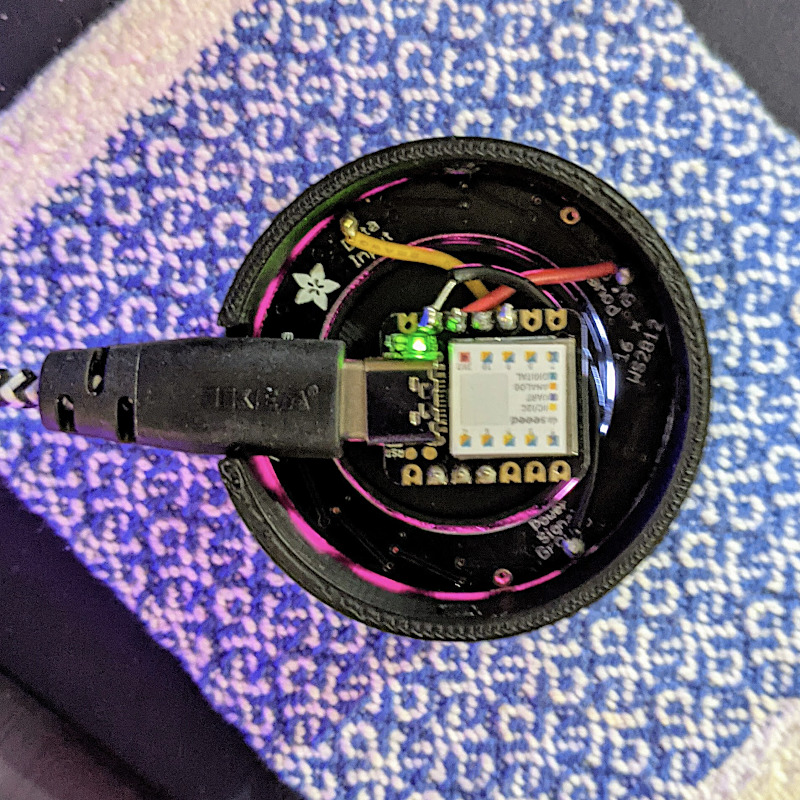
    round computer device with USB cable exiting at left. Small microcontroller at centreshowing wiring to LED ring and rotary encoder
    Slightly blurry image of the underside of the device, showing the Seeeduino XIAO and the glow from the NeoPixel ring. And yes, the XIAO is really that small

    Tod Kurt’s QTPy-knob: Simple USB knob w/ CircuitPython is a fairly simple USB input project that relies on the pin spacing of an Adafruit QT Py development board being the same as that on a Bourns Rotary Encoder. If you want to get fancy (and who wouldn’t?) you can add a NeoPixel Ring to get an RGB glow.

    The QT Py is based on the Seeeduino XIAO, which is a slightly simpler device than the Adafruit derivative. It still runs CircuitPython, though, and is about the least expensive way of doing so. The XIAO is drop-in replacement for the Qt Py in this project, and it works really well! Everything you need for the project is described here: todbot/qtpy-knob: QT Py Media Knob using rotary encoder & neopixel ring

    I found a couple of tiny glitches in the 3d printed parts, though:

    1. The diffuser ring for the LED ring is too thick for the encoder lock nut to fasten. It’s 2 mm thick, and there’s exactly 2 mm of thread left on the encoder.
    2. The D-shaft cutout in the top is too deep to allow the encoder shaft switch to trigger.

    I bodged these by putting an indent in the middle of the diffuser, and filling the top D-shaft cutout with just enough Blu Tack.

    Tod’s got a bunch of other projects for the Qt Py that I’m sure would work well with the XIAO: QT Py Tricks. And yes, there’s an “Output Farty Noises to DAC” one that, regrettably, does just that.

    Maybe I’ll add some mass to the dial to make it scroll more smoothly like those buttery shuttle dials from old video editing consoles. The base could use a bit more weight to stop it skiting about the desk, so maybe I’ll use Vik’s trick of embedding BB gun shot into hot glue. For now, I’ve put some rubber feet on it, and it mostly stays put.


    Hey! Unlike my last Seeed Studio device post, I paid for all the bits mentioned here.

  • Nyan Cat, except it gets faster — RTTTL on the Raspberry Pi Pico

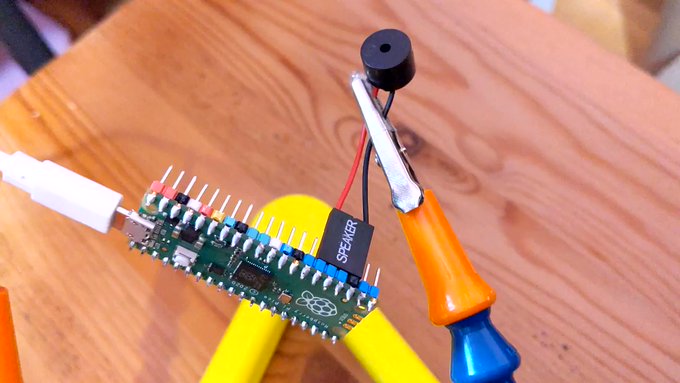
    Raspberry Pi Pico with small piezo speaker connected to pins 23 (ground) and 26 (GPIO 20)
    piezo between pins 26 and 23. Sounds a little like this

    It was inevitable:

    1. A Raspberry Pi Pico; plus
    2. a tiny piezo PC beeper; plus
    3. MicroPython; plus
    4. dhylands / upy-rtttl; plus
    5. nyancat.rtttl; plus
    6. my unfailing sense of knowing when to stop, then ignoring it

    brings you this wonderful creation, which plays the Nyan Cat theme forever, except it gets 20% faster each time. This is weapons-grade annoying (thank’ee kindly), so I’m not going to include a recording here. If you must hear an approximation, paste the RTTTL into Play RTTTL Online and enjoy.

    # Raspberry Pi Pico RTTTL example
    # nyan cat, but it gets faster
    # scruss - 2021-02: sorry, not sorry ...
    
    # Uses rtttl.py from
    #  github.com/dhylands/upy-rtttl
    # Nyan Cat RTTTL from
    #  github.com/KohaSuomi/emb-rtttl/blob/master/rtttl/nyancat.rtttl
    
    from rtttl import RTTTL
    from time import sleep_ms
    from machine import Pin, PWM
    
    b = 90    # bpm variable
    
    # pin 26 - GP20; just the right distance from GND at pin 23
    #  to use one of those PC beepers with the 4-pin headers
    pwm = PWM(Pin(20))
    led = Pin('LED', Pin.OUT)
    
    
    def play_tone(freq, msec):
        # play RTTL notes, also flash onboard LED
        print('freq = {:6.1f} msec = {:6.1f}'.format(freq, msec))
        if freq > 0:
            pwm.freq(int(freq))       # Set frequency
            pwm.duty_u16(32767)       # 50% duty cycle
        led.on()
        sleep_ms(int(0.9 * msec))     # Play for a number of msec
        pwm.duty_u16(0)               # Stop playing for gap between notes
        led.off()
        sleep_ms(int(0.1 * msec))     # Pause for a number of msec
    
    
    while True:
        nyan = 'nyancat:d=4,o=5,b=' + str(b) + ':16d#6,16e6,8f#6,8b6,16d#6,16e6,16f#6,16b6,16c#7,16d#7,16c#7,16a#6,8b6,8f#6,16d#6,16e6,8f#6,8b6,16c#7,16a#6,16b6,16c#7,16e7,16d#7,16e7,16c#7,8f#6,8g#6,16d#6,16d#6,16p,16b,16d6,16c#6,16b,16p,8b,8c#6,8d6,16d6,16c#6,16b,16c#6,16d#6,16f#6,16g#6,16d#6,16f#6,16c#6,16d#6,16b,16c#6,16b,8d#6,8f#6,16g#6,16d#6,16f#6,16c#6,16d#6,16b,16d6,16d#6,16d6,16c#6,16b,16c#6,8d6,16b,16c#6,16d#6,16f#6,16c#6,16d#6,16c#6,16b,8c#6,8b,8c#6,8f#6,8g#6,16d#6,16d#6,16p,16b,16d6,16c#6,16b,16p,8b,8c#6,8d6,16d6,16c#6,16b,16c#6,16d#6,16f#6,16g#6,16d#6,16f#6,16c#6,16d#6,16b,16c#6,16b,8d#6,8f#6,16g#6,16d#6,16f#6,16c#6,16d#6,16b,16d6,16d#6,16d6,16c#6,16b,16c#6,8d6,16b,16c#6,16d#6,16f#6,16c#6,16d#6,16c#6,16b,8c#6,8b,8c#6,8b,16f#,16g#,8b,16f#,16g#,16b,16c#6,16d#6,16b,16e6,16d#6,16e6,16f#6,8b,8b,16f#,16g#,16b,16f#,16e6,16d#6,16c#6,16b,16f#,16d#,16e,16f#,8b,16f#,16g#,8b,16f#,16g#,16b,16b,16c#6,16d#6,16b,16f#,16g#,16f#,8b,16b,16a#,16b,16f#,16g#,16b,16e6,16d#6,16e6,16f#6,8b,8a#,8b,16f#,16g#,8b,16f#,16g#,16b,16c#6,16d#6,16b,16e6,16d#6,16e6,16f#6,8b,8b,16f#,16g#,16b,16f#,16e6,16d#6,16c#6,16b,16f#,16d#,16e,16f#,8b,16f#,16g#,8b,16f#,16g#,16b,16b,16c#6,16d#6,16b,16f#,16g#,16f#,8b,16b,16a#,16b,16f#,16g#,16b,16e6,16d#6,16e6,16f#6,8b,8c#6'
        tune = RTTTL(nyan)
        print('bpm: ', b)
        for freq, msec in tune.notes():
            play_tone(freq, msec)
        b = int(b * 1.2)
    
  • Raspberry Pi Pico: DS18x20 in MicroPython

    Updated: Thanks to Ben, who noticed the Fritzing diagrams had the sensors the wrong way round. Fixed now…

    Hidden away in the Pico MicroPython guide is a hint that there may be more modules installed in the system than they let on. In the section about picotool, the guide has a seemingly innocuous couple of lines:

    frozen modules: _boot, rp2, ds18x20, onewire, uasyncio, uasyncio/core, uasyncio/event, uasyncio/funcs, uasyncio/lock, uasyncio/stream

    The third and fourth ‘frozen modules’ are a giveaway: it shows that support for the popular Dallas/Maxim DS18x20 1-Wire temperature sensors is built in. Nowhere else in the guide are they mentioned. I guess someone needs to write them up.

    DS18x20 digital temperature sensors – usually sold as DS18B20 by Maxim and the many clone/knock-off suppliers – are handy. They can report temperatures from -55 to 125 °C, although not every sensor will withstand that range. They come in a variety of packages, including immersible sealed units. They give a reliable result, free from ADC noise. They’re fairly cheap, the wiring’s absurdly simple, and you can chain long strings of them together from the same input pin and they’ll all work. What they aren’t, though, is fast: 1-Wire is a slow serial protocol that takes a while to query all of its attached devices and ferry the results back to the controller. But when we’re talking about environmental temperature, querying more often than a few times a minute is unnecessary.

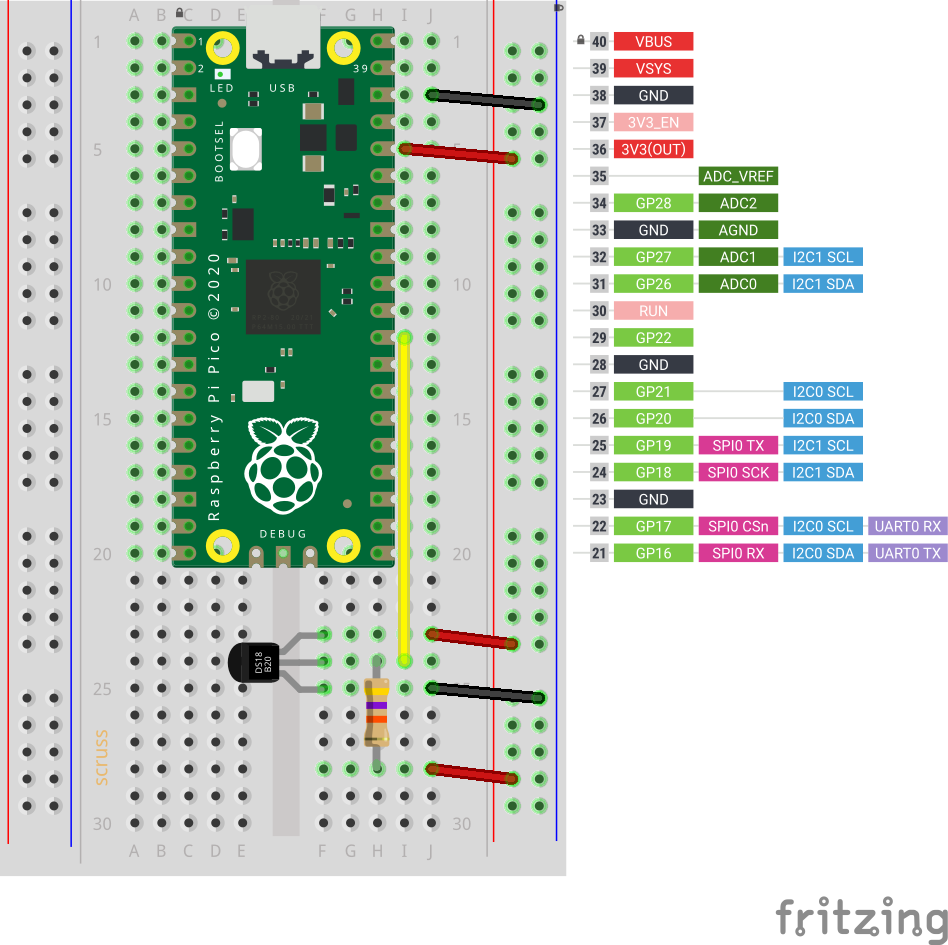
    So this is the most complex way you can wire up a DS18x20 sensor:

    breadboard with raspberry Pi Pico, DS18x20 sensor with 47 k? pull-up resistor between 3V3 power and sensor data line
    Raspberry Pi Pico connected to a single DS18x20 sensor

    and this is how it’s wired:

       DS18X20    Pico
       =========  =========
       VDD      ? 3V3
                  /
         --47 k?--
        /
       DQ       ? GP22
       GND      ? GND
    
     (47 k? resistor between DQ and 3V3 as pull-up)

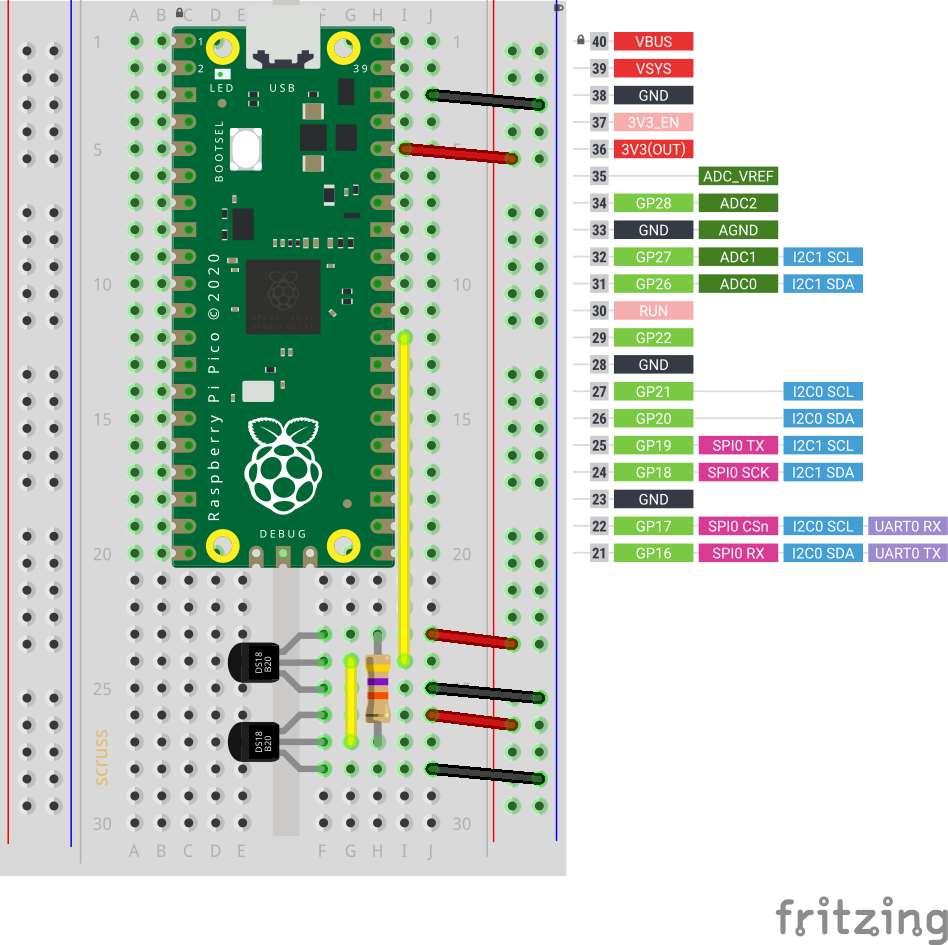
    Adding another sensor is no more complicated: connect it exactly as the first, chaining the sensors together –

    breadboard with raspberry Pi Pico, two DS18x20 sensors with 47 k? pull-up resistor between 3V3 power and sensor data line
    Two DS18x20 sensors, though quite why you’d want two temperature sensors less than 8 mm apart, I’ll never know. Imagine one is a fancy immersible one on a long cable

    The code is not complex, either:

    # Raspberry Pi Pico - MicroPython DS18X20 Sensor demo
    # scruss - 2021-02
    # -*- coding: utf-8 -*-
    
    from machine import Pin
    from onewire import OneWire
    from ds18x20 import DS18X20
    from time import sleep_ms
    from ubinascii import hexlify    # for sensor ID nice display
    
    ds = DS18X20(OneWire(Pin(22)))
    sensors = ds.scan()
    
    while True:
        ds.convert_temp()
        sleep_ms(750)     # mandatory pause to collect results
        for s in sensors:
            print(hexlify(s).decode(), ":", "%6.1f" % (ds.read_temp(s)))
            print()
        sleep_ms(2000)
    

    This generic code will read any number of attached sensors and return their readings along with the sensor ID. The sensor ID is a big ugly hex string (the one I’m using right now has an ID of 284c907997070344, but its friends call it ThreeFourFour) that’s unique across all of the sensors that are out there.

    If you’re reading a single sensor, the code can be much simpler:

    # Raspberry Pi Pico - MicroPython 1x DS18X20 Sensor demo
    # scruss - 2021-02
    # -*- coding: utf-8 -*-
    
    from machine import Pin
    from onewire import OneWire
    from ds18x20 import DS18X20
    from time import sleep_ms
    
    ds = DS18X20(OneWire(Pin(22)))
    sensor_id = ds.scan()[0]  # the one and only sensor
    
    while True:
        ds.convert_temp()
        sleep_ms(750)         # wait for results
        print(ds.read_temp(sensor_id), " °C")
        sleep_ms(2000)
    

    The important bits of the program:

    1. Tell your Pico you have a DS18x20 on pin GP22:
      ds = DS18X20(OneWire(Pin(22)))
    2. Get the first (and only) sensor ID:
      sensor_id = ds.scan()[0]
    3. Every time you need a reading:
      1. Request a temperature reading:
        ds.convert_temp()
      2. Wait for results to come back:
        sleep_ms(750)
      3. Get the reading back as a floating-point value in °C:
        ds.read_temp(sensor_id)

    That’s it. No faffing about with analogue conversion factors and mystery multipliers. No “will it feel like returning a result this time?” like the DHT sensors. While the 1-Wire protocol is immensely complicated (Trevor Woerner has a really clear summary: Device Enumeration on a 1-Wire Bus) it’s not something you need to understand to make them work.

  • Thursday Morning Gravity Wells

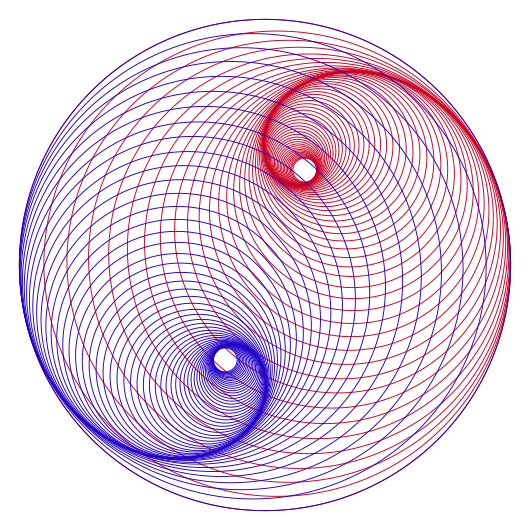
    two sets of osculating circles, one in red, the other blue, offset by 180° to create interference fringes
    made with gcmc and some fiddling about in Inkscape

    Since I have the MidTBot ESP32 plotter running properly, I thought I should look at better ways of generating G-Code than using BASIC and lots of print statements. Ed Nisley — from whom I’ve learned a lot — always seems to be doing interesting things using the gcmc – G-Code Meta Compiler, and it looks like a useful little language to learn.

    Here’s the code to make at least half of the above:

    /*
       osculating circles - scruss, 2021-01
       gcmc version
    
       Usage with midTbot / grbl_esp32:
    
       gcmc osccirc.gcmc | grep -v '^G64' > osccirc.gcode
    
       Or for SVG:
    
       gcmc --svg --svg-no-movelayer --svg-toolwidth=0.25 osccirc.gcmc | sed 's/stroke:#000000/stroke:#C80022/g;' > osccirc.svg
       
    */
    comment("osculating circles - scruss, 2021-01");
    
    /* machine constants */
    up 	      = [-, -, 5.0mm];
    down 	      = [-, -, 0.0mm];
    park 	      = [5.0mm, 145.0mm, 5.0mm];
    feedrate(6000mm);
    
    /* model parameters */
    centre	      = [100.0mm, 75.0mm];
    r	      = 65.0mm;
    lim_r	      = 3.0mm;
    pr	      = r;
    a	      = 0.0deg;
    da	      = 6.0deg;
    sc	      = 0.95;
    comment("centre: ", centre, "; r: ", r, "; lim_r: ", lim_r, "; pr: ", pr, "; a: ", a, "; da: ", da, "; sc: ", sc);
    
    /* counter / sense marker */
    n	      = 0;
    
    goto(up);
    do {
       centre += [(pr-r)*cos(a), (pr-r)*sin(a)];
       goto([centre.x - r, centre.y]);
       goto(down);
       n++;
       if (n%2) {
          circle_cw(centre);
       }
       else {
          circle_ccw(centre);
       }
       goto(up);
       a += 360.0deg + da;
       a %= 360.0deg;
       pr = r;
       r *= sc;
    } while (r >= lim_r);
    
    /* end */
    comment(n, " circles");
    goto(park);
  • making Apple II cassette audio using the Epple-II emulator

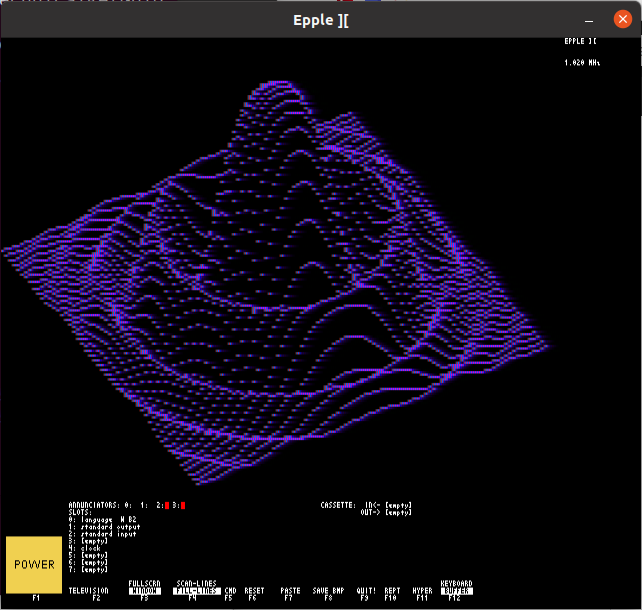
    Screenshot of "Epple-II" Apple II emulator running a 3D sync wav plot in purple
    yes, it’s PLOTPOURRI

    as requested on reddit:

    • on Linux, you’ll probably need a development system, 6502 assembler and SDL2 libraries: sudo apt install git build-essential autoconf automake libsdl2-dev libsdl2-image-dev libsdl2-ttf-dev xa65
    • download from https://github.com/cmosher01/Epple-II/releases or git clone https://github.com/cmosher01/Epple-II.git
    • similarly, download Apple II ROMs from https://github.com/cmosher01/Apple-II-Source/releases or https://github.com/cmosher01/Apple-II-Source.git
    • build Epple-II: cd Epple-II && ./bootstrap && ./configure && make
    • install Epple-II: sudo make install
    • build ROMs: cd ../Apple-II-Source/ && ./bootstrap && ./configure && make
    • install ROMs: sudo make install
    • comment out demo rom and uncomment your rom choice in /usr/local/etc/epple2/epple2.conf
    • start Epple-II: epple2
      (Don’t try epple2 &; the emulator will hang)
    • in the Epple-II console (F5), create a blank tape image: cassette blank prog.wav
    • in the main Epple-II window, paste in your BASIC source (F7) then save it: SAVE. This may take some time, and there will be a beep
    • back in the Epple-II console, write the tape image: cassette save
    • still in the Epple-II console, close the tape image: cassette eject out
    • your Apple II BASIC program is in the file prog.wav.

    For example, here’s Plotpourri‘s BASIC code saved to tape:

    It’s also a pretty decent Apple II emulator, too.

  • Raspberry Pi Meetup tonight: the SeedStudio Wio Terminal

    Anthopomorphized line drawing of the Wio terminal, with a simple smiling face on the screen, waving arms and legs with feet underneath
    Wio Terminal-chan, the mascot for SeedStudio’s Wio Terminal

    Hey – the Toronto Raspberry Pi Meetup Group is meeting online tonight! All welcome: you don’t have to be in/near Toronto to attend.

    I’ll be introducing the SeeedStudio Wio Terminal: a flexible, small input and display device. The Wio Terminal has many interesting uses — including as an adjunct to or even alternative to the Raspberry Pi

    Thursday, December 10, 2020
    7:00 PM to 8:30 PM EST

    Signup link: https://www.meetup.com/Raspberry-Pi/events/dhwnzrybcqbnb/
    or directly on Google Meet: https://meet.google.com/snu-befk-ivf


    Slides!

  • Winnipeg & The Forks

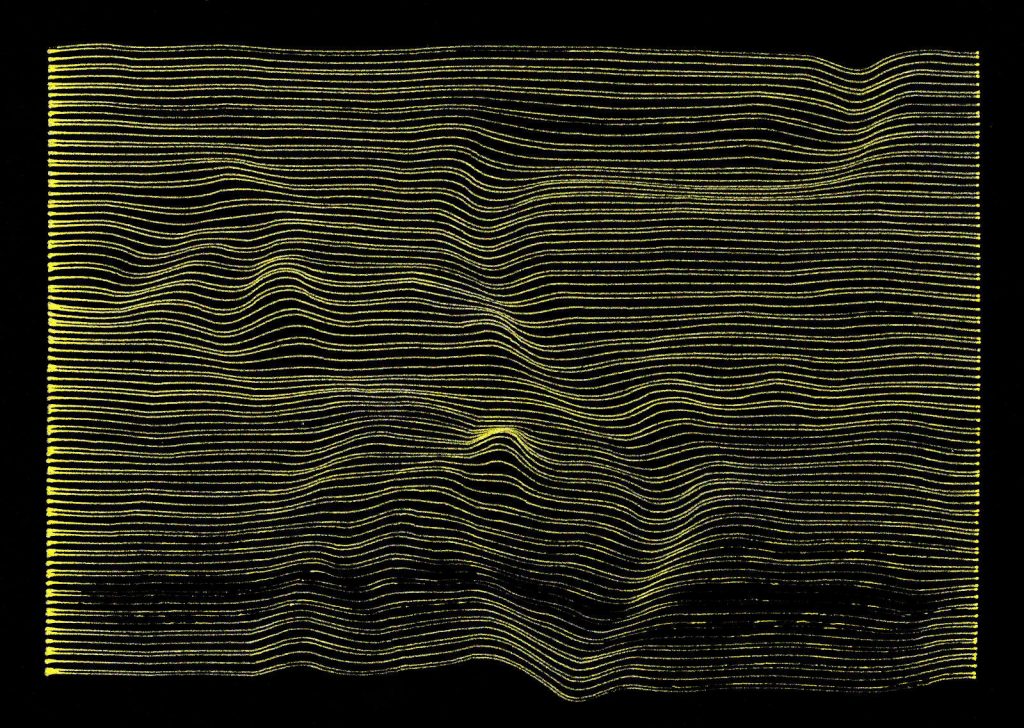
    horizontal gold lines on a black background tha tpick out the winding river valleys that make up downtown Winnipeg
    Terrain around downtown Winnipeg – gold ink on Canson Black
  • micro:bit croc clip keeper

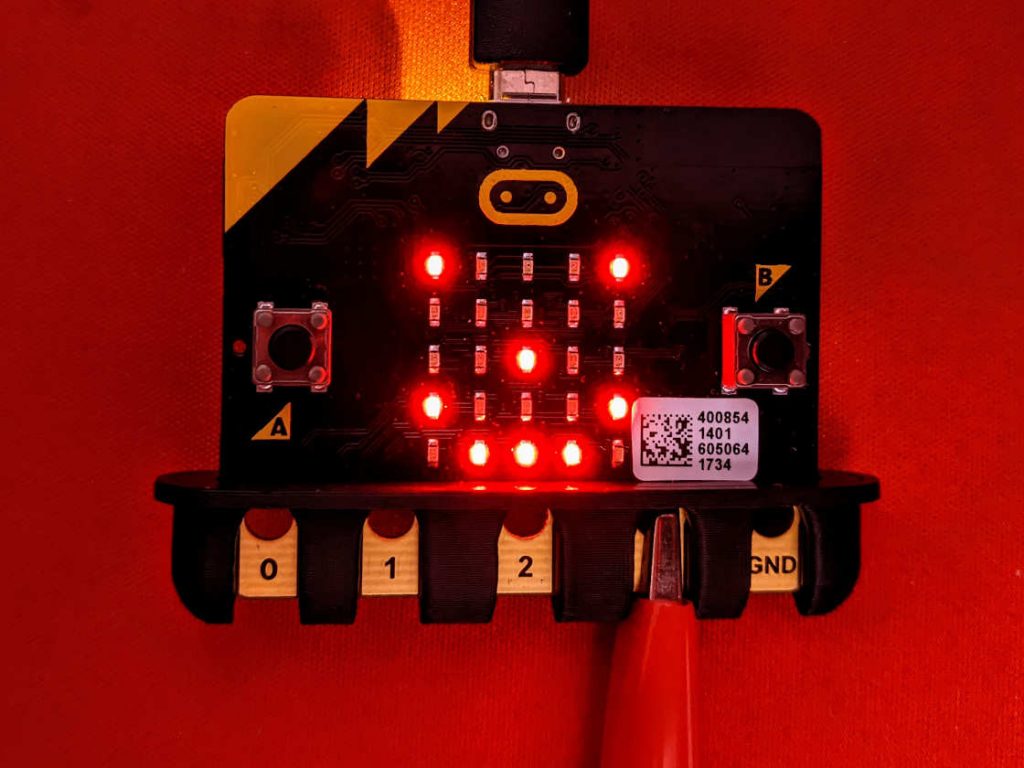
    micro:bit educational electronic board with a small 3d-printed comb-like device protecting the contacts from alligator/croc clips shorting
    this clip won’t short!

    tiny guard piece to stop croc clips / alligator clips shorting out on your micro:bit. Designed entirely from the Kitronik mechanical drawings, as the official ones are useless.

    All the other designs like this on Thingiverse that I tried were really hard to print. Apart from a small amount of bridging (which any printer should be able to handle) this one should be easier.

    Thingiverse link: micro:bit croc clip keeper by scruss

  • Absurdly prescriptive but helpful Dupont connector instructable …

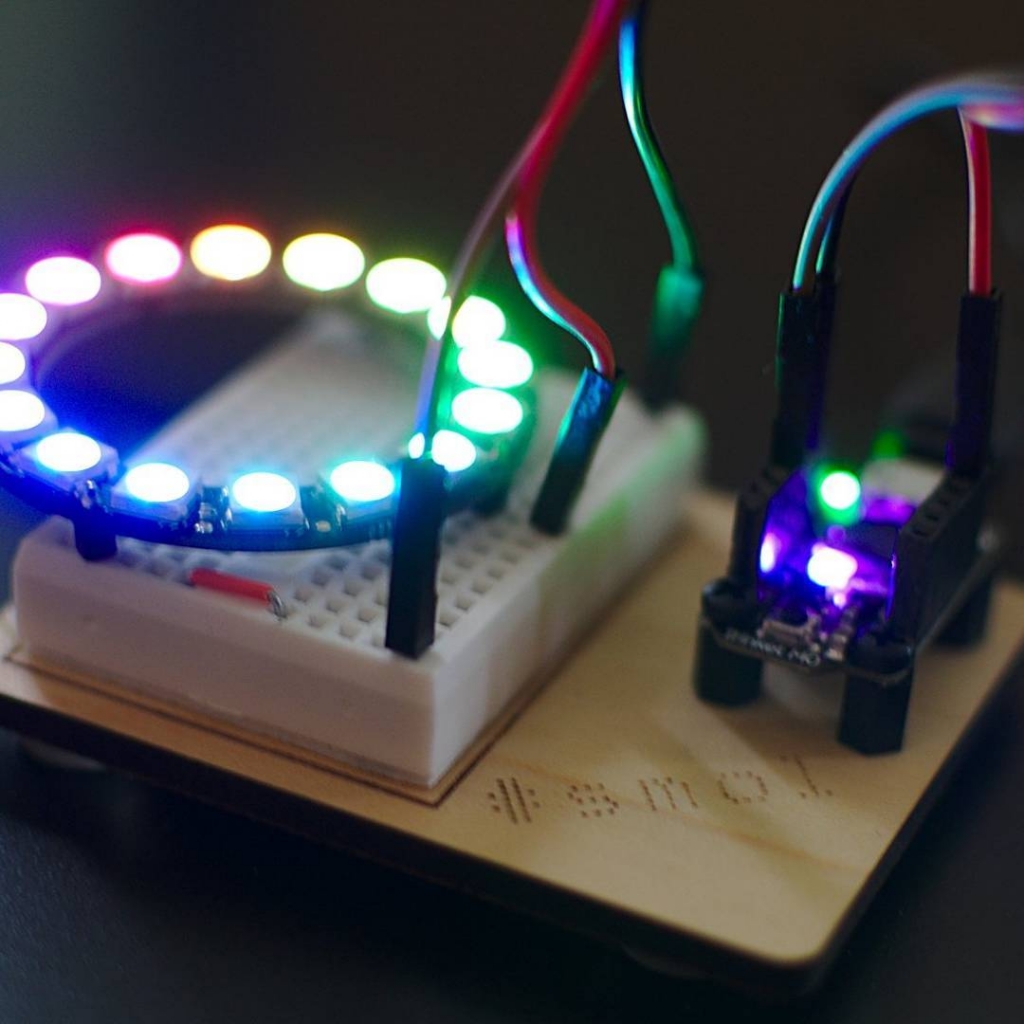
    prototyping board with small microcontroller (Trinket MO) connected to a small breadboard via three header wires using dupont pin connectors
    artistically soft-focus Dupont connectors

    Dupont connectors — the little doohickeys at the end of jumper wires — are great if you never have to build them yourself. You’ll probably attempt it once with the wrong tools, and while the scars are healing you’ll vow never to do it again.

    I recently bought a cheap crimp kit to build the MidTBot ESP32 plotter. My first attempts were, one might say, crap. But I wanted to clean up some of the cables from my desk, and one of them was a horrible taped-together set of jumper wires to use with a ST-LINK V2 compatible In-Circuit Programmer. Surely I could do better than my first try?

    I did — thanks to this Instructable: Make a Good Dupont Pin-Crimp EVERY TIME!. Yes, it’s very long. Yes, it’s all about the only way to do it. Curiously, though, it’s actually right: I got all 8 connectors made while only wasting one.

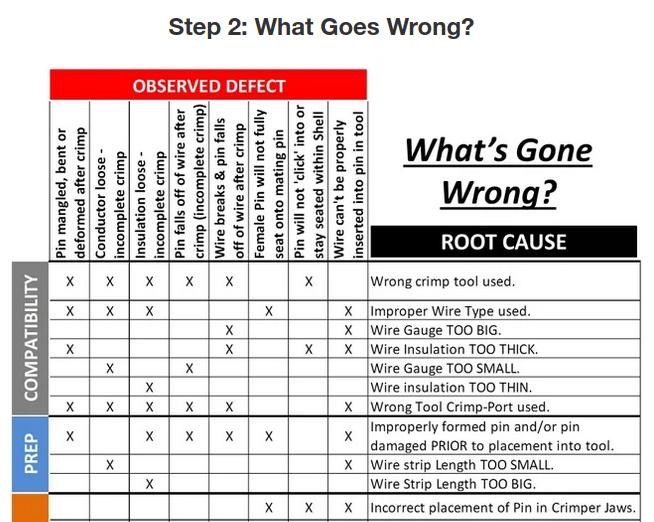
    The absolutely golden detail that improved my success was making the connector jig out of a little bit of pin header. This made the process mostly repeatable and quite a bit faster. And the guide has some really helpful failure matrices:

    failure matrix for making Dupont connectors from Instructables
    all of the above, before I knew what I was doing

    I wouldn’t go out of my way to make Dupont connectors now — they’re still fiddly and slow — but now I have the tools, parts and skills to make less of a mess of them.

  • memo to self: trivial HP-GL → GCode converter

    an outlined lozenge with the work "Phween!" in italcis in teh centre. The text is hatched diagonally.
    what the sample files render

    Updated: here’s a better one. Who knew that hp2xx had a gcode mode built in?

    hp2xx -t -m nc -z 0 -Z 5 -f - file.hpgl | grep -v '^M0.' | sed 's/^G01/G0/;' | awk 'BEGIN {print "G21\nG90";} END {print "G0 Z5";} {print;}' > file.gcode
    

    Aah, no: forget the stuff below.

    hp2xx -t -m hpgl -f - phweeen.hpgl | sed 's/;/\n/g;' | grep -v '^SP' | grep -v PA | awk -F, 'BEGIN {print "G0X0Y0Z5";} /^PU/ {sub(/PU/, "", $1); printf("G0Z5\nG0X%fY%f\n", $1/40.0, $2/40.0);} /^PD/ {sub(/PD/, "", $1); printf("G0Z0\nG0X%fY%fZ0\n", $1/40.0, $2/40.0);} END {print "G0Z5";}' > ~/Desktop/phweeen.gcode
    
    1. likely targets a MidTBot a little too much
    2. ignores pen changes
    3. assumes pen up means tool Z=5 and pen down means tool Z=0
    4. only understands PU (move) and PD (draw) commands
    5. requires hp2xx
    6. tested with trivially few sample files exported as HP-GL from Inkscape
    7. doesn’t care about paper size; your plotter does, though.
  • Arduino Nano “Dead Bug” Case

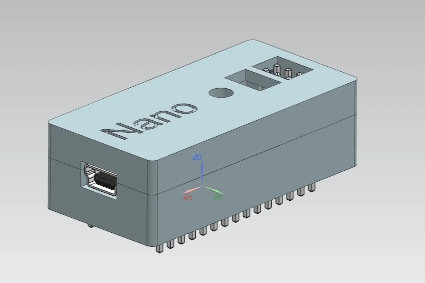
    Arduino Nano in 3d printed case with pin label
    Arduino Nano in 3d printed case with pin label

    I like Arduino Nanos. They’re cheap. They work. They’re small. But they’re a bit fiddly, what with their breadboard legs and tiny pin labels. Wouldn’t it be nicer to use them as self-contained units, with Dupont wires coming from the pins?

    This is where nspohrer’s Arduino Nano case with completely accessible pins comes in:

    Arduino Nano case with completely accessible pins, from Thingiverse
    Arduino Nano case with completely accessible pins, from Thingiverse

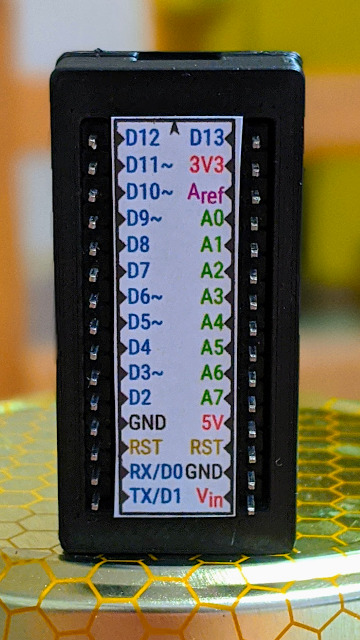
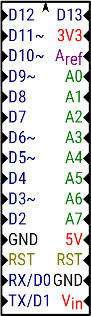
    Flip it over, label the pins, and you’ve got a polished little microcontroller in a box. And do I have just the right label for you …

    Reversed Arduino Nano pin label
    Reversed Arduino Nano pin label
    (PDF behind the linked image)

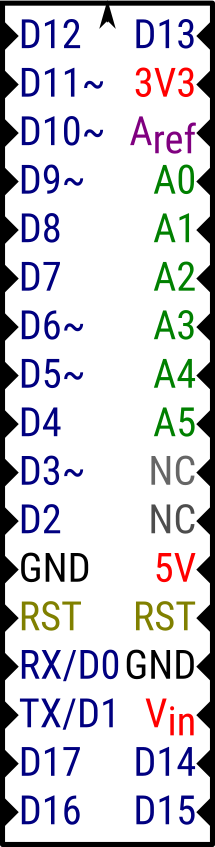
    I’ve even included the original SVG so you can make custom versions. Please ignore the “micro” in the name … they are really for the Nano.

    Arduino Micro label
    no, really … this is an Arduino Micro label for the appropriate case on Thingiverse

    And PDF files, for ease of printing:

  • Glint

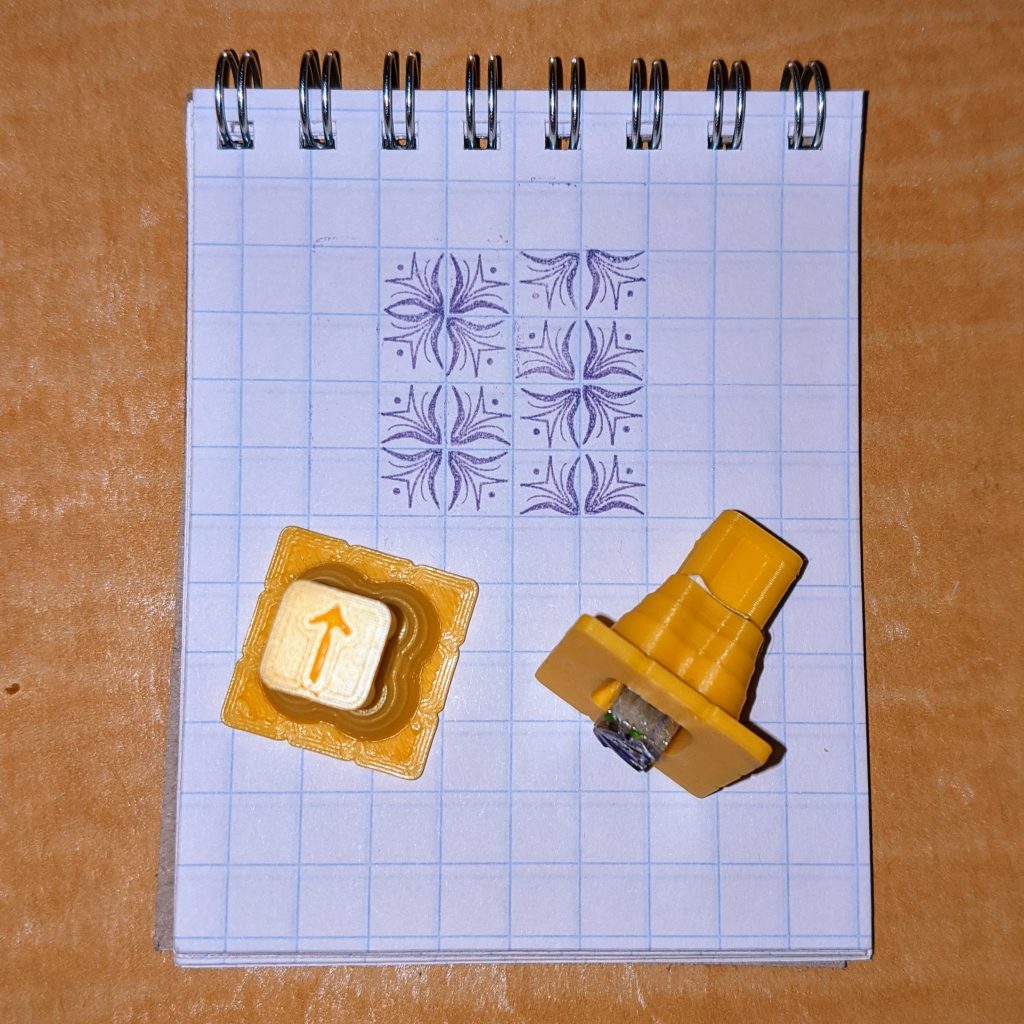
    geometric pattern made from two floral type ornaments designed by David Bethel
    my first decent vector rendering of David Bethel’s “Glint” typographic ornaments (Monotype B1309 & B1310, 1956)

    I’m really enjoying Elisabeth Fraser’s The Glint Game, a delightfully nerdy pattern diversion that uses real metal type.

    squared pad with floral imprints and metal type in plastic holders
    18pt Glint Game from Frauhaus
  • speech on Raspberry Pi: espeak-ng

    Audio can be a bit dismal on a Raspberry Pi. Once you get a configuration that works, sometimes you’re not sure how you got there and you’ll do anything to keep that arcane setup going. It’s better than it was.

    Speech synthesis or TTS adds an extra layer for potential failure. One of the popular Linux TTS systems, eSpeak, hasn’t seen much development in almost a decade and seems to only work through workarounds and hand-waving.

    Thankfully, there’s a fork of eSpeak that is maintained: espeak-ng. Better yet, it’s packaged with Raspberry Pi OS and can be installed quite easily:

    sudo apt install espeak-ng espeak-ng-data libespeak-ng-dev
    

    In my simple tests, it output everything I expected of it.

    eSpeak had a Python module that kinda worked, but espeak-ng’s is much more ambitious, and (mostly) does what it sets out to do. You can install it like this:

    sudo pip3 install py-espeak-ng
    

    py-espeak-ng has some documentation, but it’s still got some trial and error in getting it to work. The biggest issue that held me up was that the module needs to be initialized with a voice that espeak-ng already knows about. If you don’t specify a voice, or specify one that the system doesn’t know about, you won’t get any errors — but you won’t get any output, either.

    Here’s a small Python example that you’ll probably want to try with no-one else within earshot. It repeats the same English phrase (a favourite of elocution teachers) in every English regional language that espeak-ng knows about. In addition, since I’m a dictionary nerd, it outputs phonetics too.

    #!/usr/bin/python3
    # -*- coding: utf-8 -*-
    # an espeakng elocution lesson from scruss, 2020-07
    #     I suffered this at school, now you get to as well!
    # You will need to:
    #     sudo apt install espeak-ng espeak-ng-data libespeak-ng-dev
    #     sudo pip3 install py-espeak-ng
    
    from espeakng import ESpeakNG
    from time import sleep
    
    # you have to initialize with a voice that exists
    #   `espeak-ng --voices=en` will list English ones
    esng = ESpeakNG(voice='en-gb')
    esng.pitch = 32
    esng.speed = 150
    
    phrase = "Father's car is a Jaguar and pa drives rather fast. "\
        "Castles, farms and draughty barns, all go charging past."
    print(phrase)
    print()
    
    for voice in esng.voices:
        if voice['language'].startswith('en-'):
            print('Using voice:', voice['language'],
                  'for', voice['voice_name'], '-')
            esng.voice = voice['language']
            ipa = esng.g2p(phrase, ipa=2)
            print(voice['language'], 'phonetics:', ipa)
            esng.say(phrase, sync=True)
            print()
            sleep(0.1)


    Be thankful you can’t hear the output. The IPA output, however, is a thing of beauty:

    ./espeakNG_test.py
    Father's car is a Jaguar and pa drives rather fast. Castles, farms and draughty barns, all go charging past.
    
    Using voice: en-029 for English_(Caribbean) -
    en-029 phonetics: fˈɑːdaz kˈɑ͡əɹ ɪz a d͡ʒˈaɡwɑ͡ə and pˈɑː dɹˈa͡ɪvz ɹˈɑːda fˈa͡astkˈa͡asɛlzfˈɑ͡əmz and dɹˈa͡afti bˈɑ͡ənzˈɔːl ɡˌo͡ʊ t͡ʃˈɑ͡əd͡ʒɪn pˈa͡ast
    
    Using voice: en-gb for English_(Great_Britain) -
    en-gb phonetics: fˈɑːðəz kˈɑːɹ ɪz ɐ d͡ʒˈaɡwɑː and pˈɑː dɹˈa͡ɪvz ɹˈɑːðə fˈastkˈasə͡lzfˈɑːmz and dɹˈafti bˈɑːnzˈɔːl ɡˌə͡ʊ t͡ʃˈɑːd͡ʒɪŋ pˈast
    
    Using voice: en-gb-scotland for English_(Scotland) -
    en-gb-scotland phonetics: fˈa:ðɜz kˈaːr ɪz ɐ d͡ʒˈaɡwaːr and pˈa: drˈa͡ɪvz rˈa:ðɜ fˈa:stkˈa:sə͡lzfˈaːrmz and drˈa:fte bˈaːrnzˈɔːl ɡˌoː t͡ʃˈaːrd͡ʒɪŋ pˈa:st
     …
    
    
  • The Mandelbrot Set, before Mandelbrot

    How many CPU hours did I burn in the early 1990s rendering bits of the Mandelbrot Set? A lot, mainly because I was doing it in BASIC on an unexpanded 8 MHz Commodore Amiga A500. The image below that Fraqtive rendered in almost no time would have taken me days:

    the squashed bug that started it all: the Mandelbrot set

    But it turns out that the first rendering of what we now call the Mandelbrot set wasn’t produced by Benoit Mandelbrot, but by Brooks & Matelski a year or two earlier:

    text plot of the Mandelbrot set with points inside set marked with asterisks
    figure 2 (original caption “The set of C’s such that f(z) = z² + C has a stable periodic orbit“) from Brooks, Robert, and J. Peter Matelski. “The dynamics of 2-generator subgroups of PSL (2, C).Riemann surfaces and related topics: Proceedings of the 1978 Stony Brook Conference, Ann. of Math. Stud. Vol. 97. 1981.

    What I’ve done – and mostly thanks to tweaks by commenter nobody below – is create period-appropriate code to reproduce that graphic. Since the paper was presented in 1978, there’s a fair chance that the authors had access to a machine running FORTRAN-77 or a near equivalent. FORTRAN’s particularly good for this:

    • it has a built-in COMPLEX type that extends regular mathematical functions;
    • it has just good enough string handling to output a line of spaces/asterisks. I would not have wanted to write this in FORTRAN-66, as that language had no string manipulation facilities at all.

    So here’s the code. It should compile on any Fortran compiler:

          PROGRAM BRKMTF
    !     GENERATE FIGURE FROM BROOKS-MATELSKI PAPER C.1978
    !     THAT EVENTUALLY BECAME KNOWN AS THE MANDELBROT SET
    !     - SCRUSS, 2022-05
    !     REF: BROOKS, ROBERT, AND J. PETER MATELSKI.
    !     "THE DYNAMICS OF 2-GENERATOR SUBGROUPS OF PSL (2, C)."
    !     RIEMANN SURFACES AND RELATED TOPICS: PROCEEDINGS OF THE
    !     1978 STONY BROOK CONFERENCE,
    !     ANN. OF MATH. STUD. VOL. 97. 1981: FIG. 2, P. 81
    
          REAL MAP, CR, CI
          INTEGER I, J, K, M, ROWS, COLS, MAXIT
          COMPLEX C, Z
          PARAMETER (ROWS=31, COLS=71, MAXIT=200)
          CHARACTER*80 OUT
          CHARACTER CH*1
    
          DO J=1,ROWS
             CI=MAP(REAL(J), 1.0, REAL(ROWS), -0.8715, 0.8715)
             DO I=1,COLS
                CR=MAP(REAL(I), 1.0, REAL(COLS), -1.975, 0.475)
                C=CMPLX(CR, CI)
                Z=CMPLX(0.0, 0.0)
                CH='*'
                DO 100, K=1,MAXIT
                   Z = Z**2 + C
                   IF (ABS(Z) .GT. 2) THEN
                      CH=' '
                      GO TO 101
                   END IF
     100        CONTINUE
     101        OUT(I:I)=CH
             END DO
             WRITE(*,*)OUT
          END DO
          END
    
          REAL FUNCTION MAP(X, XMIN, XMAX, YMIN, YMAX)
          REAL X, XMIN, XMAX, YMIN, YMAX
          MAP = YMIN + (YMAX - YMIN) * ((X - XMIN) / (XMAX - XMIN))
          END
    

    The results are spot-on:

    mandelbrot set, rendered in asterisks from BRKMTF.F
    party like it’s ’78

    Maybe Brooks & Matelski had access to an Apple II and wrote something in BASIC? I could be entirely period-accurate and write something in PDP-8 BASIC on my SBC6120, but not today.

    It really is much easier using a language with complex number support when working with the Mandelbrot set. Here’s the same program in Python3, which bears more of a resemblance to FORTRAN-77 than it might admit:

    #!/usr/bin/python3
    # brkmtf - Brooks-Matelski proto ASCII Mandelbrot set - scruss, 2022-05
    # -*- coding: utf-8 -*-
    
    def valmap(value, istart, istop, ostart, ostop):
        return ostart + (ostop - ostart) * ((value - istart) / (istop - istart))
    
    rows = 31
    cols = 71
    maxit = 200
    
    for y in range(rows):
        ci = valmap(float(y + 1), 1.0, float(rows), -0.8715, 0.8715)
        for x in range(cols):
            cr = valmap(float(x + 1), 1.0, float(cols), -1.975, 0.475)
            c = complex(cr, ci)
            z = complex(0.0, 0.0)
            ch = '*'
            for k in range(maxit):
                z = z**2 + c
                if (abs(z) > 2.0):
                    ch = ' '
                    break
            print(ch, end='')
        print()


    I found out about the Brooks-Matelski paper from this article: Who Discovered the Mandelbrot Set? – Scientific American. It’s none too complimentary towards Benoit Mandelbrot.

    Update: see the comment from one of the authors of the original paper below.

  • MicroPython on the BrainPad Classic/BP2

    GHI Electronics BrainPad Classic/BP2 electronics project board on a tasteful faux-leopard background. Small OLED screen is showing "SCRUSS 2020"
    GHI Electronics BrainPad Classic/BP2 in 3d printed case

    I’ve extended the MicroPython examples for the BrainPad Classic so that all of the devices work: scruss/brainpad-micropython: Micropython examples for the BrainPad Classic (BP2) from GHI Electronics.

    The ones that already worked in the original examples repo are:

    • buttons
    • accelerometer
    • LEDs
    • light sensor
    • OLED screen

    I’ve added:

    • temperature sensor: although my calibration may be a bit off on the MCP9701a used on the board
    • timer blink example: STM32 Timers are cool and we should use them
    • PWM RGB LED example: floating-point silliness with HSV(ish) Colour Wheel in Python
    • buzzer: simple tones plus tunes (in RTTTL) via dhylands / upy-rtttl
    • servos: I may have forgotten to put the example in there, but the standard Servo(1) code should work.

    Yes, it would be nice to have a slick unified library like the BBC micro:bit does. For later, though.

    Other resources:

  • terminal colour silliness with Python

    terminal text in rainbows

    Using ansicolors:

    #!/usr/bin/python3
    # -*- coding: utf-8 -*-
    # colourshen.py - stdin to rainbow stdout
    # scruss, 2020-06
    
    from colors import *            # see https://pypi.org/project/ansicolors/
    import sys
    wheel_pos = 0
    
    
    def cos_wheel(pos):
        # Input a value 0 to 255 to get a colour value.
        # scruss (Stewart Russell) - 2019-03 - CC-BY-SA
        from math import cos, pi
        if pos < 0:
            return (0, 0, 0)
        pos %= 256
        pos /= 255.0
        return (int(255 * (1 + cos(pos * 2 * pi)) / 2),
                int(255 * (1 + cos((pos - 1 / 3.0) * 2 * pi)) / 2),
                int(255 * (1 + cos((pos - 2 / 3.0) * 2 * pi)) / 2))
    
    
    def hex_wheel(pos):
        rgb = cos_wheel(pos)
        return('#%02x%02x%02x' % rgb)
    
    
    def wheel_print(s):
        global wheel_pos
        incr = int(256/(1+len(s)))-1
        if incr < 1:
            incr = 1
        for c in s:
            print(color(c, fg=hex_wheel(wheel_pos)), end='')
            wheel_pos = (wheel_pos+incr) % 256
        print()
    
    
    for txt in sys.stdin:
        wheel_print(txt.rstrip())


    (fixed a very obvious ahem! in the code, hope no-one noticed …)