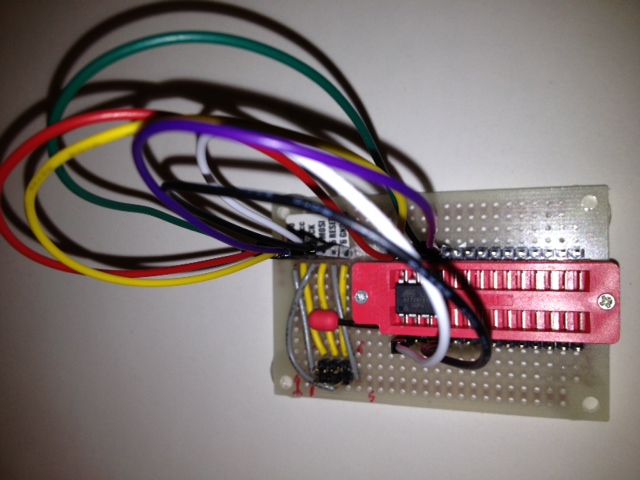
It’s amazing what you can do when you raid your parts bin …

Featuring fully configurable M-F jumpers so I can program (pretty much) any Atmel ATTiny microcontroller up to 28 pins. Might be able to do some ATMegas too.
It’s amazing what you can do when you raid your parts bin …

Featuring fully configurable M-F jumpers so I can program (pretty much) any Atmel ATTiny microcontroller up to 28 pins. Might be able to do some ATMegas too.
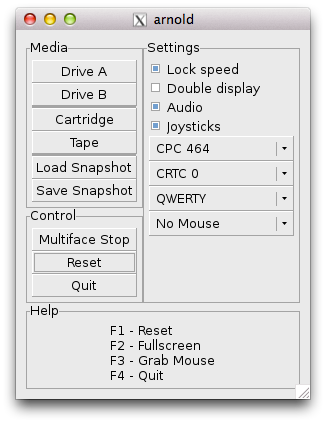
Yeah, you can do it, but whether you should, I don’t know. Download the latest Arnold/Linux source, then (according to this post) after installing the dependencies, you just need to change
TARGET_FMT=elf32-i386
to
TARGET_FMT=elf32-littlearm
in src/Makefile.in.
It works, for very slow values of “works”. Mind you, I was running it through a remote X session, so 2 fps is all I could have hoped for …
Hey! This is ancient! But since we’re talking about even more ancient computers, those bits still work. I’d recommend looking at the current installation instructions for z88dk rather than what I’ve got here.

If you crash an Amstrad CPC, you often got some pretty patterns. Like the one above, which was supposed to print the alphabet, but got about as far as R, then started making coloured spots on the screen. My alphabet doesn’t (usually) contain coloured spots, so something went wrong.
This post is only about the Raspberry Pi in that it’s the nearest always-on Linux system that I have. This would likely work fine on any Linux machine. While the Z80 cross compiler I use (z88dk) is available in the repos, I can’t get it to build anything, so I just pulled down the latest version. To build the compiler:
wget http://nightly.z88dk.org/z88dk-latest.tgz
tar xvzf z88dk-latest.tgz
cd z88dk
export Z80_OZFILES=$(pwd)/lib/
export ZCCCFG=${Z80_OZFILES}config/
export PATH=${PATH}:$(pwd)/bin
./build.sh
This should result in a working environment. We can test it with a simple C program:
/* alfa.c - print the alphabet */
#include <stdio.h>
int main(void) {
char a='A';
char b=26;
while (b>0) {
putchar(a);
a++;
b--;
}
}
You can build it with:
zcc +cpc -create-app -make-app -O3 -unsigned -o alfa.bin alfa.c -lcpcfs -zorg=16384
You should end up with a file alpha.bin of approximately 4749 (!) bytes. You can copy it to a disc image using iDSK:
iDSK blank.dsk -i alfa.bin -c 4000 -e 4000 -t 1

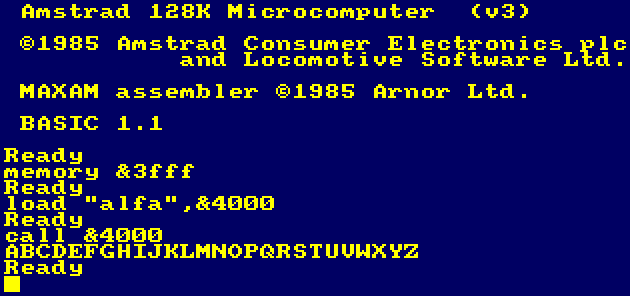
It runs like this:

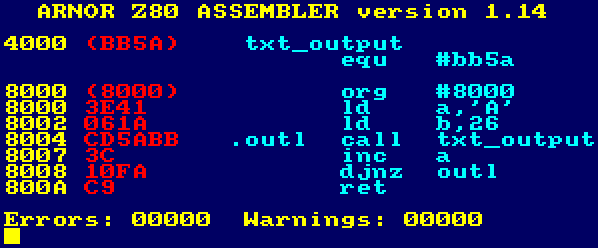
You can do the same with Z80 assembly language (shown here in the most gratuitously pretty Amstrad assembler, Maxam):
Although this results in only 11 bytes of code, it’s not portable; the C code above compiled and ran on both my Raspberry Pi and my Mac. It wouldn’t even run properly on a different Z80 system, as only the Amstrad CPC knows that call #bb5a prints the character in the A register. On the ZX Spectrum, for example, it was the completely different instruction rst 16 to print a character.
(There’s a lot more on z88dk on the CPCWiki.)
Yay! I found a wireless adapter that the Raspberry Pi is able to power without an external hub. It’s a Belkin N150 Micro Wireless USB Adapter. Not sure of the range, but it works well enough, and is cheap.
Just to show you how hard-core I am, that’s a screenshot of a browser (showing a picture of the Raspberry Pi + LSTech Solar charger) running on that Raspberry Pi with an X session tunnelled to the laptop you can see in the background. My head hurts now.
Put me out to pasture, my conference swag skills are failing.
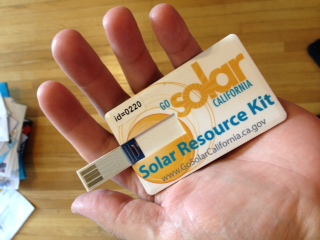
I picked this up at Solar Power International:

I thought I was picking up a USB memory stick, as I’d nabbed one in the same form factor before. Break off the backing card at the hinge, and you’ve got a nice tiny data store like the Kingmax ones I used to use.
On plugging it into my Mac, a couple of icons bipped on my dock, then Skype opened. Wat? More importantly, there was no storage to be seen, so once my virus fears had subsided a bit, I was determined to find out what this pointless piece of plastic was doing.
The stick identified itself to the system as an Apple keyboard (USB ID 05ac:020b), and spits out the following characters (captured by cat and xxd on my Raspberry Pi):
0000000: 1b72 1b5b 317e 1b5b 3477 7777 2e62 757a .r.[1~.[4www.buz 0000010: 7a63 6172 642e 7573 2f73 6365 2d32 3230 zcard.us/sce-220 0000020: 0a                                      .
After reading about evil USB dongles, it seems that the Ctrl-R keypress it’s sending is the Windows “Open Browser” command, and then opens the url www.buzzcard.us/sce-220. This link redirects to www.plugyourbrand.com/gosolar_sce/index.html?u=220, which appears to do some Flash/JS stuff which I don’t want to understand.
The funny thing is, the card has the perfectly respectable www.GoSolarCalifornia.ca.gov (well, respectable if you consider a US .gov website as such) link printed on it. Even printing a card with a QR code linking to that address would be less opaque.

As is, a bunch of plastic was wasted in vain just to save people typing an URL. We’re all going to die, and it really is your fault …
One day, I’d like to power a small remote server from solar power. Today is not yet that day. But I’m closer …
At the Solar Power International show (big modules! cheap modules! AC modules!!) last week in Orlando (squee-able minilizards! cuban food!!) there were a few vendors selling solar USB chargers. Most were folding thin-film units similar to this, but what caught my eye (and was actually for sale at the show) was the LSTech “Smart one“:
The unit features:
It comes with a couple of USB cables, and like seemingly all Korean semi-luxe electronic devices, comes in a soft brown velour bag. I’m not sure if the soft velour bag is the universal sign of quality in Korea, but I’ve noticed it enough that it might be A Thing.
I’ve run a Raspberry Pi for a couple of hours off this thing without making too much of a dent in the charge. I might be able to run it in full sun from the 4W solar charger, but I’m under no illusion that the Raspberry Pi’s ~3.5W continuous draw is going to keep running from such a small panel. That’s expecting an 88% capacity factor from a solar panel, which would be well if there wasn’t this small thing called night (or rotation of the earth, or cloud cover, or …)
There’s rather more nostalgia in this post than I’d want to deal with. If you want to just play the game, go here here and skip this blurb.
Update: the Java emulator doesn’t work in the browser any more, so here’s Arnold playing the BASIC version: http://scruss.com/cpc/6128s.html?stardoj.dsk/run%22stardoj2
About 25 years ago, I was a smallish computer nerd obsessed with programming his Amstrad CPC464. I had got a BCPL rom-based compiler for cheap and was looking for things to do with it. “Why not write a game?” I asked myself.
There were two minor hurdles. I had no imagination, and I certainly wasn’t focused enough to write anything big. Fortunately, it was still the 80s, so we knew how to rip stuff off without being called out for it. I merrily copied a game my friend Alan Cook had written for the Dragon 32, and called it 2D Star Dodge.
2D Star Dodge was the perfect rip off. Not merely had I ripped off the idea from Alan, but he had ripped off the idea in turn from a BBC Basic one-liner game called (as verified by Graeme Smith) “One Line” Asterisk Tracker. The name 2D Star Dodge was an, um, homage to Realtime Games’ 3D Starstrike, which itself was “strongly influenced” by the Star Wars arcade game. Originality? Pfft.
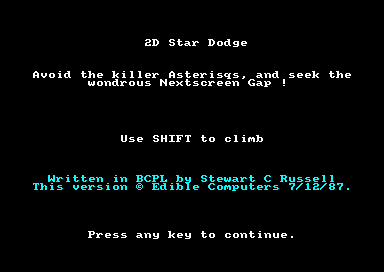
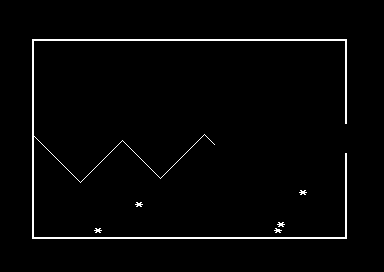
So I wrote the game. Well, okay, I wrote a mockup in Locomotive BASIC, which ran a bit slowly, but gave me something to work from. Here it is, if you want to play it in you (Java-enabled) browser: 2D Star Dodge – BASIC. I then meticulously translated it into BCPL, and ended up with something that looked liked this:
(if you click on that image, you can play the BCPL version in your browser.)


Â
The gameplay — press a key to go up, stop pressing a key to go down — is a bit like SFCave (obligatory Java version: Lab6 SFCave) or even my current favourite Tiny Wings.
Once I’d finished the BCPL version, I had bought the MAXAM assembler ROM, and got learning the Z80 opcodes. Soon, a third port was complete, now needing hardcoded delays to be playable as it would kill you off in about one screen refresh without them.
So, now I had three versions of the same game. There was only a limited number of local folks I could give it to, so I decided to send all three versions to Amstrad Computer User magazine to print as a type-in. Thankfully, it arrived on the desk of the freshly minted (yet still beardy) assistant editor Jeff Walker, who had founded the jam econo CPC magazine/club WACCI. Jeff had the idea for me to turn the simple game into a comparison of programming in three languages.
Thanks to the CPCWiki forum, you can now read the articles I wrote in Amstrad Computer User in 1988 that went with the code. Writing style best described as “typing”:
To play the game in an astonishing JavaScript emulator:
cat) you have to type cqtrun"stardoj2 (on my American keyboard, that becomes run@stqrdoj2; quotes are Shift+2). Hitting Escape twice will quit back to the prompt.run"2dstardo. The only way to quit is to reset the emulator.The BASIC version is based on the published type-in. The BCPL version I found as a disk image (2dstardo.dsk) on a download site — it’s exactly as I submitted it to the magazine, dubious copyright message and all. I’m not sure how it got out there; I suspect either my network of, ahem, software protection experts I knew through Colin Harris of Nemesis, or it went via my CPC-owning French penpal (Hi Benoit Hébert, formerly of Le Havre).
I had to modify the BCPL binary to run on modern emulators, as the real Amstrad CPC did a thing with its keymapping that is really hard to get right on modern systems. Originally, the game used the Shift key, but I modified it to use Space, which is easier to emulate as it’s a printing character. Can I just say that I remembered how to read and modify Z80 binaries after a quarter century? Old school, literally. I used iDsk‘s disassembler/hex dumper and emacs’s hexl mode to do the deed.
I recently discovered that someone created a Flash game based on my type-in: Star Dodger. Mind = Blown.
Update, 2018: Lawks! Someone wrote a PureScript version! It doesn’t exactly work for me on Firefox, but it does on Chromium.

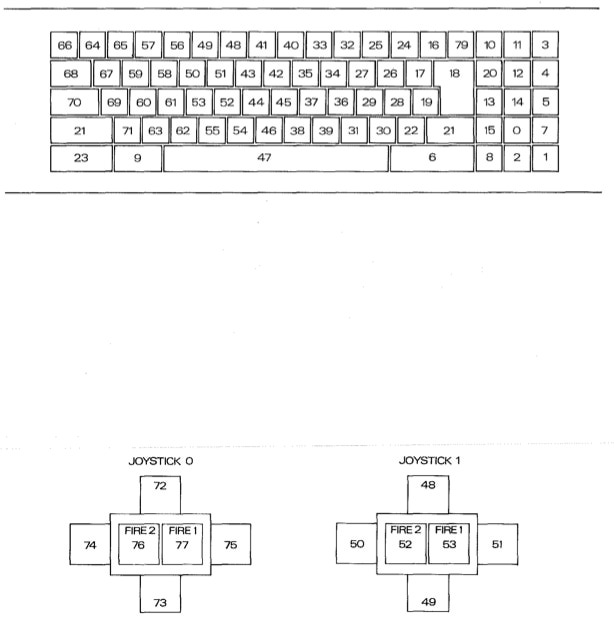
Ganked from the CPC 6128 manual. You’re welcome …
Note that non-printing keys (like SHIFT) are really hard to emulate on modern machines. The CPC scanned them as if they were any printing key, but modern machines handle them like key modifiers.
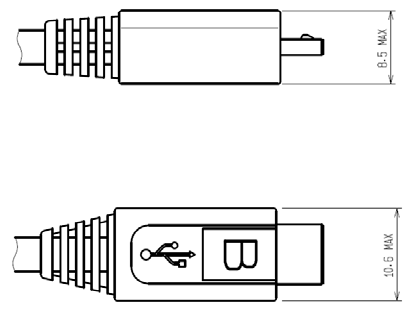
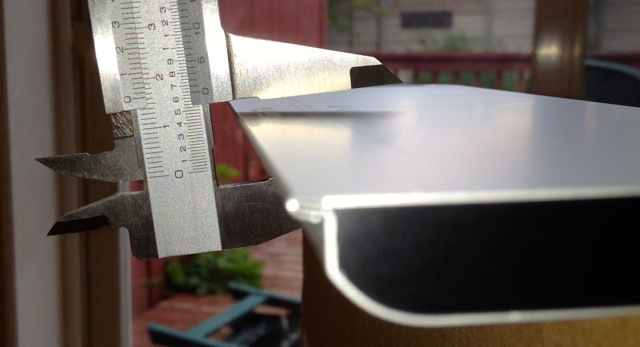
I’d noted previously that a standard USB micro-b power plug doesn’t fit into a Pibow. I’ve measured the opening in the case at 10.4 mm. This is what the USB.org spec says for the Micro-B plug:

A conforming cable can be up to 0.2mm larger than would fit into the Pibow. The rather weak excuse given by the designer is:
My Micro-USB cable doesn’t fit!
The Pibow supports a wide range of svelte, stylish micro USB cables, we recommend on [sic] of these. We may be able to slightly widen the aperture to include more cable. We don’t intend to support cables with large sleeves though, they just look naff 🙁
While I had the vernier calipers out, I measured all the USB connectors I could find. Not one was under 11 mm, way out of spec, and completely unlikely to fit in the Pibow.
Via this post, I found out about Russian Peasant Multiplication, a rather clever method of multiplication that only requires, doubling, halving and adding. So I wrote some code to display it:
#!/usr/bin/python
# -*- coding: utf-8 -*-
import sys
results=[]
indicator=' '
left=int(sys.argv[1])
right=int(sys.argv[2])
while right >= 1:
   indicator='X'
   if right % 2:
       indicator=' '             # right number is odd,
       results.append(left)      # so add left number to results
   print (" %s %16d \t %16d %s") % (indicator, left, right, indicator)
   left *= 2
   right /= 2
print("%s × %s = %s = %d")%(sys.argv[1], sys.argv[2],
                           ' + '.join(map(str,results)), sum(results))
So to multiply 571 × 293:
$ ./rpmult.py 571 293                571                 293   X            1142                 146 X               2284                  73   X            4568                  36 X  X            9136                  18 X              18272                   9   X           36544                   4 X  X           73088                   2 X             146176                   1  571 × 293 = 571 + 2284 + 18272 + 146176 = 167303
Python’s still got some weirdness compared to Perl; where I’d join the list of sum terms in Perl with join(' + ', @results), in Python you have to convert the integer values to strings, then call the join method of the separator string: ' + '.join(map(str,results)). Still, I’ll give Python props for having a built-in list sum() function, which Perl lacks.
If you’re wondering why the lower line has a load of squigglies when it appears identical to the one above, open the linked PDF and copy some of the text. Looks a bit squiffy, no?
I’m messing with your head here by splitting the encoding of the characters from the appearance of the glyphs, and using the old rot13 cypher to do it. This will really mess up the new MS Office “Edit PDF as text” schtick. Please note I’m doing this for lulz, not to break accessibility; that would be as the kids today say, a dick move.
Here’s the font: TimesNewROT13.
Since Times is both New and Roman, I thought I’d add some old roman by making a Caesar Cypher version. I don’t think I’ve done this quite right, but it works if you use the following shell command as an encoder:
tr '[A-C][D-Z][a-c][d-z]' '[D-Z][A-C][d-z][a-c]'
Here it is: TimesNewCaesar. I’ll fix it soon enough.
(Note that ROT13 fonts have been done before …)

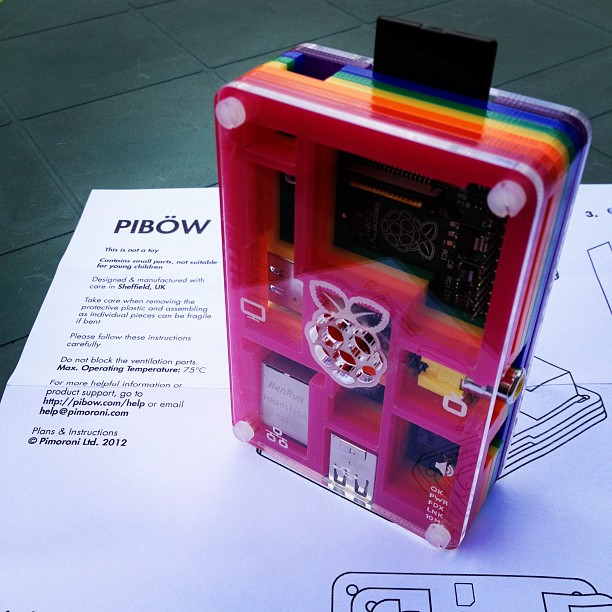
… arrived today from the UK. Quick and easy build, though you have to be careful to get the case screws all tightened up just right or the thing will be wobbly. IKEA are totally going to hand Pimoroni their arse over the lookalike instructions, though.
Though there is just one problem: a standard USB micro-b power plug doesn’t fit …
Whee! This entry was the basis of the cover article of The MagPi issue 7. Read it on Issuu, or download the PDF.

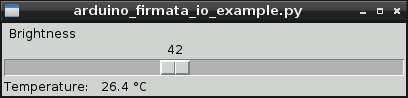
Okay, so maybe I can stop answering the StackExchange question “How to attach an Arduino?” now. While I got the Arduino working with pyFirmata on the Raspberry Pi before, it wasn’t that pretty. With a TkInter front end, it actually looks like some effort was involved. You can happily brighten and dim the LED attached to the Arduino all you want, while the temperature quietly updates on the screen independent of your LED frobbing.
I’d never used TkInter before. For tiny simple things like this, it’s not that hard. Every widget needs a callback; either a subroutine it calls every time it is activated, or a variable that the widget’s value is tied to. In this case, the Scale widget merely calls a function set_brightness() that sets a PWM value on the Arduino.
Updating the temperature was more difficult, though. After TkInter has set up its GUI, it runs in a loop, waiting for user events to trigger callback events. It doesn’t really allow you to run another loop alongside its main event loop. What you have to do then is set up a routine which is called periodically using TkInter’s after() function, which calls a subroutine after a set amount of time. If this subroutine ends with another call to after() to call itself again, it will maintain its own event loop separate from TkInter’s GUI loop. This is what I do in the get_temp() subroutine, which schedules itself after a ½ second.
#!/usr/bin/python
# -*- coding: utf-8 -*-
# graphical test of pyfirmata and Arduino; read from an LM35 on A0,
# brighten an LED on D3 using PWM
# Connections:
# - small LED connected from D3, through a 1kΩ resistor to GND;
# - LM35: +Vs -> +5V, Vout -> A0, and GND -> GND.
# scruss, 2012-08-16 - tested on Raspberry Pi and Arduino Uno
import pyfirmata
import sys # just for script name and window
from Tkinter import *
# Create a new board, specifying serial port
board = pyfirmata.Arduino('/dev/ttyACM0')
# start an iterator thread so that serial buffer doesn't overflow
it = pyfirmata.util.Iterator(board)
it.start()
# set up pins
pin0=board.get_pin('a:0:i') # A0 Input (LM35)
pin3=board.get_pin('d:3:p') # D3 PWM Output (LED)
# IMPORTANT! discard first reads until A0 gets something valid
while pin0.read() is None:
pass
def get_temp(): # LM35 reading in °C to label
selection = "Temperature: %6.1f °C" % (pin0.read() * 5 * 100)
label.config(text = selection)
root.after(500, get_temp) # reschedule after half second
def set_brightness(x): # set LED; range 0 .. 100 called by Scale widget
y=float(x)
pin3.write(y / 100.0) # pyfirmata expects 0 .. 1.0
def cleanup(): # on exit
print("Shutting down ...")
pin3.write(0) # turn LED back off
board.exit()
# now set up GUI
root = Tk()
root.wm_title(sys.argv[0]) # set window title to program name
root.wm_protocol("WM_DELETE_WINDOW", cleanup) # cleanup called on exit
scale = Scale( root, command=set_brightness, orient=HORIZONTAL, length=400,
label='Brightness') # a nice big slider for LED brightness
scale.pack(anchor=CENTER)
label = Label(root)
label.pack(anchor='nw') # place label up against scale widget
root.after(500, get_temp) # start temperature read loop
root.mainloop()
The program takes a few seconds to start on the Raspberry Pi, mainly because initializing pyFirmata over a serial line and waiting for the duff values to subside takes time. I tried to exit the program gracefully in the cleanup() subroutine, but sometimes one of the loops (I suspect pyFirmata’s iterator) doesn’t want to quit, so it takes a few clicks to exit.
The program also seems to chew up a fair bit of CPU on the Raspberry Pi; I had it at around 40% usage just sitting idle. I guess those serial ports don’t read themselves, and you have to remember that this computer is basically no more powerful than a phone.
So there you are; a simple demo of how to control an output and read an input on an Arduino, from a Raspberry Pi, written in Python (the Raspberry Pi’s official language) with a simple GUI. Considering I’d never written a line of Python before the beginning of this month, I think I’m doing not too badly.
Hey! This article is really old! So old, in fact, that it really only exists to track down content farms that like to knock off my articles (oh hai, CircuitDigest!). Information here may be misleading and possibly wrong. You probably want to be using a newer client library and you definitely want to use an Arduino IDE ≥ 1.6 and not the ancient one that comes with Raspbian.
After the other night’s wonderfully slow detour into Processing, I thought I’d try the Raspberry Pi’s “native” language of Python to control an Arduino. This worked rather well, though I don’t have a slick GUI for it yet.
pyFirmata is the magic that allows an Arduino running Firmata to talk to Python. It’s fairly easy to install under Raspbian:
sudo apt-get install python-serial mercurialhg clone https://bitbucket.org/tino/pyfirmata
cd pyfirmata
sudo python setup.py installUsing pyFirmata is a bit different from other Arduino applications:
Here’s some code that uses the same hardware as before, but simply reports the temperature and ramps the brightness of the LED up in 10% steps.
#!/usr/bin/python
# -*- coding: utf-8 -*-
# simple test of pyfirmata and Arduino; read from an LM35 on A0,
#Â Â Â Â Â Â Â Â Â Â Â Â Â Â Â Â Â Â Â Â Â Â Â Â Â Â Â Â Â Â Â Â Â Â Â Â Â Â brighten an LED on D3 using PWM
# scruss, 2012-08-14 - tested on Arduino Uno & Raspberry Pi (Raspbian)
import pyfirmata
# Create a new board, specifying serial port
board = pyfirmata.Arduino('/dev/ttyACM0')
# start an iterator thread so that serial buffer doesn't overflow
it = pyfirmata.util.Iterator(board)
it.start()
# set up pins
pin0=board.get_pin('a:0:i')            # A0 Input     (LM35)
pin3=board.get_pin('d:3:p')Â Â Â Â Â Â Â Â Â Â Â Â # D3 PWM Output (LED)
# IMPORTANT! discard first reads until A0 gets something valid
while pin0.read() is None:
pass
for i in range(10):
pin3.write(i/10.0)Â Â Â Â Â Â Â Â Â Â Â Â Â Â Â Â Â # set D3 to 0, 10%, 20%, ... brightness
print "PWM: %d %% Temperature %.1f °C" % (i * 10, pin0.read() * 5 * 100)
board.pass_time(1)Â Â Â Â Â Â Â Â Â Â Â Â Â Â Â Â Â # pause 1 second
pin3.write(0)Â Â Â Â Â Â Â Â Â Â Â Â Â Â Â Â Â Â Â Â Â Â Â Â Â Â # turn LED back off
board.exit()
The output from this might look like:
PWM: 0 % Temperature 24.9 °C PWM: 10 % Temperature 24.9 °C PWM: 20 % Temperature 24.9 °C PWM: 30 % Temperature 25.9 °C <- PWM: 40 % Temperature 26.9 °C | PWM: 50 % Temperature 28.3 °C | I was holding the LM35 here PWM: 60 % Temperature 28.8 °C | to make the temperature rise PWM: 70 % Temperature 29.8 °C | PWM: 80 % Temperature 29.8 °C | PWM: 90 % Temperature 29.8 °C <-
If this doesn’t work, check the output of dmesg to see if you’re using the right port. You could try this little test script
#!/usr/bin/python
# -*- coding: utf-8 -*-
import pyfirmata
PORT = '/dev/ttyACM0'Â Â Â Â Â Â Â Â Â Â # change this to suit
board = pyfirmata.Arduino(PORT)
print 'pyFirmata version:\t%s' % pyfirmata.__version__
print 'Hardware:\t\t%s' % board.__str__()
print 'Firmata firmware:\t%i.%i' % (board.get_firmata_version()[0],
board.get_firmata_version()[1])
board.exit()
which should generate something like
pyFirmata version:Â Â Â 0.9.4 Hardware:Â Â Â Â Â Â Arduino /dev/ttyACM0 on /dev/ttyACM0 Firmata firmware:Â Â Â 2.3
Next time, I’ll try to wrap this in a tkinter GUI. But for now, pyFirmata is a much quicker way than Processing to talk to an Arduino. But there is hope of a faster Java for the Raspberry Pi …
Hey! This article is really old! The code might still work, but I’ve updated the installation instructions for Processing 2.1 and Sun Oracle Java here: Processing 2.1 + Oracle Java + Raspberry Pi + Serial + Arduino = ☺.

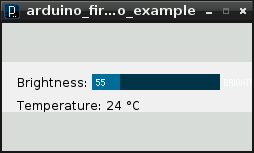
This might not look like much, but it was a lot of work to get here. It’s the display from a small Processing sketch, running on a Raspberry Pi, talking to an Arduino controlling the brightness of an LED with the slider, and reading from an LM35 temperature sensor.
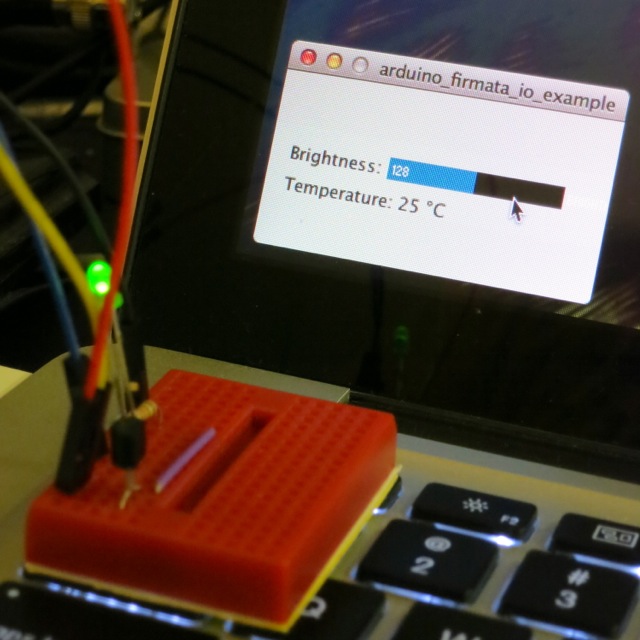
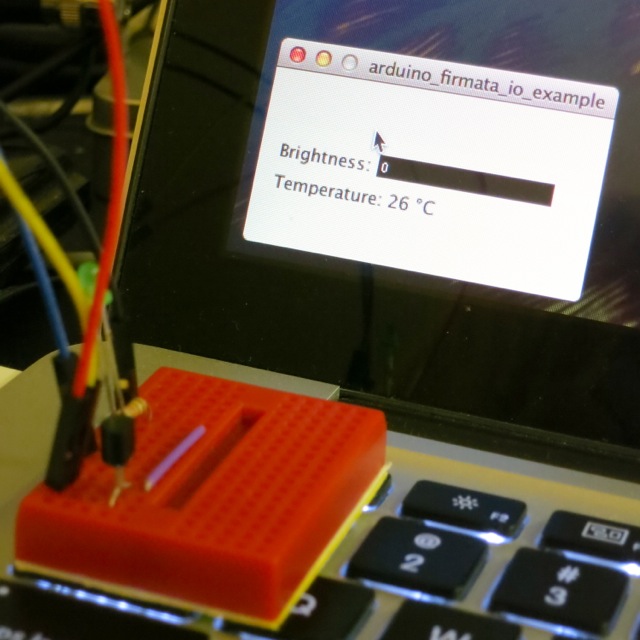
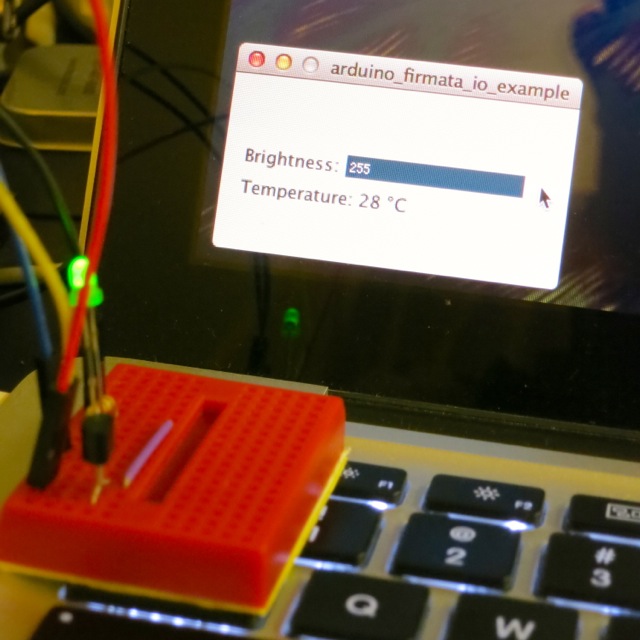
I wanted to see if I could get graphical control of an Arduino on the Raspberry Pi. I wrote about the simplest sketch in Processing that combined output (to control a small green LED through a resistor) and input (from an LM35, that simplest of sensors). This is how it looks running on a slightly faster machine than the Raspberry Pi:
LED at half brightness, LM35 showing 25°C
LED off, sensor at 26°C
I had the same results on the Raspberry Pi; just much, much slower. The sketch is below the fold.
Processing is both written in and generates Java, so there’s some hope that it can run on most platforms. Up-to-date installation instructions. These instructions are modified from Processing sur Raspberry Pi, for which thanks are given to the original author:
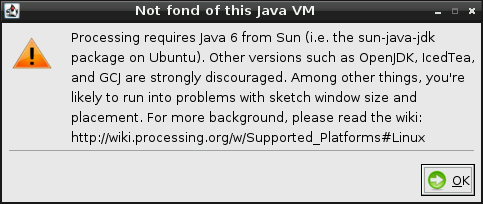
sudo apt-get install librxtx-java openjdk-6-jdkprocessing-1.5.1/javaln -s /usr/lib/jvm/java-6-openjdk-armhf javamodes/java/libraries/serial/library/linux32/librxtxSerial.so; it’s an x86 binary, and will failmodes/java/libraries/serial/library/RXTXcomm.jar, and replace it with a copy of /usr/share/java/RXTXcomm.jarNow fire up Processing. It will used to take a while to start up, and will throw the following warning:

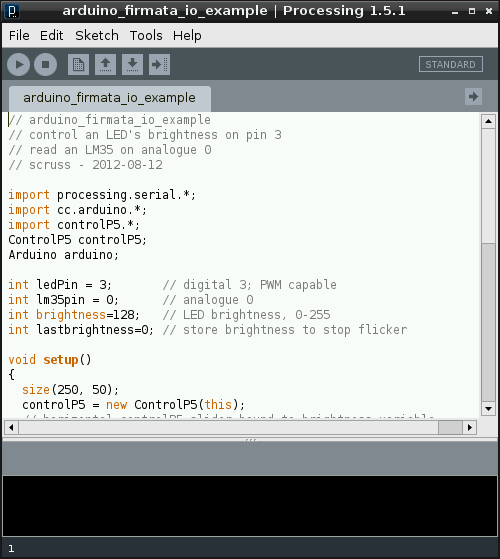
Despite this, it should eventually should start up fine:

Now, this is slow. It takes tens of seconds to start up. It might not be the most practical development tool, but Processing sketches are very portable, so you can develop on one machine, and then run on the Raspberry Pi.
The code at the end of this article expects:
If you run this, after about half a minute, the blank sketch window appears, and about half a minute later, the slider and temperature reading appears. If it doesn’t, there’s a good chance that the serial libraries are wrong. Try this sketch:
import processing.serial.*; import cc.arduino.*; Arduino arduino; println(Arduino.list());
This should return a number and a serial port where the Arduino was found; something like ‘[0] /dev/ttyACM0’.
What I really want to do now is get this same hardware running with Python and tkinter. It’s not that Python’s my favourite language; it’s just that the Raspberry Pi Foundation chose Python as the official language for the board. I’d rather work to further the aims of this educational foundation rather than work against it. Processing’s pretty much unworkably slow on the Raspberry Pi — but it does work!

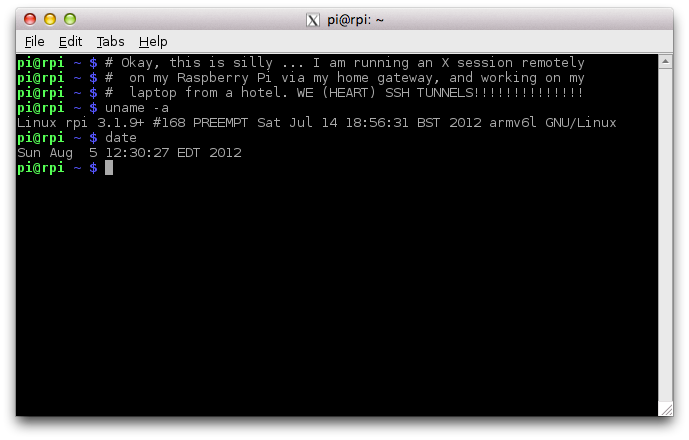
In a moment of boredom, I tried to bring up an X session on my Raspberry Pi from my laptop in the hotel, via the machine in the DMZ on my home network. It worked! It’s not very fast, but proves it can be done. The command I used was:
ssh -X home_dmz_machine 'ssh -X raspberrypi "exec startlxde"'
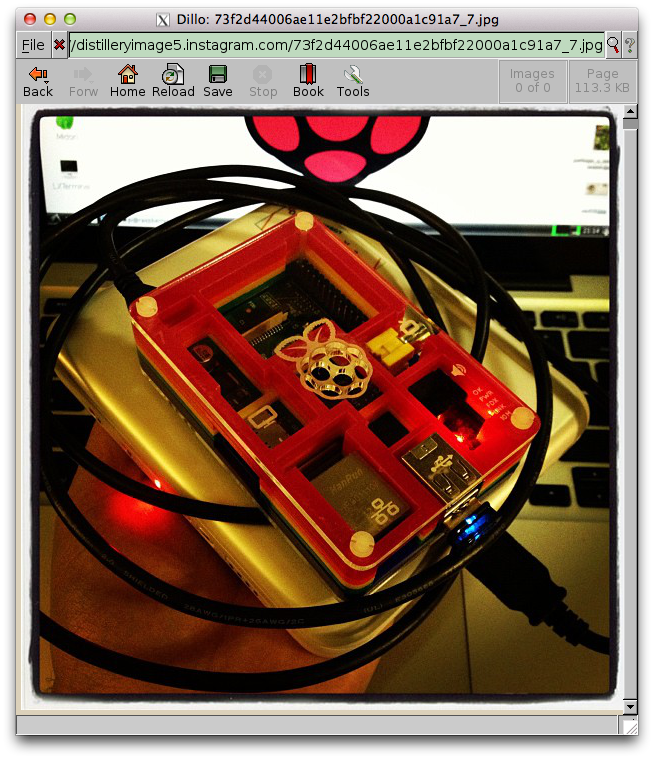
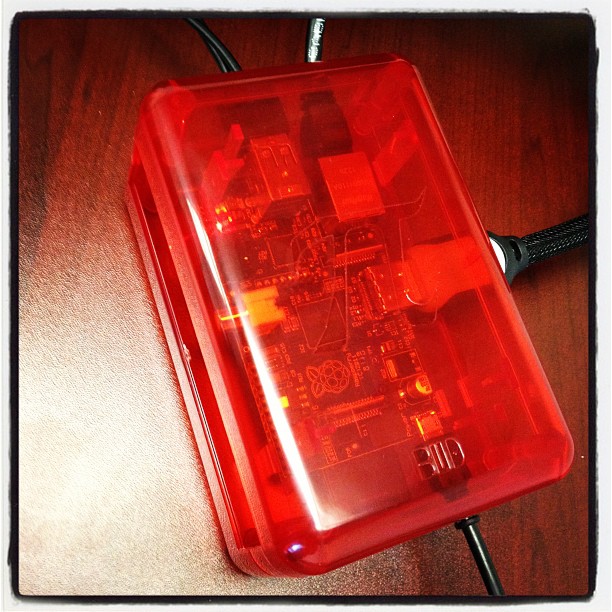
I retired the cardboard case this morning, as I got some proper enclosures:

Looks a bit like a little red Orac, no?
This case is a Bud Industries Pi Sandwich. They’re cheap ($5) but very basic. Comprised of two identical halves, you could (if you weren’t fussy about having the top off) house two Raspberry Pis in a single case.
The downsides are:
It’s a case. It stops the Raspberry Pi shorting out or getting too dusty/things spilled on it. It’s cheap. It works. I’m happy with it.
Python is okay, I guess, but there’s not a hint of music to it. I’m a dyed-in-the-wool Perl programmer since 4.036 days. When I think of how I’ll solve a programming problem, I think in Perl (or, more rarely, in PostScript, but I really have to be pretty off-balance to be thinking in stacks). I’m learning Python because all of the seemingly nifty open source geospatial software uses it, and if I’m to write anything for or about the Raspberry Pi, it seems that Python is the language they officially support on it.
So I’m learning Python by porting some of the simple Perl tools I use around here. It’s painful, not just dealing with the language Fortranesque space-significance, but also physically; I think I put my shoulder out picking up Mark Lutz‘s giant books on Python. The first program I chose to port matches input lines against known words in the system dictionary file. Here’s the Perl version:
#!/usr/bin/perl -w
use strict;
use constant WORDLIST => '/usr/share/dict/words';
my %words;
open(WORDS, WORDLIST);
while () {
chomp;
my $word = lc($_);
$words{$word}++;
}
close(WORDS);
# now read candidate words from stdin
while (<>) {
chomp;
$_=lc($_);
print $_,"\n" if defined($words{$_});
}
exit;
I most recently used this to look for available call signs that — minus the number — were real words. The input lines from the available call sign list look like this:
VA3PHZ VA3PIA VA3PID VA3PIF VA3PIH ...
so if I strip out the 3s and run it through the program:
sed 's/3//;' va3_avail.txt | ./callsigncheck.pl
I get one hit: vapid. Which is now my call sign, VA3PID. Moohah.
The Python version is much shorter, and I’m semi-impressed with the nifty little trick in line 5 (aka ‘dictionary comprehension’) which offers some hope for the future of terse, idiomatic code. The fileinput module gives Perlish stdin-or-ARGV[] file input, without which I’m sunk.
#!/usr/bin/python
import fileinput # Perl-like file input
# get our wordlist
words={w.lower(): 1 for w in open('/usr/share/dict/words', 'r').read().split()}
# read through input looking for matching words
for l in fileinput.input():
ll=l.lower().rstrip()
if words.get(ll, 0):
print(ll)
(So far, I’ve found the PLEAC – Programming Language Examples Alike Cookbook useful in comparing the languages.)
I’ve had my MacBook for just over three years (just past AppleCare, alas), but recently the trackpad had been acting up. I couldn’t get it to click and drag at all. Opening up the case showed me that the battery was getting a bit, well, tubby — something that apparently happens as Lithium Ion batteries age.
I finally ordered a new one, and it came today. It’s nearly 50% slimmer, and sits flat on the table, unlike the old battery. My trackpad works perfectly again.
Mike Cook’s Raspberry Pi Breakout Board. My first stripboard build. No, I’m not showing you the solder side …