Category: goatee-stroking musing, or something

  • clean up your GnuPG keyring

    For reasons too annoying to explain, my GnuPG keyring was huge. It was taking a long time to find keys, and most of them weren’t ones I’d use. So I wrote this little script that strips out all of the keys that aren’t

    1. yours, or
    2. signatories to your key.

    The script doesn’t actually delete any keys. It produces shell-compatible output that you can pipe or copy to a shell. Now my keyring file is less than 4% the size (or more precisely, 37‰) of the size it was before.

    #!/bin/bash
    # clean_keyring.sh - clean up all the excess keys
    
    # my key should probably be the first secret key listed
    mykey=$(gpg --list-secret-keys | grep '^sec' | cut -c 13-20 | head -1)
    if
        [ -z $mykey ]
    then
        # exit if no key string
        echo "Can't get user's key ID"
        exit 1
    fi
    
    # all of the people who have signed my key
    mysigners=$(gpg --list-sigs $mykey | grep '^sig' | cut -c 14-21 | sort -u) 
    
    # keep all of the signers, plus my key (if I haven't self-signed)
    keepers=$(echo $mykey $mysigners | tr ' ' '\012' | sort -u)
    
    # the keepers list in egrep syntax: ^(key|key|…)
    keepers_egrep=$(echo $keepers | sed 's/^/^(/; s/$/)/; s/ /|/g;')
    
    # show all the keepers as a comment so this script's output is shell-able
    echo '# Keepers: ' $keepers
    
    # everyone who isn't on the keepers list is deleted
    deleters=$(gpg --list-keys | grep '^pub'|  cut -c 13-20 | egrep -v ${keepers_egrep})
    
    # echo the command if there are any to delete
    # command is interactive
    if
        [ -z $deleters ]
    then
        echo "# Nothing to delete!"
    else
        echo 'gpg --delete-keys' $deleters
    fi
    

    Files:

  • Hint: I don’t do this for the money …

    I don’t know why getting an e-mail like this one would disturb me so much:

    Hi Stewart,

    Just a quick reminder message – I’m currently working with [REDACTED], a top electronics and engineering tech company, and we’re still interested in collaborating with you!

    We can provide bespoke content by [REDACTED]‘s own tech copywriters to give you something relevant for your readers, based on a topic that you’d like us to write about. We can also offer a $25 voucher to purchase any product of that value or less from the [REDACTED] website (http://www.[REDACTED].com/) which you could then use and review.

    If you’re interested, I can send over some rough content ideas for you to have a look at, and you can let us know what grabs you.

    Look forward to hearing from you!

    Best,
    [REDACTED]

    It’s not spam; I’ve had this offer before via another channel. I can’t see why anyone would want someone else’s text under their own byline. Running this blog costs me a trivial amount of money, but I’m okay with that. Monetizing, SEO, sticky eyeballs (I’m showing my age …): feh. All I ever wanted to do with this blog is write my own drivel without someone else’s noise polluting the page.

  • A better image rollover with Ultimate TinyMCE

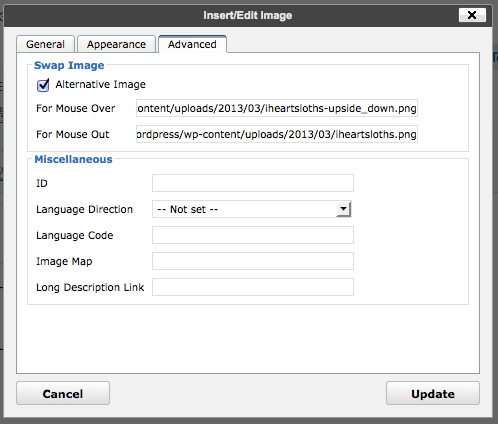
    iheartslothsProbably best to retire my ad hoc image rollover in wordpress, as Ultimate TinyMCE has it covered. Sure, it’s a plugin, but it makes it so much easier. After uploading your two images, select an image and put the two URLs into the Mouse Over/Out fields:

    Ultimate TinyMCE image rollover

    Easy! And no digging into the page source, either.

  • I’ve been waiting for this day for more than 30 years …

    I really never though I’d see this happen, but The Complete Uncle really looks like it’s going to get published.

  • Forward to Libraries: Toronto Public Library added

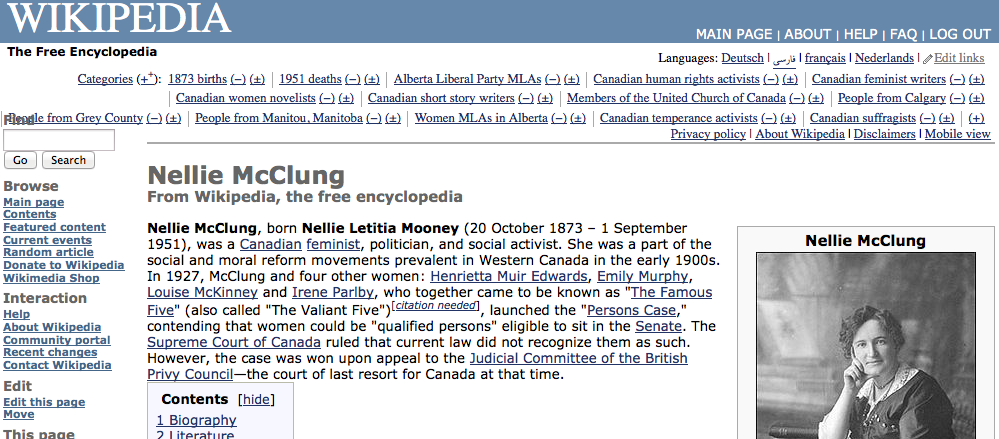
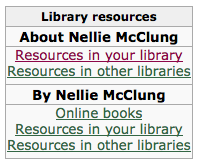
    If you’re starting your research on Wikipedia, you’ll need to see what books are available on a subject for further study. Previously, you’d need to trawl the references manually, but John Mark Ockerbloom‘s Forward To Libraries (FTL) service makes that a whole lot easier. What FTL does is allow you to reach into nearly any library’s catalogue search from a subject link on Wikipedia.

    John’s been getting some great press on this service, so I asked him to add Toronto Public Library to FTL. Here’s how it works:

    Pretty neat, huh? Try other articles, like Pierre Trudeau, Arduino or the Canadian Shield.

    It’s not actually that hard to add Library resources boxes to Wikipedia articles. There’s a tutorial in the Template:Library resources box page that shows you how. Researching the locator is the most difficult part, and that gets a lot easier the more you add.

  • hey, it’s the sun … heyu and sunwait and cron on the Raspberry Pi

    Yep, springtime’s coming, and today’s the first day I know it, despite the -5.8°C outside. I know spring is coming because my sunrise-adjusted lights came on before my alarm today. I’m controlling them with a Raspberry Pi, cron, and X10.

    I’d described how to build and use heyu previously, so I won’t go into it further. I use sunwait to control the timing relative to local sunrise and sunset. Sunwait is a simple C program which builds quickly, and you can put the executable somewhere in your path.

    (NB: newer versions of sunwait use a completely incompatible command line format. Everything here refers to the 2004 version I linked to above, which does exactly what I need in the way it’s described here.)

    You need to know your latitude and longitude to use sunwait. To check its setting for the day, you can call it with the -p option:

    $ sunwait -p 43.729N 79.292W
    Using location:             43.729000N, 79.292000W
    Date:                        6 Feb 2013 
    Local time:                  7:44 
    Day length:                 10:13 hours
    With civil twilight         11:10 hours
    With nautical twilight      12:18 hours
    With astronomical twilight  13:25 hours
    Length of twilight:  civil   0:28 hours
                      nautical   1:02 hours
                  astronomical   1:35 hours
    Current specified time zone: EST (-5 from UTC) 
    Sun transits meridian 1231 EST
                       Sun rises 0726 EST, sets 1736 EST
           Civil twilight starts 0656 EST, ends 1806 EST
        Nautical twilight starts 0622 EST, ends 1840 EST
    Astronomical twilight starts 0548 EST, ends 1913 EST

    So for me, today’s sunrise is at 0726, and sunset is at 1736. All sunwait does is wait until a specific solar time is reached, and then exit. Whatever command you call after sunwait, therefore, is what gets run at the right time. So if I wanted X10 device H1 to come on an hour before sunrise, I’d run:

    sunwait sun up -1:00:00 43.729N 79.292W; heyu on h1

    Remembering to run this every day before sunrise would be a pain, so this is where cron helps. cron uses a slightly odd config file that is edited using the crontab -e command. Here’s the relevant bit of my crontab, showing the light control times:

    # m h  dom mon dow   command
     01 00   *   *   *   /usr/local/bin/sunwait sun up -1:00:00 43.729N 79.292W; /usr/local/bin/heyu on h1
     02 00   *   *   *   /usr/local/bin/sunwait sun up +1:00:00 43.729N 79.292W; /usr/local/bin/heyu off h1
     03 00   *   *   *   /usr/local/bin/sunwait sun down -1:00:00 43.729N 79.292W; /usr/local/bin/heyu on h1
     45 22   *   *   *   /usr/local/bin/heyu off h1

    (you can view your crontab with crontab -l)

    The columns in crontab are:

    • minute
    • hour
    • day of month
    • month
    • day of week
    • command

    So the four crontab lines mean:

    1. Every day at 00:01, wait until an hour before sunrise and turn light H1 on
    2. Every day at 00:02, wait until an hour after sunrise and turn light H1 off
    3. Every day at 00:03, wait until an hour before sunset and turn light H1 on
    4. At 22:45, turn light H1 off.

    So for quite a bit of the day, there are a couple of sunwait tasks just quietly waiting until sunrise or sunset to do their thing. cron, incidentally, is picky about executable paths; that’s why I specified full paths to both sunwait and heyu.

    What I’d really like to do is have time on this machine update without a network connection, because it’s running from a particularly messy router set up in a spare bedroom. I should investigate a real-time clock, with GPS time updates from an I²C GPS, talking through a bluetooth console. In my copious free time, of course.

  • Simple ADC with the Raspberry Pi

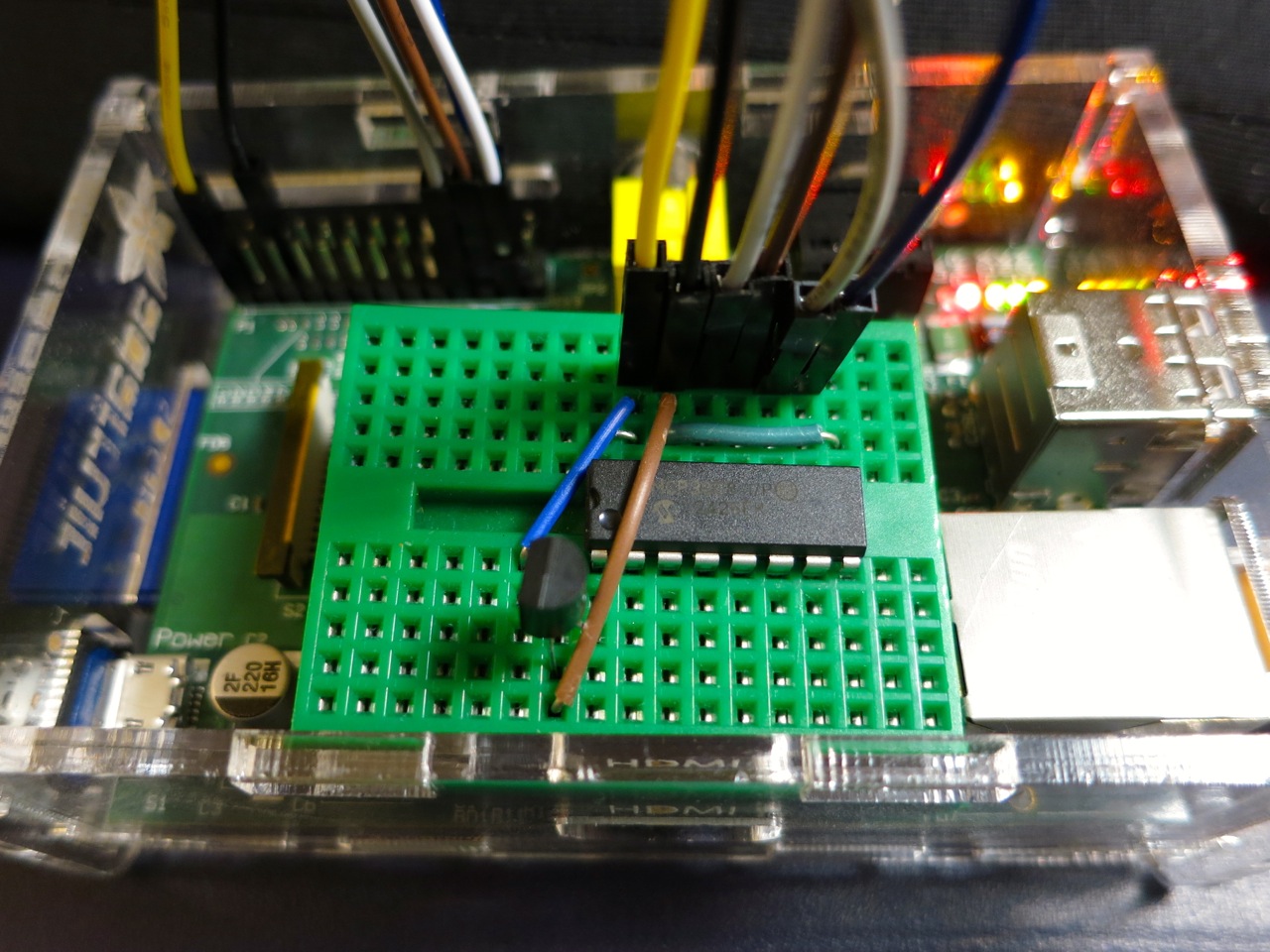
    Raspberry Pi wearing an MCP3008

    Hey! This is a really old article. You should really be using gpiozero these days.

    I hadn’t realised it, but the The Quite Rubbish Clock did something that a lot of people seem to have trouble with on the Raspberry Pi: communicating using hardware SPI. Perhaps it’s because everything is moving so fast with Raspberry Pi development, tutorials go out of date really quickly. Thankfully, hardware SPI is much easier to understand than the older way of emulation through bit-banging.
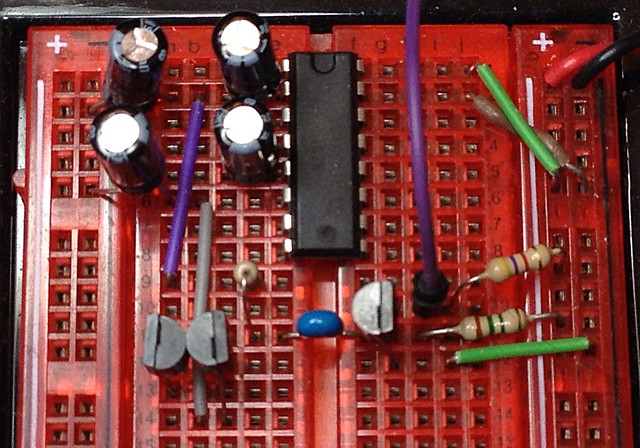
    SPI is a synchronous serial protocol, so it needs a clock line as well as a data in and data out line. In addition, it has a Chip Enable (CE, or Chip Select, CS) line that is used to choose which SPI device to talk to. The Raspberry Pi has two CE lines (pins 24 and 26) so can talk to two SPI devices at once. It supports a maximum clock rate of 32 MHz, though in practice you’ll be limited to the rate your device supports.

    The device I’m testing here is an MCP3008 10-bit Analogue-to-Digital Converter (ADC). These are simple to use, cheap and quite fast converters with 8 input channels. If you hook them up to a 3.3 V supply they will convert a DC voltage varying from 0-3.3 V to a digital reading of 0-1023 (= 210 – 1). Not quite up there in quality for hi-fi audio or precision sensing, but good enough to read from most simple analogue sensors.

    The sensor I’m reading is the astonishingly dull LM35DZ temperature sensor. All the cool kids seem to be using TMP36s (as they can read temperatures below freezing without a negative supply voltage). One day I’ll show them all and use a LM135 direct Kelvin sensor, but not yet.

    To run this code, install the SPI libraries as before. Now wire up the MCP3008 to the Raspberry Pi like so:

     MCP 3008 Pin          Pi GPIO Pin #    Pi Pin Name
    ==============        ===============  =============
     16  VDD                 1              3.3 V
     15  VREF                1              3.3 V
     14  AGND                6              GND
     13  CLK                23              GPIO11 SPI0_SCLK
     12  DOUT               21              GPIO09 SPI0_MISO
     11  DIN                19              GPIO10 SPI0_MOSI
     10  CS                 24              GPIO08 CE0
      9  DGND                6              GND

    The wiring for the LM35 is very simple:

     LM35 Pin        MCP3008 Pin
    ==========      =============
     Vs              16 VDD
     Vout             1 CH0
     GND              9 DGND

    The code I’m using is a straight lift of Jeremy Blythe’s Raspberry Pi hardware SPI analog inputs using the MCP3008. The clever bit in Jeremy’s code is the readadc() function which reads the relevant length of bits (by writing the same number of bits; SPI’s weird that way) from the SPI bus and converting it to a single 10-bit value.

    #!/usr/bin/python
    # -*- coding: utf-8 -*-
    # mcp3008_lm35.py - read an LM35 on CH0 of an MCP3008 on a Raspberry Pi
    # mostly nicked from
    #  http://jeremyblythe.blogspot.ca/2012/09/raspberry-pi-hardware-spi-analog-inputs.html
    
    import spidev
    import time
    
    spi = spidev.SpiDev()
    spi.open(0, 0)
    
    def readadc(adcnum):
    # read SPI data from MCP3008 chip, 8 possible adc's (0 thru 7)
        if adcnum > 7 or adcnum < 0:
            return -1
        r = spi.xfer2([1, 8 + adcnum << 4, 0])
        adcout = ((r[1] & 3) << 8) + r[2]
        return adcout
    
    while True:
        value = readadc(0)
        volts = (value * 3.3) / 1024
        temperature = volts / (10.0 / 1000)
        print ("%4d/1023 => %5.3f V => %4.1f °C" % (value, volts,
                temperature))
        time.sleep(0.5)
    

    The slightly awkward code temperature = volts / (10.0 / 1000) is just a simpler way of acknowledging that the LM35DZ puts out 10 mV (= 10/1000, or 0.01) per °C. Well-behaved sensors generally have a linear relationship between what they indicate and what they measure.

    If you run the code:

    sudo ./mcp3008_lm35.py

    you should get something like:

      91/1023 => 0.293 V => 29.3 °C
      93/1023 => 0.300 V => 30.0 °C
      94/1023 => 0.303 V => 30.3 °C
      95/1023 => 0.306 V => 30.6 °C
      96/1023 => 0.309 V => 30.9 °C
      97/1023 => 0.313 V => 31.3 °C
      97/1023 => 0.313 V => 31.3 °C
      98/1023 => 0.316 V => 31.6 °C
      99/1023 => 0.319 V => 31.9 °C
      99/1023 => 0.319 V => 31.9 °C
     100/1023 => 0.322 V => 32.2 °C
     100/1023 => 0.322 V => 32.2 °C
     100/1023 => 0.322 V => 32.2 °C
     101/1023 => 0.325 V => 32.5 °C
     101/1023 => 0.325 V => 32.5 °C
     102/1023 => 0.329 V => 32.9 °C
     102/1023 => 0.329 V => 32.9 °C
     103/1023 => 0.332 V => 33.2 °C

    Note that the sensor had been sitting over the Raspberry Pi’s CPU for a while; I don’t keep my house at 29 °C. I made the temperature go up by holding the LM35.

    So, you’ve just (fairly cheaply) given your Raspberry Pi 8 analogue input channels, so it can behave much more like a real microcontroller now. I remember from my datalogging days that analogue inputs can be pretty finicky and almost always return a value even if it’s an incorrect one. Check the chip’s datasheet to see if you’re doing it right, and if in doubt, meter it!

  • stats stats lay down flat

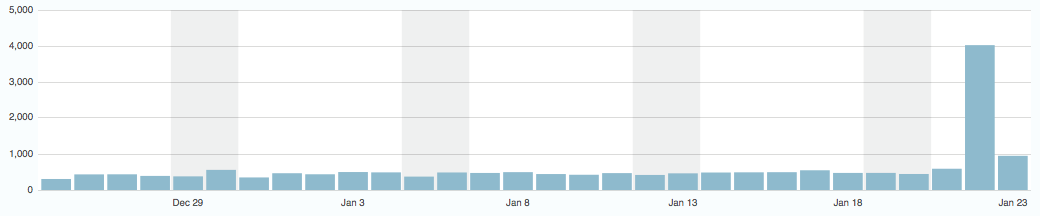
    blog stats for yesterday: over 4000 hitsOh my. This blog is usually a quiet little backwater, ticking along on a few hundred hits a day. And I’m okay with that. But yesterday, my astonishingly impractical QR code clock hit the front page of RaspberryPi.org, and blammo! More visitors than I thought possible. Are there really over 4000 people who read that? Cor, to use a good British comic-ism.
    I’ve been blogging for nearly ten years, filed under what could only charitably be called “miscellaneous”. Yesterday, I got 2% of all the hits I’ve ever had. See the tiny little bar just to the left of the big one? Yeah, that was my previous best ever, with nearly 600 hits.

  • Like the sun shines out its ____

    Ariel_Rojo-cerdo_ahorradorI’m very taken with Ariel Rojo‘s Piggy Bank Lamp. It’s the first ornament I’ve seen that uses the form of a compact fluorescent bulb as an integral part.

    Not sure I’m quite taken enough with it to pay the $98 that the AGO store wants, though …

  • mosaics

    Random fills of Hoop Tiles, perhaps slightly influenced by 10 PRINT.

  • Bad Kids Jokes

    Lost Tractor

    what did the farmer say when he lost his tractor?

    where’s my tractor?

    Old Man

    why is it when a old man with one kid people thinks ”stranger”, but when its a old man with 20 kids people think ”school trip” . im on to you old people

    Mountain Climbing

    Q) why did’nt the man clime up the mountain

    A) because there wasn’t a mountain

    — from Bad Kids Jokes (via)

  • My American Science & Surplus haul

    american
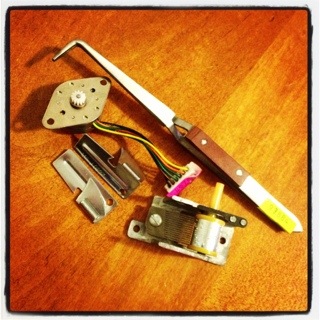
    I went to American Science and Surplus yesterday, and picked up:

    • a pair of cross lock tweezers
    • a small 12V stepper motor
    • two P-38 can openers
    • a musical box mechanism that plays “For He’s a Jolly Good Fellow“.
  • pretty-printing Arduino sketches

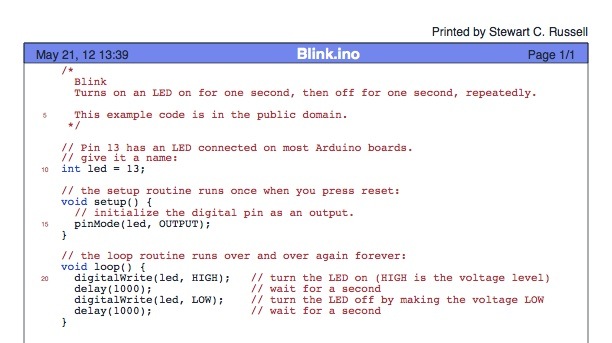
    I don’t often need it, but the code printing facility in the Arduino IDE is very weak. It has some colour highlighting, but no page numbering, no line numbering, and no headers at all.

    a2ps will sort you right out here. Years back, it was a simple text to PostScript filter, but now it has many wonderful filters for pretty-printing code. The Wiring/Arduino language is basically C++, and a2ps knows how to deal with that. So, to create a PostScript file with a nice version of the the most basic Blink sketch:

    a2ps --pro=color -C -1 -M letter -g --pretty-print='c++' -o ~/Desktop/Blink.ps Blink.ino

    If you’re somewhere that uses sensible paper sizes (in other words, not North America), you probably don’t want the -M letter option. a2ps is supposed to have a PDF print option (-P pdf), but it doesn’t work on my installation, so I just splat the output through ps2pdf. You can’t use the -P «printer» option combined with the -o «file» option, but cups-pdf is your friend if you need to print to a PDF. The results are linked below:

    Not bad, eh?

    (Update: think I must have written this post on a Mac with a case-insensitive filesystem. Using the --pretty-print='C++' option I had before failed on Linux.)

  • yay tiny stepper motor!

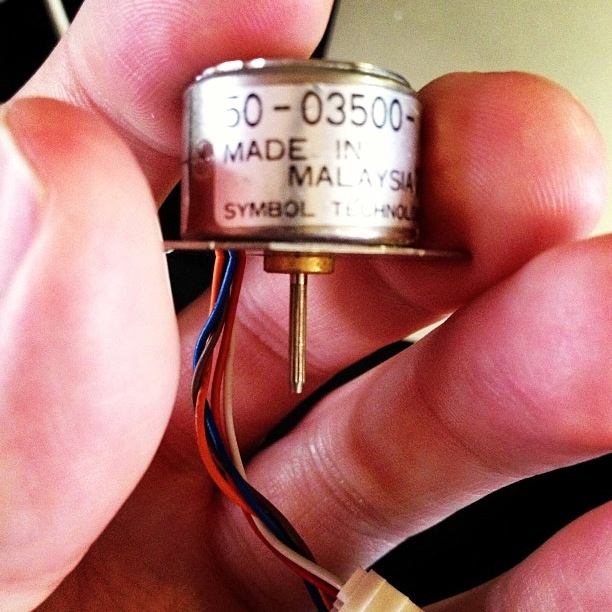
    Active Surplus Electronics is the best. I was wanting to learn about driving stepper motors from a microcontroller, but didn’t want to spend a lot or rig up a complex power supply. Active Surplus had a bin of tiny 5V stepper motors at under $3 each. The one I bought is marked:

    50-03500-    028
    MADE IN
     MALAYSIA   7115
    SYMBOL TECHNOLOGIES, INC.

    I have no data sheet, but I’ve been able to work out that it’s a unipolar stepper motor, 20 steps/revolution (18°/step; quite coarse), wired:

    • Centre tap: Brown
    • Coil A: White, Red
    • Coil B: Orange, Blue

    It’s small enough to be driven directly by USB power through an Arduino and the Adafruit Motor Shield. No idea how much torque this thing puts out, but it can’t be much.

    (Setting up my motor shield was a pain, as I’d accidentally put non-stacking headers on it. This required an hour of swearing-filled desoldering; lead-free through-hole desoldering is just the worst*. With wick and solder pump, I finally managed to clear everything up well enough to fit the new headers.)
    (more…)

  • Chirp is a thing

    Chirp is a new annoyance, a way of sending links and stuff via audio. Sounds like it’s doing it via MFSK, and is only sending the ID of the link on Chirp’s server, as there’s not much data sent. Here’s what the spectrum plot looks like:

    This is what it sounds like: test chirp [mp3].