Quinzee is almost the perfect domestic usage dashboard for me. Pretty graphics, clear stats, and easy signup through Toronto Hydro’s TOU portal.
Category: computers suck
-
How come I didn’t know about Quinzee?
-
Trolling the Bruce Nuclear Cost and Clean Air Calculator for Fun & Profit

You might have seen the Bruce Power Cost and Clean Air Calculator. It’s supposed to show that nuclear is both cheap and clean, and using anything else would make your bills and your emissions go through the roof. Well, here are 40+ scenarios that all save money and emissions while using no nuclear and no coal:- 3.9% Solar, 5.7% Wind, 0.2% Gas, 0% Nuclear, 90.2% Hydro and 0% Coal saves $5.09/month and 89.7 t/CO2 annually.
- 2.1% Solar, 10.1% Wind, 0.3% Gas, 0% Nuclear, 87.5% Hydro and 0% Coal saves $8.97/month and 89.2 t/CO2 annually.
- 0.5% Solar, 23.6% Wind, 0.4% Gas, 0% Nuclear, 75.5% Hydro and 0% Coal saves $2.75/month and 88.7 t/CO2 annually.
- 2.1% Solar, 2.5% Wind, 0.8% Gas, 0% Nuclear, 94.6% Hydro and 0% Coal saves $16.32/month and 87.1 t/CO2 annually.
- 3.1% Solar, 0.2% Wind, 1.4% Gas, 0% Nuclear, 95.3% Hydro and 0% Coal saves $13.27/month and 84.5 t/CO2 annually.
- 0.6% Solar, 5.4% Wind, 1.8% Gas, 0% Nuclear, 92.2% Hydro and 0% Coal saves $19.52/month and 82.7 t/CO2 annually.
- 1.9% Solar, 15.8% Wind, 2.5% Gas, 0% Nuclear, 79.8% Hydro and 0% Coal saves $2.48/month and 79.8 t/CO2 annually.
- 0.3% Solar, 13.6% Wind, 2.5% Gas, 0% Nuclear, 83.6% Hydro and 0% Coal saves $12.08/month and 79.7 t/CO2 annually.
- 3.0% Solar, 11.7% Wind, 2.9% Gas, 0% Nuclear, 82.4% Hydro and 0% Coal saves $1.21/month and 78.0 t/CO2 annually.
- 0.1% Solar, 24.8% Wind, 3.1% Gas, 0% Nuclear, 72.0% Hydro and 0% Coal saves $1.35/month and 77.3 t/CO2 annually.
- 2.7% Solar, 4.8% Wind, 3.6% Gas, 0% Nuclear, 88.9% Hydro and 0% Coal saves $8.77/month and 75.2 t/CO2 annually.
- 4.1% Solar, 1.2% Wind, 3.9% Gas, 0% Nuclear, 90.8% Hydro and 0% Coal saves $5.96/month and 73.6 t/CO2 annually.
- 1.3% Solar, 0.3% Wind, 5.6% Gas, 0% Nuclear, 92.8% Hydro and 0% Coal saves $18.44/month and 66.3 t/CO2 annually.
- 2.4% Solar, 0.1% Wind, 6.0% Gas, 0% Nuclear, 91.5% Hydro and 0% Coal saves $13.26/month and 64.7 t/CO2 annually.
- 3.8% Solar, 4.6% Wind, 6.5% Gas, 0% Nuclear, 85.1% Hydro and 0% Coal saves $1.99/month and 62.2 t/CO2 annually.
- 1.4% Solar, 11.8% Wind, 6.8% Gas, 0% Nuclear, 80% Hydro and 0% Coal saves $5.54/month and 61.0 t/CO2 annually.
- 2.9% Solar, 5.7% Wind, 7.0% Gas, 0% Nuclear, 84.4% Hydro and 0% Coal saves $4.64/month and 60.1 t/CO2 annually.
- 0.6% Solar, 14.4% Wind, 7.6% Gas, 0% Nuclear, 77.4% Hydro and 0% Coal saves $6.09/month and 57.7 t/CO2 annually.
- 0.7% Solar, 12.1% Wind, 7.9% Gas, 0% Nuclear, 79.3% Hydro and 0% Coal saves $7.64/month and 56.4 t/CO2 annually.
- 2.1% Solar, 2.9% Wind, 8.5% Gas, 0% Nuclear, 86.5% Hydro and 0% Coal saves $104/month and 53.5 t/CO2 annually.
- 1.9% Solar, 13.5% Wind, 8.6% Gas, 0% Nuclear, 76.0% Hydro and 0% Coal saves $0.36/month and 53.1 t/CO2 annually.
- 2.5% Solar, 3.5% Wind, 8.6% Gas, 0% Nuclear, 85.4% Hydro and 0% Coal saves $7.63/month and 53.1 t/CO2 annually.
- 0% Solar, 5.4% Wind, 8.7% Gas, 0% Nuclear, 85.9% Hydro and 0% Coal saves $17.02/month and 52.9 t/CO2 annually.
- 0.5% Solar, 0.4% Wind, 8.8% Gas, 0% Nuclear, 90.3% Hydro and 0% Coal saves $19.53/month and 52.4 t/CO2 annually.
- 1.6% Solar, 3.9% Wind, 9.7% Gas, 0% Nuclear, 84.8% Hydro and 0% Coal saves $10.31/month and 48.5 t/CO2 annually.
- 2.6% Solar, 6.6% Wind, 9.9% Gas, 0% Nuclear, 80.9% Hydro and 0% Coal saves $2.76/month and 47.6 t/CO2 annually.
- 0.6% Solar, 9.6% Wind, 10.5% Gas, 0% Nuclear, 79.3% Hydro and 0% Coal saves $8.70/month and 45.2 t/CO2 annually.
- 1.4% Solar, 1.0% Wind, 10.5% Gas, 0% Nuclear, 87.1% Hydro and 0% Coal saves $13.58/month and 44.9 t/CO2 annually.
- 0.9% Solar, 12.1% Wind, 11.7% Gas, 0% Nuclear, 75.3% Hydro and 0% Coal saves $3.96/month and 39.9 t/CO2 annually.
- 0.4% Solar, 13.9% Wind, 12.6% Gas, 0% Nuclear, 73.1% Hydro and 0% Coal saves $3.89/month and 35.7 t/CO2 annually.
- 0.3% Solar, 10.7% Wind, 13.3% Gas, 0% Nuclear, 75.7% Hydro and 0% Coal saves $6.89/month and 32.9 t/CO2 annually.
- 0.3% Solar, 10.5% Wind, 13.3% Gas, 0% Nuclear, 75.9% Hydro and 0% Coal saves $7.11/month and 32.8 t/CO2 annually.
- 0.2% Solar, 17.8% Wind, 13.6% Gas, 0% Nuclear, 68.4% Hydro and 0% Coal saves $0.18/month and 31.8 t/CO2 annually.
- 2.3% Solar, 6.9% Wind, 14.0% Gas, 0% Nuclear, 76.8% Hydro and 0% Coal saves $0.96/month and 29.8 t/CO2 annually.
- 3.5% Solar, 0.2% Wind, 14.0% Gas, 0% Nuclear, 82.3% Hydro and 0% Coal saves $2.11/month and 29.7 t/CO2 annually.
- 0.6% Solar, 15.2% Wind, 14.0% Gas, 0% Nuclear, 70.2% Hydro and 0% Coal saves $0.68/month and 29.6 t/CO2 annually.
- 3.1% Solar, 3.4% Wind, 14.9% Gas, 0% Nuclear, 78.6% Hydro and 0% Coal saves $09/month and 26.0 t/CO2 annually.
- 2.2% Solar, 3.6% Wind, 16.8% Gas, 0% Nuclear, 77.4% Hydro and 0% Coal saves $2.65/month and 17.8 t/CO2 annually.
- 1.4% Solar, 1.3% Wind, 17.1% Gas, 0% Nuclear, 80.2% Hydro and 0% Coal saves $8.29/month and 16.2 t/CO2 annually.
- 1.1% Solar, 4.5% Wind, 18.2% Gas, 0% Nuclear, 76.2% Hydro and 0% Coal saves $5.74/month and 11.5 t/CO2 annually.
- 0.1% Solar, 13.3% Wind, 19.1% Gas, 0% Nuclear, 67.5% Hydro and 0% Coal saves $0.70/month and 7.9 t/CO2 annually.
- 0.1% Solar, 6.4% Wind, 19.8% Gas, 0% Nuclear, 73.7% Hydro and 0% Coal saves $7.47/month and 4.7 t/CO2 annually.
- 0.7% Solar, 8.7% Wind, 20.6% Gas, 0% Nuclear, 70% Hydro and 0% Coal saves $1.73/month and 1.2 t/CO2 annually.
Sure, some of these won’t be practical from a dispatch/capacity perspective, but hey, that’s Bruce’s issue to explain away.
I couldn’t have done it without this tiny routine to produce a list of random numbers that all add up to 1. No way was I clicking those sliders 10000+ times. Viewing the source was handy, though.
sub rndnormsum { # generate N uniformly distributed random numbers that sum to 1 # see http://stackoverflow.com/a/2640079/377125 my $n = shift; # number of entries to return my @arr = ( 0, 1 ); foreach ( 1 .. ( $n - 1 ) ) { push @arr, rand; } @arr = sort(@arr); my @result = (); foreach ( 1 .. $n ) { push @result, $arr[$_] - $arr[ $_ - 1 ]; } return @result; } -
This is why we still have real calculators…

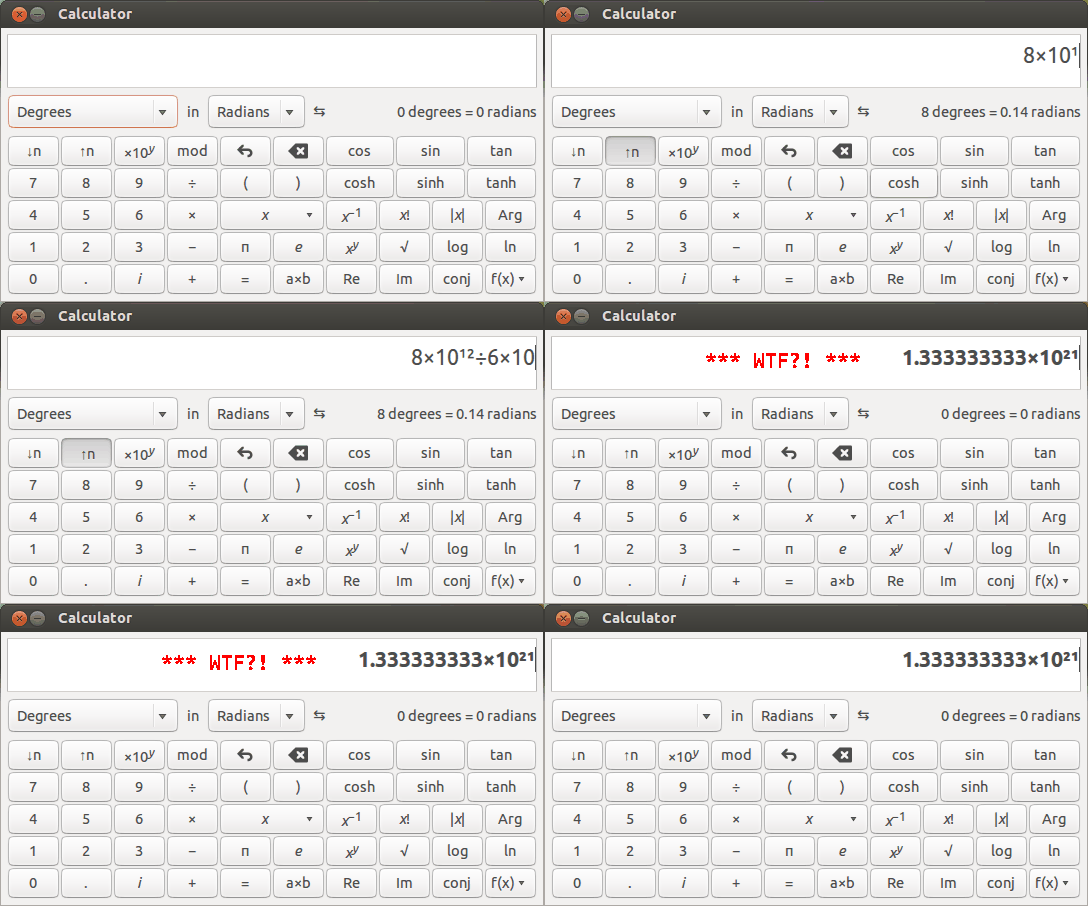
This is about scientific notation, and how Gnome Calculator still doesn’t do it correctly.
So I was checking a simple calculation today, and couldn’t find a proper calculator, so I reached for gnome-calculator on the desktop. That was a mistake.
It seems to think that
8×10¹²÷6×10â¹comes to
1.333333333×10²¹
which is not correct. It would, if I’d typed it as:
8×1×10¹²÷6×1×10â¹
You can only get the right answer (1333.333…) if you type
(8×10¹²)÷(6×10â¹)
so it’s clear that gnome-calculator isn’t apply the right exponentiation operator precedence when you hit ‘×10y’. It would have been so much better if gnome-calculator supported ‘E’ scientific notation (1.333E21 for 1.333×10²¹).
A bug is filed, but I don’t think I trust it any more.
I’m looking at having a proper calculator again, or maybe invest in one of the delightful tiny HP clones from SwissMicros.com.
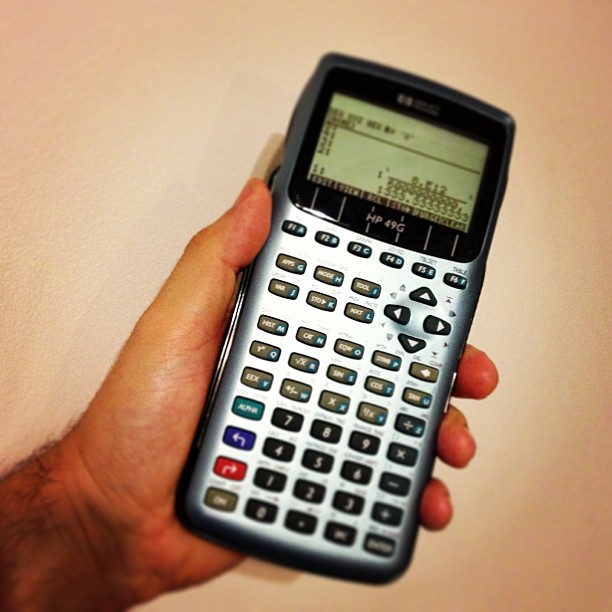
Almost forgot that I had a barely-used HP 49G in the cupboard. It was barely used because the thing eats AAA batteries. Who knew that Dollarama would have a pair of NiMH AAAs for only $2?
Update, 2021: Use galculator instead. It does the right thing, and supports RPN like a calculator should. You don’t need to remember any precedence rules when you have The Truth.
-
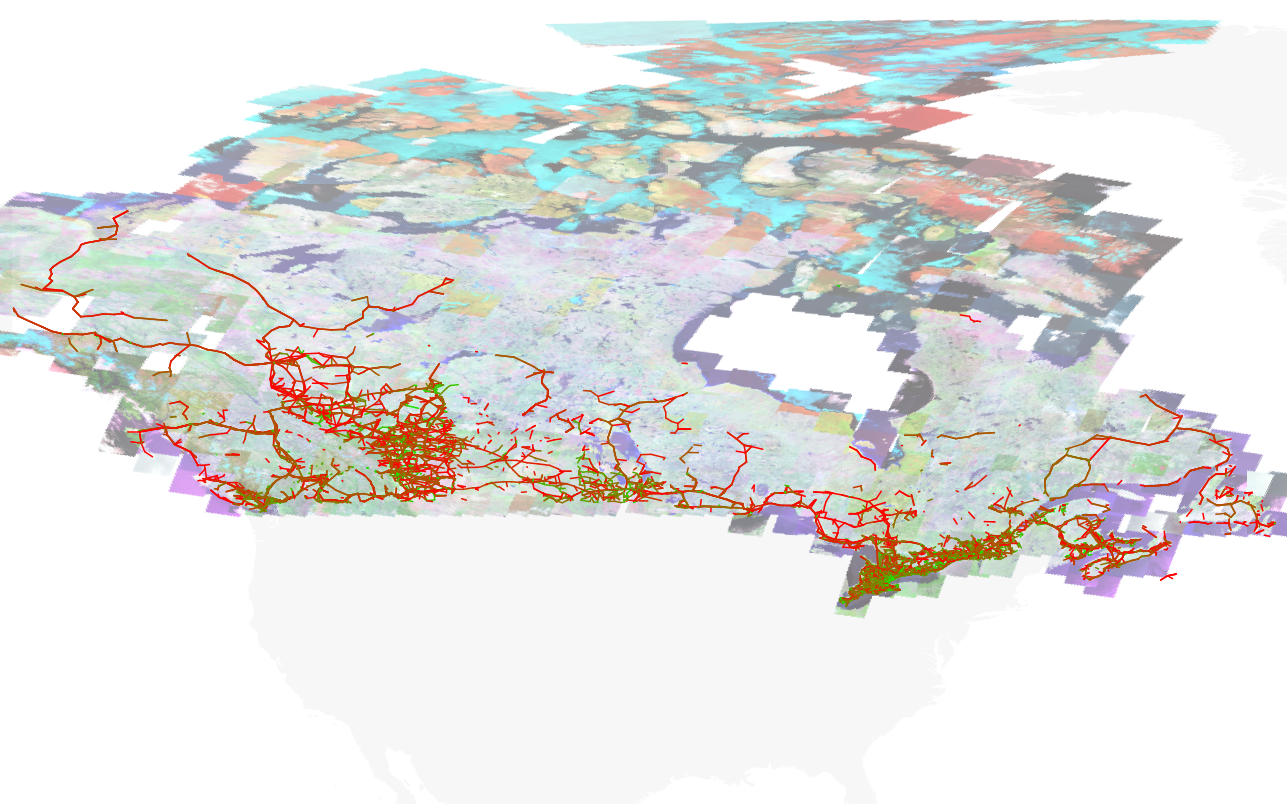
Canada’s Microwave Links
Made using scruss/taflmunge and QGIS. -
another partial success…

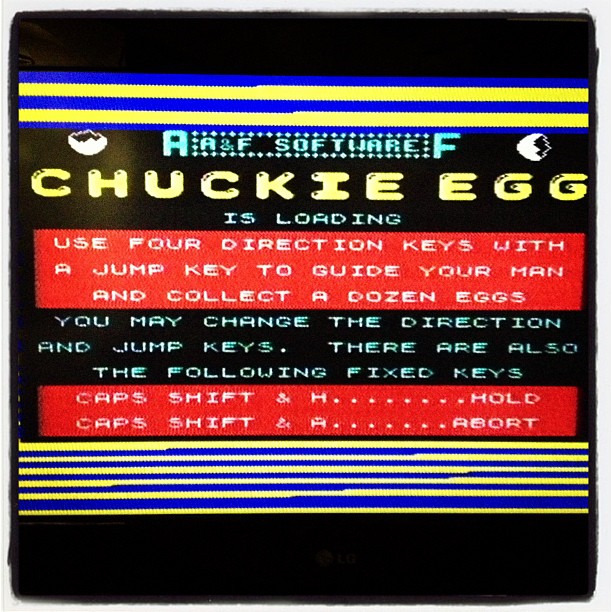
I guess I’ve had some qualified success in getting the ZX Spectrum going. After finding the right (mono) cable, sticking it in the Spectrum’s EAR socket, converting tape images to audio with tape2wav, and getting a PAL/NTSC converter, I can load stuff. Sort of.

The problem is mostly with the video converter; it’s too slow. The screen refreshes a couple of times a second, which is enough to lose many Hen-House Harrys. I know, I should’ve gone for a more expensive one.
I’ve found that the audio files made by tape2wav are very loud; 0 dB, full deflection, distort-o-matic. Dropping the volume to -3 dB made games load better. Adding a couple of seconds of silence at the beginning of the file wouldn’t hurt, either.
-
A (mostly) colour-managed workflow for Linux for not too many $$$
Colour management is good. It means that what I see on the screen is what you meant it to look like, and anything I make with a colour-managed workflow you’ll see in the colours I meant it to have. (Mostly.) You can spend a lot of money to do this professionally, but you can also get most of the benefits for about $125, if you’re prepared to do some fiddly stuff.
The most important part is calibrating your display. Hughski’s ColorHug (which I’ve mentioned before) is as close to plug-and-play as you’ll get: plug it in, and the colour management software pops up with prompts on what to do next. Attach the ColorHug to the screen (with the newly supplied stretchy band), let it burble away for 10–20 minutes, and the next time you log in, colours will be just right.
Calibrating the scanner on my Epson WorkForce WF-7520 was much more work, and the process could use optimization. To calibrate any scanner, you need a physical colour target to scan and compare against reference data. The cheapest place to get these (unless there was one in the box with your scanner) is Wolf Faust’s Affordable IT 8.7 (ISO 12641) Scanner Colour Calibration Targets. If there are a bunch of likeminded folk in your area, it’s definitely worth clubbing together on a group buy to save on shipping. It’s also less work for Wolf, since he doesn’t have to send out so many little packages.
(I’ve known of Wolf Faust since my Amiga days. He produced the most glorious drivers for Canon printers, and Jeff Walker produced the camera-ready copy for JAM using Wolf’s code. While Macs had the high end DTP sewn up back then, you could do amazing things on a budget with an Amiga.)
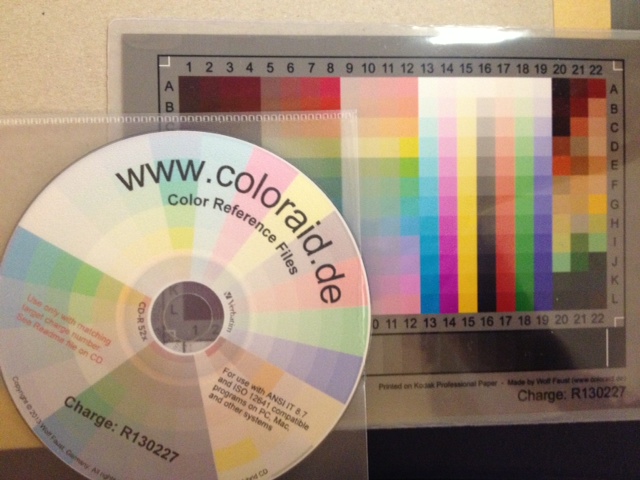
The target comes packed in a protective sleeve, and along with a CD-R containing the calibration data which matches the print run of the target. Wolf makes a lot of targets for OEMs, and cost savings from his volume clients allow him to sell to individuals cheaply.Scanning the thing without introducing automatic image corrections was the hard part. I found that my scanner had two drivers (epson2 and epkowa), the latter of which claimed to support 48-bit scanning. Unfortunately, it only supports 24-bit, like the epson2 driver, so whichever I chose was moot. I used the scanimage command line tool to make the scan:
scanimage --mode Color -x 175 -y 125 --format=tiff --resolution 300 > Epson-Workforce_WF-7520-WFaust-R1.tiff
which looks, when reduced down to web resolution, a bit like this:
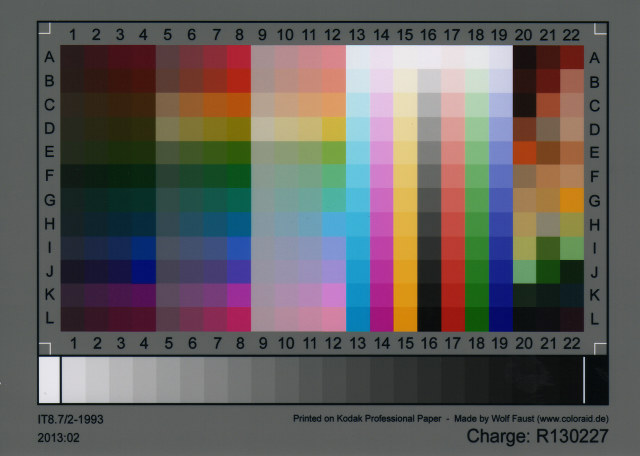
It looks a lot darker than the physical target, so it’s clear that the scanner needs calibrating. To do this, you need two tools from the Argyll Colour Management System. The first creates a text representation of the scanned target’s colour patches:scanin -v Epson-Workforce_WF-7520-WFaust-R1.tiff /usr/share/color/argyll/ref/it8.cht IT87/r130227.txt diag.tiff
The result is a smallish text file Epson-Workforce_WF-7520-WFaust-R1.ti3 which needs one more step to make a standard ICC profile:
colprof -A Epson -M 'Workforce WF-7520' -D 'WFaust R1' -ax -qm Epson-Workforce_WF-7520-WFaust-R1
I didn’t quite need to add that much metadata, but I could, so I did. The resultant ICC file can be used to apply colour calibrations to scanned images. Here’s the target scan, corrected:
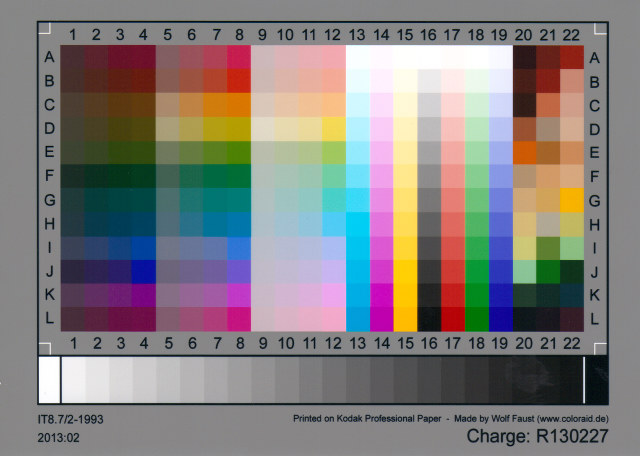
(I’ve made this a mouseover with the original image, so you can see the difference. Also, yes, there is a greasy thumb-print on my scanner glass near the bottom right, thank you so much for noticing.)
I used tifficc from the Little CMS package to apply the colour correction:
tifficc -v -i Epson-Workforce_WF-7520-WFaust-R1.icc Epson-Workforce_WF-7520-WFaust-R1.tiff Epson-Workforce_WF-7520-WFaust-R1-corrected.tiff
There are probably many easier, quicker ways of doing this, but this was the first thing I found that worked.
To show you a real example, here’s an un-retouched scan of the cover of Algrove Publishing‘s book “All the Knots You Needâ€, scanned at 75 dpi. Mouseover to see the corrected version:

(Incidentally, there are two old but well-linked programs that are out there that purport to do scanner calibration:Â Scarse and LPROF. Don’t use them! They’re really hard to build on modern systems, and the Argyll tools work well.)
The last part of my workflow that remains uncalibrated is my printer. I could make a target with Argyll, print it, scan it, colour correct it, then use that as the input to colprof as above. I’m suspecting the results would be mediocre, as my scanner’s bit depth isn’t great, and I’d have to do this process for every paper and print setting combination. I’d also have to work out what magic CUPS does and compensate. Maybe later, but not yet.
-
Using large format paper with Linux and the Epson WorkForce WF-7520 printer
Update: Nope, I can’t get this to work any more.
I have an Epson WorkForce WF-7520, and I really like it: excellent built-in duplex large format scanner with ADF, CIFS network storage, giant paper bins, photo quality printing up to 330×482 mm, only slightly expensive print cartridges… Under Linux, though, it’s not so well behaved, especially if you want to print on large format paper. This is the workaround I developed:
- Put the B-size/11×17″ paper in Tray 1 (the upper one), and the Letter paper in Tray 2. This, unfortunately, matters — the driver that can print large format can only access the upper tray. On the setup menu on the printer console, tell the printer which tray holds what size of paper.
- Install the epson-inkjet-printer-escpr driver; it should be in the standard Ubuntu repos. Define a printer (wf7520-lf, for example) that uses this driver. Set the paper size to “US B 11 x 17 in”.
- Ensure that the lsb and lsb-printing packages are installed:
sudo apt-get install lsb lsb-printing - Download and install the non-free epson-201115w driver from the EPSON Download Center. Define a printer (I used wf-7520 for the name) using this driver, making sure that the correct PPD (epson-inkjet-printer 1.0.0-1lsb3.2 (Seiko Epson Corporation LSB 3.2)) is used. Set it up to use Letter paper, and (important!) set the source to Paper Cassette 2. You might want to make this printer the system default.
To print to large format, use the command:
lp -d wf7520-lf -o PageSize=USB file.pdf
To print regular size, just send the job to the wf-7520 device.
(modified from my Ask Ubuntu question/answer: Selecting Large Format Paper: what printing options work?)
Update for the (rightly) confused: Epson appear to have hoiked US B / 11×17″ support for this printer. Here are my PPDs:
- Epson-WF-7520_Series-epson-driver.ppd — this is from the non-free driver. It doesn’t need to support large format.
- wf7520-lf.ppd — this is the large-format driver I use. Compare it with the epson-inkjet-printer-escpr PPD in the Debian code repo, and you’ll find all references to many paper sizes gone from it. Hmm …
Copying PPDs from one driver to another may not work, but you’ve likely nothing to lose.
-
ZX Spectrum → Canada
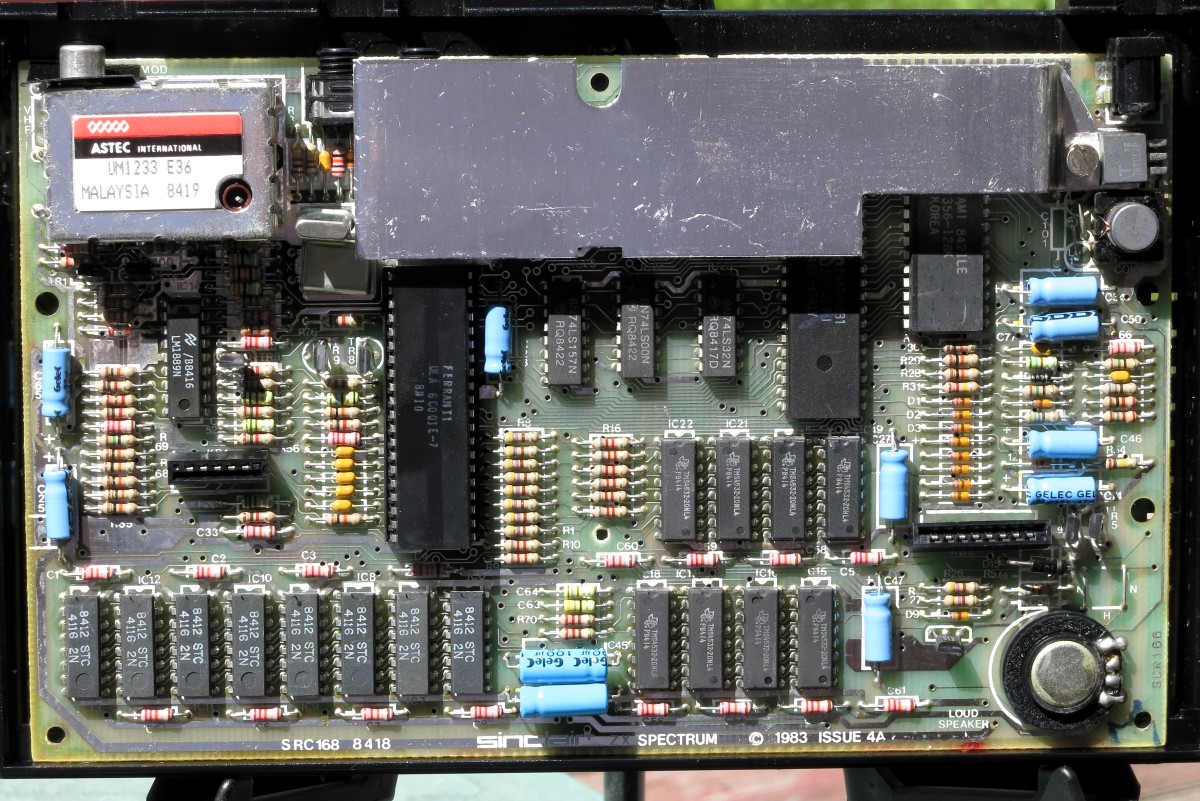
Ah, the ZX Spectrum… so many hours of my youth wasted on this book-sized computer. Now anything with a display can emulate one in its spare processor cycles, the 30 year old hardware itself is a bit chunky:
That’s a lot of discrete components; all through-hole, too. I brought this one back from the UK earlier this year in the hope of getting it working.First item that needed attention was the power supply. The original had a 230 V AC to 9 V DC, 1.4 A supply of some extremely dodgy regulation. I replace this with a Circuit-Test AC/DC Adapter – 9 V DC 2.2 A, which will have plenty of current. Since the adapter has a 2.1 mm centre positive DC barrel connector, and the Spectrum uses a centre negative connector, I used the soldering opportunity to wire in an inline switch. The Speccy’s famous lack of a power or reset switch really isn’t part of my retrocomputing experience.
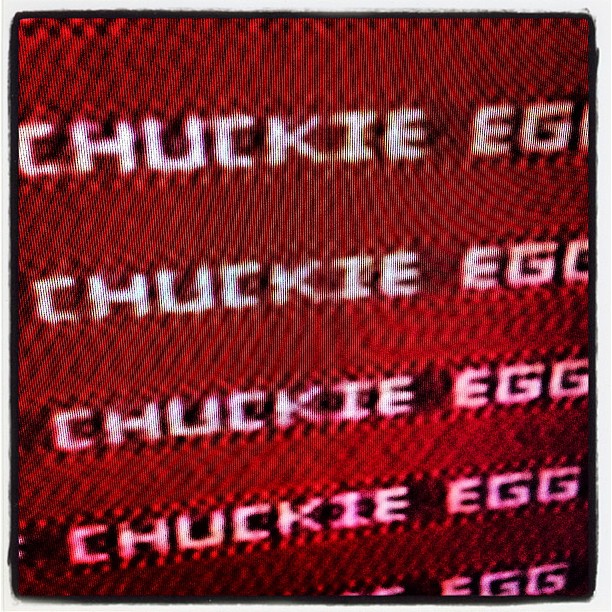
Next up, bypass the UK PAL TV modulator. This required disassembling the computer, and disconnecting the legendarily fragile keyboard membrane edge connectors. It’s a very simple soldering job to re-route the composite video feed (dot crawl and all) from the PCB to the Video Out. Put it all back together, plug it into the TV, and:
… another partial success. My TV doesn’t talk 50 Hz PAL composite well, giving an oversized black and white display. I’ll either need to buy a PAL to NTSC converter box, or spring for a tiny monitor which supports both standards.
-
Artisanal Hardware Random Number Generator
Artisanal Hardware Random Number Generator — scruss
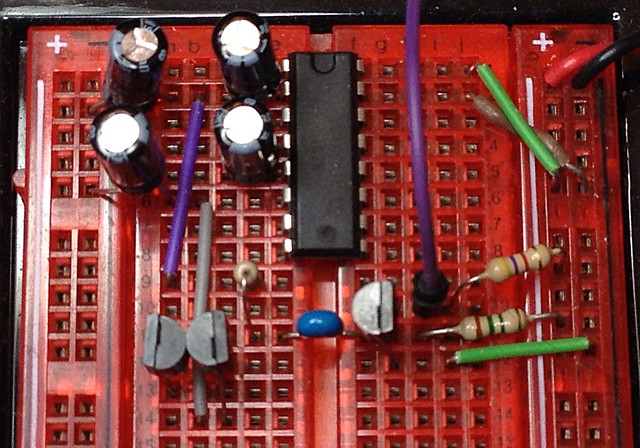
(the Flickr page has popup notes about the circuit.)Trickles out a few thousand made-with-love organic random numbers per second to the attached Arduino. The circuit is essentially Rob Seward’s True Random Number Generator v1 (after Will Ware, et al) which uses a MAX232 to power two reverse-biased 2N3904s to create avalanche noise. Another 2N3904 amplifies the resulting noise into something an Arduino can sample using AnalogRead(). Many modern processors include hardware RNGs (such as RdRand in recent Intel chipsets) so this circuit is just a toy now.
My interest in random number generators didn’t just arise from yesterday’s post. I’ve had various circuits breadboarded for months gathering dust, so I thought I’d pull out the most successful one and photograph it. Hardware RNGs seem to be a popular hobby electronics obsession, and there are many designs out there in variable states of “working†and/or “documentedâ€. I wanted one that could be powered from the 5V rail of an Arduino, and didn’t use too many expensive components. Rob’s RNG Version 2 circuit and code is the basis, but I replaced the 12V external supply with the MAX232 circuit he used in version 1.
Perhaps the reason that there are so many RNG projects out there in various states of abandonment is that making a good, reliable hardware RNG is hard. Just a few of the things you have to think about are:
- Analogue sources of noise can fade over time; power supplies droop as capacitors age, contacts can corrode, … How do you deal with this fade? If the output becomes so small, can you rely on those few bits from your A→D converter to be useful noise?
- Could someone try to attack your RNG so they can influence the results of your secure transactions? How would you detect it? How would you signal to the data user that something is amiss securely, such that an attacker couldn’t fake distress behaviour?
- What if the generator just stops? How do you flag that in a trusted “no really i mean it and it’s really me saying this not some attacker honest no†way? There may still be a tiny bit of noise that your circuit picks up; are you sure it’s your kind of noise, or some attacker trying to inject noise into your system? Remember, testing for real noise is exceptionally hard, and you can’t guarantee that a hardware RNG that worked today will work properly tomorrow.
(I’d like to thank Peter Todd for providing most of those issues over a pint and a chat during from a keysigning event. Peter saved me from spending too many hours working on this by hinting that — just maybe — I didn’t actually know what I was doing…)
If you want to read more on how to build a proper hardware RNG, the article “Understanding Intel’s Ivy Bridge Random Number Generator†and its references make a good (if very technical in places) introduction. I’m nowhere near paranoid enough to experiment further with RNG design, although I do have all the components to build an LM393-based XR232USB…
-
“Well, that was unexpected …”: The Raspberry Pi’s Hardware Random Number Generator
Hey! This is a bit old! Things may have changed and I haven’t necessarily fixed them.
Most computers can’t create true random numbers. They use a formula which makes a very long stream of pseudo-random numbers, but real randomness comes from thermal noise in analogue components. The Raspberry Pi has such a circuit in its SoC, as it helps making the seed data for secure transactions. It was only recently that a driver for this circuit was supplied.
To enable it (on Raspbian):I think the module is enabled by default now for the different versions of the SoC.- Make sure your system is up to date with
sudo apt-get update
sudo apt -y upgrade Install the module:sudo modprobe bcm2708-rngTo make sure it’s always loaded, add the following line to /etc/modules (editing as root):bcm2708-rng- For some RNG-related stuff, install rng-tools:
sudo apt-get install rng-tools
The /dev/hwrng device should now be available, but can only be read by the root user.
Nico pointed out that you also need to:
- Edit /etc/default/rng-tools, and remove the # at the start of the line
HRNGDEVICE=/dev/hwrng - Restart rng-tools with
sudo service rng-tools restart
What random looks like


Random data look pretty dull. Here are random RGB values made with:
sudo cat /dev/hwrng | rawtoppm -rgb 256 256 | pnmtopng > random$(date +%Y%m%d%H%M%S).png(you’ll need to install the netpbm toolkit to do this.)
What random sounds like
Two short WAV samples of, well, noise:
Yup, sounds like static. It was made with the rndsound.sh script. You’ll need to install sox to run it.
This is not random
If it sounds like static, and even if it sometimes looks like static, it may not actually be true random noise. An infamous case of a pseudo random number generator being not very random at all was RANDU, which at first glance appeared to produce nearly random results, but close study showed it to be very predictable.
I wrote (what I think to be) a C implementation of RANDU: randu.c. While it produces appropriately random-sounding audio data (randu17.wav), if you output it as an image:
Those stripes are a giveaway; there should be no order in the output. (Then again, I have no idea if I’ve implemented RANDU correctly.) Testing random data is hard, then — you really need a barrage of tests, and even some of them might fail even for truly random output. Thankfully, when you installed rngtools, it included rngtest, a simple checker for random data:sudo cat /dev/hwrng | rngtest -c 1000
rngtest 2-unofficial-mt.14
Copyright (c) 2004 by Henrique de Moraes Holschuh
This is free software; see the source for copying conditions. There is NO warranty; not even for MERCHANTABILITY or FITNESS FOR A PARTICULAR PURPOSE.rngtest: starting FIPS tests…
rngtest: bits received from input: 20000032
rngtest: FIPS 140-2 successes: 1000
rngtest: FIPS 140-2 failures: 0
rngtest: FIPS 140-2(2001-10-10) Monobit: 0
rngtest: FIPS 140-2(2001-10-10) Poker: 0
rngtest: FIPS 140-2(2001-10-10) Runs: 0
rngtest: FIPS 140-2(2001-10-10) Long run: 0
rngtest: FIPS 140-2(2001-10-10) Continuous run: 0
rngtest: input channel speed: (min=67.969; avg=921.967; max=1953125.000)Kibits/s
rngtest: FIPS tests speed: (min=842.881; avg=3208.336; max=6407.890)Kibits/s
rngtest: Program run time: 27658884 microsecondsWe were lucky that none of the tests failed for that run; sometimes there are a few failures. RANDU, on the other hand fares very badly:
./randu 17 | rngtest -c 1000
rngtest 2-unofficial-mt.14
Copyright (c) 2004 by Henrique de Moraes Holschuh
This is free software; see the source for copying conditions. There is NO warranty; not even for MERCHANTABILITY or FITNESS FOR A PARTICULAR PURPOSE.rngtest: starting FIPS tests…
rngtest: bits received from input: 20000032
rngtest: FIPS 140-2 successes: 0
rngtest: FIPS 140-2 failures: 1000
rngtest: FIPS 140-2(2001-10-10) Monobit: 730
rngtest: FIPS 140-2(2001-10-10) Poker: 1000
rngtest: FIPS 140-2(2001-10-10) Runs: 289
rngtest: FIPS 140-2(2001-10-10) Long run: 0
rngtest: FIPS 140-2(2001-10-10) Continuous run: 0
rngtest: input channel speed: (min=45.630; avg=14255.221; max=19073.486)Mibits/s
rngtest: FIPS tests speed: (min=23.694; avg=154.238; max=176.606)Mibits/s
rngtest: Program run time: 141071 microsecondsSee? Lots of failures there. It’s hardly random at all. If you really want to get out testing randomness, there are the dieharder tests. They takes ages to run, though.
(Note: newish Intel machines also have a real hardware RNG in the shape of Rdrand.)
I trust you all got the obvious Strictly Ballroom reference in the title?
- Make sure your system is up to date with
-
fixing firefox’s fugly fonts on Ubuntu
Update 2015-09: Better yet, install Infinality. It makes font rendering pretty.
Switching back to Linux from Mac is still a process of ironing out minor wrinkles. Take, for example, this abomination (enlarged to show texture):—

… No, I’m not talking about Mr Paul’s antics (or the typo in the TP post, either), but the horrid non-matching ligatures (‘attack’, ‘flubbed’, ‘targeting’) in a sea of blocky text. Almost every programme I was running had this problem. Mouse over the image to see how it could look if you apply this easy fix.
Create (or edit) the file
~/.fonts.conf~/.config/fontconfig/conf.d, and add the following lines:<match target="font" > <edit name="embeddedbitmap" mode="assign"> <bool>false</bool> </edit> </match>Log out, log back in again, and text is properly pretty. Yay!
-
Compose yourself, Raspberry Pi!
Years ago, I worked in multilingual dictionary publishing. I was on the computing team, so we had to support the entry and storage of text in many different languages. Computers could display accented and special characters, but we were stuck with 8-bit character sets. This meant that we could only have a little over 200 distinct characters display in the same font at the same time. We’d be pretty much okay doing French & English together, but French & Norwegian started to get a little trying, and Italian & Greek couldn’t really be together at all.
We were very fortunate to be using Sun workstations in the editorial office. These were quite powerful Unix machines, which means that they were a fraction of the speed and capabilities of a Raspberry Pi. Suns had one particularly neat feature:

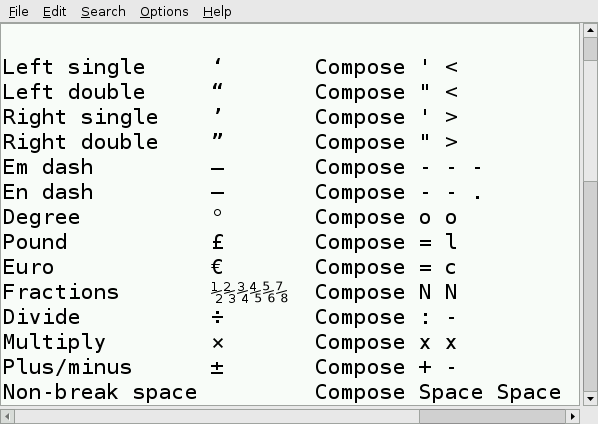
(source: Compose key, Wikipedia.)
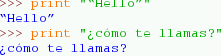
That little key marked “Compose” (to the right of the space bar) acted as a semi-smart typewriter backspace key: if you hit Compose, then the right key combination, an accented character or symbol would appear. Some of the straightforward compose key sequences are:
Compose + Accent First key Second key Result Example Acute ‘ e é café Grave ` a à déjà Cedilla , c ç soupçon Circumflex ^ o ô hôtel Umlaut “ u ü küche Ring o a å Håkon Slash / L Ł Łukasiewicz Tilde ~ n ñ mañana Like every (non-embedded) Linux system I’ve used, the Raspberry Pi running Raspbian can use the compose key method for entering extra characters. I’m annoyed, though, that almost every setup tutorial either says to disable it, or doesn’t explain what it’s for. Let me fix that for you …
Setup
Run raspi-config
sudo raspi-config
and go to the
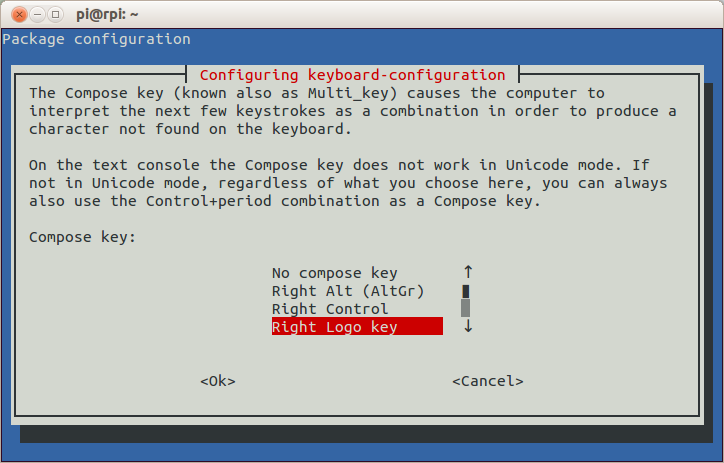
configure_keyboard“4 Internationalisation Options” → “I3 Change Keyboard Layout” section. Your keyboard’s probably mostly set up the way you want it, so hit the Tab key and select <Ok> until you get to the Compose key section:
Choose whatever is convenient. The combined keyboard and trackpad I use (a SolidTek KB-3910) with my Raspberry Pi has a couple of “Windows® Logo” keys, and the one on the right works for me. Keep the rest of the keyboard options the same, and exit raspi-config. After the message
Reloading keymap. This may take a short while [ ok ] Setting preliminary keymap...done.appears, you now have a working Compose key.
Using the Compose key
raspi-config hints (‘On the text console the Compose key does not work in Unicode mode …’) that Compose might not work everywhere with every piece of software. I’ve tested it across quite a few pieces of software — both on the text console and under LXDE — and support seems to be almost universal. The only differences I can find are:
- Text Console — (a. k. a. the texty bit you see after booting) Despite raspi-config’s warning, accented alphabetical characters do seem to work (é è ñ ö ø å, etc). Most symbols, however, don’t (like ± × ÷ …). The currency symbol for your country is a special case. In Canada, I need to use Compose for € and £, but you’ve probably got a key for that.
- LXDE — (a. k. a. the mousey bit you see after typing ‘startx’) All characters and symbols I’ve tried work everywhere, in LXTerminal, Leafpad, Midori, Dillo (browser), IDLE, and FocusWriter (a very minimal word processor).

Special characters in Python’s IDLE 
Some Compose key sequences — Leafpad To find out which key sequences do what, the Compose key – Wikipedia page is a decent start. I prefer the slightly friendlier Ubuntu references GtkComposeTable and Compose Key, or the almost unreadable but frighteningly comprehensive UTF-8 (Unicode) compose sequence reference (which is essentially mirrored on your Raspberry Pi as the file /usr/share/X11/locale/en_US.UTF-8/Compose). Now go forth and work that Compose key like a boß.
(If you’re on a Mac and feeling a bit left out, you can do something similar with the Option key. Here’s how: Extended Keyboard Accent Codes for the Macintosh. On Windows®?
Out of luck, I’m afraidWinCompose!) -
Mac to Linux: 1Password to KeePassX
I have too many passwords to remember, so I’ve been using a password manager for years. First there was Keyring for Palm OS, then 1Password on the Mac. 1Password’s a very polished commercial program, but it only has Mac and Windows desktop clients. Sadly, it had to go.
Finding a replacement was tough. It needed to be free, and yet cross-platform. It needed to work on iOS and Android. It also needed to integrate with a cloud service like Dropbox so I could keep my passwords in sync. The only program that met all of these requirements was KeePassX. I’ve stuck with the stable (v 0.4.3) branch rather than the flashy 2.0 version, as the older database format does all I need and is fully portable. MiniKeePass on iOS and KeePassDroid on Android look after my mobile needs. But first, I needed to get my password data out of 1Password.
1Password offers two export formats: a delimited text format (which seemed to drop some of the more obscure fields), and the 1Password Interchange Format (
1PIF). The latter is a JSONish format (ಠ_ಠ) containing a dump of all of the internal data structures. There is, of course, no documentation for this file format, because no-one would ever move away from this lovely commercial software, no … So armed with my favourite swiss army chainsaw, I set about picking the file apart. JSON::XS and Data::Dumper::Simple were invaluable for this process, and pretty soon I had all the fields picked apart that I cared about. I decided to write a converter that wrote KeePassX 1.x XML, since it was readily imported into KeePassX, would could then write a database readable by all of the KeePass variants.
To run this converter you’ll need Perl, the JSON::XS and Data::Dumper::Simple modules, and if your Perl is older than about 5.12, the Time::Piece module (it’s a core module for newer Perls, so you don’t have to install it). Here’s the code:
#!/usr/bin/perl -w # 1pw2kpxxml.pl - convert 1Password Exchange file to KeePassX XML # created by scruss on 02013/04/21 use strict; use JSON::XS; use HTML::Entities; use Time::Piece; # print xml header print <<HEADER; <!DOCTYPE KEEPASSX_DATABASE> <database> <group> <title>General</title> <icon>2</icon> HEADER ############################################################## # Field Map # # 1Password KeePassX # ============================ ============================== # title title # username username # password password # location url # notesPlain comment # - icon # createdAt creation # - lastaccess (use updatedAt) # updatedAt lastmod # - expire ('Never') # 1PW exchange files are made of single lines of JSON (O_o) # interleaved with separators that start '**' while (<>) { next if (/^\*\*/); # skip separator my $rec = decode_json($_); # throw out records we don't want: # - 'trashed' entries # - system.sync.Point entries next if ( exists( $rec->{'trashed'} ) ); next if ( $rec->{'typeName'} eq 'system.sync.Point' ); print ' <entry>', "\n"; # begin entry ################ # title field print ' <title>', xq( $rec->{'title'} ), '</title>', "\n"; ################ # username field - can be in one of two places my $username = ''; # 1. check secureContents as array foreach ( @{ $rec->{'secureContents'}->{'fields'} } ) { if ( ( exists( $_->{'designation'} ) && ( $_->{'designation'} eq 'username' ) ) ) { $username = $_->{'value'}; } } # 2. check secureContents as scalar if ( $username eq '' ) { $username = $rec->{'secureContents'}->{'username'} if ( exists( $rec->{'secureContents'}->{'username'} ) ); } print ' <username>', xq($username), '</username>', "\n"; ################ # password field - as username my $password = ''; # 1. check secureContents as array foreach ( @{ $rec->{'secureContents'}->{'fields'} } ) { if ( ( exists( $_->{'designation'} ) && ( $_->{'designation'} eq 'password' ) ) ) { $password = $_->{'value'}; } } # 2. check secureContents as scalar if ( $password eq '' ) { $password = $rec->{'secureContents'}->{'password'} if ( exists( $rec->{'secureContents'}->{'password'} ) ); } print ' <password>', xq($password), '</password>', "\n"; ################ # url field print ' <url>', xq( $rec->{'location'} ), '</url>', "\n"; ################ # comment field my $comment = ''; $comment = $rec->{'secureContents'}->{'notesPlain'} if ( exists( $rec->{'secureContents'}->{'notesPlain'} ) ); $comment = xq($comment); # pre-quote $comment =~ s,\\n,<br/>,g; # replace escaped NL with HTML $comment =~ s,\n,<br/>,mg; # replace NL with HTML print ' <comment>', $comment, '</comment>', "\n"; ################ # icon field (placeholder) print ' <icon>2</icon>', "\n"; ################ # creation field my $creation = localtime( $rec->{'createdAt'} ); print ' <creation>', $creation->datetime, '</creation>', "\n"; ################ # lastaccess field my $lastaccess = localtime( $rec->{'updatedAt'} ); print ' <lastaccess>', $lastaccess->datetime, '</lastaccess>', "\n"; ################ # lastmod field (= lastaccess) print ' <lastmod>', $lastaccess->datetime, '</lastmod>', "\n"; ################ # expire field (placeholder) print ' <expire>Never</expire>', "\n"; print ' </entry>', "\n"; # end entry } # print xml footer print <<FOOTER; </group> </database> FOOTER exit; sub xq { # encode string for XML $_ = shift; return encode_entities( $_, q/<>&"'/ ); }To run it,
./1pw2kpxxml.pl data.1pif > data.xml
You can then import data.xml into KeePassX.
Please be careful to delete the 1PIF file and the data.xml once you’ve finished the export/import. These files contain all of your passwords in plain text; if they fell into the wrong hands, it would be a disaster for your online identity. Be careful that none of these files accidentally slip onto backups, too. Also note that, while I think I’m quite a trustworthy bloke, to you, I’m Some Random Guy On The Internet. Check this code accordingly; I don’t warrant it for anything save for looking like line noise.
Now on github: scruss / 1pw2kpxxml, or download: 1pw2kpxxml.zip (gpg signature: 1pw2kpxxml.zip.sig)
SHA1 Checksums:
- 3c25eb72b2cfe3034ebc2d251869d5333db74592 — 1pw2kpxxml.pl
- 99b7705ff30a2b157be3cfd29bb1d4f137920c25 — readme.txt
- de4a51fbe0dd6371b8d68674f71311a67da76812 — 1pw2kpxxml.zip
- f6bd12e33b927bff6999e9e80506aef53e6a08fa — 1pw2kpxxml.zip.sig.txt
The converter has some limitations:
- All attached files in the database are lost.
- All entries are stored under the same folder, with the same icon.
- It has not been widely tested, and as I’m satisfied with its conversion, it will not be developed further.
-
Ubuntu on the Samsung Series 7
My Late 2008 MacBook was getting a little slow, so I went laptop shopping. I ended up with the Samsung Chronos 7 (NP700Z5CH). Under my budget, but met my spec in every way.
Installing Ubuntu was a minor trial, but it works, and has preserved the Win 8 (blecch!) dual-boot. If it helps anyone, the procedure I followed was:
- Updated the BIOS, made a recovery DVD and shrank the Windows partition using the DISKPART app (which reminds me so much of the old VMS admin tools).
- Broadly following the UEFI instructions, I got the 64-bit Linux-Secure-Remix ISO and wrote it to a USB stick with UNetbootin.
- In the BIOS (F2 when the Samsung logo shows), I disabled Secure Boot and Fast Boot, but kept EFI on, as Win8 won’t work without it. I also disabled (temporarily, with Shift+1) the HD and Windows Boot Manager from the boot sequence, moving USB boot up to first place.
- After trying Ubuntu from the LiveUSB, I installed it. Once it had finished and rebooted, I re-enabled HD and Windows Boot Manager in the BIOS.
- Ubuntu would work fine from here, but to restore Win8 to a usable (?) state, I had to reboot with the LiveUSB image and run Boot-Repair as suggested in the UEFI documentation.
The fan maybe runs a little more than it should, but everything I’ve tried works. There’s clearly been a lot of work done on Samsung/UEFI support recently, as any of the web tutorials I found from even 8 months ago recommended really arcane stuff I didn’t actually need.
(abstracted from my Reddit query: Linux-friendly future-proof MacBook replacement [13-15″, CA, $1600] : SuggestALaptop)
-
X11-Basic: Compiler Insanity!
Markus Hoffmann has been very helpful with getting X11-Basic running on the Raspberry Pi. Remember how I said that the simple Mandelbrot Set test took nearly 1¼ hours to run using the interpreter? How about 2′ 6″ when compiled? That’s a speedup of 35 times! What you need to do is:xbc -virtualm -o mandel-simple mandel-simple.bas
The “-virtualm” bit is the secret key to speed. Without it, the compiled code is a bit faster than interpreted.
If you’re running from the source code posted to SourceForge yesterday, you might want to replace xb2csol.h with this new xb2csol.h. It’s supposed to help with the compiled code. Justmake clean; make; sudo make installto replace the code. -
Running X11-Basic (almost perfectly) on Raspberry Pi
Update: Markus Hoffmann uploaded a new version of X11Basic-1.20.tar.gz to SourceForge that addresses most of these problems. I’ve edited the article to remove the obsolete bits.
More than 20 years ago, I really liked GFA-Basic. It ran blindingly fast on the Atari ST, and when it didn’t crash on the Amiga, it ran blindingly fast there too. I even wrote a review of it for comp.sys.amiga.programmer, which you can read to this day in all its textual glory. One of the e-mail addresses in that article still works, too.
I still sometimes think in BASIC, and there is much wringing of hands (not by me, really) that there isn’t a good interpreter for Raspbian on the Raspberry Pi. So when I found X11-Basic — a cross-platform GFA-Basic-like system — I had to take a look.
While I have managed to get X11-Basic demos to run, I have to say it’s not running super well. I’ll show you how to install X11-Basic 1.20 and get it (mostly) running, but it’s a bit rough on the ARM. Incidentally, these instructions also work on Ubuntu 12.mumble LTS on x86.
First, you need to install some (okay, a lot of) packages:
sudo apt-get install libreadline-dev tcsh libncurses5-dev xutils-dev libc6-dev libsdl1.2-dev libtool
Now download and extract the package:
tar xvzf X11Basic-1.20.tar.gz cd X11Basic-1.20
For X11Basic-1.20, you have to issue an extra command before the standard ‘
./configure ; make ; make install‘ sequence:sudo mkdir -p /usr/local/share/man/man1 ./configure make sudo make install
This is enough to make a working
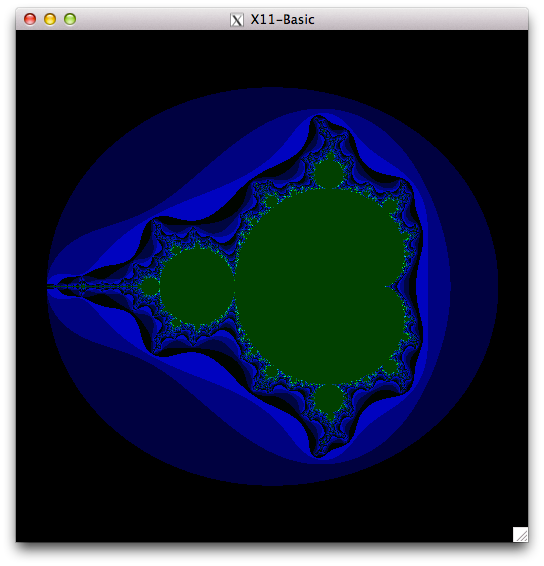
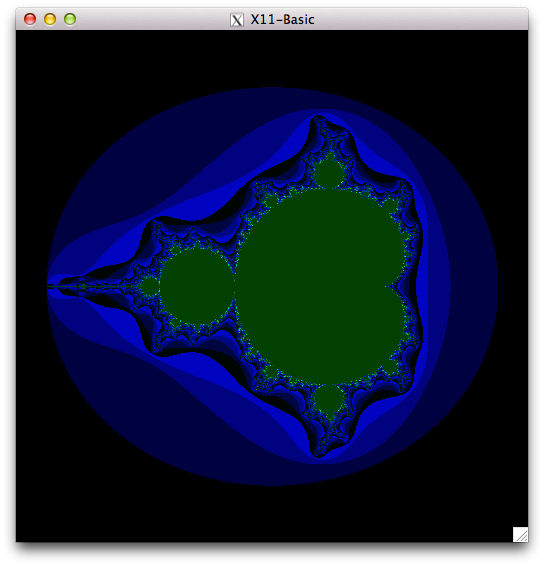
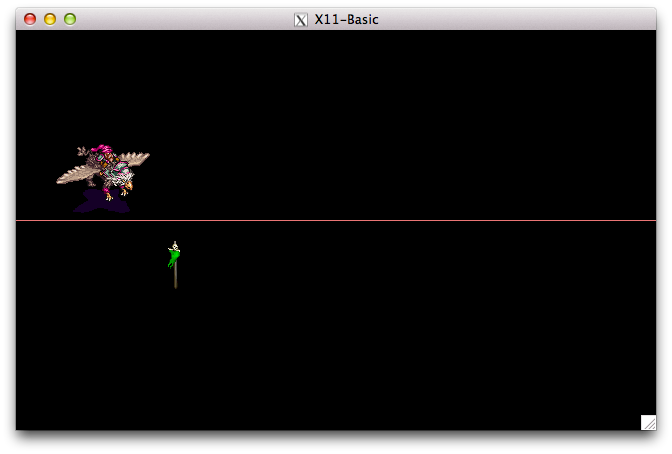
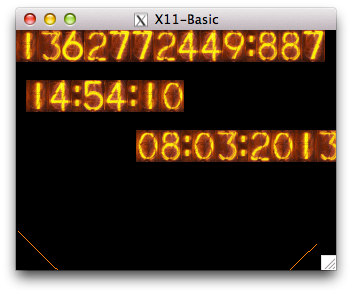
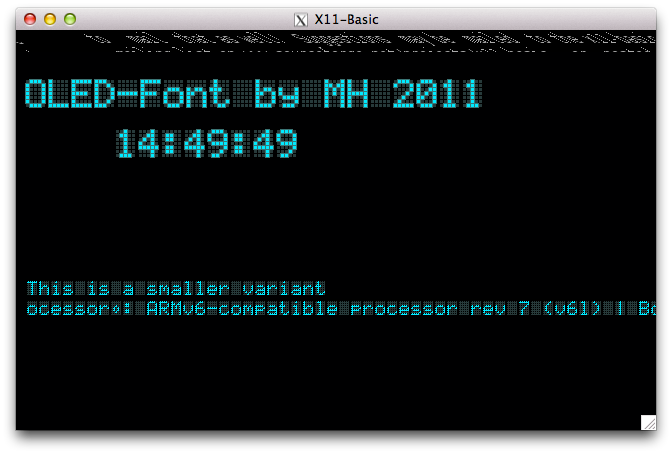
xbasicinterpreter. I made some screenshots of some of the graphics demos —
As you can see, there’s some screen corruption, but most demos just worked. Incidentally, the Mandelbrot one took almost 1¼ hours to run. Took me right back, that did (or it would have, if I hadn’t been outside bombing about in the slush on my bicycle while it churned away).In order to see just how fast the interpreter is, I ran the formerly fearsome Personal Computer World Benchmark #8 under X11-Basic. PCW#8 used to bring 8-bit home computers to their knees, typically taking more than a minute to run. Here’s the code, indented a bit and with a timing wrapper added:
LET start=TIMER LET K=0 L30: LET K=K+1 LET A=K^2 LET B=LN(K) LET C=SIN(K) IF K<1000 GOTO L30 ENDIF PRINT TIMER-start QUIT
(yeah, GFA-style BASIC isn’t too pretty …)
It takes about ¼s to run. The old BBC B was supposed to take about 50s. By comparison, X11-Basic on a manky old dual-core Atom took 0.04s.
The native compiler xbc seems to work. To make a standalone binary of the above code, you do:
xbc -o PCWBenchmark PCWBenchmark.xbas
The compiled binary runs roughly twice as fast as the interpreted code. Not blazing fast, but a useful increase.
Unfortunately, the bytecode compiler
xbbcdoesn’t actually do anything on the Raspberry Pi yet. So here I leave it up to you to play with X11-Basic, and see what it can and can’t do. -
.awesome
Here are the complete 1988-vintage Sun manuals “Using NROFF and TROFF†and “Formatting Documents†scanned just for you. I’d scanned these in 2000, and they’d sat on a forgotten archive volume since then.
Update: there are better versions on the Internet Archive: Using NROFF and TROFF and Formatting Documents, all as part of the Sun Microsystems, Inc. manual collection.
(if you need to get your troff on, go to Ralph’s troff.org.)
-
USB Fart Detector (unfortunately)
It is a truth universally acknowledged, that an engineer in possession of a solid-state flammable gas detector, will shortly make a fart detector with it. I’m sorry, but call it childishness, simple-minded curiosity, or the results of a diet high in polysaccharides, but this is something I have to get out of my system. (It’s okay; I’ll waft the door.)
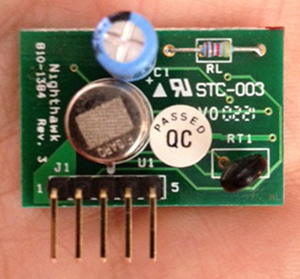
This all started when our carbon monoxide detector decided it was past its best, and started to emit an ear-splitting shriek. Thinking there might be some cool parts inside, I took it apart. Inside, in amongst the other stuff, I found this:
Thankfully, David Cook of Robot Room had once had the same idea as me (well, minus the puerile bits), and he documented the sensor board very well: Explosive Gas Detector Board. Here are the four pins that you really need to get the thing going:Pin # (from left) Function =================== ========== 1 Vcc 2 /Enable 3 /Gas 5 GndPins 2 and 3 are active low signals. To be typographically correct, I’d write them as Enable and Gas, but that’s hard to do in fixed-pitch ASCII. I can understand why the Gas signal should be active low (think about it; if the Figaro TGS 2611 sensor fails or shorts, it will likely fail to an alarm state, so you’ll still be alive to curse the bloody noise that woke you at 03h00), but the Enable being active low? Dunno.
I was hoping to have presented a little sketch for the Digispark that would have typed something unhelpful every time that gas was detected, but it was not to be. It seems that Macs and Digispark keyboard emulation is a thing of great wobbliness, so I had to resort to an Arduino and a serial connection.
Here’s the code:
/* gas_detector - uses board scavenged from CO detector scruss - 2013-02-18 (unfortunately) */ int gas = 2; // /Gas line on pin 2 int val = 0; int lastval = 0; void setup() { pinMode(gas, INPUT); Serial.begin(115200); } void loop() { val = digitalRead(gas); if (val != lastval) { if (val == LOW) { // LOW means gas detected Serial.println("gas"); Serial.println(); delay(1000); // wait 1s for air to clear } } lastval = val; }Before you ask, I tested the circuit by briefly hitting the button on a gas lighter. Honest.
I’ll keep working on the Digispark; it’s such a nifty little device, and this is such a worthy project …
-
A Murder of Crows on your Raspberry Pi with Boodler
Boodler is rather fun. It generates ambient music based on user-defined or downloaded ‘soundscapes’. If you’ve got a modern (HTML5/Opus-capable) browser, you can hear a streaming demo here: http://repeater.xiph.org:8000/clock.opus. It’s using the FM3 Buddha Machine samples in this demo, but it can run lots more: a tree full of crows, a thunderstorm, dripping water, …
It’s pretty easy to run on a Raspberry Pi running a recent version of Raspbian. The only technical glitch I had was that there’s something deeply confused about ALSA sound handling on the Raspberry Pi. I’m sure it’ll get fixed soon, but for now, you have to use PulseAudio. (If you want to read about my ALSA woes, go here.)
The installation prerequisites are simple:
sudo apt-get install pulseaudio pulseaudio-utils libpulse-dev python-dev
Now download and configure Boodler:
wget http://boodler.org/dl/Boodler-2.0.4.tar.gz tar xvzf Boodler-2.0.4.tar.gz cd Boodler-2.0.4 python setup.py build
It takes a while to do this, but make sure it does something useful when it’s building the various sound drivers. You don’t want it to say:
skipping 'boodle.cboodle_pulse' extension
If it says that, you haven’t installed Pulseaudio. Go back and check your apt-get line.
Once it’s built, now install it:
sudo python setup.py install
Now test it:
boodler --hardware --output pulse --testsound
Not merely should you get some pleasant tones from your Raspberry Pi’s audio, but you sound get some informative and non-threatening terminal output. Mine looks like:
Boodler: PulseAudio sound driver. PulseAudio library: 2.0.0. Sample rate is 44100 fps. Samples are 16-bit little-endian. Buffer size is 32768. 21:37:46 (root) Running "Boodler test sound"
If that works, let’s get those crows a-cawin’. Download the soundscapes you need:
boodle-mgr install http://boodler.org/lib/org.boodler.old.crow.1.0.boop boodle-mgr install http://boodler.org/lib/com.eblong.zarf.crows.1.0.boop
and run it:
boodler --output pulse com.eblong.zarf.crows/ParliamentOfCrows
Crows everywhere!
I really like the Buddha Machine samples. It’s quite big (> 80 MB), so this next set will take a while to download:
boodle-mgr install http://boodler.org/lib/com.azulebanana.buddhamachine.1.5.1.boop boodle-mgr install http://boodler.org/lib/com.azulebanana.buddhaagent.1.5.1.boop
It’s worth the wait:
boodler --output pulse com.azulebanana.buddhaagent/ChangingLoops
Boodler has tons of options, prebuilt packages, and instructions to build your own: Boodler Documentation.
One thing I’ve tried to get working, but failed, is streaming from Boodler via icecast. Sure, I can install and run it, it’s just that the results are, um, undesirable. If you want to have a play, here’s how to install icecast:
sudo apt-get install icecast2 ices2 libshout3-dev
Icecast will configure itself, and ask for a couple of passwords. You’ll have to rebuild and reinstall Boodler for it to catch the new configuration. You can then try streaming:
boodler --output shout --define shout-password=mypassword --define shout-mount='/boodler-buddha.ogg' com.azulebanana.buddhaagent/ChangingLoops
If you open a web browser at this address http://raspberrypi:8000/ you should see a config page listing your boodler-buddha.ogg stream. Click on the M3U link next to it, and your streaming music player should start making a joyful noise …
… except in my case, something went very wrong, and it started to produce industrial ultra-glitch nightmare noise: boodler-streaming_test-fail. I’m sure it’s fixable with some tweaking, but I’m not there yet.
-
X10 for Raspberry Pi on the Cheap [North American Edition]
Now I’ve got my X10 system running and know its limitations, I could have saved a wheen of money not buying stuff I don’t need. Our house appears to have been wired by an, um, spirited amateur, so powerline signalling is of limited use. Thankfully, the tiny and cheap X10 FireCracker CM17A (warning: too many flashing GIFs at this link!) can be driven from heyu [previously]. You can score these on eBay for under $10, and all you need is a serial adapter to drive them.
The really cheap bit in my system was discovered in Active Surplus. I found a case of Leviton “Plug-in Frequency Transceiver Modules” for $4/each. One was out of its case, and wouldn’t you know it, it’s the same as a RR501 module, which typically retails for about $30. Sure, these are old stock and are a nasty beige colour, but they provide a way of switching a two-pin appliance. They can also relay remote commands from RF to wired controls.The only X10 controller I can’t get to work with the Raspberry Pi is the CM19a USB PC Transceiver. I suspect it draws a bit too much power to run from a Raspberry Pi, as it makes the machine unresponsive if it’s plugged it. Running from my bench setup it works fine with the mochad driver, but no dice with the other machine. The CM19a reads wireless RF X10 commands, and it would be useful if I’d added a motion sensor. As is, I’ll stick to the lights going on and off.
(Update: there’s a good chance that my CM19a problems are down to the ancient dwc_otg* fixes I still run on my Raspberry Pi’s kernel. You probably don’t need them, and this device could work fine. One day I will find time to fix ’em …)
(Incidentally, this is the “North American Edition” because X10 RF controls are completely different in Europe, and none of the above is useful to you. Yeah, I know this article is the equivalent of PC Load Letter to you; sorry.)