
Instagram filter used: Lo-fi
Photo taken at: Gate D37
Newark really need to get a handle on their packaging.
I’d ordered a bluetooth adapter for my multimeter. It needs a little doohickey to attach to my meter, which Newark sent out by separate cover. This is how it turned up:

See the little orange thing on top? That’s the part. It’s 70×40×15 mm, and made in Malaysia. It was packed bubble-wrapped in a sturdy little cardboard box (163×73×43 mm, or 12× the volume of the part). That box was then packed in a very solid box (originally shipped from Penang to Gaffney, SC) measuring 200×200×170 mm; that’s 162× the part’s volume. Finally, that box was inside a third box of 330×245×220 mm, or 424× little doohickeys.
Thing is, the little doohickey is a tough injection moulded polymer part. It could probably be dropped in a padded envelope and survive any mail journey.
We’re going to die out for sure.
Here are the complete 1988-vintage Sun manuals “Using NROFF and TROFF†and “Formatting Documents†scanned just for you. I’d scanned these in 2000, and they’d sat on a forgotten archive volume since then.
Update: there are better versions on the Internet Archive: Using NROFF and TROFF and Formatting Documents, all as part of the Sun Microsystems, Inc. manual collection.
(if you need to get your troff on, go to Ralph’s troff.org.)
If I said that computers got slower with age, you’d look at me as if I were deranged. But REF say effectively that about wind turbines.
My former (nutso) argument goes like this: your 30 year old Commodore 64 is so much slower than the multi-core beastie you’re reading this post on, so computers get slower as they age, amirite …? I can’t actually keep this nonsense up much longer (computers have always been as fast as the market and technology could support), but the Renewable Energy Foundation manage for about 50 pages of statistical gorp in their paper, “Analysis of Wind Farm Performance in UK and Denmark“. And oh boy does the dittosphere like to report on it, like here, here, here, here, and here.
In short, the key graph in the report is this:
 If you believe it, it shows a steady decline in wind farm output with age. But thankfully, the good chaps at REF supply all of their data (and also have a bunch of other wind farm stats lying around in easily scrapeable formats; cheers, m’dears!), so I could take a look at their claims. So I made a subset: uk_annual_ncf [ODF], which has:
First off, and most blatantly, there’s no correction for annual wind patterns in the REF report. Blustery Januaries are merrily correlated against balmy Augusts, so there’s a lot of noise in the data. Using only annual data for those sites with 9 full years of data aligned everything quite nicely:
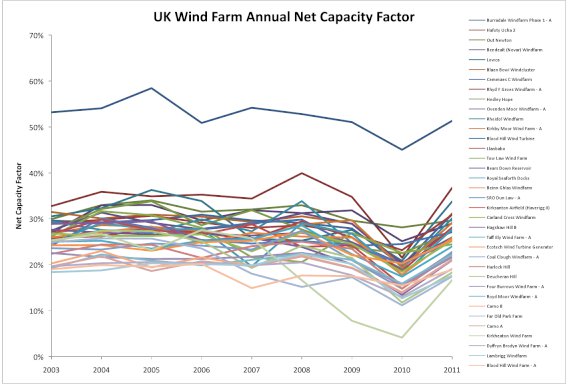 No real trends evident there, except that the wind appeared to have sucked mightily in 2010. So how about if I graph the same data, but plot it by project age at mid-year:
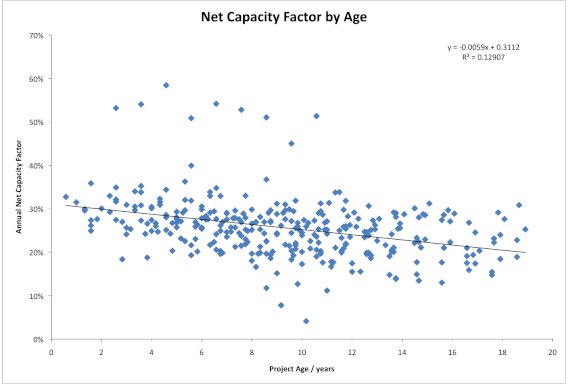 And there it is: a trend pulled from where there was none. It’s not very well correlated, but you could say that it shows a decline in NCF of about 0.6% per year. I wonder where it came from?
There’s one site that gives REF’s game away: Blood Hill, in Norfolk. It’s had 10× 225 kW Vestas V27s on 30m towers running since 1992, but it’s also got a single megawatt-class Enercon turbine on a 65 m tower which was installed in 2000. Here’s how the annual capacity factor looks for both sites:
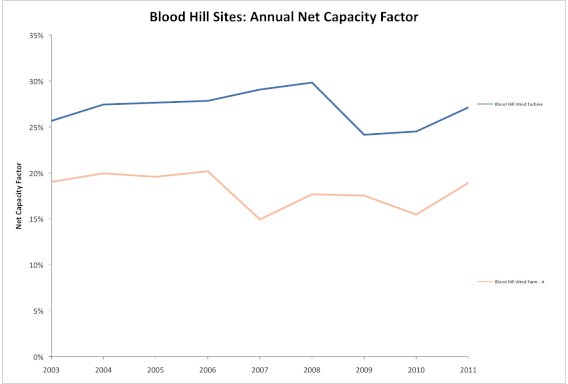 Apart from a slight maintenance wibble in 2007-2008 on the older turbines, the capacity factors track each other quite well. Remember, these turbines are nearly 20 years old at the end of the graph; according to REF, they’d be bumping along at about a third of their original capacity. So let’s graph them by age:
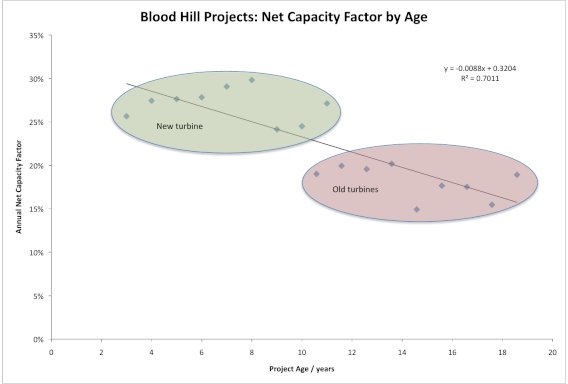 Aha! Here is the secret key (as a certain spider might say). If you compare new, tall turbines against old, small ones you get this false correlation. To show you how much wind turbines have grown, here are the average sizes for each installation year in the data set:
| Year | Avg Height / m |
Avg Diameter / m |
Avg Power / kW |
Installed Capacity in year / MW |
| 1991 | 32.0 | 34.0 | 400.0 | 4.0 |
| 1992 | 30.3 | 31.7 | 343.2 | 25.1 |
| 1993 | 31.8 | 35.2 | 428.0 | 35.1 |
| 1994 | 31.7 | 37.0 | 466.7 | 15.4 |
| 1995 | 35.0 | 44.0 | 600.0 | 15.6 |
| 1996 | 31.8 | 40.7 | 573.6 | 60.8 |
| 1997 | 32.3 | 41.3 | 527.7 | 34.3 |
| 1998 | 33.2 | 33.3 | 363.2 | 6.9 |
| 1999 | 40.6 | 45.5 | 647.1 | 18.1 |
| 2000 | 39.7 | 45.5 | 672.4 | 49.8 |
| 2001 | 40.9 | 51.6 | 963.9 | 31.8 |
| 2002 | 43.4 | 55.6 | 1023.1 | 26.6 |
| 2003 | 58.3 | 58.0 | 1166.7 | 3.5 |
| 2004 | 51.4 | 64.9 | 1593.5 | 146.6 |
| 2005 | 54.4 | 64.9 | 1525.7 | 346.3 |
| 2006 | 60.9 | 74.2 | 1919.5 | 418.5 |
| 2007 | 63.5 | 68.8 | 1753.4 | 206.9 |
| 2008 | 66.7 | 78.0 | 2104.4 | 662.9 |
| 2009 | 60.6 | 71.0 | 1804.4 | 268.9 |
| 2010 | 69.6 | 79.4 | 1987.8 | 163.0 |
It’s clear from the table that the height, diameter, and rated power of the turbines installed in the UK have all gone up. Turbines really have got bigger over the years; just look at this old promo slide from Vestas:
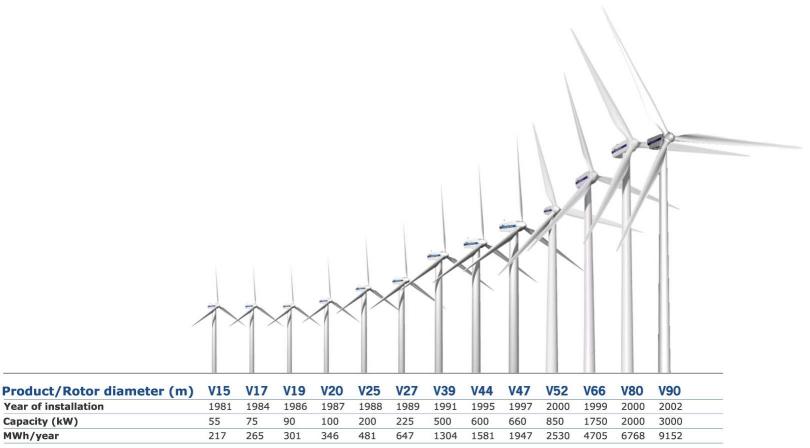 Wind turbines grew immensely; maybe not quite by Moore’s Law, but exceedingly fast for mechanical machinery. So to even compare old turbines to new is exactly like comparing your old Commodore 64 to a current computer: that’s to say, not even wrong.
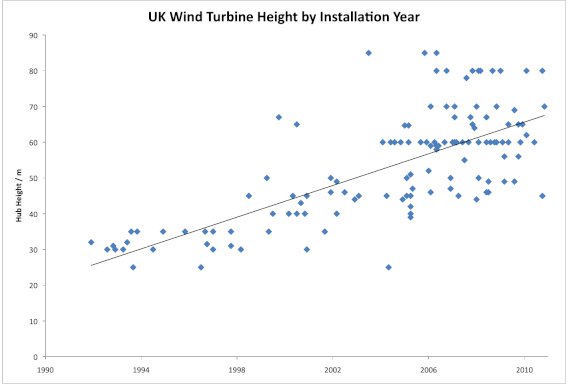
This is how wind turbine hub height grows by installation year for the sites it can be reliably extracted from the REF data:
 or if you want to look at it the way REF does, by age:
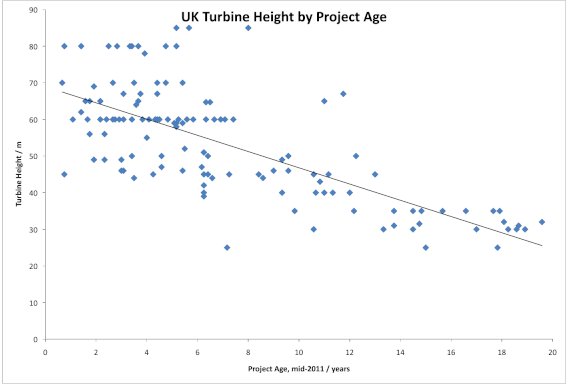 (I fully expect someone to come out with a report that says “Wind Turbines Get Smaller As They Get Older” … oh wait, REF already did.)
To compound this effect, wind speeds increase with height from the ground. So taller, newer turbines are able to harvest much more energy than shorter, older ones. What’s more, the larger a wind turbine’s rotor, the more swept area it has, so it will have even more energy available to supply to the grid. In a later post, I’ll run a simulation where, with no degradation from a wind turbine’s output, you can fake a decline just by building taller turbines every year.
In short, we can take two things from the anti-wind REF’s report:
The sad thing is that REF peddle this deliberately misleading crap, and some of the public believes them. The spectacularly sad thing is that I had to waste my time sleuthing my way through it all.
It is a truth universally acknowledged, that an engineer in possession of a solid-state flammable gas detector, will shortly make a fart detector with it. I’m sorry, but call it childishness, simple-minded curiosity, or the results of a diet high in polysaccharides, but this is something I have to get out of my system. (It’s okay; I’ll waft the door.)
This all started when our carbon monoxide detector decided it was past its best, and started to emit an ear-splitting shriek. Thinking there might be some cool parts inside, I took it apart. Inside, in amongst the other stuff, I found this:
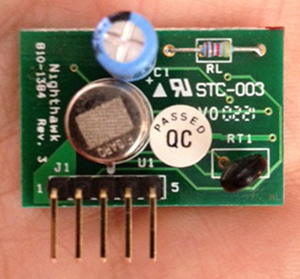 Thankfully, David Cook of Robot Room had once had the same idea as me (well, minus the puerile bits), and he documented the sensor board very well: Explosive Gas Detector Board. Here are the four pins that you really need to get the thing going:
 Pin # (from left)    Function
===================  ==========
       1              Vcc
       2              /Enable
       3              /Gas
       5              Gnd
Pins 2 and 3 are active low signals. To be typographically correct, I’d write them as Enable and Gas, but that’s hard to do in fixed-pitch ASCII. I can understand why the Gas signal should be active low (think about it; if the Figaro TGS 2611 sensor fails or shorts, it will likely fail to an alarm state, so you’ll still be alive to curse the bloody noise that woke you at 03h00), but the Enable being active low? Dunno.
I was hoping to have presented a little sketch for the Digispark that would have typed something unhelpful every time that gas was detected, but it was not to be. It seems that Macs and Digispark keyboard emulation is a thing of great wobbliness, so I had to resort to an Arduino and a serial connection.
Here’s the code:
/*
 gas_detector - uses board scavenged from CO detector

 scruss - 2013-02-18 (unfortunately)
 */

int gas     = 2;               // /Gas line on pin 2
int val     = 0;
int lastval = 0;

void setup() {
  pinMode(gas, INPUT);
  Serial.begin(115200);
}

void loop() {
  val = digitalRead(gas);
  if (val != lastval) {
    if (val == LOW) {          // LOW means gas detected
      Serial.println("gas");
      Serial.println();
      delay(1000);             // wait 1s for air to clear
    }
  }
  lastval = val;
}
Before you ask, I tested the circuit by briefly hitting the button on a gas lighter. Honest.
I’ll keep working on the Digispark; it’s such a nifty little device, and this is such a worthy project …
Update, 2026: NordicWare no longer sell this product, so the abbreviated instructions link below goes to an archived copy from 2019.
Because I can never find them when I need them, here — badly scanned for the Whole Internet — are the NordicWare Microwave Rice Cooker instructions [PDF].
For me, brown basmati needs nearer 30 minutes than 20, but your l/100 km may vary.
Re Skip’s suggestion below, the abbreviated instructions are (archived) here: Rice Cooker | Microwave | Nordic Ware. (PDF print link for the perfectly paranoid.)
Boodler is rather fun. It generates ambient music based on user-defined or downloaded ‘soundscapes’. If you’ve got a modern (HTML5/Opus-capable) browser, you can hear a streaming demo here: http://repeater.xiph.org:8000/clock.opus. It’s using the FM3 Buddha Machine samples in this demo, but it can run lots more: a tree full of crows, a thunderstorm, dripping water, …
It’s pretty easy to run on a Raspberry Pi running a recent version of Raspbian. The only technical glitch I had was that there’s something deeply confused about ALSA sound handling on the Raspberry Pi. I’m sure it’ll get fixed soon, but for now, you have to use PulseAudio. (If you want to read about my ALSA woes, go here.)
The installation prerequisites are simple:
sudo apt-get install pulseaudio pulseaudio-utils libpulse-dev python-dev
Now download and configure Boodler:
wget http://boodler.org/dl/Boodler-2.0.4.tar.gz
tar xvzf Boodler-2.0.4.tar.gz
cd Boodler-2.0.4
python setup.py build
It takes a while to do this, but make sure it does something useful when it’s building the various sound drivers. You don’t want it to say:
skipping 'boodle.cboodle_pulse' extension
If it says that, you haven’t installed Pulseaudio. Go back and check your apt-get line.
Once it’s built, now install it:
sudo python setup.py install
Now test it:
boodler --hardware --output pulse --testsound
Not merely should you get some pleasant tones from your Raspberry Pi’s audio, but you sound get some informative and non-threatening terminal output. Mine looks like:
Boodler: PulseAudio sound driver.
 PulseAudio library: 2.0.0.
 Sample rate is 44100 fps.
 Samples are 16-bit little-endian.
 Buffer size is 32768.
 21:37:46 (root) Running "Boodler test sound"
If that works, let’s get those crows a-cawin’. Download the soundscapes you need:
boodle-mgr install http://boodler.org/lib/org.boodler.old.crow.1.0.boop
boodle-mgr install http://boodler.org/lib/com.eblong.zarf.crows.1.0.boop
and run it:
boodler --output pulse com.eblong.zarf.crows/ParliamentOfCrows
Crows everywhere!
I really like the Buddha Machine samples. It’s quite big (> 80 MB), so this next set will take a while to download:
boodle-mgr install  http://boodler.org/lib/com.azulebanana.buddhamachine.1.5.1.boop
boodle-mgr install http://boodler.org/lib/com.azulebanana.buddhaagent.1.5.1.boop
It’s worth the wait:
boodler --output pulse com.azulebanana.buddhaagent/ChangingLoops
Boodler has tons of options, prebuilt packages, and instructions to build your own: Boodler Documentation.
One thing I’ve tried to get working, but failed, is streaming from Boodler via icecast. Sure, I can install and run it, it’s just that the results are, um, undesirable. If you want to have a play, here’s how to install icecast:
sudo apt-get install icecast2 ices2 libshout3-dev
Icecast will configure itself, and ask for a couple of passwords. You’ll have to rebuild and reinstall Boodler for it to catch the new configuration. You can then try streaming:
boodler --output shout --define shout-password=mypassword --define shout-mount='/boodler-buddha.ogg' com.azulebanana.buddhaagent/ChangingLoops
If you open a web browser at this address http://raspberrypi:8000/ you should see a config page listing your boodler-buddha.ogg stream. Click on the M3U link next to it, and your streaming music player should start making a joyful noise …
… except in my case, something went very wrong, and it started to produce industrial ultra-glitch nightmare noise: boodler-streaming_test-fail. I’m sure it’s fixable with some tweaking, but I’m not there yet.
Now I’ve got my X10 system running and know its limitations, I could have saved a wheen of money not buying stuff I don’t need. Our house appears to have been wired by an, um, spirited amateur, so powerline signalling is of limited use. Thankfully, the tiny and cheap X10 FireCracker CM17A (warning: too many flashing GIFs at this link!) can be driven from heyu [previously]. You can score these on eBay for under $10, and all you need is a serial adapter to drive them.
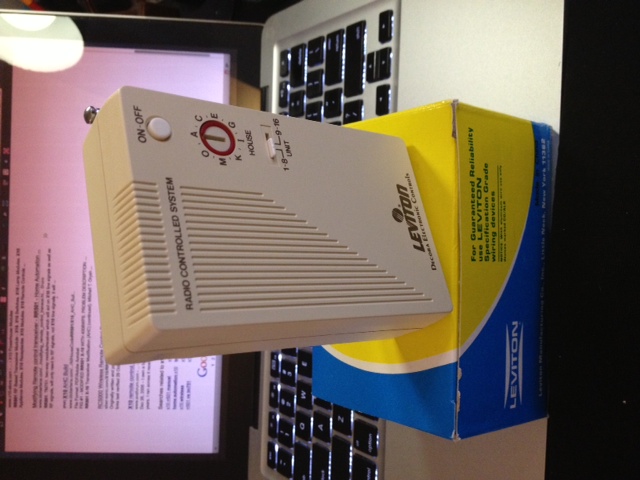 The really cheap bit in my system was discovered in Active Surplus. I found a case of Leviton “Plug-in Frequency Transceiver Modules” for $4/each. One was out of its case, and wouldn’t you know it, it’s the same as a RR501 module, which typically retails for about $30. Sure, these are old stock and are a nasty beige colour, but they provide a way of switching a two-pin appliance. They can also relay remote commands from RF to wired controls.
The only X10 controller I can’t get to work with the Raspberry Pi is the CM19a USB PC Transceiver. I suspect it draws a bit too much power to run from a Raspberry Pi, as it makes the machine unresponsive if it’s plugged it. Running from my bench setup it works fine with the mochad driver, but no dice with the other machine. The CM19a reads wireless RF X10 commands, and it would be useful if I’d added a motion sensor. As is, I’ll stick to the lights going on and off.
(Update: there’s a good chance that my CM19a problems are down to the ancient dwc_otg* fixes I still run on my Raspberry Pi’s kernel. You probably don’t need them, and this device could work fine. One day I will find time to fix ’em …)
(Incidentally, this is the “North American Edition” because X10 RF controls are completely different in Europe, and none of the above is useful to you. Yeah, I know this article is the equivalent of PC Load Letter to you; sorry.)
Yep, springtime’s coming, and today’s the first day I know it, despite the -5.8°C outside. I know spring is coming because my sunrise-adjusted lights came on before my alarm today. I’m controlling them with a Raspberry Pi, cron, and X10.
I’d described how to build and use heyu previously, so I won’t go into it further. I use sunwait to control the timing relative to local sunrise and sunset. Sunwait is a simple C program which builds quickly, and you can put the executable somewhere in your path.
(NB: newer versions of sunwait use a completely incompatible command line format. Everything here refers to the 2004 version I linked to above, which does exactly what I need in the way it’s described here.)
You need to know your latitude and longitude to use sunwait. To check its setting for the day, you can call it with the -p option:
$ sunwait -p 43.729N 79.292W
Using location:             43.729000N, 79.292000W
Date:                        6 Feb 2013
Local time:                  7:44
Day length:                 10:13 hours
With civil twilight         11:10 hours
With nautical twilight      12:18 hours
With astronomical twilight  13:25 hours
Length of twilight:  civil   0:28 hours
                  nautical   1:02 hours
              astronomical   1:35 hours
Current specified time zone: EST (-5 from UTC)
Sun transits meridian 1231 EST
                   Sun rises 0726 EST, sets 1736 EST
       Civil twilight starts 0656 EST, ends 1806 EST
    Nautical twilight starts 0622 EST, ends 1840 EST
Astronomical twilight starts 0548 EST, ends 1913 EST
So for me, today’s sunrise is at 0726, and sunset is at 1736. All sunwait does is wait until a specific solar time is reached, and then exit. Whatever command you call after sunwait, therefore, is what gets run at the right time. So if I wanted X10 device H1 to come on an hour before sunrise, I’d run:
sunwait sun up -1:00:00 43.729N 79.292W; heyu on h1
Remembering to run this every day before sunrise would be a pain, so this is where cron helps. cron uses a slightly odd config file that is edited using the crontab -e command. Here’s the relevant bit of my crontab, showing the light control times:
# m h  dom mon dow   command
 01 00   *   *   *   /usr/local/bin/sunwait sun up -1:00:00 43.729N 79.292W; /usr/local/bin/heyu on h1
 02 00   *   *   *   /usr/local/bin/sunwait sun up +1:00:00 43.729N 79.292W; /usr/local/bin/heyu off h1
 03 00   *   *   *   /usr/local/bin/sunwait sun down -1:00:00 43.729N 79.292W; /usr/local/bin/heyu on h1
 45 22   *   *   *   /usr/local/bin/heyu off h1
(you can view your crontab with crontab -l)
The columns in crontab are:
So the four crontab lines mean:
So for quite a bit of the day, there are a couple of sunwait tasks just quietly waiting until sunrise or sunset to do their thing. cron, incidentally, is picky about executable paths; that’s why I specified full paths to both sunwait and heyu.
What I’d really like to do is have time on this machine update without a network connection, because it’s running from a particularly messy router set up in a spare bedroom. I should investigate a real-time clock, with GPS time updates from an I²C GPS, talking through a bluetooth console. In my copious free time, of course.