Instagram filter used: Hefe
Hey! This is a really old article. You should really be using gpiozero these days.
I hadn’t realised it, but the The Quite Rubbish Clock did something that a lot of people seem to have trouble with on the Raspberry Pi: communicating using hardware SPI. Perhaps it’s because everything is moving so fast with Raspberry Pi development, tutorials go out of date really quickly. Thankfully, hardware SPI is much easier to understand than the older way of emulation through bit-banging.
SPI is a synchronous serial protocol, so it needs a clock line as well as a data in and data out line. In addition, it has a Chip Enable (CE, or Chip Select, CS) line that is used to choose which SPI device to talk to. The Raspberry Pi has two CE lines (pins 24 and 26) so can talk to two SPI devices at once. It supports a maximum clock rate of 32 MHz, though in practice you’ll be limited to the rate your device supports.
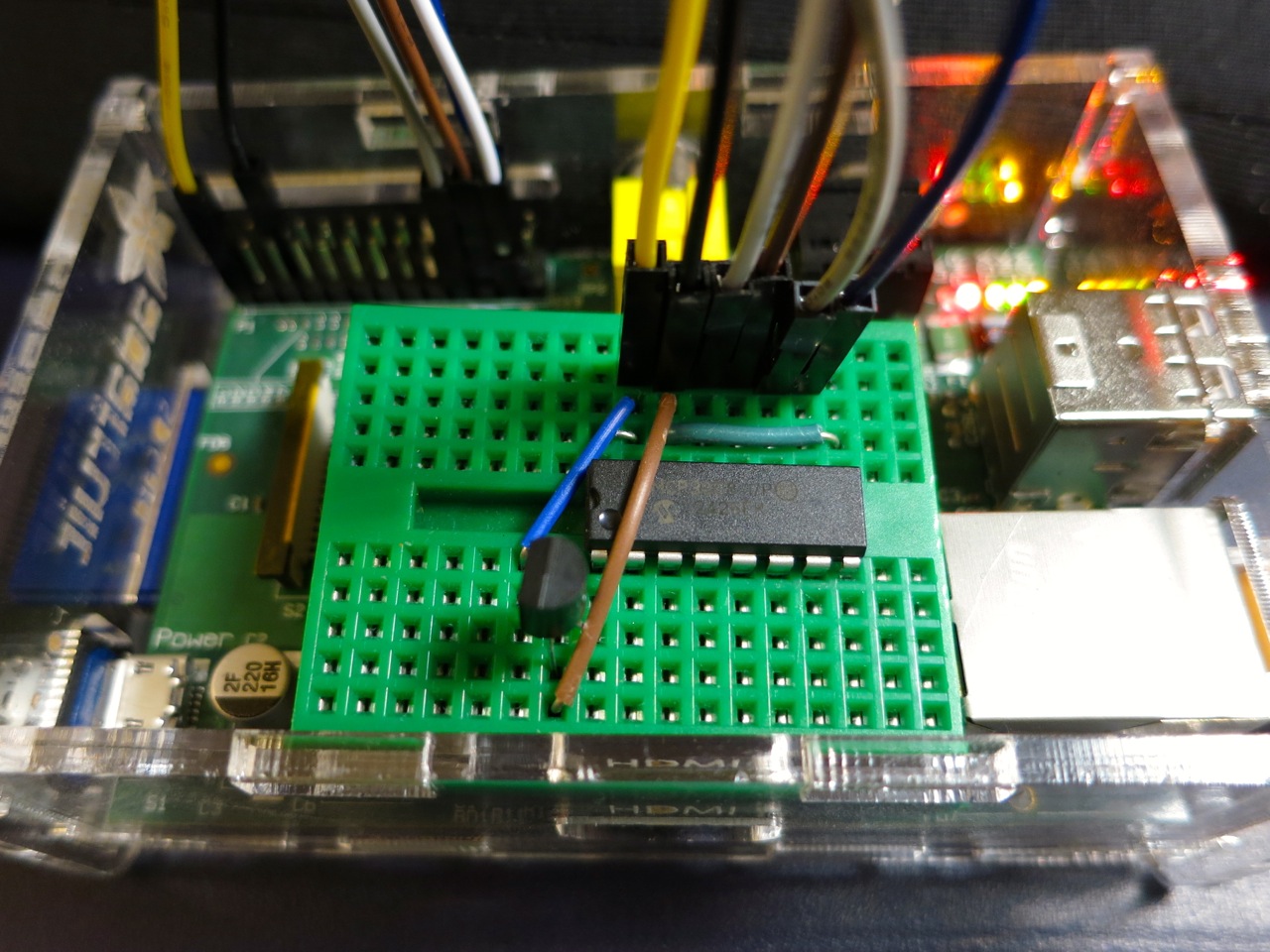
The device I’m testing here is an MCP3008 10-bit Analogue-to-Digital Converter (ADC). These are simple to use, cheap and quite fast converters with 8 input channels. If you hook them up to a 3.3 V supply they will convert a DC voltage varying from 0-3.3 V to a digital reading of 0-1023 (= 210 – 1). Not quite up there in quality for hi-fi audio or precision sensing, but good enough to read from most simple analogue sensors.
The sensor I’m reading is the astonishingly dull LM35DZ temperature sensor. All the cool kids seem to be using TMP36s (as they can read temperatures below freezing without a negative supply voltage). One day I’ll show them all and use a LM135 direct Kelvin sensor, but not yet.
To run this code, install the SPI libraries as before. Now wire up the MCP3008 to the Raspberry Pi like so:
 MCP 3008 Pin          Pi GPIO Pin #    Pi Pin Name
==============        ===============  =============
 16  VDD                 1              3.3 V
 15  VREF                1              3.3 V
 14  AGND                6              GND
 13  CLK                23              GPIO11 SPI0_SCLK
 12  DOUT               21              GPIO09 SPI0_MISO
 11  DIN                19              GPIO10 SPI0_MOSI
 10  CS                 24              GPIO08 CE0
  9  DGND                6              GND
The wiring for the LM35 is very simple:
 LM35 Pin        MCP3008 Pin
==========      =============
 Vs              16 VDD
 Vout             1 CH0
 GND              9 DGND
The code I’m using is a straight lift of Jeremy Blythe’s Raspberry Pi hardware SPI analog inputs using the MCP3008. The clever bit in Jeremy’s code is the readadc() function which reads the relevant length of bits (by writing the same number of bits; SPI’s weird that way) from the SPI bus and converting it to a single 10-bit value.
#!/usr/bin/python
# -*- coding: utf-8 -*-
# mcp3008_lm35.py - read an LM35 on CH0 of an MCP3008 on a Raspberry Pi
# mostly nicked from
#  http://jeremyblythe.blogspot.ca/2012/09/raspberry-pi-hardware-spi-analog-inputs.html

import spidev
import time

spi = spidev.SpiDev()
spi.open(0, 0)

def readadc(adcnum):
# read SPI data from MCP3008 chip, 8 possible adc's (0 thru 7)
    if adcnum > 7 or adcnum < 0:
        return -1
    r = spi.xfer2([1, 8 + adcnum << 4, 0])
    adcout = ((r[1] & 3) << 8) + r[2]
    return adcout

while True:
    value = readadc(0)
    volts = (value * 3.3) / 1024
    temperature = volts / (10.0 / 1000)
    print ("%4d/1023 => %5.3f V => %4.1f °C" % (value, volts,
            temperature))
    time.sleep(0.5)
The slightly awkward code temperature = volts / (10.0 / 1000) is just a simpler way of acknowledging that the LM35DZ puts out 10 mV (= 10/1000, or 0.01) per °C. Well-behaved sensors generally have a linear relationship between what they indicate and what they measure.
If you run the code:
sudo ./mcp3008_lm35.py
you should get something like:
  91/1023 => 0.293 V => 29.3 °C
  93/1023 => 0.300 V => 30.0 °C
  94/1023 => 0.303 V => 30.3 °C
  95/1023 => 0.306 V => 30.6 °C
  96/1023 => 0.309 V => 30.9 °C
  97/1023 => 0.313 V => 31.3 °C
  97/1023 => 0.313 V => 31.3 °C
  98/1023 => 0.316 V => 31.6 °C
  99/1023 => 0.319 V => 31.9 °C
  99/1023 => 0.319 V => 31.9 °C
 100/1023 => 0.322 V => 32.2 °C
 100/1023 => 0.322 V => 32.2 °C
 100/1023 => 0.322 V => 32.2 °C
 101/1023 => 0.325 V => 32.5 °C
 101/1023 => 0.325 V => 32.5 °C
 102/1023 => 0.329 V => 32.9 °C
 102/1023 => 0.329 V => 32.9 °C
 103/1023 => 0.332 V => 33.2 °C
Note that the sensor had been sitting over the Raspberry Pi’s CPU for a while; I don’t keep my house at 29 °C. I made the temperature go up by holding the LM35.
So, you’ve just (fairly cheaply) given your Raspberry Pi 8 analogue input channels, so it can behave much more like a real microcontroller now. I remember from my datalogging days that analogue inputs can be pretty finicky and almost always return a value even if it’s an incorrect one. Check the chip’s datasheet to see if you’re doing it right, and if in doubt, meter it!
I’d never played any other instrument when I learned the banjo a decade ago. I’m still not entirely sure why I picked up the banjo, beyond the fact that it wasn’t a guitar. So weak were my musical recognition skills that instead of learning the style I really liked (Peter Stampfel’s two finger style) I picked up clawhammer.
So, you’ll need a banjo. Beyond being what you can afford, having five strings, a straight neck with frets that won’t shred your hands, and tuning pegs that don’t slip, it can be anything you want. Almost everyone learns on a Deering Goodtime, just as they did on a Harmony Reso-Tone in the 1960s. There are others: the Gold Tone CC-OT, the Epiphone MB-100; they’ll do. Don’t get anything too heavy at first.
Other kit you’ll need: a strap, a tuner, spare strings, and a metronome (maybe). Nails on your right hand kinda help. It helps to swap out the fifth string for a heavier gauge. Most beginner banjos come with a 0.010″ string, while a 0.012″ is much stiffer and won’t squirm about under your thumb.

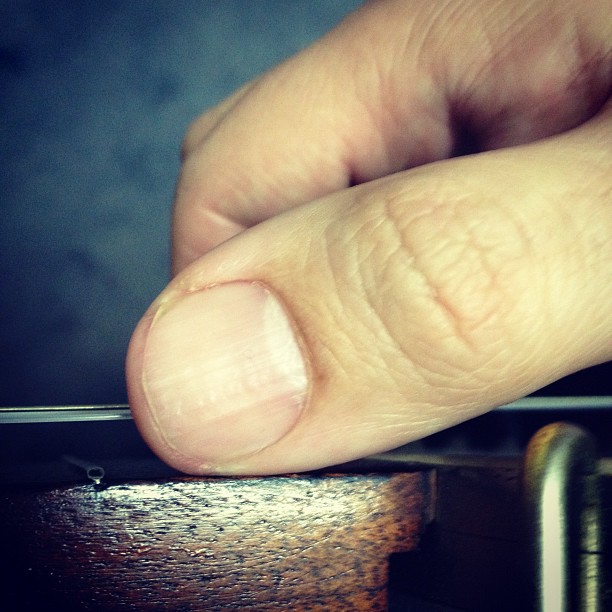

Three banjos, same thumb
The key to clawhammer is that your thumb lives on the fifth string. No matter what you do, your thumb always returns to the fifth string. Is the action on your banjo high enough to make the fifth home for your thumb? If not, a taller bridge is a cheap way of fixing this.
Find a teacher, and get a couple of lessons, just so you know how to hold the thing and do some very basic frailing strums. As Peter Stampfel said: “Find a teacher whose playing you like — who is not a jerk”. I found Chris Coole:
Players I like? Apart from Coole, there’s:
Kyle Creed
http://www.youtube.com/watch?v=_nzi6qXb5pU
Reed Martin
(and before you complain about your banjo not being good enough, Reed’s playing that on a very basic Gold Tone.)
Cathy Fink
(and, perhaps slightly unfairly because she had the world’s worst cold at the time, here are Cathy and the Banjo Puppets … the cold didn’t seem to slow her down any.)
Need lessons and can’t get to a teacher? There’s Chris Coole’s DVD. Donald Zepp‘s videos. Many teachers offer Skype lessons.
You don’t need chords for clawhammer banjo. I’m barely aware of what they are (and with only 4½ strings and no sustain, they don’t sound great on a banjo). You’ll end up knowing more tunings than chords. That’s okay.
Banjo Hangout is both a resource and a trap. If in doubt, play banjo instead of reading BHO.
You may never get great at this. That’s okay; it’s not a destination. As Peter Stampfel said, I like “… the idea of something you’ll never finish”.
(and if you really do want to learn two finger style, Sean’s Thumb-Lead Banjer is great. It’s a totally different style from clawhammer, but it’s part of the old time canon.)
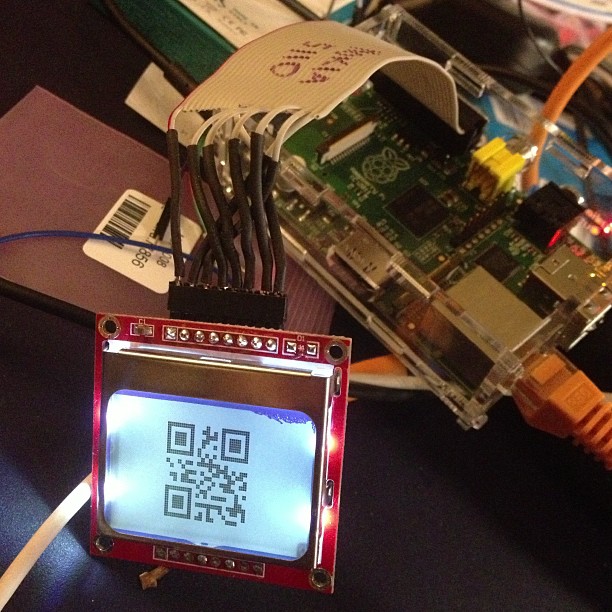
The video of the Quite Rubbish Clock isn’t running the same code that’s in the listing. Here it is, showing off some of the handy code that’s in bgreat’s nokiaSPI Python class:
#!/usr/bin/python
# -*- coding: utf-8 -*-
# qrmovie
import time
# need to use git://github.com/mozillazg/python-qrcode.git
import qrcode
from PIL import Image, ImageFont
import ImageOps
# uses bgreat's SPI code; see
# raspberrypi.org/phpBB3/viewtopic.php?f=32&t=9814&p=262274&hilit=nokia#p261925
import nokiaSPI
noki = nokiaSPI.NokiaSPI()Â Â Â Â Â Â Â Â Â Â Â Â Â # create display device
qr = qrcode.QRCode(version=1,          # V.1 QR Code: 21x21 px
error_correction=qrcode.constants.ERROR_CORRECT_M,
box_size=2, border=1)
bg = Image.new('1', (84, 48))Â Â Â Â Â Â Â Â Â Â # blank (black) image background
# intro
noki.cls()
noki.led(0)
time.sleep(3)
for i in range(0,769,32):
noki.led(i)
time.sleep(0.04)
# display is 14 columns by 8 rows
noki.centre_word(1, 'scruss.com')
noki.centre_word(3, 'presents')
time.sleep(3)
noki.cls()
noki.centre_word(1, 'qrclock')
noki.centre_word(2, 'the')
noki.gotorc(3,3)
noki.text("[Q]uite")
noki.gotorc(4,3)
noki.text("[R]ubbish")
noki.gotorc(5,3)
noki.text(" Clock")
time.sleep(3)
elapsed=0
start_time = time.time()
while (elapsed<12):
qr.clear()
newbg = bg.copy()Â Â Â Â Â Â Â Â Â Â Â Â Â Â Â Â Â Â # copy blank background
s = time.strftime('%Y-%m-%d %H:%M:%S')
qr.add_data(s)Â Â Â Â Â Â Â Â Â Â Â Â Â Â Â Â Â Â Â Â Â # make QR Code of YYYY-MM-DD HH:MM:SS
qr.make()
qrim = qr.make_image()Â Â Â Â Â Â Â Â Â Â Â Â Â # convert qrcode object to PIL image
qrim = qrim.convert('L')Â Â Â Â Â Â Â Â Â Â Â # make greyscale
qrim = ImageOps.invert(qrim)Â Â Â Â Â Â Â # invert colours: B->W and W->B
qrim = qrim.convert('1')Â Â Â Â Â Â Â Â Â Â Â # convert back to 1-bit
newbg.paste(qrim, (18, 0))Â Â Â Â Â Â Â Â Â # paste QR Code into blank background
noki.show_image(newbg)Â Â Â Â Â Â Â Â Â Â Â Â Â # display code on LCD
time.sleep(0.4)Â Â Â Â Â Â Â Â Â Â Â Â Â Â Â Â Â Â Â Â # pause before next display
elapsed = time.time() - start_time
noki.cls()
noki.centre_word(1, 'for')
noki.centre_word(2, 'more')
noki.centre_word(3, 'details')
time.sleep(3)
noki.cls()
noki.load_bitmap("blogpost-nokia.bmp", True)
time.sleep(7)
noki.cls()
noki.centre_word(3, 'fin')
noki.centre_word(5, 'scruss, 2013')
time.sleep(1)
for i in range(768,-1,-32):
noki.led(i)
time.sleep(0.05)
time.sleep(1)
noki.cls()
(This source, plus nokiaSPI class: qrclock-movie.zip)
Lines 43-58 show off the QR clock for a maximum of 12 seconds. Any more, and you’d get really bored.
The screen handling functions I used are:

The text handling functions I used are:
There are many more functions in the nokiaSPI class; watch the demo, have a dig through the source and see what you can use.
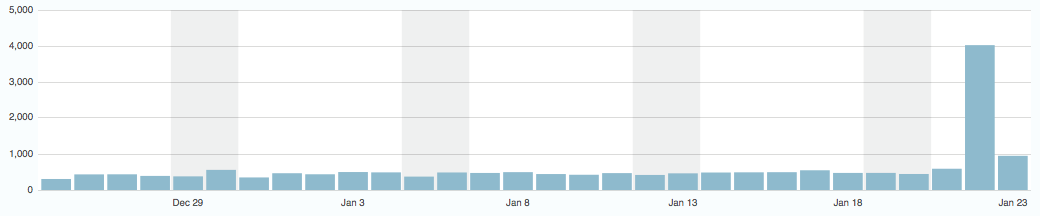 Oh my. This blog is usually a quiet little backwater, ticking along on a few hundred hits a day. And I’m okay with that. But yesterday, my astonishingly impractical QR code clock hit the front page of RaspberryPi.org, and blammo! More visitors than I thought possible. Are there really over 4000 people who read that? Cor, to use a good British comic-ism.
I’ve been blogging for nearly ten years, filed under what could only charitably be called “miscellaneous”. Yesterday, I got 2% of all the hits I’ve ever had. See the tiny little bar just to the left of the big one? Yeah, that was my previous best ever, with nearly 600 hits.
Hey! This article is really old and probably doesn’t work any more: things have changed a lot in Raspberry Pi world since 2013 …
Update 3: code for the demo video is here.
Update 2: In which I actually post working code.
Update: Eep! This post was featured on the Raspberry Pi blog today. Thanks, Liz!
And now for something completely different:
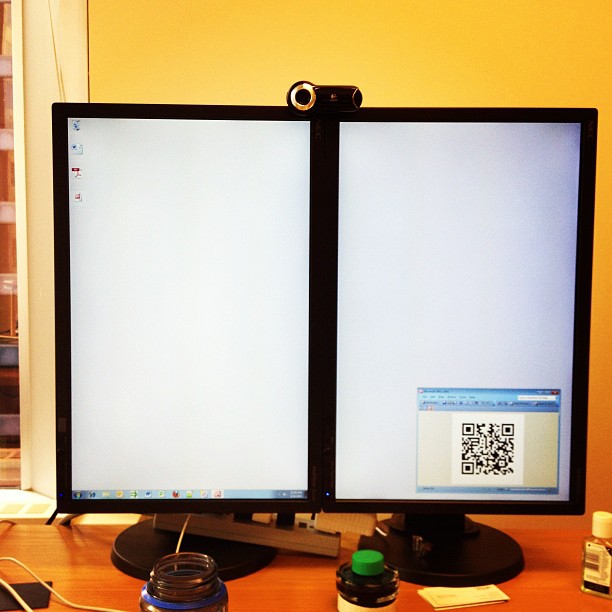
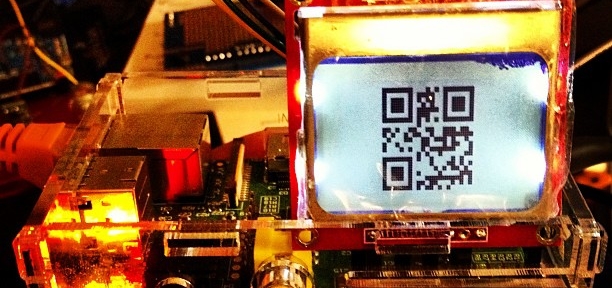
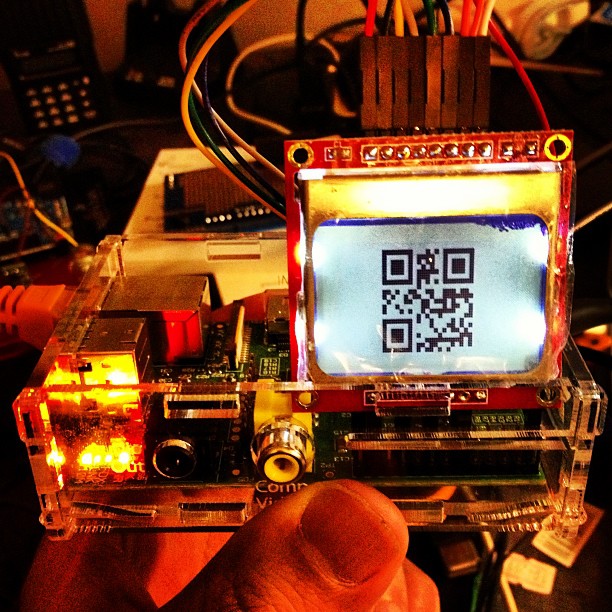
… a clock that isn’t human readable. You’ll need a QR code reader to be able to tell the time.
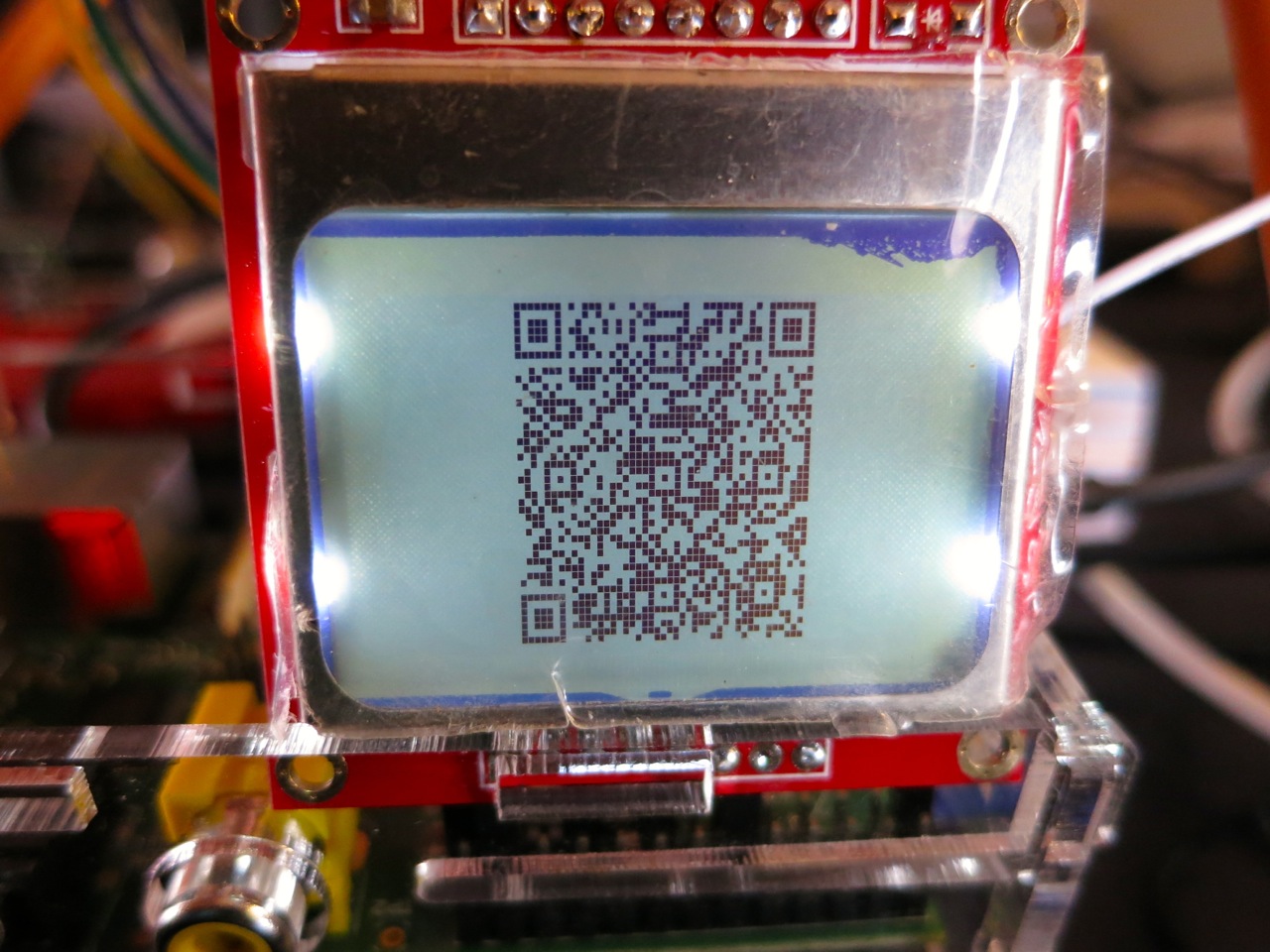
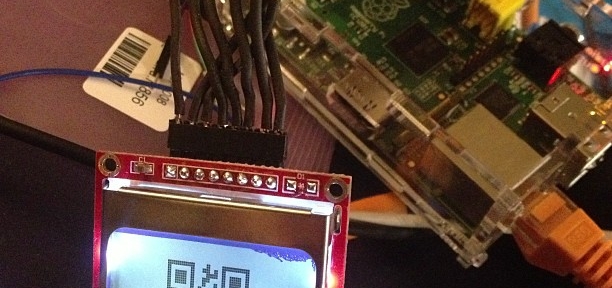
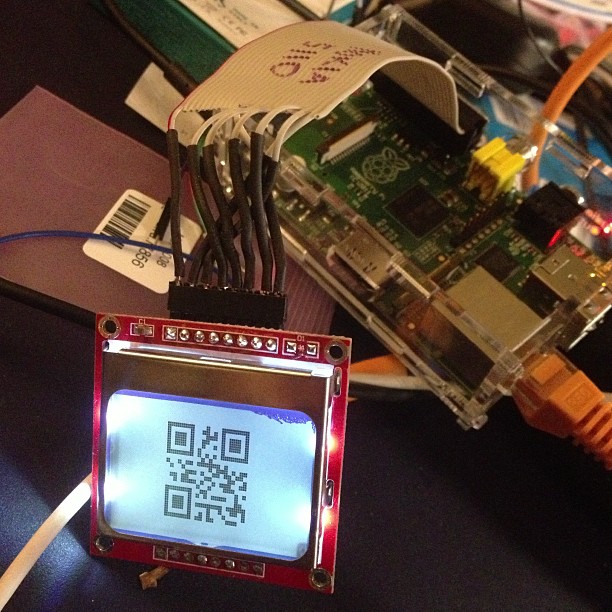
This, however, is not the prime purpose of the exercise. I was looking for an excuse to try some direct hardware projects with the GPIO, and I remembered I had a couple of Nokia-style surplus LCDs lying about that could be pressed into service. These LCDs aren’t great: 84×48 pixels, 3V3 logic, driven by SPI via an 8-pin header which includes PWM-controllable LED backlighting. They are cheap, and available almost everywhere: DealExtreme ($5.36), SparkFun ($9.95), Adafruit ($10, but includes a level shifter, which you really need if you’re using a 5V logic Arduino), Solarbotics ($10) and Creatron (about $12; but you can walk right in and buy one). Despite being quite difficult to use, helpful people have written drivers to make these behave like tiny dot-addressable screens.
I’d been following the discussion on the Raspberry Pi forum about driving the Nokia LCD from a Raspberry Pi. Only when user bgreat posted some compact code that was supposed to run really fast did I dig out the LCD board and jumper wires. Building on bgreat’s nokiaSPI.py class and a few other bits of code, here’s what I built to make this singularly pointless clock:
#!/usr/bin/python
# -*- coding: utf-8 -*-
# qrclock - The Quite Rubbish Clock for Raspberry Pi - scruss, 2013-01-19
import time
# need to use git://github.com/mozillazg/python-qrcode.git
import qrcode
from PIL import Image
import ImageOps
# uses bgreat's SPI code; see
# raspberrypi.org/phpBB3/viewtopic.php?f=32&amp;amp;amp;t=9814&amp;amp;amp;p=262274&amp;amp;amp;hilit=nokia#p261925
import nokiaSPI
noki = nokiaSPI.NokiaSPI() # create display device
qr = qrcode.QRCode(version=1, # V.1 QR Code: 21x21 px
error_correction=qrcode.constants.ERROR_CORRECT_M,
box_size=2, border=1)
bg = Image.new('1', (84, 48)) # blank (black) image background
while 1:
qr.clear()
newbg = bg.copy() # copy blank background
s = time.strftime('%Y-%m-%d %H:%M:%S')
qr.add_data(s) # make QR Code of YYYY-MM-DD HH:MM:SS
qr.make()
qrim = qr.make_image() # convert qrcode object to PIL image
qrim = qrim.convert('L') # make greyscale
qrim = ImageOps.invert(qrim) # invert colours: B-&amp;amp;gt;W and W-&amp;amp;gt;B
qrim = qrim.convert('1') # convert back to 1-bit
newbg.paste(qrim, (18, 0)) # paste QR Code into blank background
noki.show_image(newbg) # display code on LCD
time.sleep(0.4) # pause before next display
(Convenient archive of all the source: qrclock2.zip, really including bgreat’s nokiaSPI class this time …)
To get all this working on your Raspberry Pi, there’s a fair amount of configuration. The best references are bgreat’s own comments in the thread, but I’ve tried to include everything here.
As root, edit the kernel module blacklist file:
sudo vi /etc/modprobe.d/raspi-blacklist.conf
Comment out the spi-bcm2708 line so it looks like this:
#blacklist spi-bcm2708
Save the file so that the module will load on future reboots. To enable the module now, enter:
sudo modprobe spi-bcm2708
Now, if you run the lsmod command, you should see something like:
Module                  Size  Used by
spi_bcm2708             4421  0
WiringPi by Gordon is one of the neater Raspberry Pi-specific modules, as it allows relatively easy access to the Raspberry Pi’s GPIO pins. For Raspbian, there are a few other imaging libraries and package management tools you’ll need to install here:
sudo apt-get install python-imaging python-imaging-tk python-pip python-dev git
sudo pip install spidev
sudo pip install wiringpi
Finding a library that provided all the right functions was the hardest part here. I ended up using mozillazg‘s fork of lincolnloop‘s python-qrcode module. mozillazg’s fork lets you use most of the lovely PIL methods, while the original hides most of them. Since I had to do some image compositing and colour remapping to make the image appear correct on the Nokia screen, the new fork was very helpful.
To install it:
git clone git://github.com/mozillazg/python-qrcode.git
cd python-qrcode/
sudo python ./setup.py install
The tiny 84×48 resolution of the Nokia screen doesn’t give you many options for sizing QR codes. For the time display of the clock, a 21×21 module Version 1 code with two pixels per module and one module margin just fits into 48 pixels. Using a medium level of error correction, you can fit the 19-character message (such as “2013-01-19 18:56:59”) into this tiny screen with a very good chance of it being read by any QR code reader.
(In the video, there’s a much larger QR code that’s a link to this blog post. That’s a Version 7 code [45×45 modules] at one pixel per module and no margin. This doesn’t meet Denso Wave’s readability guidelines, but the Nokia screen has large blank margins which seem to help. It won’t read on every phone, but you’re here at this link now, so you don’t need it …)
(Do I really need to say that you’ll be messing around with the inner delicate bits of your Raspberry Pi here, and if you do something wrong, you could end up with a dead Raspberry Pi? No? Okay. Just make sure you take some static precautions and you really should have the thing shut down and powered off.)
You’ll need 8 female-female right-angled ones). Note that the thick border of the LCD is the top of the screen. These boards are made who-knows-where by who-knows-whom, and there’s a huge variety of labels and layouts on the pins. My one appears to be yet another variant, and is labelled:
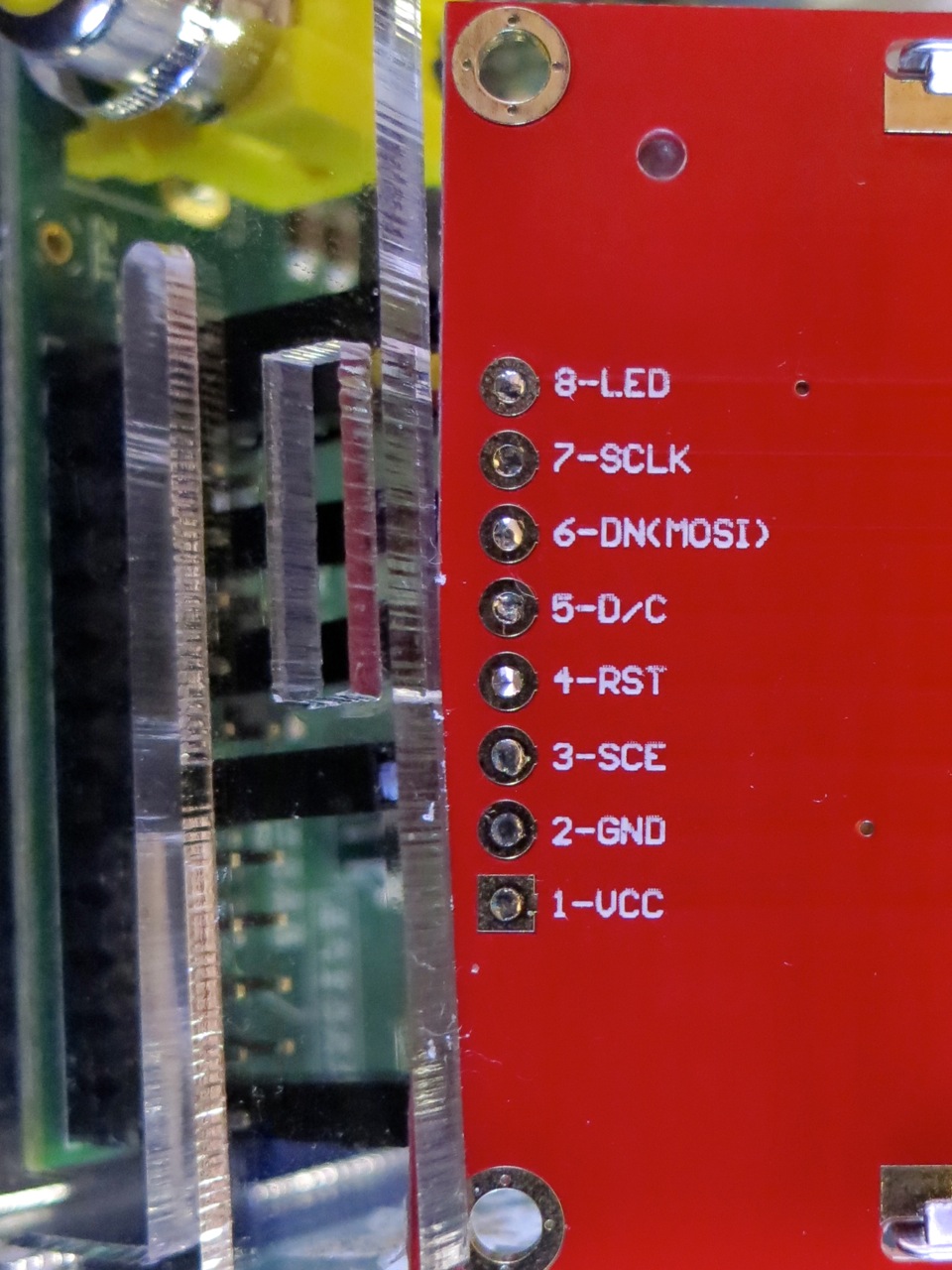
This is how I wired it (from comments in bgreat’s code and the GPIO reference):
 LCD Pin       Function      Pi GPIO Pin #   Pi Pin Name
============= ============= =============== =============
 1 VCC         Vcc            1              3.3 V
 2 GND         Ground        25              GND
 3 SCE         Chip Enable   24              GPIO08 SPI0_CE0_N
 4 RST         Reset         11              GPIO17
 5 D/C         Data/Command  15              GPIO22
 6 DNK(MOSI)   Data In       19              GPIO10 SPI0_MOSI
 7 SCLK        Serial Clock  23              GPIO11 SPI0_SCLK
 8 LED         Backlight     12              GPIO18 PWM0
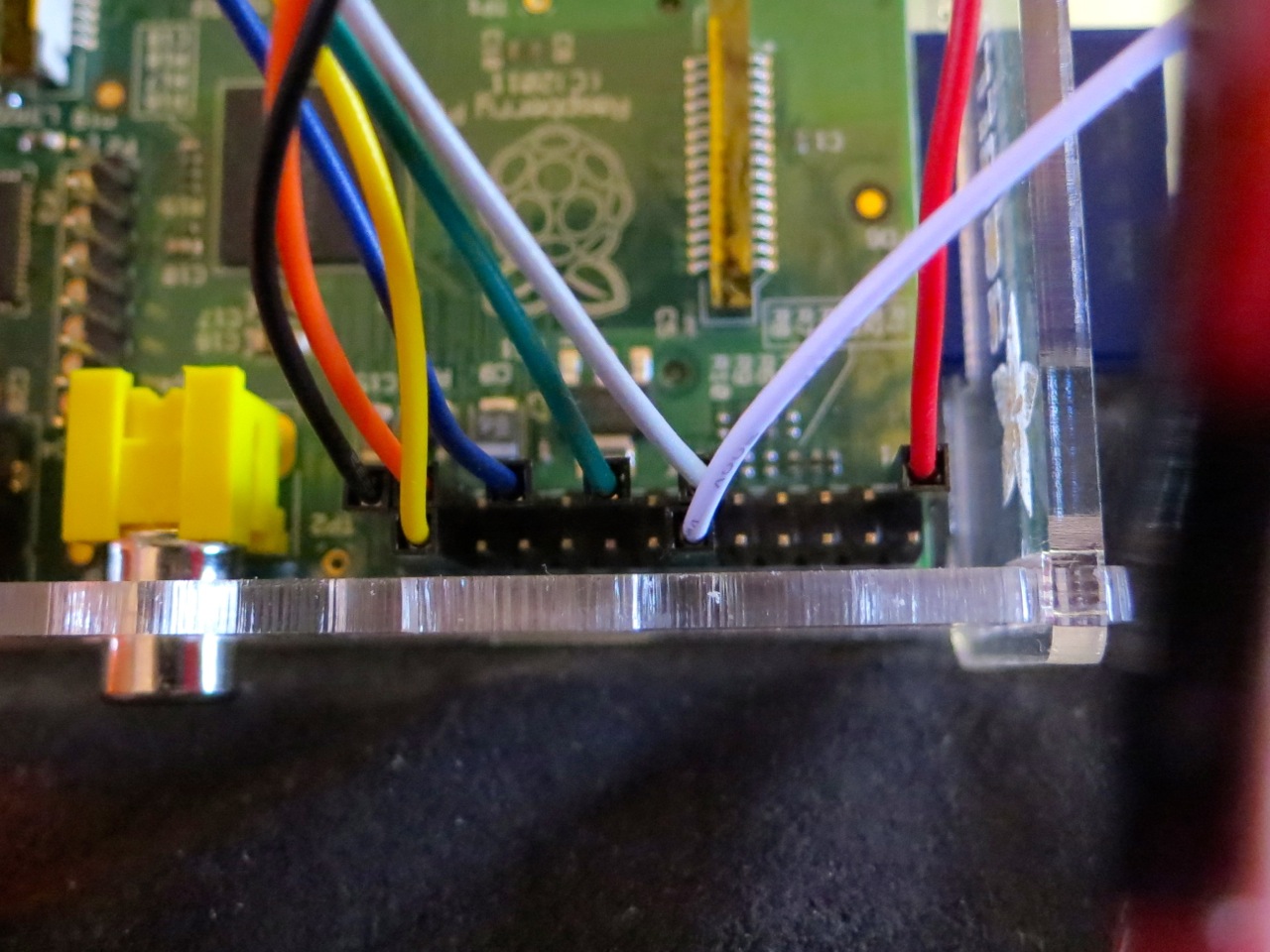
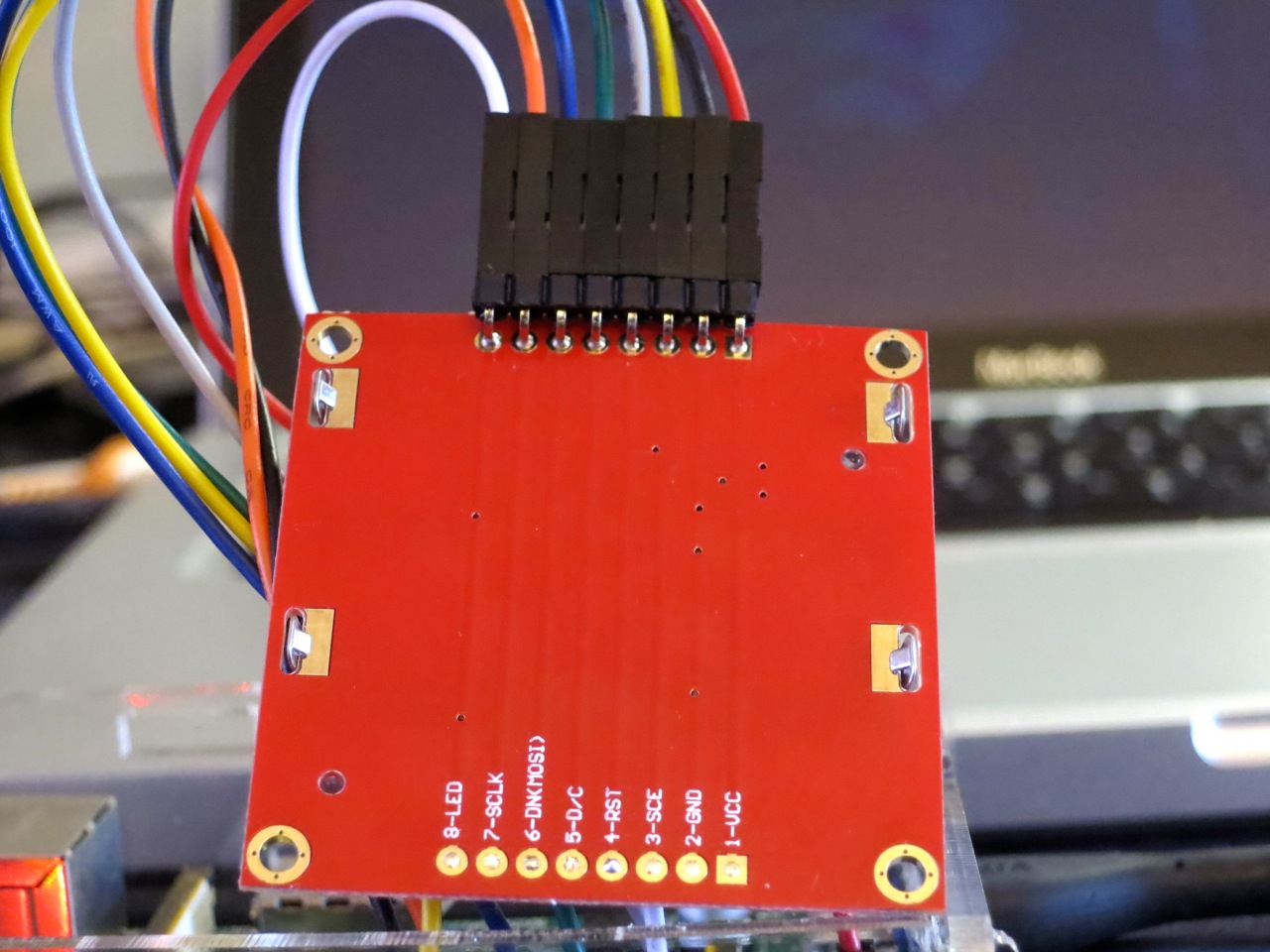
Wire it up, and fire up the program:
sudo ./qrclock.py
Yes, code that accesses GPIO needs to be run as root. Pesky, but helps you avoid running code that accidentally scrams the nuclear power station you’re controlling from your Raspberry Pi …
 I’m very taken with Ariel Rojo‘s Piggy Bank Lamp. It’s the first ornament I’ve seen that uses the form of a compact fluorescent bulb as an integral part.
Not sure I’m quite taken enough with it to pay the $98 that the AGO store wants, though …
I have, of late, been rather more attached to QR Codes than might be healthy. I’ve been trying all sorts of sizes and input data, printing them, and seeing what camera phones can scan them. I tried three different devices to scan the codes:
QR Code readability is defined by the module size; that is, the number of device pixels (screen or print) that represent a single QR Code pixel. Denso Wave recommends that each module is made up of 4 or more dots. I was amazed that the iPhone could read images with a module size of 1 from the screen, like this one:

On this laptop, one pixel is about 0.24 mm. The other cameras didn’t fare so well on reading from the screen:
So I guess for screen scanning, Denso Wave’s recommendation of 4 pixels/module will pretty much work everywhere.
I then generated and printed a bunch of codes on a laser printer, and scanned them. The results were surprisingly similar:
A test print on an inkjet resulted in far less impressive results. I reckon you need to make the module size around 25% bigger on an inkjet than a laser, perhaps because the inkjet is less crisp.
I have to admit I went a bit nuts with QR Codes. I made a Vcard: 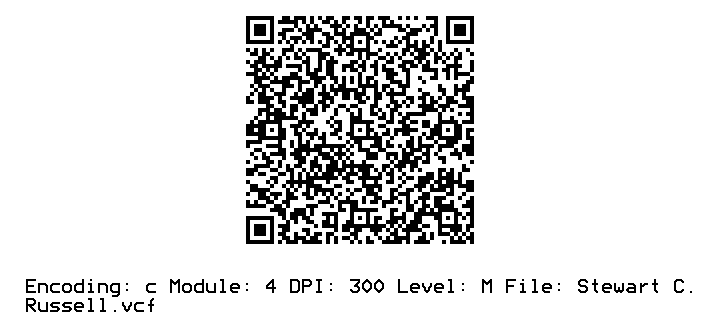
(and while I was at it, I created a new field for ham radio operators: X-CALLSIGN. Why not?). I even encoded some locations in QR Codes.
Just to show you what qrencode can do, here’s a favourite piece of little prose: