Blog

  • Compose yourself, Raspberry Pi!

    Years ago, I worked in multilingual dictionary publishing. I was on the computing team, so we had to support the entry and storage of text in many different languages. Computers could display accented and special characters, but we were stuck with 8-bit character sets. This meant that we could only have a little over 200 distinct characters display in the same font at the same time. We’d be pretty much okay doing French & English together, but French & Norwegian started to get a little trying, and Italian & Greek couldn’t really be together at all.

    We were very fortunate to be using Sun workstations in the editorial office. These were quite powerful Unix machines, which means that they were a fraction of the speed and capabilities of a Raspberry Pi. Suns had one particularly neat feature:

    Compose_key_on_Sun_Type_5c_keyboard

    (source: Compose key, Wikipedia.)

    That little key marked “Compose” (to the right of the space bar) acted as a semi-smart typewriter backspace key: if you hit Compose, then the right key combination, an accented character or symbol would appear. Some of the straightforward compose key sequences are:

     Compose +  
    AccentFirst keySecond keyResultExample
    Acuteeécafé
    Grave`aàdéjà
    Cedilla,cçsoupçon
    Circumflex^oôhôtel
    Umlautuüküche
    RingoaåHåkon
    Slash/LŁŁukasiewicz
    Tilde~nñmañana

    Like every (non-embedded) Linux system I’ve used, the Raspberry Pi running Raspbian can use the compose key method for entering extra characters. I’m annoyed, though, that almost every setup tutorial either says to disable it, or doesn’t explain what it’s for. Let me fix that for you …

    Setup

    Run raspi-config

    sudo raspi-config

    and go to the configure_keyboard “4 Internationalisation Options” → “I3 Change Keyboard Layout” section. Your keyboard’s probably mostly set up the way you want it, so hit the Tab key and select <Ok> until you get to the Compose key section:
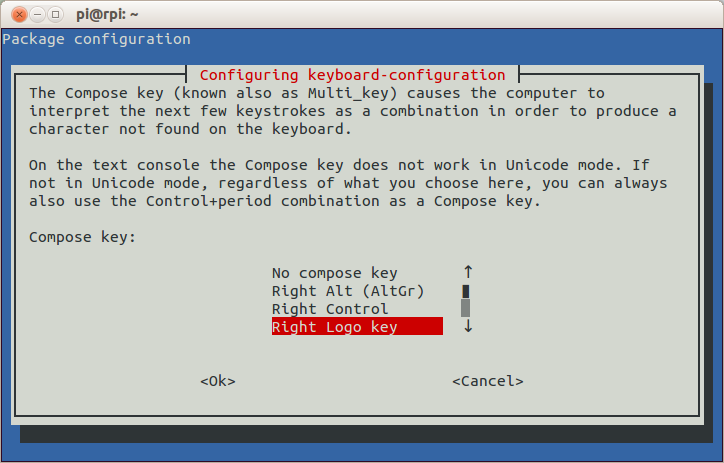
    raspi-config: Compose key selection

    Choose whatever is convenient. The combined keyboard and trackpad I use (a SolidTek KB-3910) with my Raspberry Pi has a couple of “Windows® Logo” keys, and the one on the right works for me. Keep the rest of the keyboard options the same, and exit raspi-config. After the message

    Reloading keymap. This may take a short while
    [ ok ] Setting preliminary keymap...done.

    appears, you now have a working Compose key.

    Using the Compose key

    raspi-config hints (‘On the text console the Compose key does not work in Unicode mode …’) that Compose might not work everywhere with every piece of software. I’ve tested it across quite a few pieces of software — both on the text console and under LXDE — and support seems to be almost universal. The only differences I can find are:
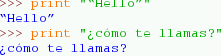
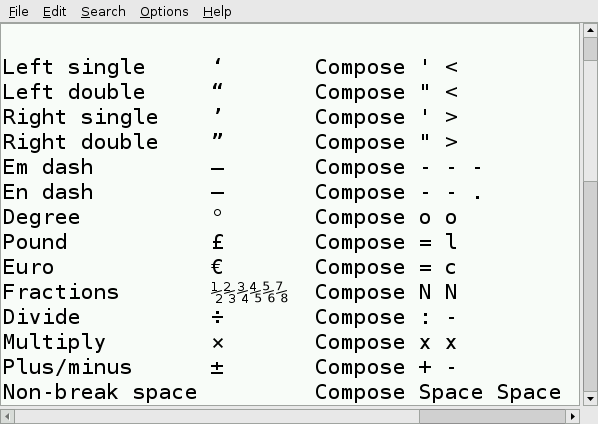
    • Text Console — (a. k. a. the texty bit you see after booting) Despite raspi-config’s warning, accented alphabetical characters do seem to work (é è ñ ö ø å, etc). Most symbols, however, don’t (like ± × ÷ …). The currency symbol for your country is a special case. In Canada, I need to use Compose for  and £, but you’ve probably got a key for that.
    • LXDE — (a. k. a. the mousey bit you see after typing ‘startx’) All characters and symbols I’ve tried work everywhere, in LXTerminal, Leafpad, Midori, Dillo (browser), IDLE, and FocusWriter (a very minimal word processor).
    Special characters in Python's IDLE
    Special characters in Python’s IDLE
    Some Compose key sequences — Leafpad
    Some Compose key sequences — Leafpad

    To find out which key sequences do what, the Compose key – Wikipedia page is a decent start. I prefer the slightly friendlier Ubuntu references GtkComposeTable and Compose Key, or the almost unreadable but frighteningly comprehensive UTF-8 (Unicode) compose sequence reference (which is essentially mirrored on your Raspberry Pi as the file /usr/share/X11/locale/en_US.UTF-8/Compose). Now go forth and work that Compose key like a boß.

    (If you’re on a Mac and feeling a bit left out, you can do something similar with the Option key. Here’s how: Extended Keyboard Accent Codes for the Macintosh. On Windows®? Out of luck, I’m afraid WinCompose!)
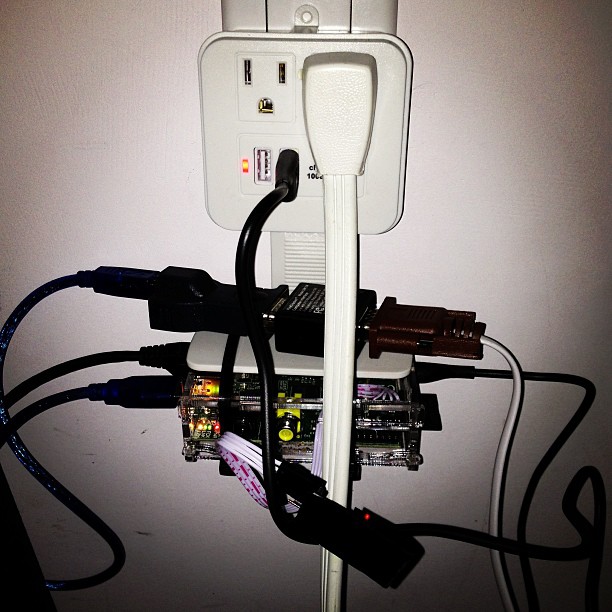
  • I watched it for hours and it didn’t wriggle once.

    I watched it for hours and it didn’t wriggle once.

    Instagram filter used: Inkwell

    Photo taken at: Wrigley Building

    View in Instagram ⇒

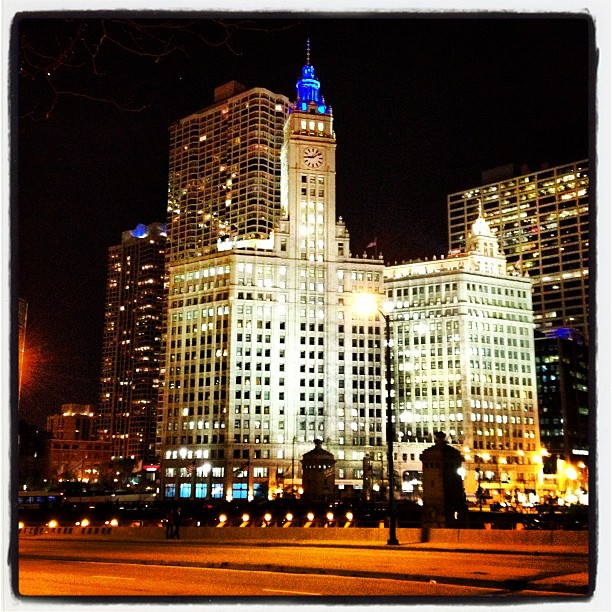
  • Night falls on gratuitous architecture.

    Night falls on gratuitous architecture.

    Instagram filter used: Lo-fi

    Photo taken at: Swissotel

    View in Instagram ⇒

  • No sign of Mrs O’Leary’s cow.

    No sign of Mrs O’Leary’s cow.

    Instagram filter used: Lo-fi

    Photo taken at: Swissotel

    View in Instagram ⇒

  • B l o s s o m

    B l o s s o m

    Instagram filter used: Lo-fi

    Photo taken at: Robarts Library

    View in Instagram ⇒

  • Hint: I don’t do this for the money …

    I don’t know why getting an e-mail like this one would disturb me so much:

    Hi Stewart,

    Just a quick reminder message – I’m currently working with [REDACTED], a top electronics and engineering tech company, and we’re still interested in collaborating with you!

    We can provide bespoke content by [REDACTED]‘s own tech copywriters to give you something relevant for your readers, based on a topic that you’d like us to write about. We can also offer a $25 voucher to purchase any product of that value or less from the [REDACTED] website (http://www.[REDACTED].com/) which you could then use and review.

    If you’re interested, I can send over some rough content ideas for you to have a look at, and you can let us know what grabs you.

    Look forward to hearing from you!

    Best,
    [REDACTED]

    It’s not spam; I’ve had this offer before via another channel. I can’t see why anyone would want someone else’s text under their own byline. Running this blog costs me a trivial amount of money, but I’m okay with that. Monetizing, SEO, sticky eyeballs (I’m showing my age …): feh. All I ever wanted to do with this blog is write my own drivel without someone else’s noise polluting the page.

  • Jerk Chicken on coco bread #anditwasgood

    Jerk Chicken on coco bread #anditwasgood

    Instagram filter used: X-Pro II

    Photo taken at: Caribbean Taste

    View in Instagram ⇒

  • Mac to Linux: 1Password to KeePassX

    I have too many passwords to remember, so I’ve been using a password manager for years. First there was Keyring for Palm OS, then 1Password on the Mac. 1Password’s a very polished commercial program, but it only has Mac and Windows desktop clients. Sadly, it had to go.

    Finding a replacement was tough. It needed to be free, and yet cross-platform. It needed to work on iOS and Android. It also needed to integrate with a cloud service like Dropbox so I could keep my passwords in sync. The only program that met all of these requirements was KeePassX. I’ve stuck with the stable (v 0.4.3) branch rather than the flashy 2.0 version, as the older database format does all I need and is fully portable. MiniKeePass on iOS and KeePassDroid on Android look after my mobile needs. But first, I needed to get my password data out of 1Password.

    1Password offers two export formats: a delimited text format (which seemed to drop some of the more obscure fields), and the 1Password Interchange Format (1PIF). The latter is a JSONish format (ಠ_ಠ) containing a dump of all of the internal data structures. There is, of course, no documentation for this file format, because no-one would ever move away from this lovely commercial software, no …

    So armed with my favourite swiss army chainsaw, I set about picking the file apart. JSON::XS and Data::Dumper::Simple were invaluable for this process, and pretty soon I had all the fields picked apart that I cared about. I decided to write a converter that wrote KeePassX 1.x XML, since it was readily imported into KeePassX, would could then write a database readable by all of the KeePass variants.

    To run this converter you’ll need Perl, the JSON::XS and Data::Dumper::Simple modules, and if your Perl is older than about 5.12, the Time::Piece module (it’s a core module for newer Perls, so you don’t have to install it). Here’s the code:

    #!/usr/bin/perl -w
    # 1pw2kpxxml.pl - convert 1Password Exchange file to KeePassX XML
    # created by scruss on 02013/04/21
    
    use strict;
    use JSON::XS;
    use HTML::Entities;
    use Time::Piece;
    
    # print xml header
    print <<HEADER;
    <!DOCTYPE KEEPASSX_DATABASE>
    <database>
     <group>
      <title>General</title>
      <icon>2</icon>
    HEADER
    
    ##############################################################
    # Field Map
    #
    # 1Password			KeePassX
    # ============================  ==============================
    # title        			title
    # username			username
    # password			password
    # location			url
    # notesPlain			comment
    #    -				icon
    # createdAt			creation
    #    -				lastaccess	(use updatedAt)
    # updatedAt			lastmod
    #    -				expire		('Never')
    
    # 1PW exchange files are made of single lines of JSON (O_o)
    # interleaved with separators that start '**'
    while (<>) {
        next if (/^\*\*/);    # skip separator
        my $rec = decode_json($_);
    
        # throw out records we don't want:
        #  - 'trashed' entries
        #  -  system.sync.Point entries
        next if ( exists( $rec->{'trashed'} ) );
        next if ( $rec->{'typeName'} eq 'system.sync.Point' );
    
        print '  <entry>', "\n";    # begin entry
    
        ################
        # title field
        print '   <title>', xq( $rec->{'title'} ), '</title>', "\n";
    
        ################
        # username field - can be in one of two places
        my $username = '';
    
        # 1. check secureContents as array
        foreach ( @{ $rec->{'secureContents'}->{'fields'} } ) {
            if (
                (
                    exists( $_->{'designation'} )
                    && ( $_->{'designation'} eq 'username' )
                )
              )
            {
                $username = $_->{'value'};
            }
        }
    
        # 2.  check secureContents as scalar
        if ( $username eq '' ) {
            $username = $rec->{'secureContents'}->{'username'}
              if ( exists( $rec->{'secureContents'}->{'username'} ) );
        }
    
        print '   <username>', xq($username), '</username>', "\n";
    
        ################
        # password field - as username
        my $password = '';
    
        # 1. check secureContents as array
        foreach ( @{ $rec->{'secureContents'}->{'fields'} } ) {
            if (
                (
                    exists( $_->{'designation'} )
                    && ( $_->{'designation'} eq 'password' )
                )
              )
            {
                $password = $_->{'value'};
            }
        }
    
        # 2.  check secureContents as scalar
        if ( $password eq '' ) {
            $password = $rec->{'secureContents'}->{'password'}
              if ( exists( $rec->{'secureContents'}->{'password'} ) );
        }
    
        print '   <password>', xq($password), '</password>', "\n";
    
        ################
        # url field
        print '   <url>', xq( $rec->{'location'} ), '</url>', "\n";
    
        ################
        # comment field
        my $comment = '';
        $comment = $rec->{'secureContents'}->{'notesPlain'}
          if ( exists( $rec->{'secureContents'}->{'notesPlain'} ) );
        $comment = xq($comment);    # pre-quote
        $comment =~ s,\\n,<br/>,g;  # replace escaped NL with HTML
        $comment =~ s,\n,<br/>,mg;  # replace NL with HTML
        print '   <comment>', $comment, '</comment>', "\n";
    
        ################
        # icon field (placeholder)
        print '   <icon>2</icon>', "\n";
    
        ################
        # creation field
        my $creation = localtime( $rec->{'createdAt'} );
        print '   <creation>', $creation->datetime, '</creation>', "\n";
    
        ################
        # lastaccess field
        my $lastaccess = localtime( $rec->{'updatedAt'} );
        print '   <lastaccess>', $lastaccess->datetime, '</lastaccess>', "\n";
    
        ################
        # lastmod field (= lastaccess)
        print '   <lastmod>', $lastaccess->datetime, '</lastmod>', "\n";
    
        ################
        # expire field (placeholder)
        print '   <expire>Never</expire>', "\n";
    
        print '  </entry>', "\n";    # end entry
    }
    
    # print xml footer
    print <<FOOTER;
     </group>
    </database>
    FOOTER
    
    exit;
    
    sub xq {                         # encode string for XML
        $_ = shift;
        return encode_entities( $_, q/<>&"'/ );
    }
    

    To run it,

    ./1pw2kpxxml.pl data.1pif > data.xml

    You can then import data.xml into KeePassX.

    Please be careful to delete the 1PIF file and the data.xml once you’ve finished the export/import. These files contain all of your passwords in plain text; if they fell into the wrong hands, it would be a disaster for your online identity. Be careful that none of these files accidentally slip onto backups, too. Also note that, while I think I’m quite a trustworthy bloke, to you, I’m Some Random Guy On The Internet. Check this code accordingly; I don’t warrant it for anything save for looking like line noise.

    Now on github: scruss / 1pw2kpxxml, or download: 1pw2kpxxml.zip (gpg signature: 1pw2kpxxml.zip.sig)

    SHA1 Checksums:

    • 3c25eb72b2cfe3034ebc2d251869d5333db74592 — 1pw2kpxxml.pl
    • 99b7705ff30a2b157be3cfd29bb1d4f137920c25 — readme.txt
    • de4a51fbe0dd6371b8d68674f71311a67da76812 — 1pw2kpxxml.zip
    • f6bd12e33b927bff6999e9e80506aef53e6a08fa — 1pw2kpxxml.zip.sig.txt

    The converter has some limitations:

    • All attached files in the database are lost.
    • All entries are stored under the same folder, with the same icon.
    • It has not been widely tested, and as I’m satisfied with its conversion, it will not be developed further.
  • I Conquer You, Mr Snowpile … until next winter, anyway.

    I Conquer You, Mr Snowpile … until next winter, anyway.

    Instagram filter used: Lo-fi

    Photo taken at: Kennedy Station – East Parking Lot

    View in Instagram ⇒

  • In wild coyote country.

    In wild coyote country.

    Instagram filter used: Normal

    Photo taken at: Wexford Park

    View in Instagram ⇒