I’m not proud of this, but I made it so you won’t have to:
Craig at Elmwood Electronics very kindly gave me an ADABOX 006. It’s based around Adafruit’s Circuit Playground Express which just happens to feature a small built-in speaker, IR remote control and the ability to play back audio samples. You see where this is going, don’t you?
SoX (now typically sox_ng) can do almost anything with audio files — including synthesize audio from scratch. Unfortunately, SoX’s syntax is more than a bit hard to follow, and the manual page isn’t the most clear. But there is one example in the manual that gives a glimpse of what SoX can do:
While it plays a nice chord, it’s not obvious how to make audio files from this process. I have a project coming up that needs a few simple guitar chords, and with much trial and error I got SoX to spit out audio files. Here’s what I keyed into the shell:
G   :  G2  B2  D3
C   :  C3  E3  G4
D   :  D3  F#4 A3
F   :  F3  A3  C4
A   :  A3  C#4 E4
E   :  E2  G#3 B3
Em  :  E2  G3  B3
How the SoX command line breaks down:
-n —use no input file: SoX is going to generate the audio itself
-r 16000 -b 16 “chord-${chord}.wav” — with a sample rate of 16 kHz and 16-bits per sample, write to the output file “chord-….wav”
synth pl “$first” pl “$third” pl “$fifth” —synthesize three plucked tones read from the file
delay 0 .05 .1 —delay the second tone 0.05 s after the first and likewise the third after the second. This simulates the striking of guitar strings very slightly apart.
remix – —mix the tones in an internal pipe to the output
fade 0 1 .095 —fade the audio smoothly down to nothing in 1 s
norm -1 —normalize the volume to -1 dB.
The chords don’t sound great: they’re played on only three strings, so they sound very sparse. As my application will be playing these through a tiny MEMS speaker, I don’t think anyone will notice.
Update: well, now I know how to do it, why not do all 36 autoharp strings and make the “magic ensues” sound of just about every TV show (okay, it was Bagpuss, but that was the only one that mattered) of my childhood?
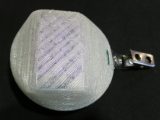
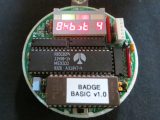
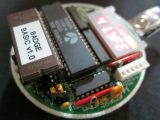
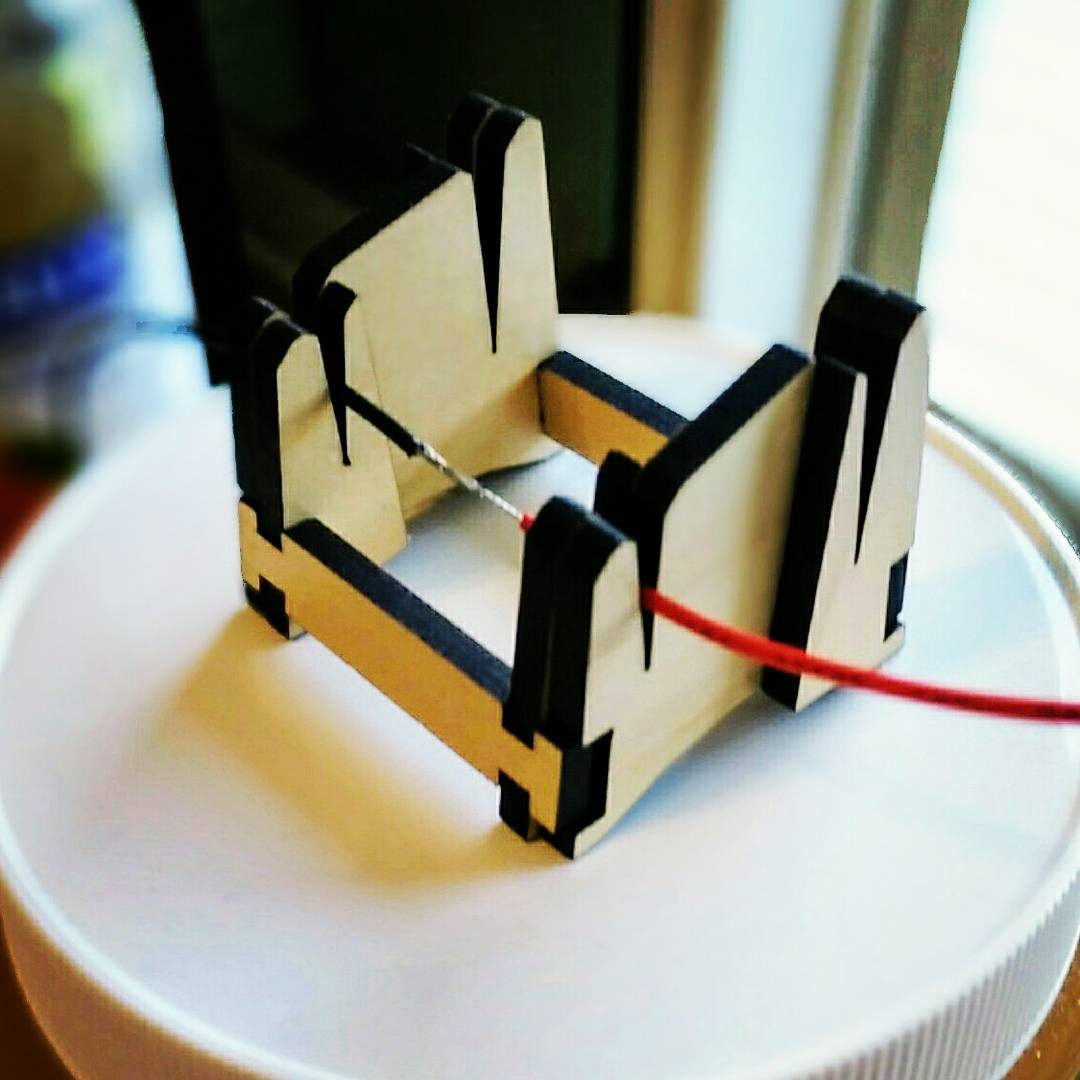
Rev 1: This worked better than I could have hoped, and so the 6502 40th Anniversary Computer Badge now has a snug-fitting case to prevent shorting, and to keep the batteries in place.
Hey! I don’t have this meter any more. The scanned manual is all I can help you with (see link near end of article)
Graham Green had a stall at Make Change yesterday. Graham’s the former manager of Active Surplus, the much-missed Toronto surplus emporium. He had some military-surplus multimeters that hadn’t seen daylight since I was in school. That’s a while back: this (unfortunately) was #1 the week I left school. So I bought one of Graham’s meters just to see what was inside …
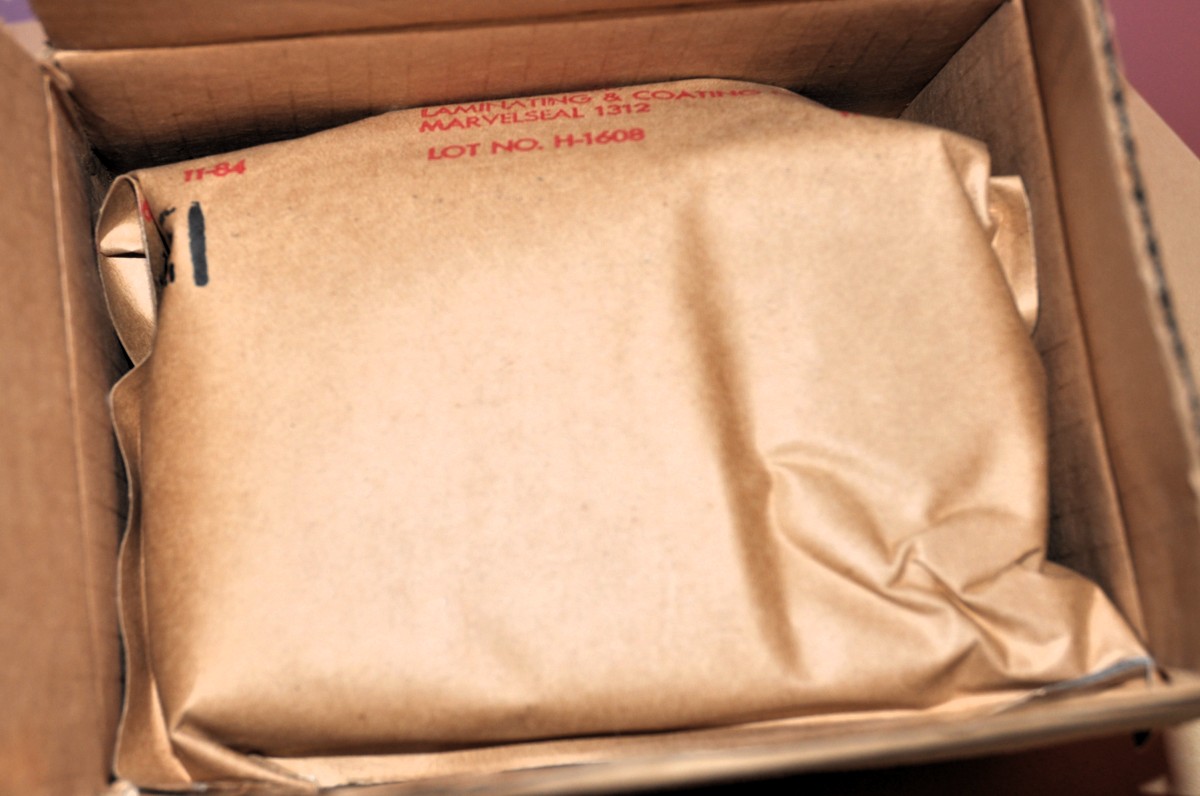
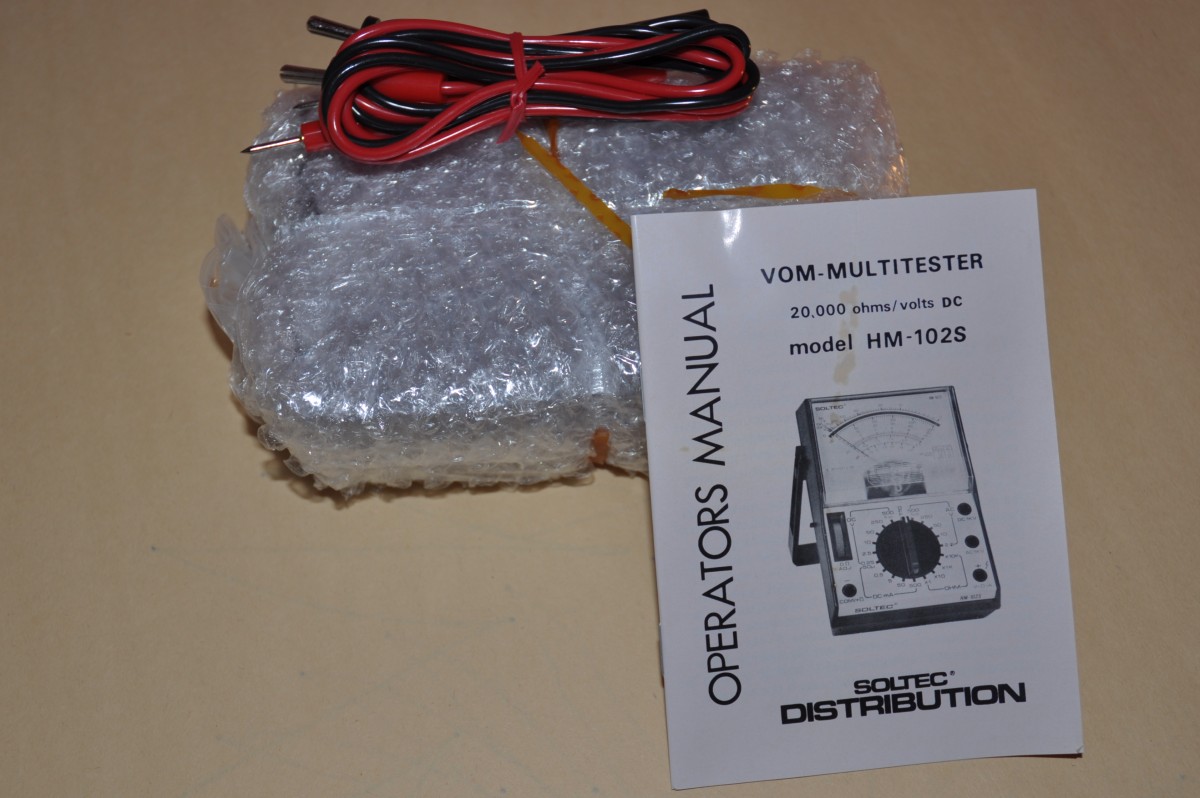
Neatly packed in mil-spec cardboard with a date code of 7/86. There’s a fair chance that Papa Don’t Preach was on the radio somewhere when this was sealed
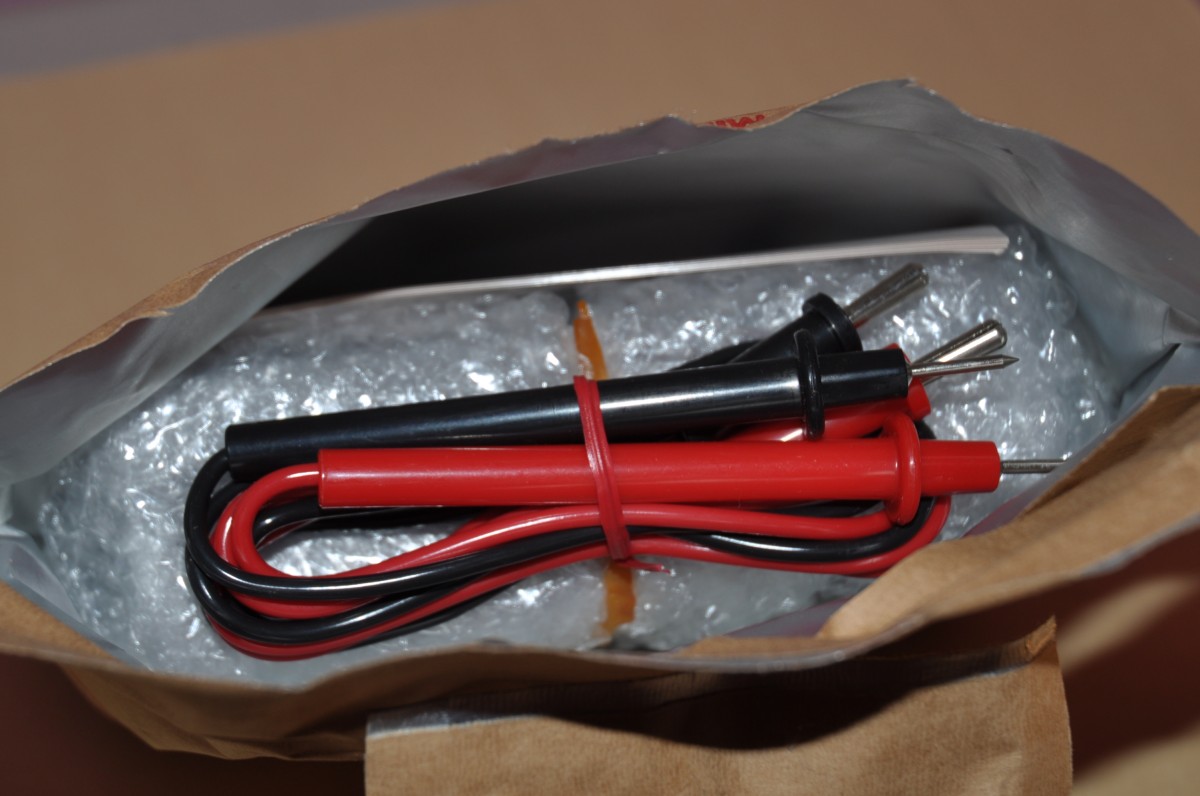
Inside the box, the meter’s sealed in a pouch. Mil-spec doesn’t allow anything to rattle about, after all. Unlike some surplus stuff, this looks 99.999% mouse-piss free
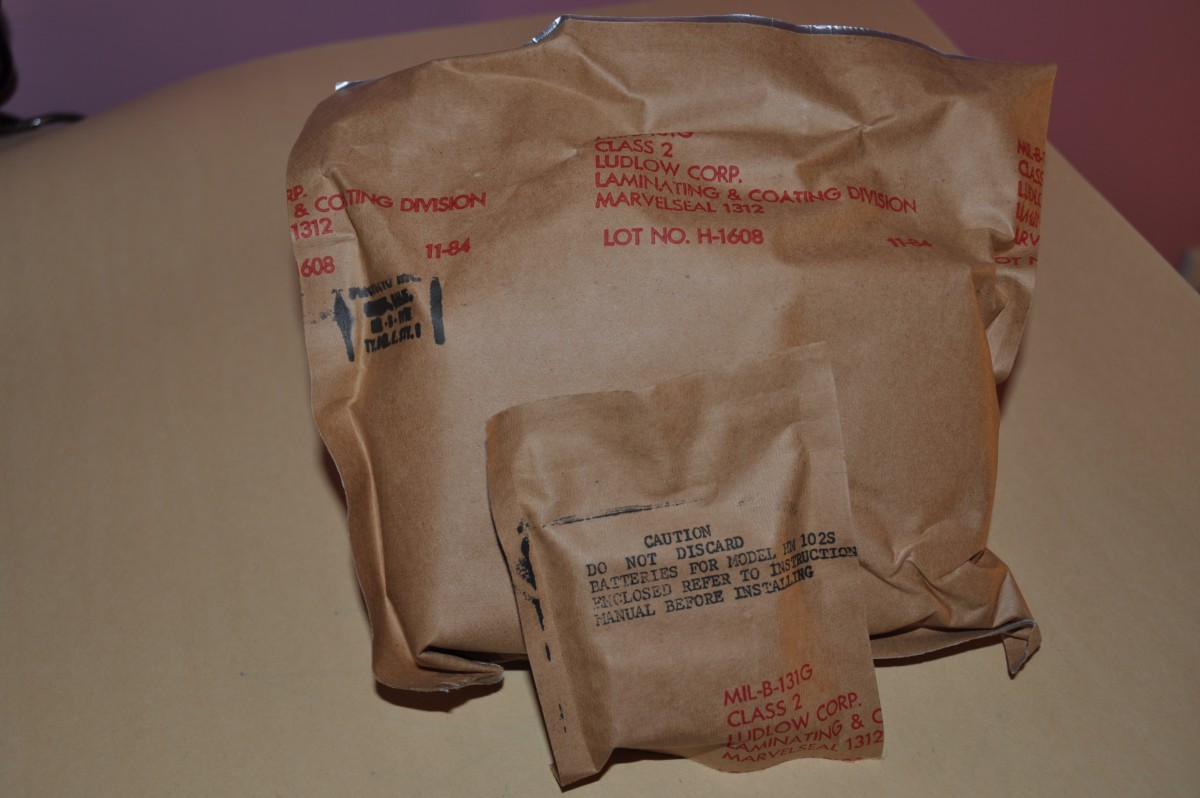
Under the meter was this battery pouch, which exhibited the qualities of both “crunchy” and “squishy”. Neither of these are things I look for in a battery, so these weren’t going in the meter
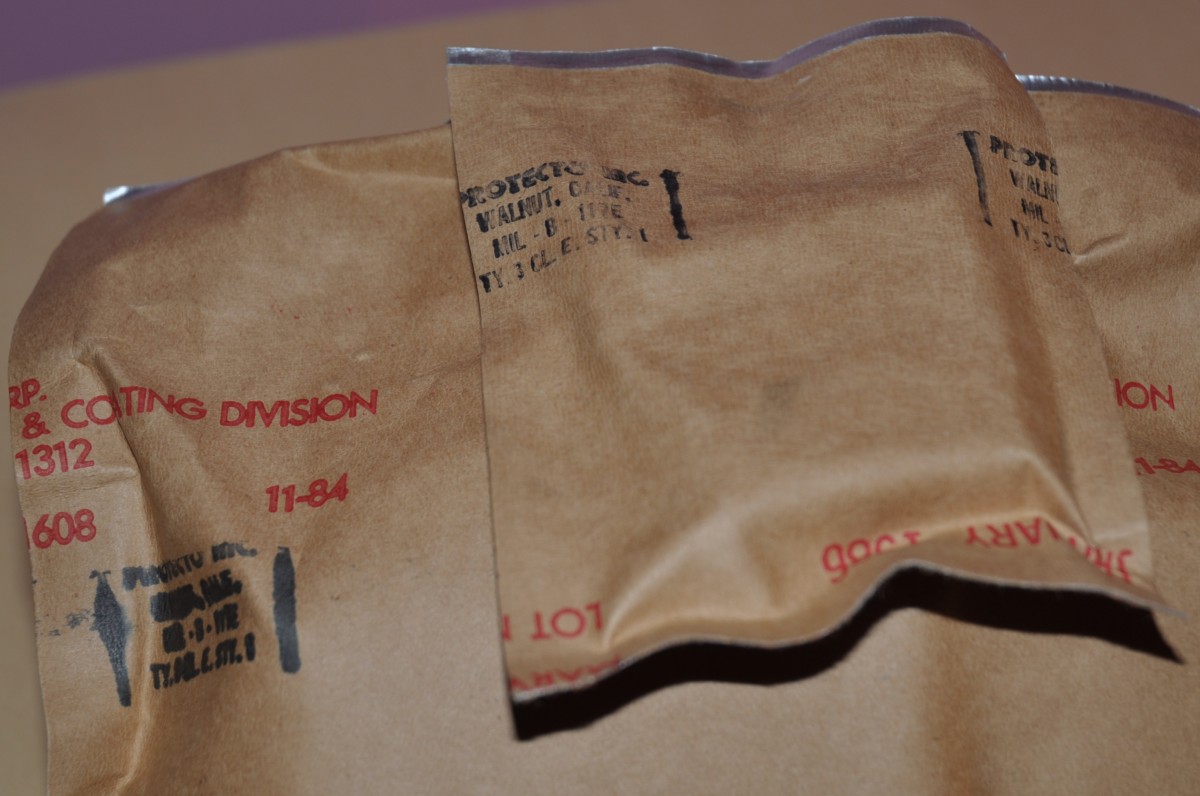
Battery pack dated January 1986. This isn’t going to be good.
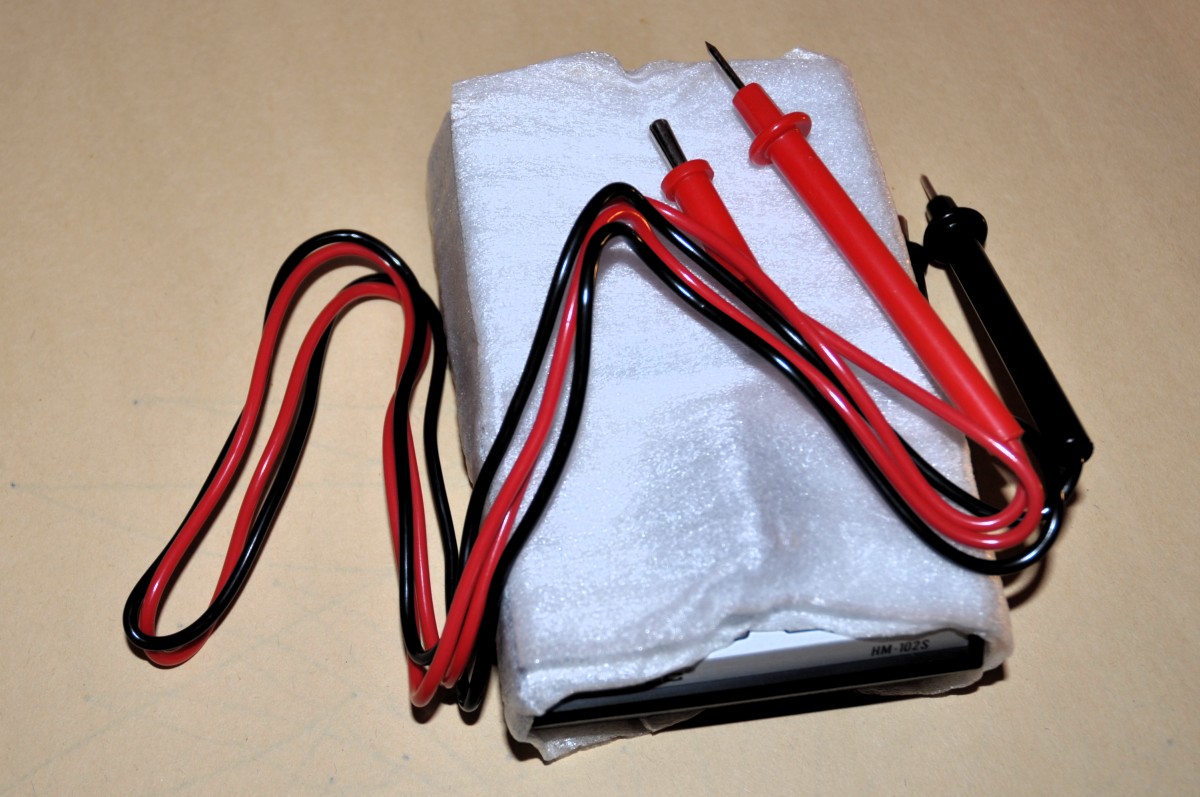
Daylight … for the first time in 31 years! On first glance, everything looks okay, but three decades of phenolic off-gassing was much in evidence — pew!
Despite the hermetic seal, the elastic band had rotted to dry pasta consistency. Note expired elastic band ichor on the manual cover
The test leads are still bright, shiny and very pliable. I suspect they might be silicone-encased, as PVC of this age has a habit of turning brittle (ask me about my late lamented Konix Navigators)
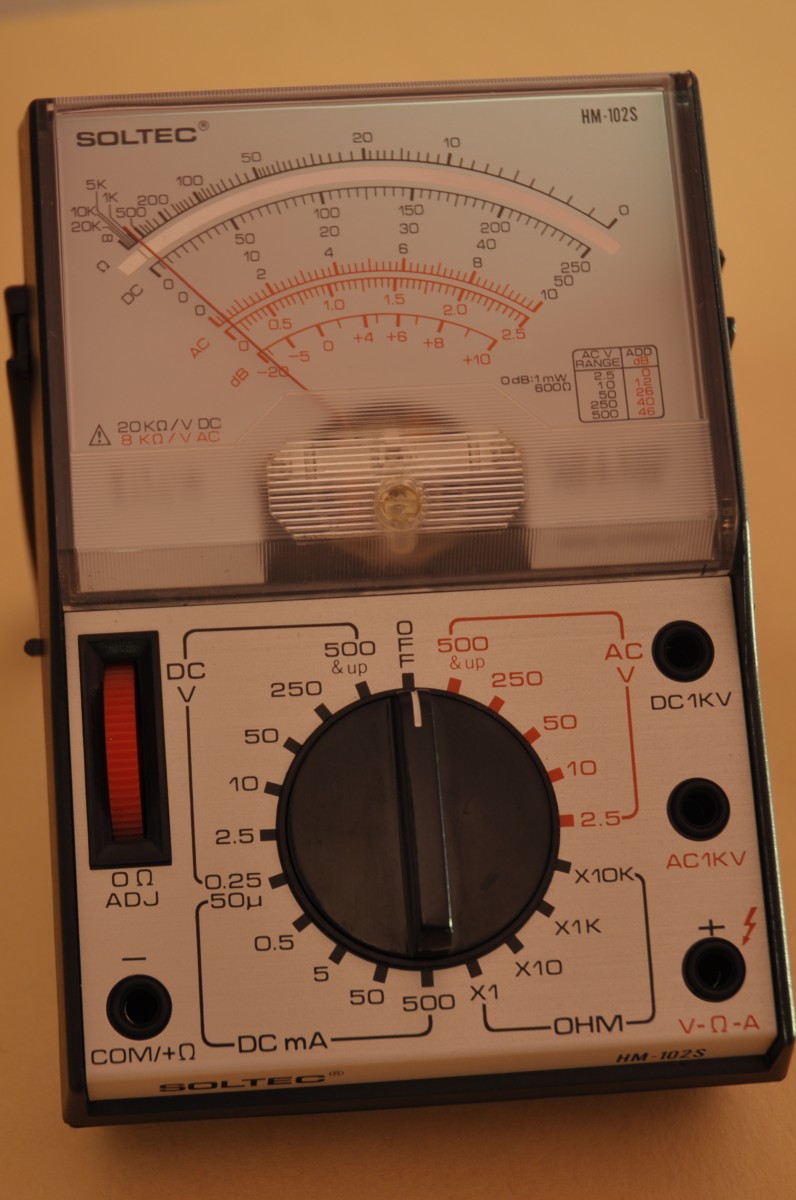
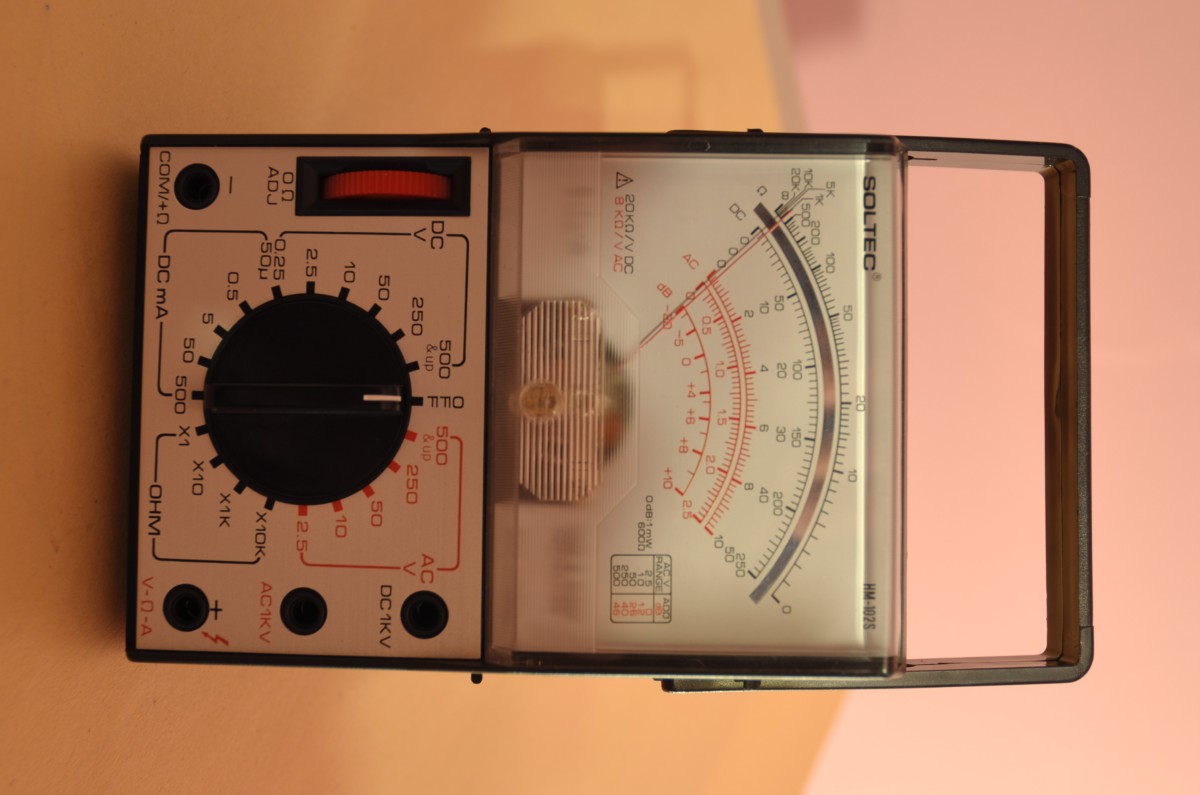
The meter. unpacked. A clear (if small) dial, complete with mirror scale to reduce parallax error in reading. Hidden under the frosted cover is a small “Made in Korea” mark
Handy-dandy fold-out carrying handle that also doubles as a stand
Inside the case, ancient tooling marks. The plastic is thick and seems fairly robust. The captive mounting screw was a nice touch
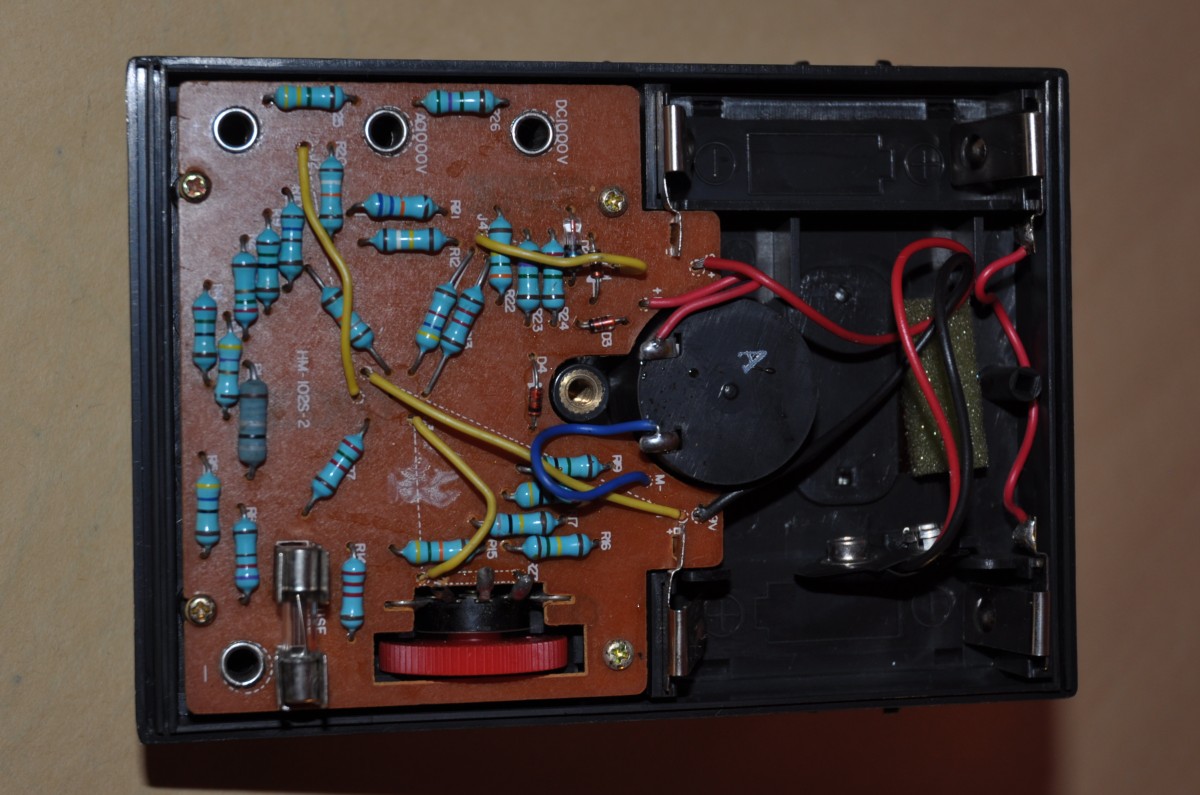
A very analogue meter. Lots and lots of 1% tolerance resistors on the main board, plus a great big thumbwheel potentiometer for zero adjustment. The foam battery pad up top was as good as new
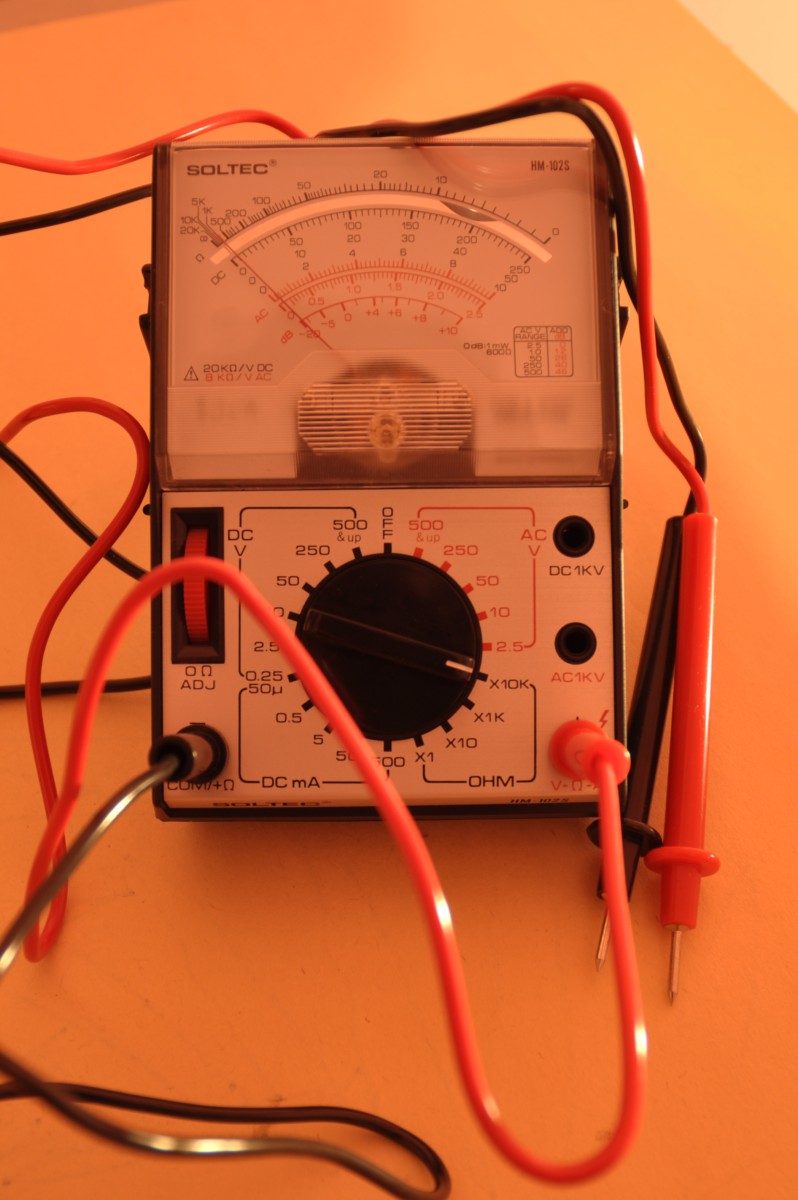
Up and running: no auto-off battery saving mode here! The test lead jacks didn’t have the shrouding we’d expect these days, so you won’t be able to use newer probes without modifying them
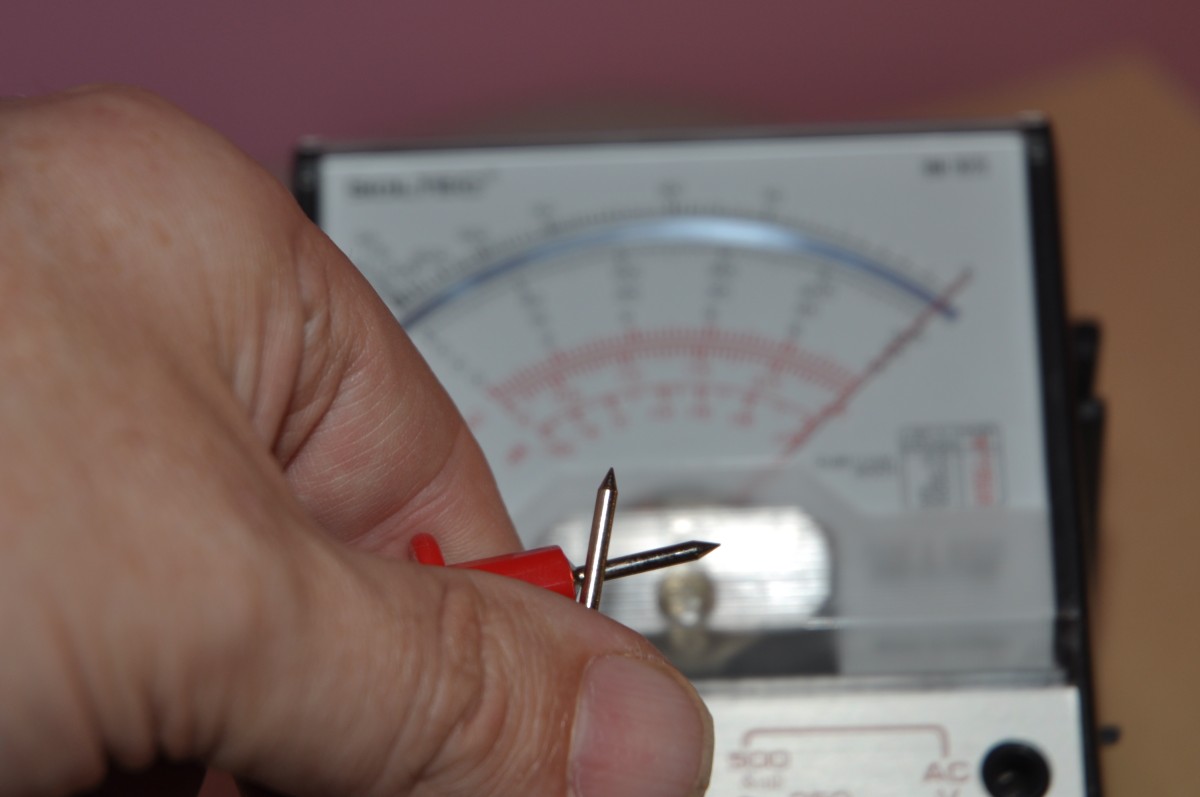
Things I Don’t Miss from Analogue Meters, #1: setting the 0 Ω point. Expect fiddliness and drift.
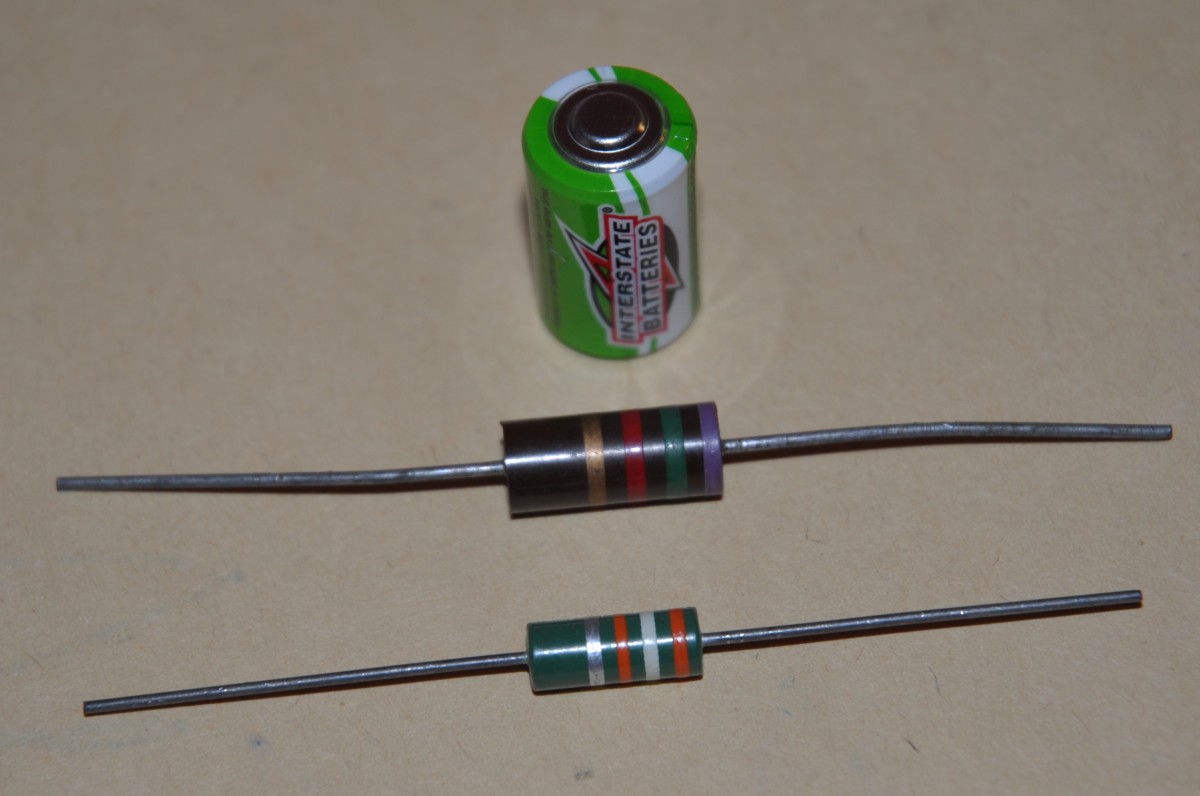
The test subjects: a 3.6 V Li/SOCl₂ ½-AA NVRAM battery (new: tests at 3.68 V on an Agilent U1242B meter), a 7.5 kΩ ± 5% resistor (tests at 7.52 kΩ) and a 39 kΩ ± 10% resistor (tests at 41.3kΩ)
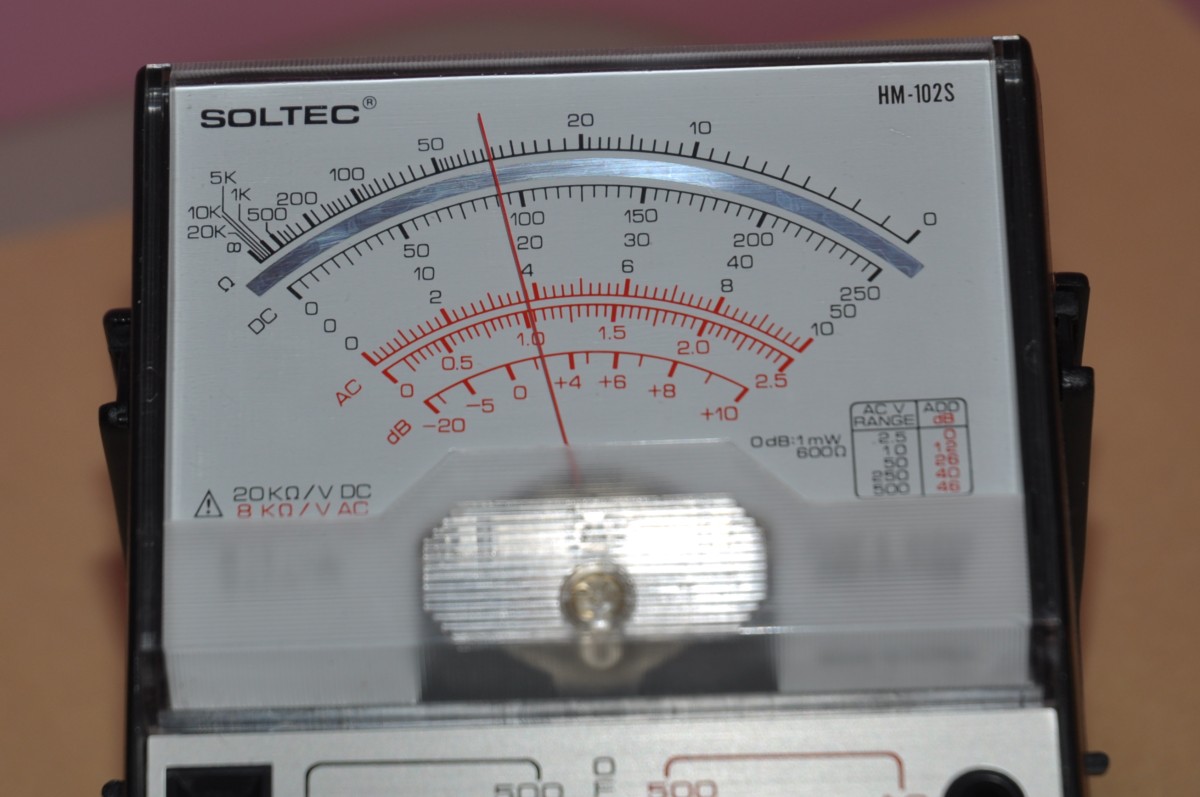
Battery test: the Soltec reports 3.8 V, or within 5% of expected. This is where I really miss auto ranging
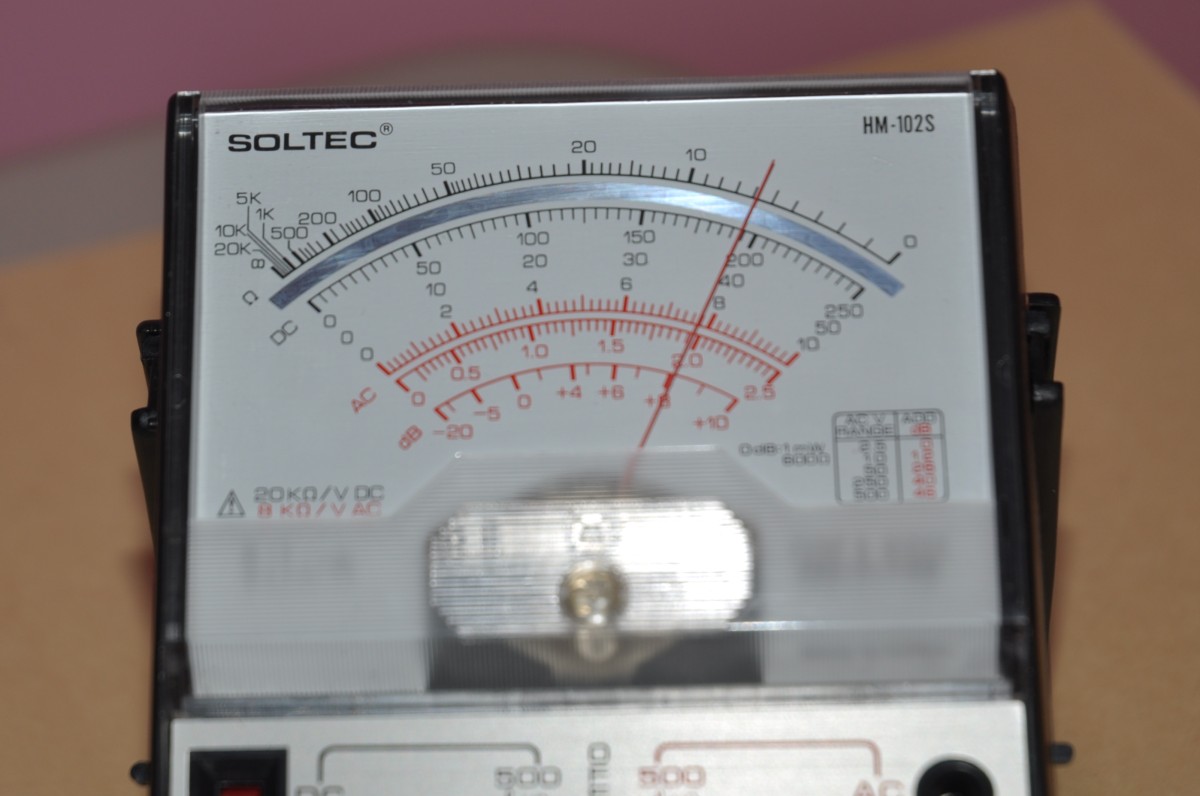
Not so good is the 7.5 kΩ resistor: the Soltec reads just under 6 kΩ. Blame faulty zero setting from me, as it really is fiddly and I just set this up quickly.
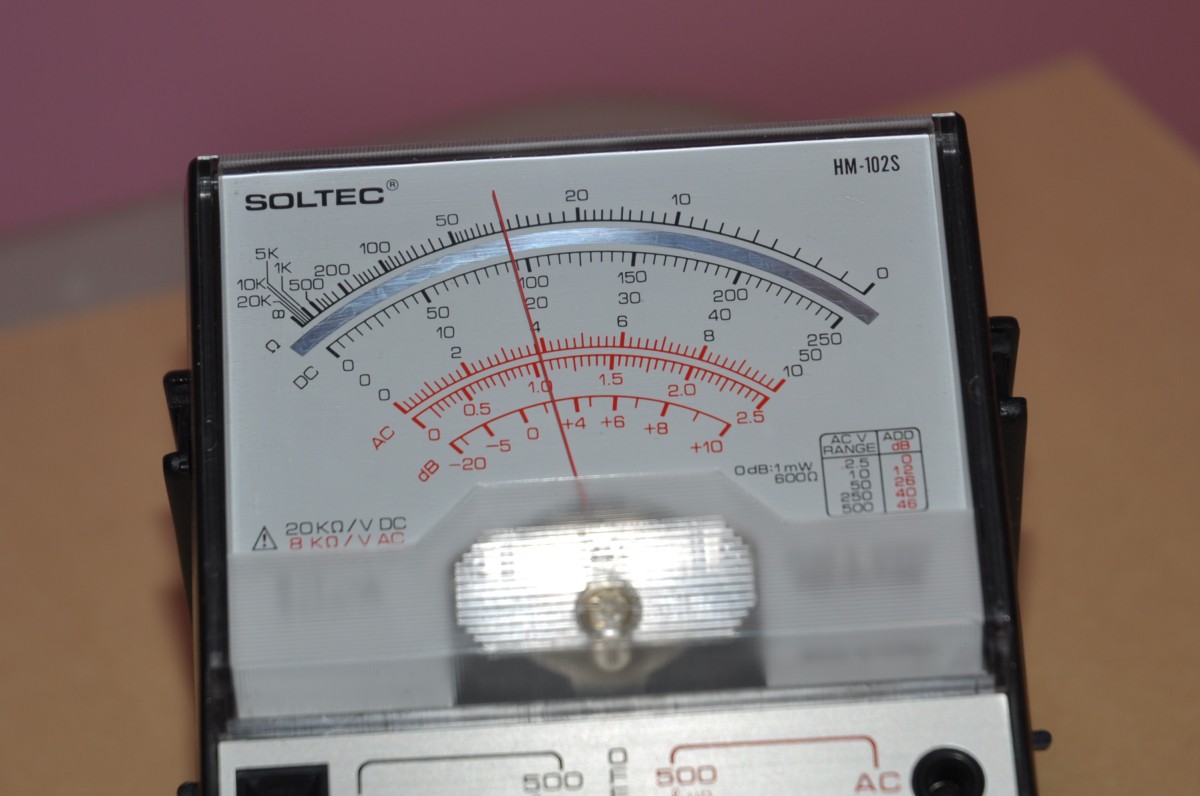
The 39 kΩ resistor (which is really more like 41 kΩ) indicated 34 kΩ on the Soltec. Again, my dodgy zero set is most likely to blame, but reading this little log scale isn’t the easiest
Would I recommend the Soltec as a general purpose meter? Not really. There are more capable multimeters available for about the same price, and you don’t need to go as far as the unbelievably expensive Agilent DMM I use (or even the strictly ornamental analogue ex-Forces Bach-Simpson 635 multimeter that graces/clutters my workbench). It would need a video to show where analogue meters excel: in showing changing values and getting a rough idea of the limits. It would make a great battery tester, or — if coupled with a micro-controller with PWM or DAC ouput — part of a demo rig. If nothing else, it’s a great way to learn how to appreciate modern test gear and all it does for us.
PDF link under image. I say I regret doing this, ‘cos every cheapo ebay seller of these things is now likely to download this and splat their own horrid watermarks over it, making the file huge and ugly. But the market’s gonna market, and I wouldn’t want to make a free manual inaccessible with DRM. By contrast, my watermark’s quite tasteful and doesn’t interfere with readability in any way …
Postscript: you think I’d just throw away that expired battery pack without peeking inside? If so, allow me to call you Wrongo McWrongison of that erroneous ilk! The ‘Hipower Super’ cells weren’t looking so super: the leaked electrolyte had dried into a gritty, stinky layer. I couldn’t even find the terminals on the 9 V battery to try and test it, so grotty was the corrosion. Amazingly, the slightly-less-nasty AA cell at the front tested at 1.52 V, almost as good as it could have been in the mid-80s. Doesn’t mean it’s not going in the HHW bin with the others, though.