
Instagram filter used: Normal
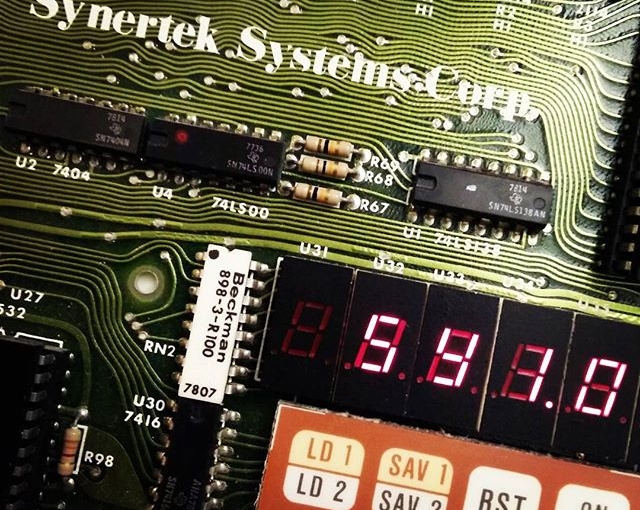
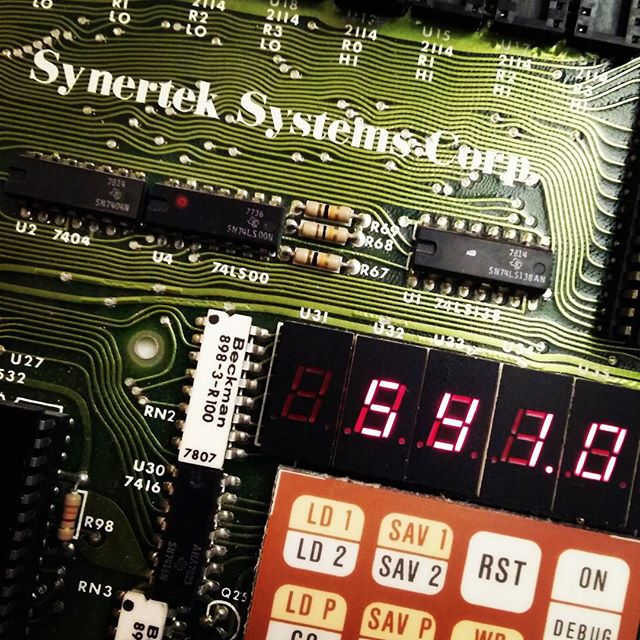
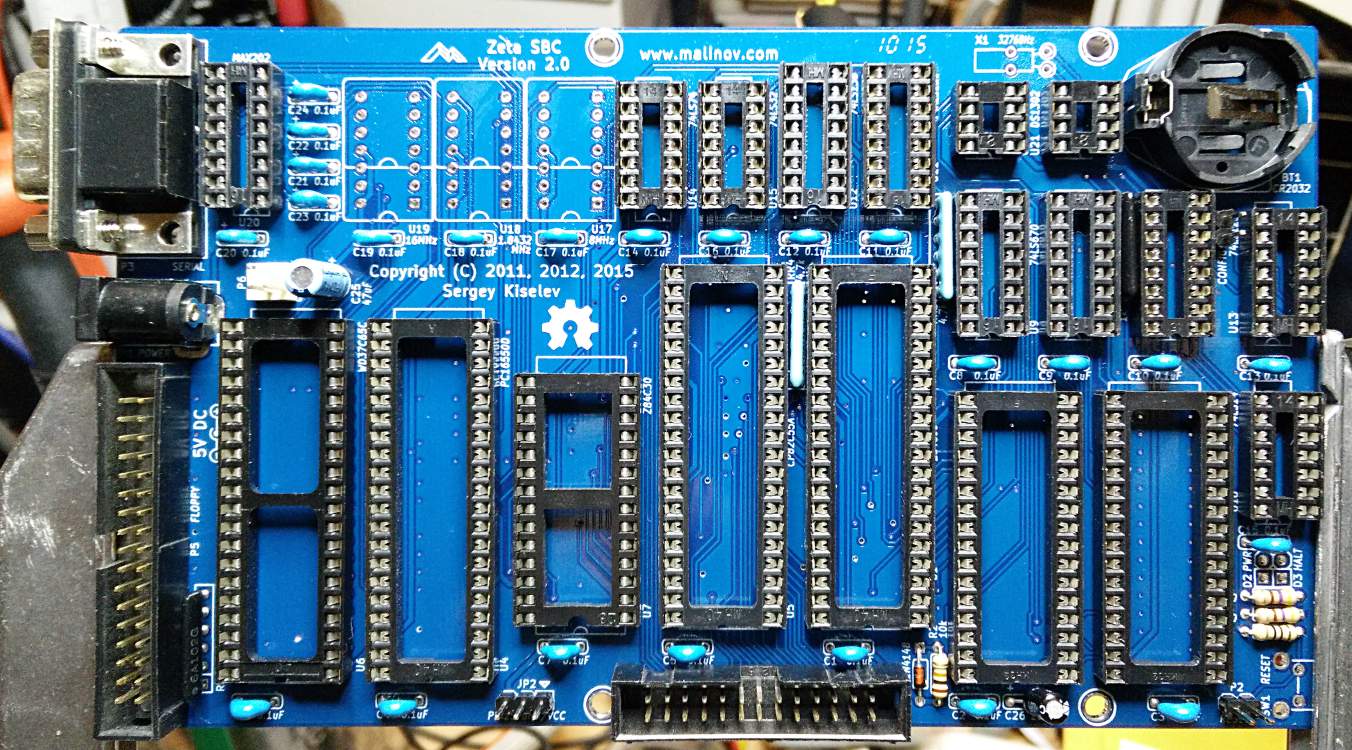 Just waiting for the full-can oscillator sockets (and most of the chips) to arrive from Mouser. I could have used 14-pin DIP machine pin sockets, as Sergey was thoughtful and had all of the holes drilled.
Most of the big sockets need to be fully soldered, as at the moment they’re just tack-soldered at the corners. Maybe I’ll put on some dronecore and have a meditative time with the Sn-Ag tonight. I’ll be glad to get the flux off the board, though: it’s not my usual stuff (which is Kester #951; no clean ftw), and what I’m using is smoky and a bit gummy. It does make nice bright joints, though, which is never 951’s strong point.
This might be my last post on mini-printers, as I’ve found a driver that just works with CUPS on Raspberry Pi. It also works on Ubuntu on my laptop, and should work (though untried) on Mac OS. You’ll have to build it from source, but it’s not too hard.
The hard part is working out if your thermal printer will work or not. There are many out there, and they’re all slightly different. If they support the ESC/POS bitmap command GS v 0 on 58 mm wide paper, they should work. The ones I’ve tested are:
The following should also work, but haven’t been tried:
Known not to work:
If you have a manual for your printer, check it to see if it prints bitmaps by sending a three byte header of 29 118 48 (or 1D 76 30 in hexadecimal). If you’re not sure, try it with a small test image, and be ready by the power switch …
The driver is meant for a ZiJiang ZJ-58 printer, and lives here on Github: klirichek/zj-58.
Now read and follow the Building & Installing section of the README, and do what it says. I’ll wait …
This bit is much more graphical. You’ll need the system-config-printer package:
sudo apt install -y system-config-printer cups
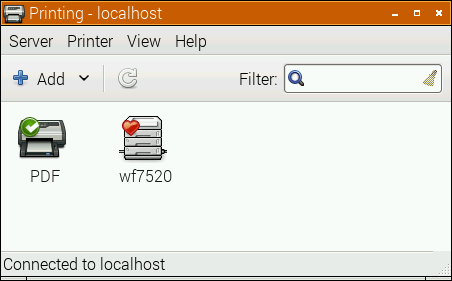
Open up the printer settings window (Preferences → Print Settings):
Select the Add icon, and the New Printer window opens:
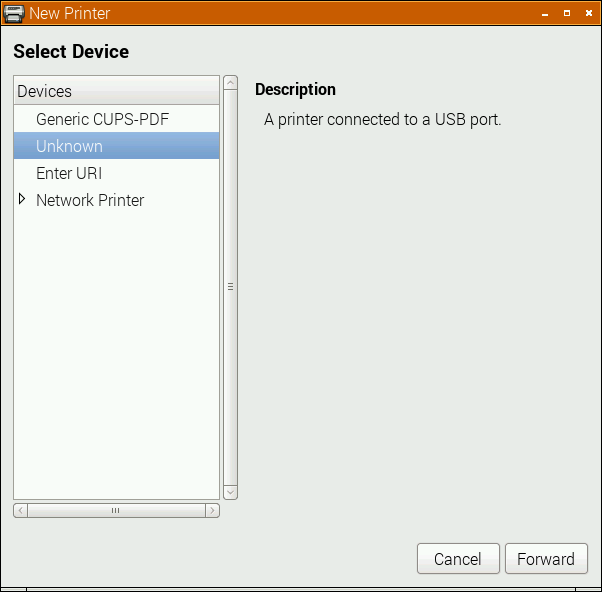
The POS5890U shows up as “Unknown” on my USB port, as Linux doesn’t know the name of this device from its USB ID.
Update (for the slightly desperate): In the land of “Things have changed!“, my Catex printer isn’t/wasn’t showing up at all. I had to resort to this in the Enter URI option:
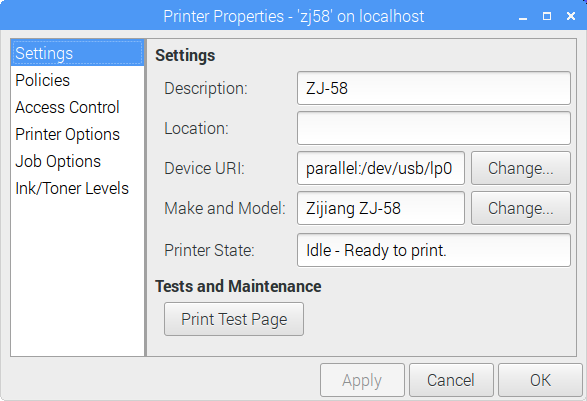
parallel:/dev/usb/lp0 seems to work. Another option might be looking at the output of
sudo /usr/lib/cups/backend/usb
which suggests that usb://Unknown/Printer might work too. (All of this might need to have been preceded by
sudo usermod -a -G lp pi
and a logout or reboot; I did say this was for the slightly desperate …)
If the above doesn’t apply, your printer might have an known ID, or show up as a serial port. Select the right one, and click Forward:
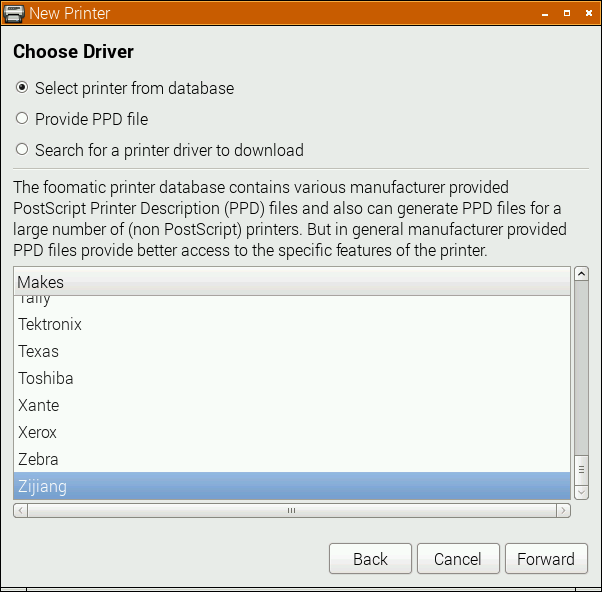
Here, I’m really pleased that the driver is for a Zijiang unit, as it’s conveniently at the end of the list. Click Forward …
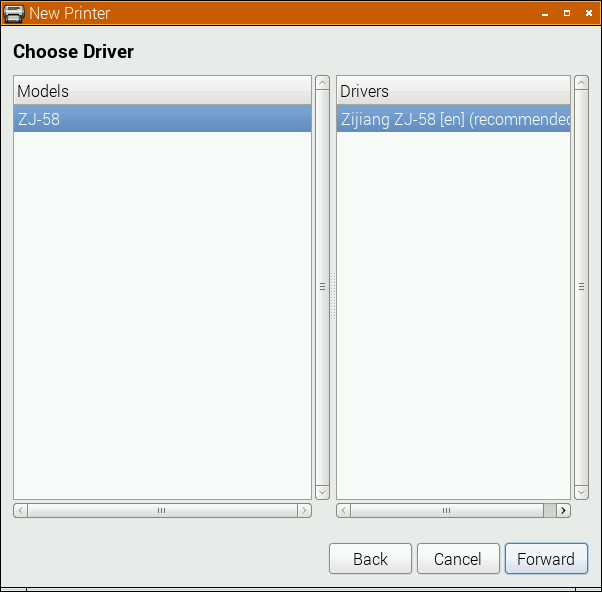
No options here, so again, Forward …
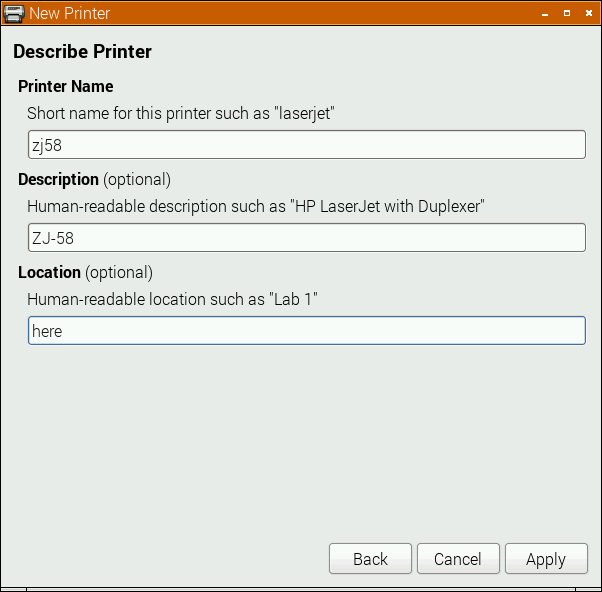
I changed the name from the default ZJ-58 to the more unixly zj58. You don’t have to, but either way, Apply the changes.
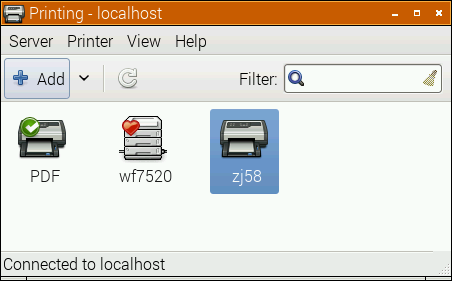
And there it is, registered as a printer!
Most printers expect paper wider than 58 mm, but mini-printers can’t do that. To tell the system about paper sizes, right click on the printer’s icon, and change the printer settings:
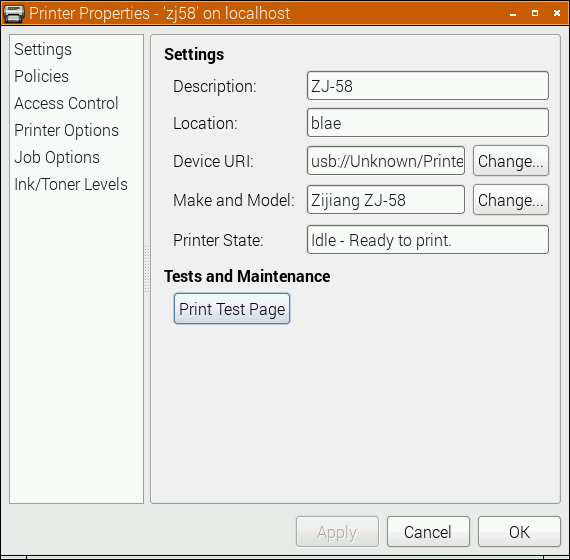
A test page might print properly now, but you should probably go into Printer Options first:
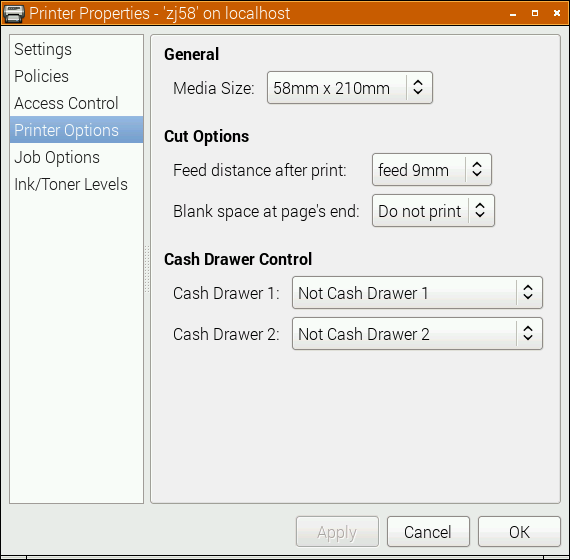
You do want to set the media size to at least 58 × 210 mm. This is just the longest strip it will print in one ‘page’; if your print is shorter, it won’t waste extra paper. You can choose longer prints, but not wider. The default assume your local standard paper size which —be it A4, Letter, or whatever — will not be what you want here. Hit OK.
You could print the self test page, but it’s long and boring. If you’re fairly sure your printer will be supported, try this scaled PDF version of the Raspberry Pi Logo: raspberry-pi-logo. Printed and scanned, it came out like this:
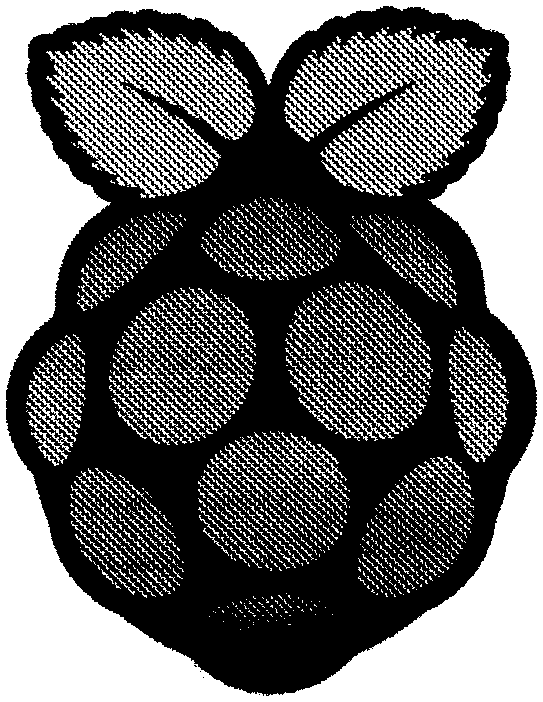
Not the best rendition, but not bad for a $30 receipt printer. My test image came out like this (iffy scan, sorry):
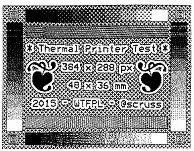
I haven’t covered the intricacies of setting up serial port connections here; maybe another time. Also, there’s a short delay (maybe 10–20 s) between selecting Print and the printer coming to life. CUPS is pretty complex, and is doing things in the background while you wait.
(Seeing as I use their logo prominently up there, I should totes acknowledge that “Raspberry Pi is a trademark of the Raspberry Pi Foundation”. Also, I couldn’t have done all this without the support of Reed Zhao. Though Reed has moved on to bigger things and doesn’t sell printers any more, his help — not to mention the generous gift of a couple of printers — was very welcome.)
→ you might also be interested in my notes on mini-printers and Linux – it has some manuals too.
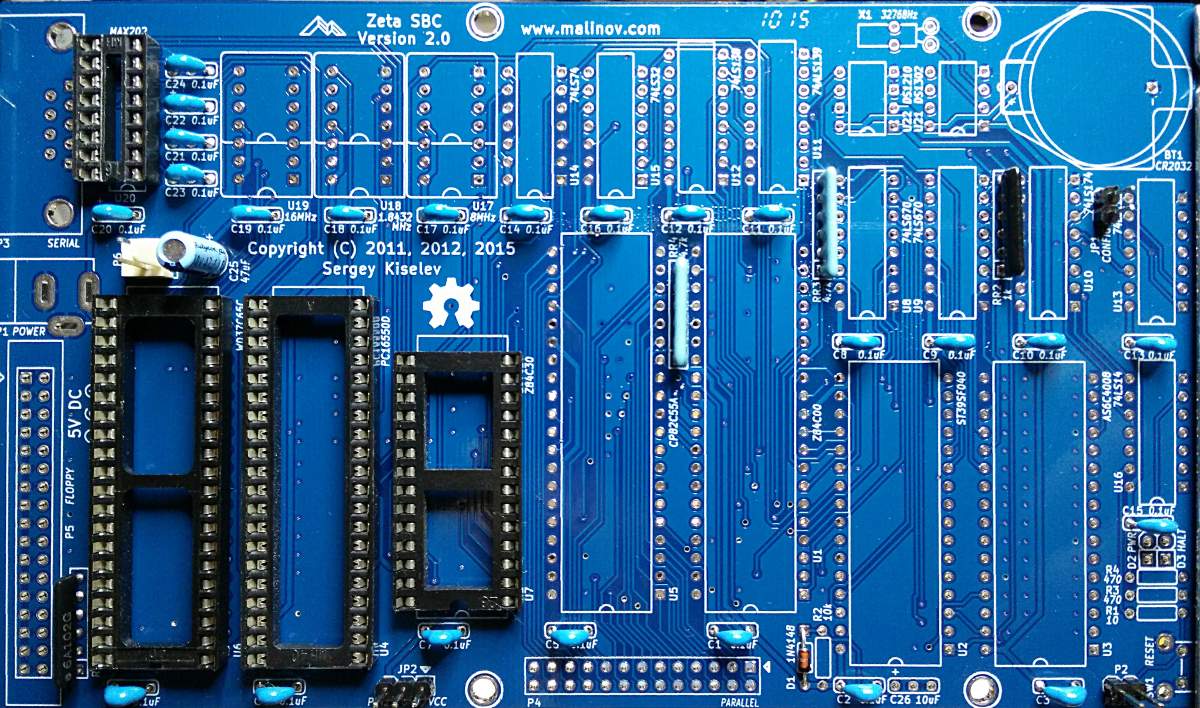 That’s all but one of the capacitors in. The big chip sockets are soothing to solder.
Apart from the bits I got in a frantic dash between Supremetronics and Creatron on College, the rest is coming from Mouser. Taking the advice of someone who should know better, I’ve ordered a made-in-DDR UA857D MME chip, since Z80 CTCs are back ordered. Sometimes, it’s good to have chips older than your colleagues …
Instagram filter used: Lo-fi
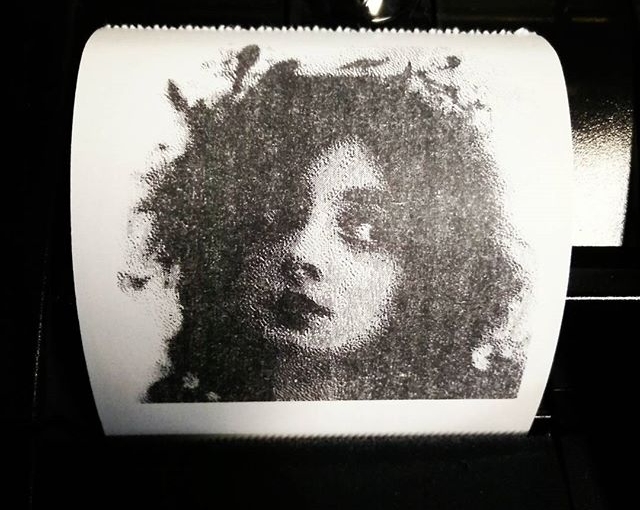
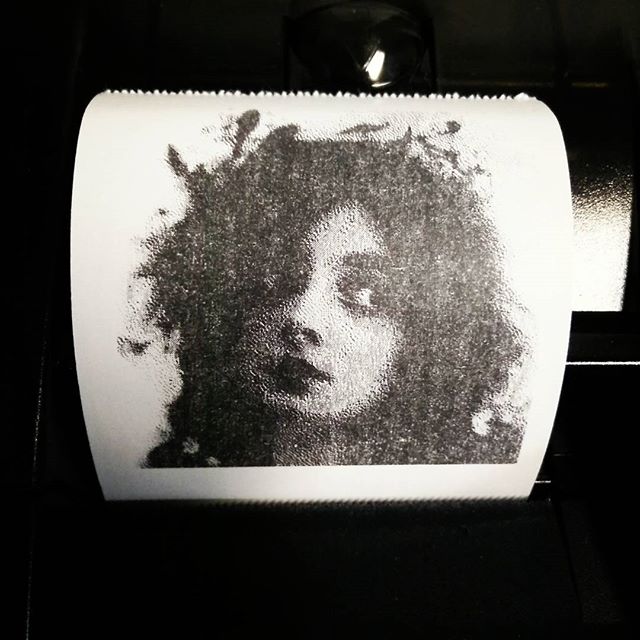
Scored this cheapo USB printer on eBay: “High-speed 58mm POS Dot Receipt Paper Thermal Printer USBâ€. It identifies itself as a CATEX Technolog [sic] POS5890U, with a USB vendor:product ID of b000:0410. After a bit of random fiddling, it shows up as /dev/usb/lp0 on a Raspberry Pi. After turning off CUPS (as it nabs the device, not even letting root near it), you can print images up to 384 dots (48 mm at 8 dots/mm) wide using the ESC-POS GS v 0 command. You can use my esc-pos-image.py script if you wish, and if you need a test image …
(The photo is of Marie Doro; proto-goth 1902 style.)
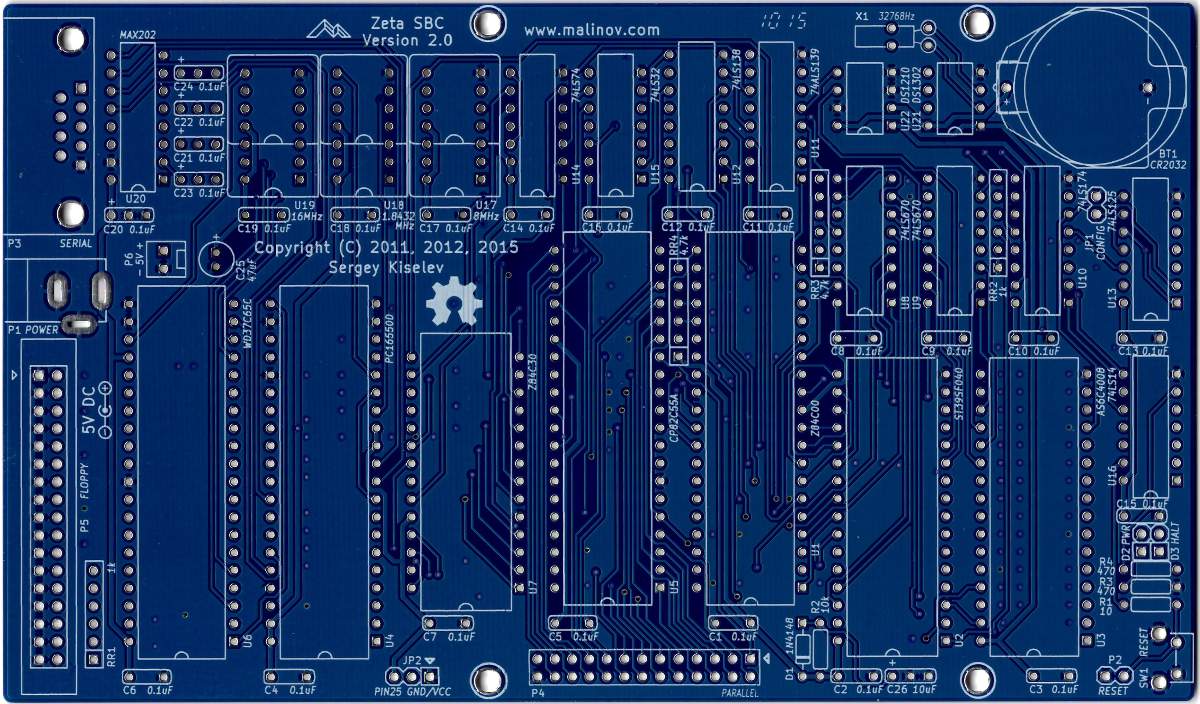 I’m building a Zeta SBC V2, a basic Z80 computer in the spirit of the N8VEM. I’m trying to kit it out mostly locally, which means extensive trips to Creatron, Supremetronics/Honson Computer (aka the basement of College Home Hardware), Above All Electronic Surplus, and Active Surplus.
Fun discovery #1: not all CR-2032 battery holders are the same size. This board call for the one just a tiny bit larger than the coin cell itself. Most of the ones with the retainer clip that goes over the battery are too big, and will prevent other components being installed.
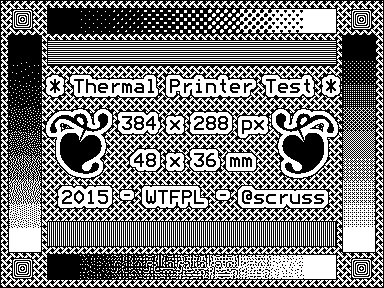
Here you go, then. It should print perfectly on an 58 mm thermal printer. It features:
very simple python image printer: scruss/esc-pos-image.py